
Understanding the Renko Indicator for MetaTrader 4
If you’re looking to enhance your trading strategy, the Renko indicator can be a game-changer. The RenkoLiveChart_v600 version 6 is an indicator that’s been adapted from the original Expert Advisor, and it works wonders when you set it up on your MetaTrader 4 platform.
Getting Started with the Renko Indicator
Here’s how to get the RenkoLiveChart_v600_indi rolling on your charts:
- Begin by placing the RenkoLiveChart_v600_indi on a 1-minute (M1) chart. This will generate an offline Renko chart on the M7 timeframe. You can access this by going to File → Open Offline.
- Make sure that both the Auto Scroll and Chart Shift buttons are activated. You can do this under Charts → Auto Scroll & Chart Shift.
- Refer to the image below for a visual guide on the Commons Tab.
- If you don’t see the Renko chart under File → Open Offline and the markets are closed, try restarting your MT4 Terminal.
- In case the markets are open but the ticks are slow resulting in an outdated Renko chart, switch your M1 chart to M5 and then back to M1 to refresh.
- You can also attach the Renko_Range_Detector indicator to the offline Renko chart for verifying the Renko box size. Check out the image below for guidance.
* You can select any user-defined timeframe, except for the reserved timeframes (M1, M5, M15, M30, M60, H4, D1, MN).
For more insights, feel free to explore additional resources available online and on video platforms.
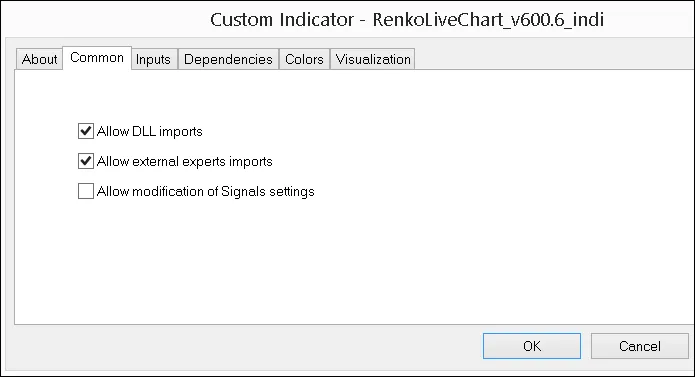
Common Tab
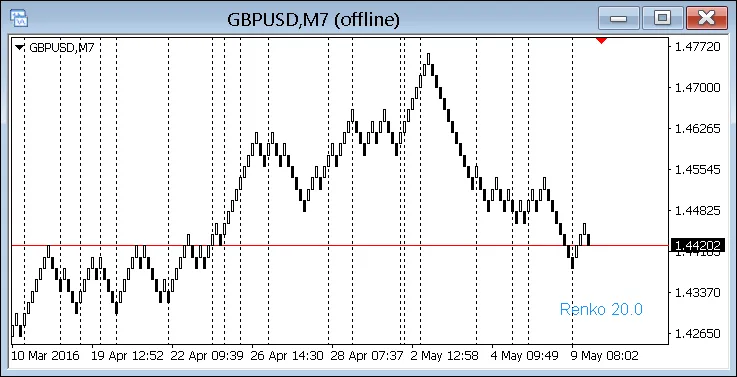
Renko Chart




Comments 0