
What’s It All About?
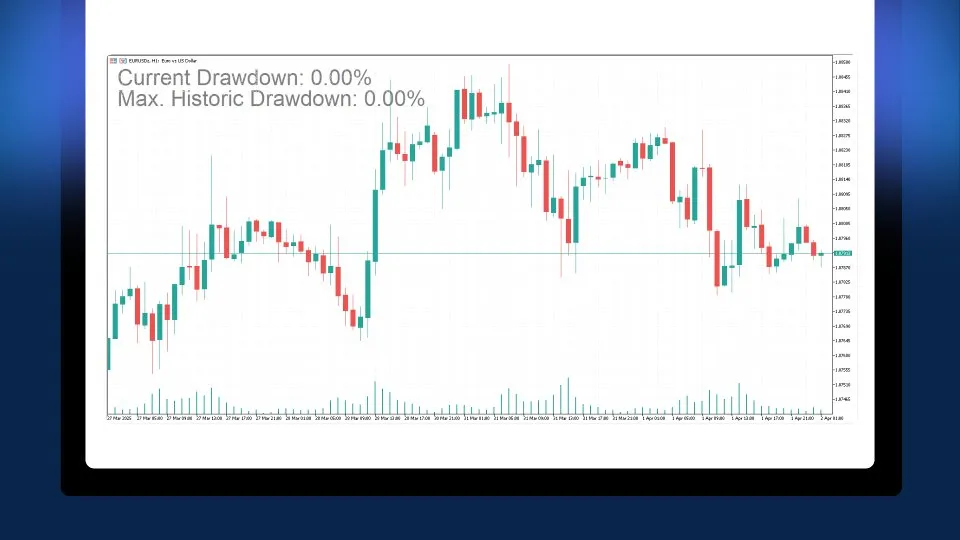
- Visual Benchmark of Your EAs’ Performance: Easily input the expected Historical Maximum Drawdown from your backtesting or past results. This gives you a solid reference to see if your EA is performing within expected limits or if it’s straying into uncertain territory.
- Real-Time Risk Monitoring: Keep an eye on your current drawdown in real time, ensuring you catch critical levels that need your immediate attention.
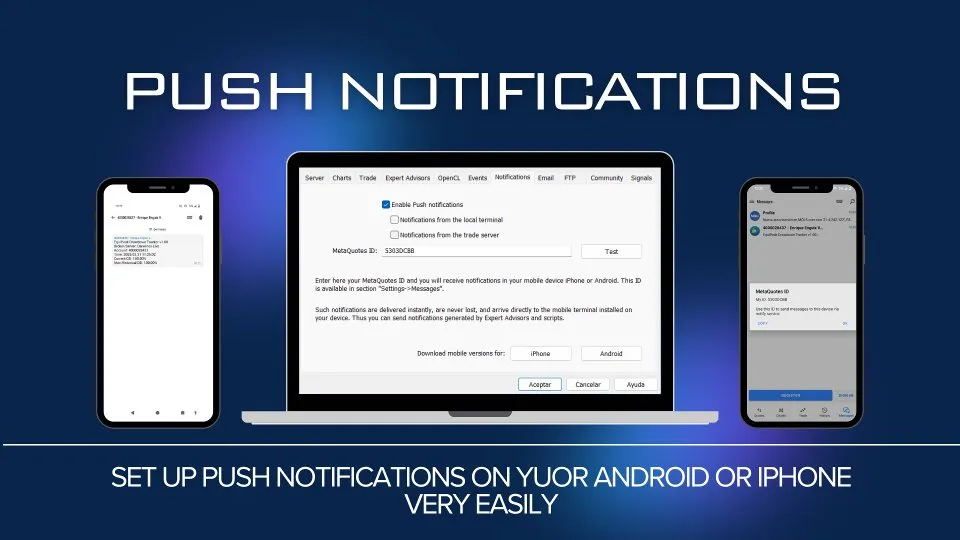
- Smart Notifications: The tracker sends you push notifications through the MetaTrader app on your phone whenever a new drawdown record is reached. You can also set it to update you periodically, so you stay informed without being bombarded by messages.
- Automatic Logging: It logs drawdown data to an external file (CSV or TXT) for you to analyze later, making it easier to keep track of your performance over time.
Who Can Benefit?
- Traders using automated or semi-automated systems who want a quick snapshot of their EA's performance against the expected maximum drawdown.
- Anyone who needs a clear visual of how their strategies perform under live market conditions compared to their backtest results.
- Traders looking to manage their risk effectively and be alerted when their trading exceeds acceptable drawdown limits.
Configuration Guide: Customize Your Inputs
Here’s a breakdown of all the customizable parameters for the indicator:
- Magic Numbers to Monitor: Specify the magic numbers for the positions you want to track. Enter -1 to monitor all positions.
- Initial Max DD (%): Input your EA's historical maximum drawdown here. This figure serves as a visual benchmark.
- Refresh Interval (seconds): Set how often you want the calculations to update.
- MaxDD Update Mode: Choose how the all-time high is updated:
- UPDATE_MAX_DD_IF_BIGGER: Automatically updates if the current drawdown exceeds the historical one.
- NO_UPDATE_MAX_DD: Keeps the historical value unchanged but sends hourly notifications about the current status.
- Send Push Notifications? Toggle to enable or disable mobile notifications.
- Fixed or Peak Reference? Decide how to set your balance reference:
- REF_FIXED_BALANCE: A manually entered fixed balance.
- REF_PEAK_BALANCE: Automatically uses the highest balance reached.
- Fixed Balance (0 => current): Enter your initial fixed balance. If you input 0, it uses the current balance when loading the indicator.
- Current DD Text Color: Choose the color for displaying current drawdown.
- Max DD Text Color: Set the color for the historical drawdown text.
- Font Size (Current DD): Adjust the font size for current drawdown text.
- Font Size (Max DD): Adjust the font size for historical drawdown text.
- Labels Behind Chart? Option to place texts behind the graphic.
- Label X (pixels): Set horizontal distance from the left edge.
- Label Y (pixels): Set vertical distance from the top edge.
- Vertical Spacing: Control the vertical space between texts.
- Print Logs in Journal? Enable detailed messages in the Journal.
- Enable File Log: Automatically tracks the current drawdown in an external file.
- File Extension (CSV or TXT): Choose the format for your log files.
Automatic File Registration
Your drawdown values are logged automatically with timestamps in either CSV or TXT format, stored in the MT5 common folder (MetaTrader 5 Terminal/Common/Files/). This is perfect for future analysis of your trading results.
Top Tips for Getting the Most Out of It
- Always input your expected Historical Maximum Drawdown in the Initial Max DD (%) field. This helps you quickly determine if your EA is functioning normally or if adjustments are needed.
- Place the indicator on a dedicated chart that monitors all magic numbers, or distribute it across individual charts for specific data.
- Adjust the refresh rate, colors, positions, and text sizes to your liking for optimal visibility.
Setting Up Push Notifications
- Open the MetaTrader mobile app and copy your MetaQuotes ID (found under Settings > Messages).
- On the desktop version of MetaTrader 5, navigate to Tools > Options > Notifications.
- Enable Push Notifications and paste your MetaQuotes ID to start receiving alerts.




Comments 0