
Discover the Donchian Ultimate Indicator for MetaTrader 5—a sophisticated take on the classic Donchian channel that offers a wealth of features to enhance your trading experience.
- Customizable period and shift settings for the Donchian channel.
- Option to toggle the middle line on or off.
- Multi-timeframe (MTF) functionality for dynamic analysis.
- Five different methods for calculating channel boundaries.
- Support and resistance zones displayed near the channel borders.
- A robust alert system to keep you informed.
- Highly customizable to suit your trading style.
This indicator is displayed directly in the main window and operates without relying on any other standard or custom indicators. You can find the Donchian Ultimate available for MT4, MT5, and cTrader platforms.
Input Parameters
- Period (default = 20) — sets the Donchian channel period.
- Timeframe (default = Current) — determines the timeframe for channel calculation. If you choose a higher timeframe than your current one, it will display that higher timeframe channel on your current chart. Note that this parameter is disregarded if set to a lower timeframe.
- Price Type (default = Highest High (Lowest Low)) — specifies the price type for calculations. You can choose from five modes:
- Highest High (Lowest Low) — the classic Donchian configuration where the upper band is calculated from the Highest High and the lower band from the Lowest Low of the period.
- Average Highest High, Highest Open (Lowest Low, Lowest Open) — averages the Highest High and Highest Open for the upper band, and the Lowest Low and Lowest Open for the lower band.
- Average Highest High, Highest Close (Lowest Low, Lowest Close) — averages the Highest High and Highest Close for the upper band, and the Lowest Low and Lowest Close for the lower band.
- Highest Open (Lowest Open) — uses the Highest Open and Lowest Open to set the bands.
- Highest Close (Lowest Close) — employs the Highest Close and Lowest Close for the band calculations.
- Shift (default = 0) — sets the number of bars to shift the indicator.
- Show Resistance Span (default = true) — displays the upper resistance span on the chart if set to true.
- Show Support Span (default = true) — displays the lower support span on the chart if set to true.
- Alert Candle (default = Previous) — determines which candle triggers alerts: Previous for the most recent closed candle or Current for the ongoing candle.
- Alert About Bullish Crossing of Mid Line (default = true) — alerts you when a candle closes above the middle line from below.
- Alert About Bearish Crossing of Mid Line (default = true) — alerts you when a candle closes below the middle line from above.
- Alert About Candle Close Inside Resistance (default = true) — notifies you when a candle closes inside the resistance zone.
- Alert About Candle Close Inside Support (default = true) — alerts you when a candle closes inside the support zone.
- Show Alert (default = false) — if set to true, it activates MetaTrader’s built-in pop-up alerts.
- Send Email (default = false) — if set to true, it enables email alerts through MetaTrader, which must be configured under Tools -> Options -> Email.
- Send Notification (default = false) — if set to true, it allows push notifications via MetaTrader, which should be set up in Tools -> Options -> Notifications.
Using the Donchian Ultimate Indicator
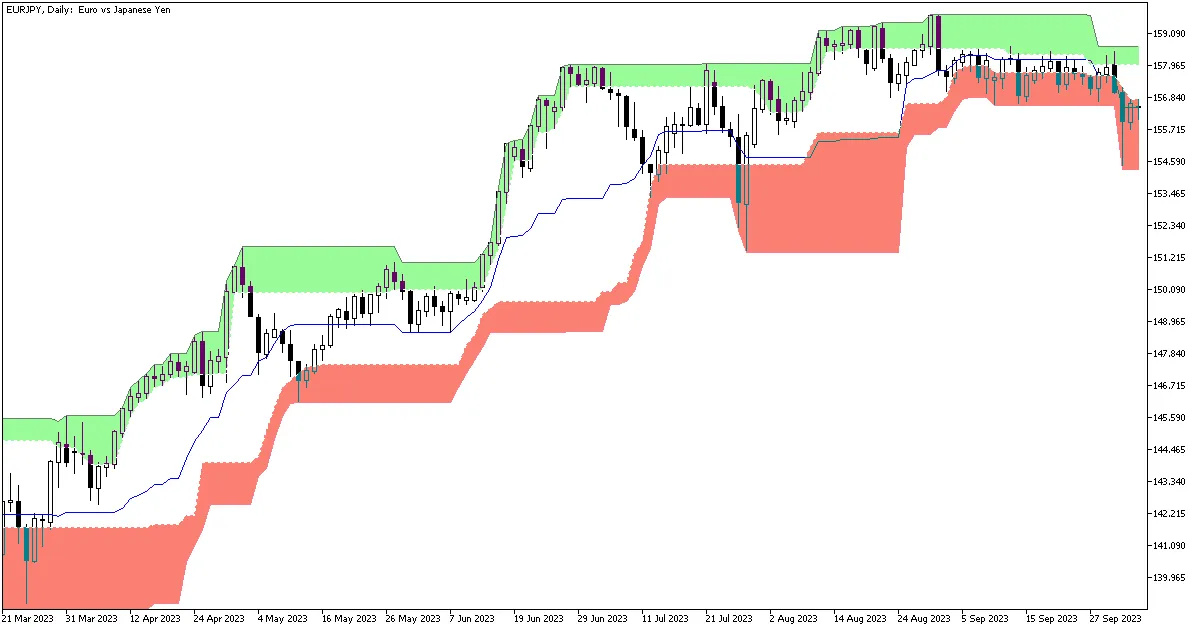
While the Donchian Ultimate Indicator, like its classic counterpart, doesn’t directly generate buy or sell signals, it provides valuable insight into the current trend and price movements. For instance, when a trend begins, the upper band will consistently rise, while both bands will flatten during price consolidation. Check out the chart below for a visual representation:




Comments 0