
If you’re looking to enhance your trading game with automated strategies, the MQL5 Wizard is a fantastic tool for creating ready-made Expert Advisors (EAs). This powerful feature allows you to quickly generate EAs based on your trading signals and strategies, giving you the ability to test your ideas in a snap. In this post, we’ll dive into how to create an Expert Advisor that utilizes the Dark Cloud Cover and Piercing Line candlestick patterns, confirmed by the Stochastic indicator.
The basic idea is pretty straightforward: you can create a trading signals class derived from CExpertSignal. Once you have that set up, you’ll need to override the LongCondition() and ShortCondition() methods to implement your own trading logic.
In our case, we’ll be focusing on reversal candlestick patterns such as the Dark Cloud Cover and Piercing Line, confirmed by the Stochastic indicator. These patterns can be effectively utilized to identify potential market reversals.
1. Understanding Dark Cloud Cover and Piercing Line Patterns
1.1 Dark Cloud Cover
The Dark Cloud Cover is a bearish reversal pattern that typically appears at the top of an uptrend. It consists of a long white candlestick followed by a gap up, with the second candlestick closing below the midpoint of the first. This indicates a potential shift in market sentiment.
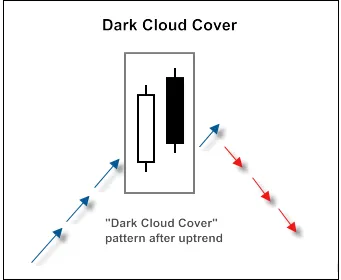
Fig. 1. Dark Cloud Cover candlestick pattern
To recognize the Dark Cloud Cover pattern, you can implement the CheckPatternDarkCloudCover() method from the CCandlePattern class.
//+------------------------------------------------------------------+//| Checks formation of Dark Cloud Cover pattern                      |//+------------------------------------------------------------------+bool CCandlePattern::CheckPatternDarkCloudCover() {
    //--- Dark Cloud Coverif((Close(2) - Open(2) > AvgBody(1)) && \
        (Close(1) 2) && \
        Close(1 Open(2) && \
        MidOpenClose(2) > CloseAvg(1) && \
        Open(1) > High(2)) {
        return(true);
    }
    return(false);
}
This method will check for the formation of the Dark Cloud Cover pattern effectively.
1.2 Piercing Line
The Piercing Line pattern occurs when the second candle opens below the low of the first candle but closes above the midpoint of the first candle. This suggests that the bears are losing control, indicating a possible reversal.
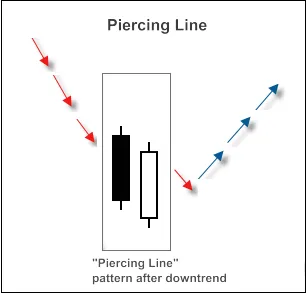
Fig. 2. Piercing Line candlestick pattern
You can implement the CheckPatternPiercingLine() method within the CCandlePattern class to identify this pattern in your trading strategy.
//+------------------------------------------------------------------+//| Checks formation of Piercing Line pattern                          |//+------------------------------------------------------------------+bool CCandlePattern::CheckPatternPiercingLine() {
    //--- Piercing Lineif((Close(1) - Open(1) > AvgBody(1) && \
        (Open(2) - Close(2) > AvgBody(1) && \
        Close(1) > Close(2) && \
        Close(1) 2) && \
        MidOpenClose(2) 2) && \
        Open(1) 2))) {
        return(true);
    }
    return(false);
}
This method will help you detect the Piercing Line pattern effectively.
2. Trading Signals Confirmed by Stochastic Indicator
For our trading signals to be effective, they need to be confirmed by the Stochastic oscillator. Here are the conditions to follow:
- For opening a long position, the %D line of the Stochastic must be below 30.
- For closing the long position, the %D line must cross above 80.
These conditions ensure that we’re entering the market at the right time and exiting before potential reversals.
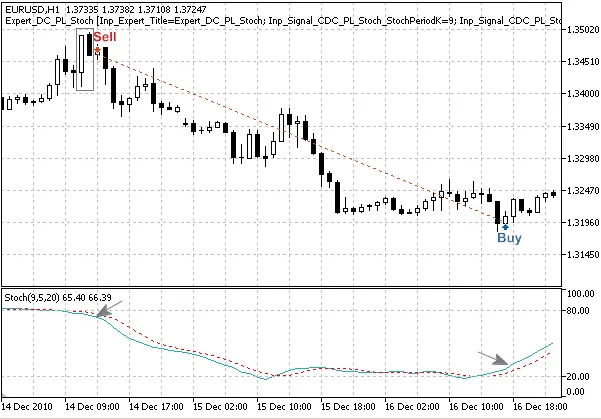
Fig. 3. Dark Cloud Cover pattern, confirmed by Stochastic indicator
3. Implementing the Expert Advisor with MQL5 Wizard
To create your Expert Advisor using the MQL5 Wizard, follow these steps:
1. Launch the MQL5 Wizard.
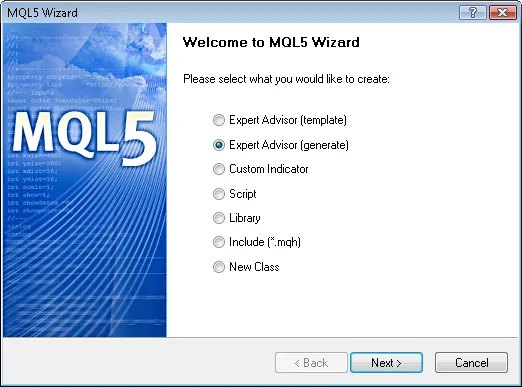
Fig. 4. Creating Expert Advisor using MQL5 Wizard
2. Specify the name for your Expert Advisor.
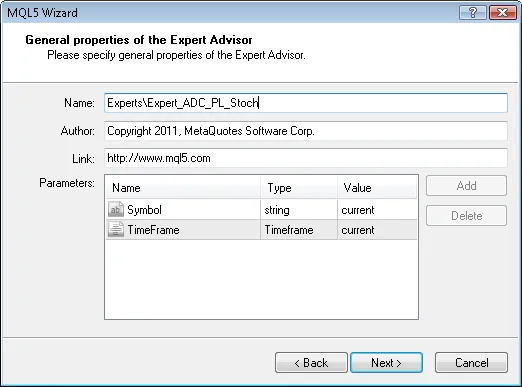
Fig. 5. General properties of the Expert Advisor
3. Select the modules of trade signals you want to use.
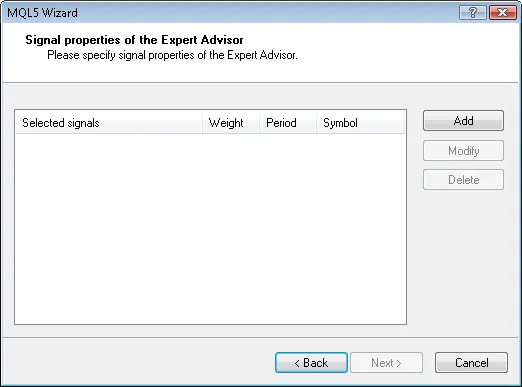
Fig. 6. Signal properties of the Expert Advisor
4. Add the “Signals based on Dark Cloud Cover/Piercing Line confirmed by Stochastic” module of trading signals.
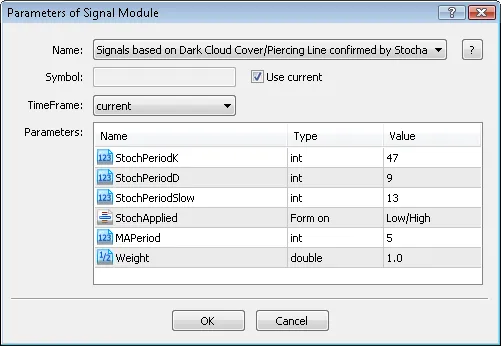
Fig. 7. Signal properties of the Expert Advisor
5. Choose your trailing properties (we’ll go with “Trailing Stop not used”).
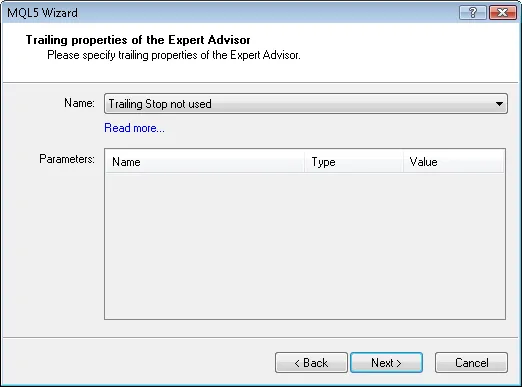
Fig. 9. Trailing properties of the Expert Advisor
6. Set your money management properties (we’ll use “Trading with fixed trade volume”).
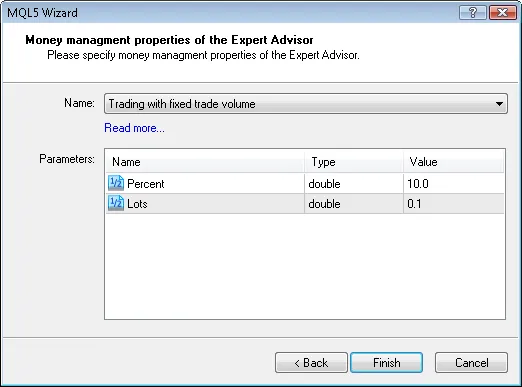
Fig. 10. Money management properties of the Expert Advisor
7. Click the “Finish” button to generate the code for your Expert Advisor, which will be saved in Expert_ADC_PL_Stoch.mq5.
4. Backtesting Your Expert Advisor
Once your EA is generated, it’s crucial to backtest it using historical data to evaluate its performance. For instance, testing it on the EURUSD H1 chart over the period from January 1, 2010, to February 2, 2011, with specific parameters set for the Stochastic indicator and moving average.
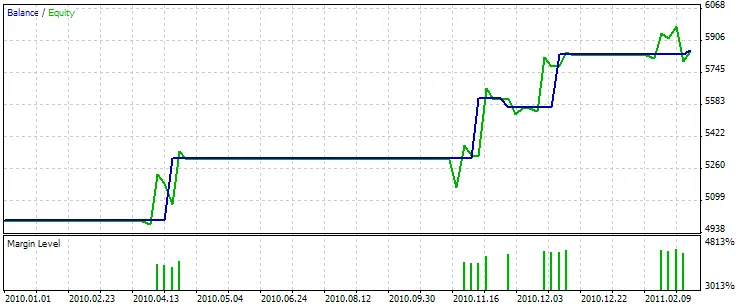
Fig. 11. Testing results of the Expert Advisor, based on Dark Cloud Cover/Piercing Line + Stochastic
The best set of parameters can be fine-tuned using the Strategy Tester within MetaTrader 5.
In conclusion, the EA generated with MQL5 Wizard can help you automate your trading strategy effectively. Be sure to test and optimize your parameters for the best results. Happy trading!




Comments 0