
If you're looking to enhance your trading strategy, the MQL5 Wizard is a fantastic tool that allows you to create Expert Advisors (EAs) tailored to your trading style. Built with the Standard Library classes included in the MetaTrader 5 client terminal, this wizard helps you quickly test and validate your trading ideas.
The process is pretty straightforward: you can derive your own trading signals class from CExpertSignal. You'll need to override the LongCondition() and ShortCondition() methods to implement your unique trading logic. For more details, check out the article MQL5 Wizard: How to Create a Module of Trading Signals.
In this article, we'll dive into using the "Bullish Meeting Lines" reversal candlestick pattern, confirmed by the RSI (Relative Strength Index) indicator. The goal is to create a module of trade signals based on the CCandlePattern class, and we'll guide you through the process step-by-step.
Understanding the "Meeting Lines" Reversal Candlestick Patterns
1. Bullish Meeting Lines
The Bullish Meeting Lines pattern consists of two candles: one bearish and one bullish, with their closing prices being very close or equal. Both candle bodies should be larger than the average body size. This pattern is often an indicator of a potential reversal from a downward trend.

Fig. 1. Bullish Meeting Lines Pattern
The recognition of the Bullish Meeting Lines pattern is implemented in the method CheckPatternBullishMeetingLines() of the CCandlePattern class:
//+--------------------------------------------------------------------+//| Checks formation of "Bullish Meeting Lines" candlestick pattern    |//+--------------------------------------------------------------------+bool CCandlePattern::CheckPatternBullishMeetingLines()
  {
//--- Bullish Meeting Lines
   if((Open(2)-Close(2)>AvgBody(1))              && // long black
     ((Close(1)-Open(1))>AvgBody(1))             && // long white
      (MathAbs(Close(1)-Close(2))<0.1*AvgBody(1)))   // doji close
      return(true);
//---
   return(false);
  }
The CheckCandlestickPattern(CANDLE_PATTERN_BULLISH_MEETING_LINES) method of the CCandlePattern class checks the formation of the "Bullish Meeting Lines" pattern.
2. Trade Signals Confirmed by the RSI Indicator
For your trading signals to be actionable, they need confirmation from the RSI. Ideally, the RSI should be below 40 for a long position and above 60 for a short position.
You would close your opened positions based on the following criteria:
- RSI hits the opposite critical level (70 for long and 30 for short).
- If a reverse signal isn't confirmed when RSI reaches levels of 30 for long and 70 for short.
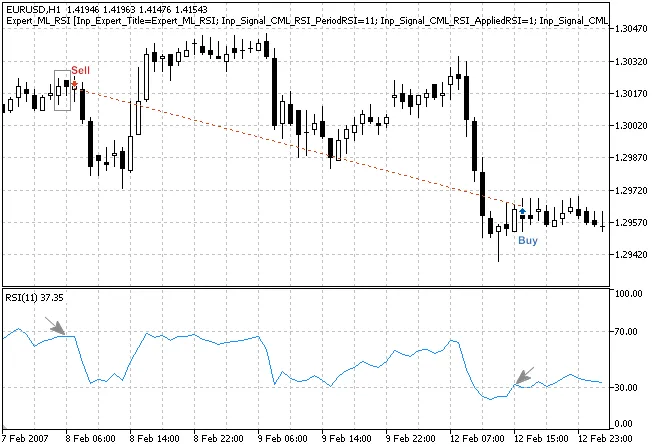
Fig. 3. Bearish Meeting Lines Pattern Confirmed by RSI Indicator
int CML_RSI::LongCondition()- checks conditions to open long positions (returns 80) and to close short positions (returns 40);int CML_RSI::ShortCondition()- checks conditions to open short positions (returns 80) and to close long positions (returns 40).
3. Creating the Expert Advisor with MQL5 Wizard
The CML_RSI class isn't part of the Standard Library, so you'll need to download the acml_rsi.mqh file and place it in your terminal_data_folder\MQL5\Include\Expert\Signal\MySignals. The same goes for acandlepatterns.mqh. Once you've done that, restart the MetaEditor to make them available in MQL5 Wizard.
To get started with creating an Expert Advisor, launch the MQL5 Wizard:
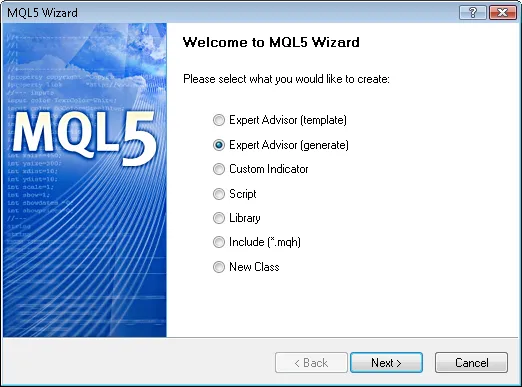
Fig. 4. Creating Expert Advisor Using MQL5 Wizard
Next, specify the name of your Expert Advisor:
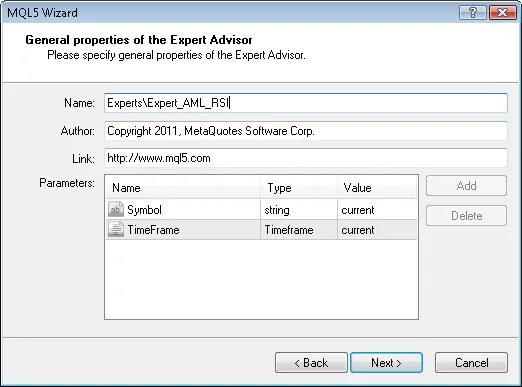
Fig. 5. General Properties of the Expert Advisor
Then, select the modules of trade signals you’ll be using.
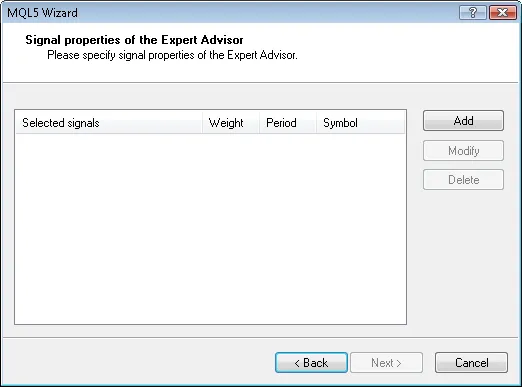
Fig. 6. Signal Properties of the Expert Advisor
In our case, we will only use one module of trade signals, the one based on the "Signals based on Bullish/Bearish Meeting Lines confirmed by RSI" pattern:
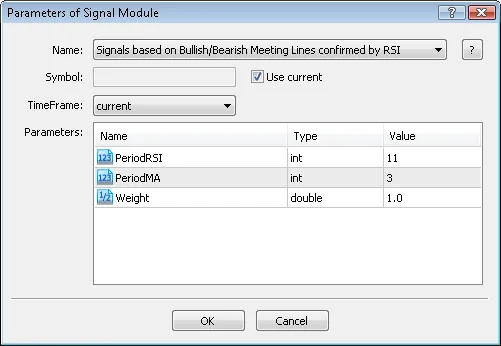
Fig. 7. Signal Properties of the Expert Advisor
Once you've added the module, you can choose your trailing properties—though for this example, we won’t be using a trailing stop:
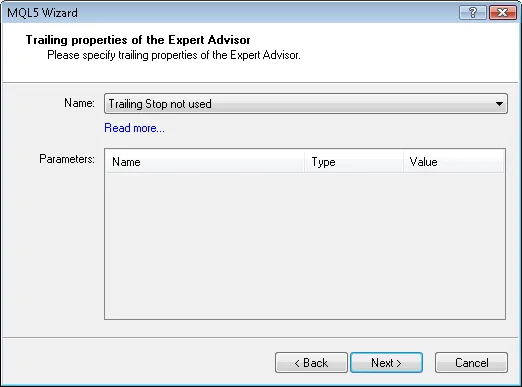
Fig. 9. Trailing Properties of the Expert Advisor
Regarding money management, we’ll stick to "Trading with fixed trade volume":
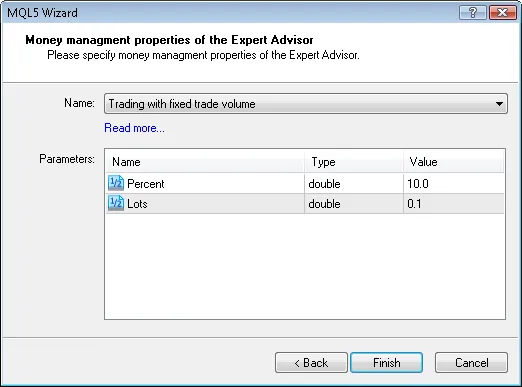
Fig. 10. Money Management Properties of the Expert Advisor
After clicking the "Finish" button, the generated code will be saved in Expert_AML_RSI.mq5 in your terminal_data_folder\MQL5\Experts\.
The default input parameters for the generated Expert Advisor are as follows:
//--- inputs for main signalinputint Signal_ThresholdOpen =10; // Signal threshold value to open [0...100]inputint Signal_ThresholdClose =10; // Signal threshold value to close [0...100]inputdouble Signal_PriceLevel =0.0; // Price level to execute a dealinputdouble Signal_StopLevel =50.0; // Stop Loss level (in points)inputdouble Signal_TakeLevel =50.0; // Take Profit level (in points)
You might want to adjust these to:
//--- inputs for main signalinputint Signal_ThresholdOpen =40; // Signal threshold value to open [0...100]inputint Signal_ThresholdClose =20; // Signal threshold value to close [0...100]inputdouble Signal_PriceLevel =0.0; // Price level to execute a dealinputdouble Signal_StopLevel =0.0; // Stop Loss level (in points)inputdouble Signal_TakeLevel =0.0 // Take Profit level (in points)
The Signal_ThresholdOpen and Signal_ThresholdClose parameters allow you to set the threshold levels for opening and closing positions.
In the LongCondition() and ShortCondition() methods of your trade signal class, you'll find fixed values for these thresholds:
- Open position: 80;
- Close position: 40.
The Expert Advisor generated by MQL5 Wizard will open and close positions based on the "votes" from its trade signal modules. The main module (acting as a container for all modules added) also contributes to the voting process, but its LongCondition() and ShortCondition() methods will consistently return 0.
In our case, we have one main module plus one trade signal module, which is why we need to adjust the threshold values accordingly. Therefore, you should set ThresholdOpen to 40 (average of 0 and 80) and ThresholdClose to 20 (average of 0 and 40).
Both Signal_StopLevel and Signal_TakeLevel are set to 0, meaning positions will only close when the defined exit conditions are met.
4. Backtesting Results
Let’s take a look at the backtesting results for this Expert Advisor using historical data (EURUSD H1, testing period from 2000.01.01 to 2011.03.01, with PeriodRSI=11 and MA_period=3).
In creating this Expert Advisor, we applied a fixed volume strategy (Trading Fixed Lot, 0.1), and we decided not to use a trailing stop (Trailing Not Used).
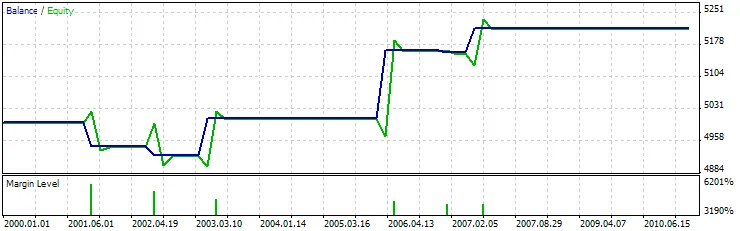
Fig. 11. Testing Results of the Expert Advisor, Based on Bullish/Bearish Meeting Lines + RSI
The best set of input parameters can be found using the Strategy Tester available in the MetaTrader 5 client terminal.
The code for the Expert Advisor generated by MQL5 Wizard can be found in the attached file expert_aml_rsi.mq5.




Comments 0