
Hey fellow traders! If you've ever wanted to visualize your trade history directly on your charts in MetaTrader 5, you’re in the right place. Let’s dive into how to make this happen with a simple Expert Advisor (EA) setup.
Step-by-Step Guide
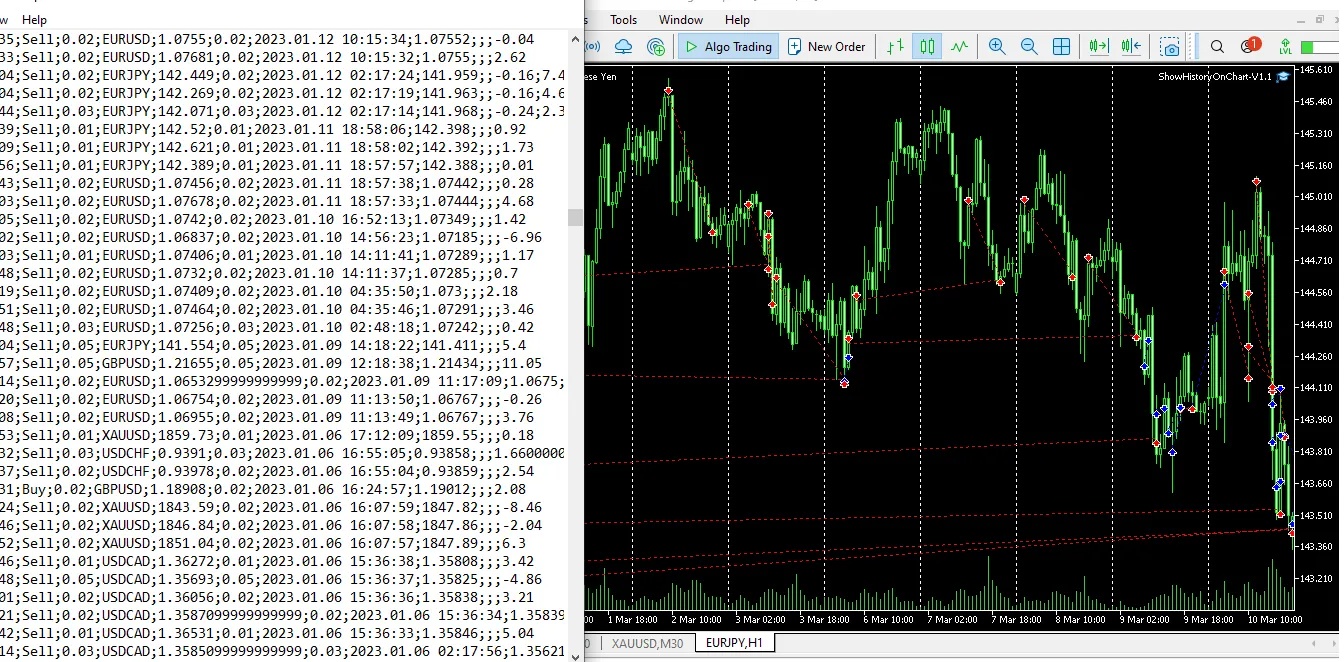
- First things first, grab your trade history files in .csv format. You’ll want to place these files in your ..\MQL5iles folder. Make sure to remember the name of your file!
- To avoid any discrepancies due to time zone differences, it's best to use the same broker's MetaTrader 5 platform. This way, you’ll get the most accurate results.
- Next, run the Expert Advisor on each chart you want to analyze and enter the filename (e.g., filename.csv) in the EA’s input field.
- When it comes to signaling your trades, blue arrows and trend lines will indicate buy signals, while sell signals will be marked with red arrows and trend lines.
- Once you're done, you can remove the EA, and all the objects (arrows and trend lines) will disappear from your charts.
- This EA has been tested on both forex and gold charts, so you know it’s reliable!




Comments 0