
Welcome, fellow traders! Today, we’re diving deep into a powerful trading strategy using the iCHO Trend and CCIDualOnMA Filter for MetaTrader 5. If you’re looking to enhance your trading game, this could be just what you need!
Trading Strategy Overview
The Expert Advisor (EA) we’re discussing leverages two key indicators: the iCHO (Chaikin Oscillator) and the custom CCIDualOnMA. The iCHO serves as a trend indicator, signaling when to close positions based on its crossing of the zero line. Meanwhile, the CCIDualOnMA acts as a filter for adding positions, ensuring we’re making informed decisions.
Both indicators are crafted on a specified working timeframe, which is crucial for determining the birth of new bars—this is especially important for parameters like Trailing on ... and Search signals on ....
Trading Signals:
Closing Positions:
| Crossing | Positions: Reverse | Trade Mode |
|---|---|---|
| Crossing from bottom to top | 'false' -> close all SELL positions | ('Allowed only BUY positions' OR 'Allowed BUY and SELL positions') -> open BUY position |
| 'true' -> close all BUY positions | ('Allowed only SELL positions' OR 'Allowed BUY and SELL positions') -> open SELL position | |
| Top-down intersection | 'false' -> close all BUY positions | ('Allowed only SELL positions' OR 'Allowed BUY and SELL positions') -> open SELL position |
| 'true' -> close all SELL positions | ('Allowed only BUY positions' OR 'Allowed BUY and SELL positions') -> open BUY position |
Normal Signals (Adding a Position)
When the iCHO indicator is above zero and the fast CCI crosses the slow CCI from the bottom upwards (while the fast CCI is below zero), it’s our signal to open a BUY position.
Conversely, if the iCHO indicator is below zero and the fast CCI crosses the slow CCI from top to bottom (with the fast CCI above zero), we should look to open a SELL position.
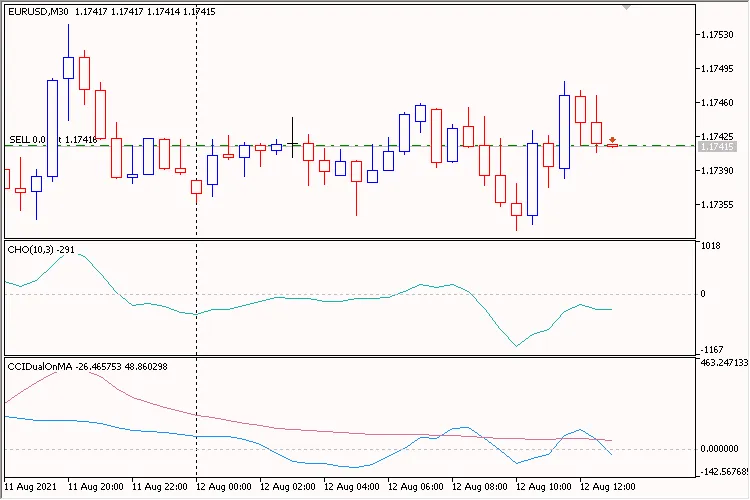
Fig. 1. iCHO Trend CCIDualOnMA Filter
Key Features:
- The EA can be tailored to fit your working timeframe.
- Only one 'market entry' trade is permitted per bar, which is an internal parameter not included in the input settings.
- In 'inside bar' mode, the current bar is bar #0. When in 'only when a new bar is born' mode, the current bar is bar #1.
- The 'Trade mode' parameter restricts which trades can be executed: 'Allowed only BUY positions', 'Allowed only SELL positions', or 'Allowed BUY and SELL positions'.
- The 'Use time control' parameter sets the time interval for searching trading signals from 'Start Hour':'Start Minute' to 'End Hour':'End Minute', which can span over a day.
Let’s break down each group of parameters:
Trading Settings:
'Working timeframe' is the timeframe on which indicators operate and where new bar searches occur.
Stop Loss, Take Profit, and Trailing are defined in Points. Any of these parameters can be disabled by setting them to '0.0'.
Check out the TrailingStop code for visual examples of how trailing works.
Position Size Management (Lot Calculation):
Lot size can be constant (set to 'Constant lot' with a fixed size) or dynamic (a percentage of risk per deal set to 'Risk in percent for a deal').
Time Control:
This section allows you to define the time range for searching trading signals. It’s activated via 'Use time control', allowing you to set the time interval for signal searching from 'Start Hour':'Start Minute' to 'End Hour':'End Minute'.
Additional Features:
The 'Positions: Only one' flag ensures that the EA holds no more than one position in the market at a time.
IMPORTANT: Setting 'Positions: Only one' to 'true' does not negate 'Positions: Close opposite' set to 'true'! This means that opposite positions will be closed first.
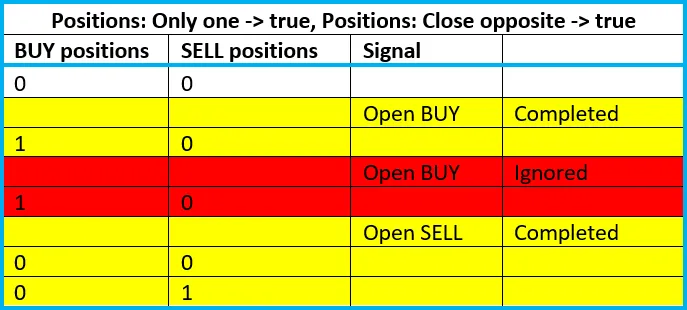
The 'Positions: Reverse' flag controls the reversal of signals. The 'Positions: Close opposite' flag, when set to 'true', ensures that opposite positions are closed before opening a new position. Plus, the 'Print log' feature provides detailed logging of all operations, while the 'Freeze and StopsLevels Coefficient' parameter helps manage stop and freeze levels effectively. A value of '3' is recommended here.




Comments 0