
If you're looking to enhance your trading game, the MQL5 Wizard is a powerful tool that allows you to create customized trading systems based on established strategies. With it, you can quickly check your trading ideas by developing your own signal classes. For a deeper dive, check out the article on Creating a Module of Trading Signals.
To get started, you'll derive your trading signal class from CExpertSignal. Then, you’ll need to override the LongCondition() and ShortCondition() methods to implement your own logic.
A great resource for strategies is the book "Strategies of Best Traders" (available in Russian). Here, we’ll focus specifically on reversal candlestick patterns, particularly the Stochastic, CCI, MFI, and RSI oscillators.
To effectively check for candlestick pattern formations, create a separate class derived from CExpertSignal. For confirmation, simply derive from CCandlePattern and include the necessary features for oscillator confirmation.
In this post, we’ll specifically analyze the "Bullish Engulfing" and "Bearish Engulfing" reversal patterns, confirmed by the Stochastic indicator.
1. Understanding Reversal Patterns
1.1 Bullish Engulfing
The "Bullish Engulfing" pattern forms during a downtrend when a small black candlestick is followed by a larger white candlestick that completely engulfs the previous day's candlestick. The shadows (tails) of the small candle are short, allowing the body of the larger candle to cover it entirely.
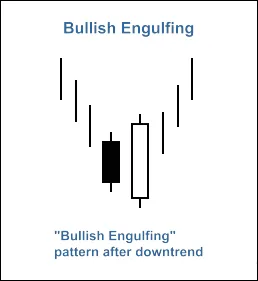
Fig. 1. Bullish Engulfing candlestick pattern
You can recognize the "Bullish Engulfing" pattern using the CheckPatternBullishEngulfing() method in the CCandlePattern class:
// Check formation of Bullish Engulfing patternbool CCandlePattern::CheckPatternBullishEngulfing() { //--- Bullish Engulfing if((Open(2)>Close(2) && // previous candle is bearish (Close(1)-Open(1)>AvgBody(1) && // body of the bullish candle is larger than average (Close(1)>Open(2) && // close price of the bullish candle is higher than open price of the bearish (MidOpenClose(2)2) && // confirming downtrend (Open(1) 2)))) // open price of bullish is lower than close price of bearish return(true); return(false); }
The CheckCandlestickPattern(CANDLE_PATTERN_BULLISH_ENGULFING) method of CCandlePattern class is used to confirm the formation of this pattern.
1.2 Bearish Engulfing
The "Bearish Engulfing" pattern occurs during an uptrend, where a small white candlestick is followed by a larger black candlestick that engulfs the previous day’s candlestick. Similar to the bullish version, the small candle's tails are short, allowing the larger candle to cover it completely.
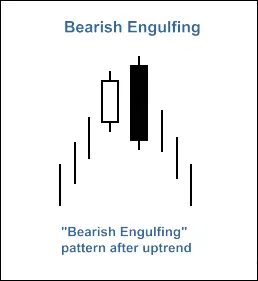
Fig. 2. Bearish Engulfing candlestick pattern
You can recognize the "Bearish Engulfing" pattern using the CheckPatternBearishEngulfing() method in the CCandlePattern class:
// Check formation of Bearish Engulfing patternbool CCandlePattern::CheckPatternBearishEngulfing() { //--- Bearish Engulfing if((Open(2)2) && // previous candle is bullish (Open(1)-Close(1)>AvgBody(1) && // body of the candle is larger than average (Close(1) 2) && // close price of bearish is lower than open price of bullish (MidOpenClose(2)>CloseAvg(2) && // confirming uptrend (Open(1)>Close(2)))) // open price of bearish is higher than close price of bullish return(true); return(false); }
The CheckCandlestickPattern(CANDLE_PATTERN_BEARISH_ENGULFING) method of CCandlePattern class is used to confirm the formation of this pattern.
2. Trade Signals with Stochastic Indicator Confirmation
To open long or short positions effectively, the trading signals must be confirmed by the Stochastic oscillator. The %D line should surpass the critical levels of 30 for long positions and 70 for short positions.
Closing positions is based on the %D indicator values, which can happen under two conditions:
- If the %D line hits the opposite critical level (80 for long, 20 for short).
- If the reverse signal isn't confirmed (when the %D line reaches 20 for long and 80 for short).
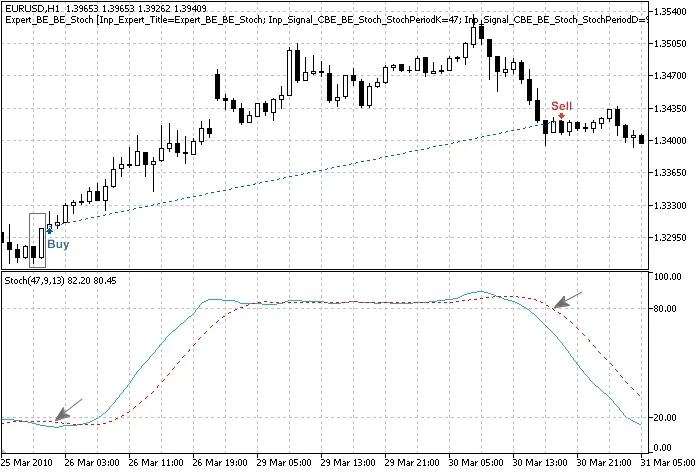
Fig. 3. Bullish Engulfing pattern confirmed by Stochastic indicator
The conditions for entering and exiting the market are defined in two methods:
- int CBE_BE_Stoch::LongCondition() - checks conditions for opening long positions and closing short positions.
- int CBE_BE_Stoch::ShortCondition() - checks conditions for opening short positions and closing long positions.
2.1 Opening Long Position/Closing Short Position
The formation of the "Bullish Engulfing" pattern must be confirmed by the Stochastic indicator: StochSignal(1)
The short position needs to be closed if the Stochastic signal line crosses upward through the 20 or downward through the 80 levels.
// Check conditions for entry and exit from marketint CBE_BE_Stoch::LongCondition() {
    int result=0;
    // Checking conditions to open long positionif (CheckCandlestickPattern(CANDLE_PATTERN_BULLISH_ENGULFING) && (StochSignal(1)30))
        result=80;
    // Checking conditions to close short positionif ((((StochSignal(1)>20) && (StochSignal(2)20)) ||
        ((StochSignal(1)>80) && (StochSignal(2)80))))
        result=40;
    // Return resultreturn(result);
}
2.2 Opening Short Position/Closing Long Position
The formation of the "Bearish Engulfing" pattern must be confirmed by the Stochastic indicator: StochSignal(1) > 70.
The long position should be closed if the Stochastic signal line crosses downward through the 80 or upward through the 20 levels.
// Check conditions for entry and exit from marketint CBE_BE_Stoch::ShortCondition() {
    int result=0;
    // Checking conditions to open short positionif (CheckCandlestickPattern(CANDLE_PATTERN_BEARISH_ENGULFING) && (StochSignal(1)>70))
        result=80;
    // Checking conditions to close long positionif ((((StochSignal(1)80) && (StochSignal(2)>80)) ||
        ((StochSignal(1)20) && (StochSignal(2)>20))))
        result=40;
    // Return resultreturn(result);
}
2.3 Creating Your Expert Advisor Using MQL5 Wizard
The CBE_BE_Stoch class is not part of the Standard Library classes, so you’ll need to download the acbe_be_stoch.mqh file and save it to your terminal_data_folder\MQL5\Include\Expert\Signal\MySignals directory. You should also do the same with the candlepatterns.mqh file. Once done, you can utilize it in MQL5 Wizard after restarting the MetaEditor.
To create your Expert Advisor, launch the MQL5 Wizard:
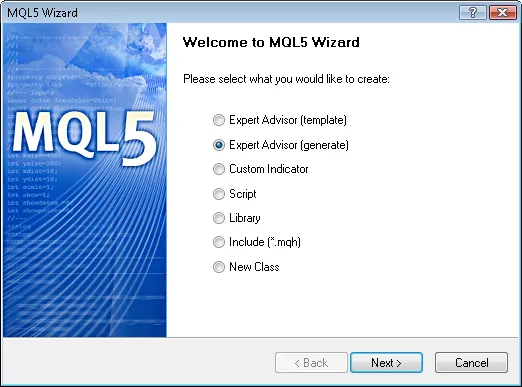
Fig. 4. Creating Expert Advisor using MQL5 Wizard
Next, specify the name of your Expert Advisor:
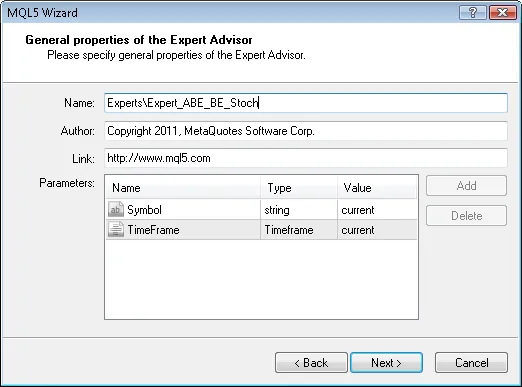
Fig. 5. General properties of the Expert Advisor
Now, let’s select the trading signal modules:
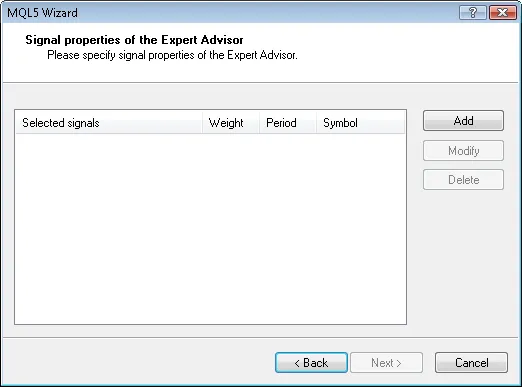
Fig. 6. Signal properties of the Expert Advisor
In this instance, we’ll only use one module of trading signals:
Adding the "Signals based on Bullish Engulfing/Bearish Engulfing confirmed by Stochastic" module:

Fig. 7. Signal properties of the Expert Advisor
Now the module of trade signals is added:
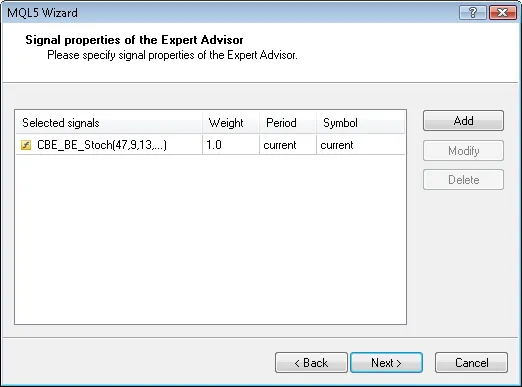
Fig. 8. Signal properties of the Expert Advisor
You can also select trailing properties, but we will opt for "Trailing Stop not used":

Fig. 9. Trailing properties of the Expert Advisor
For money management, we’ll use "Trading with fixed trade volume":

Fig. 10. Money management properties of the Expert Advisor
After hitting the "Finish" button, the code for your generated Expert Advisor will be saved in Expert_ABE_BE_Stoch.mq5 within the terminal_data_folder\MQL5\Experts\ directory.
The default input parameters of the generated Expert Advisor include:
//--- inputs for main signalinputint Signal_ThresholdOpen = 10; // Signal threshold value to open [0...100]inputint Signal_ThresholdClose = 10; // Signal threshold value to close [0...100]inputdouble Signal_PriceLevel = 0.0; // Price level to execute a dealinputdouble Signal_StopLevel = 50.0; // Stop Loss level (in points)inputdouble Signal_TakeLevel = 50.0; // Take Profit level (in points)
These should be adjusted to:
//--- inputs for main signalinputint Signal_ThresholdOpen = 40; // Signal threshold value to open [0...100]inputint Signal_ThresholdClose = 20; // Signal threshold value to close [0...100]inputdouble Signal_PriceLevel = 0.0; // Price level to execute a dealinputdouble Signal_StopLevel = 0.0; // Stop Loss level (in points)inputdouble Signal_TakeLevel = 0.0; // Take Profit level (in points)
The Signal_ThresholdOpen and Signal_ThresholdClose parameters allow you to set your trigger levels for opening and closing positions.
In the LongCondition() and ShortCondition() methods of the trading signals class, we’ve specified fixed values for the thresholds:
- Open position: 80;
- Close position: 40.
The Expert Advisor generated by MQL5 Wizard opens and closes positions based on "votes" from the signal modules. The vote from the main module, which includes all added modules, is also utilized, but its LongCondition() and ShortCondition() methods always return 0. Hence, it’s essential to consider this when adjusting your threshold values since the average of the votes will be used.
The Signal_StopLevel and Signal_TakeLevel parameters are set to 0, indicating that positions will only close when the exit conditions are met.
2.4 Backtesting Results
Let’s examine the backtesting results of the Expert Advisor on historical data (EURUSD H1, testing period: 2010.01.01-2011.03.04, PeriodK=47, PeriodD=9, PeriodSlow=13, MA_period=5).
In creating the Expert Advisor, we utilized a fixed volume (Trading Fixed Lot, 0.1) and opted not to use a Trailing Stop algorithm (Trailing not used).

Fig. 11. Testing results of the Expert Advisor, based on Bullish/Bearish Engulfing + Stochastic
To find the optimal set of input parameters, utilize the Strategy Tester in the MetaTrader 5 client terminal.
The code for the Expert Advisor generated by MQL5 Wizard is attached in expert_abe_be_stoch.mq5.




Comments 0