
Welcome to the world of trading! Today, we're diving into a trading system that leverages the XAng_Zad_C trend-following indicator. This setup allows you to define a fixed trading timeframe and adjust the volume of future trades based on your previous performance. Let’s break it down!
Trade decisions are triggered when the indicator's cloud changes color. You can set specific trading hours in the input parameters to ensure you're only trading during your chosen time slot:
inputbool TimeTrade=true; //Enable trading during specified timesinput HOURS StartH=ENUM_HOUR_0; //Start trading at this hourinput MINUTS StartM=ENUM_MINUT_0; //Start trading at this minuteinput HOURS EndH=ENUM_HOUR_23; //End trading at this hourinput MINUTS EndM=ENUM_MINUT_59; //End trading at this minute
Two variables are available for both the start and end times of your trading session. By default, the Expert Advisor (EA) is set to trade the entire session from 00:00 to 23:59. If you set a start time that’s later than the end time, the EA will close open positions at the specified time the next day.
Additionally, you can manage the volumes of opened positions with these input parameters:
inputuint BuyTotalMMTriger=5; //Last Buy deals to calculate stop lossinputuint BuyLossMMTriger=3; //Losing Buy deals to reduce MMinputuint SellTotalMMTriger=5; //Last Sell deals to calculate stop lossinputuint SellLossMMTriger=3; //Losing Sell deals to reduce MMinputdouble SmallMM_=0.01; //Deposit share for losing tradesinputdouble MM=0.1; //Deposit share for normal tradesinput MarginMode MMMode=LOT; //Lot value calculation method
With these settings, if you have five recent trades and three of them are losses in one direction, the EA will open the next trade in that direction with a volume of 0.01 lots. If there are fewer than three losses, the position volume will be 0.1 lots.
To run this Expert Advisor smoothly, you’ll need the compiled indicator file XAng_Zad.ex5, which should be located in the <terminal_data_folder>\MQL5\Indicators.
The default input settings were used in the tests below, and neither Stop Loss nor Take Profit was applied:
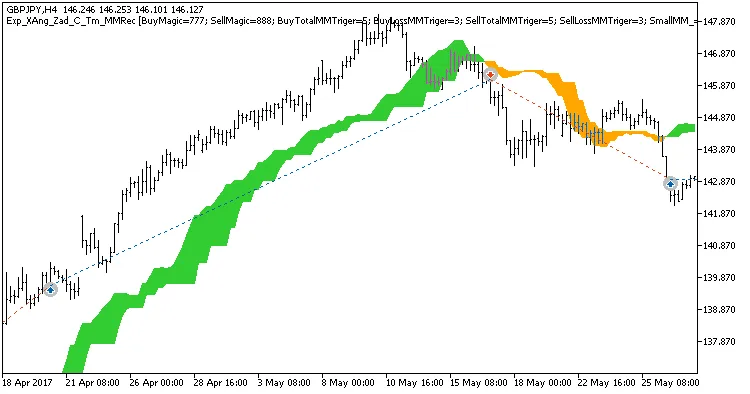
Fig. 1. Examples of deals on the chart. Trading only in the time intervals set in the inputs is disabled.
Here are the testing results for GBPJPY on the H4 timeframe for the year 2017:
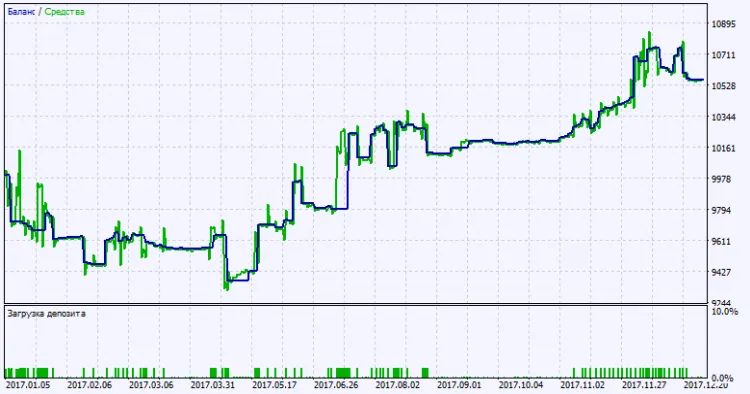
Fig. 2. Test results chart
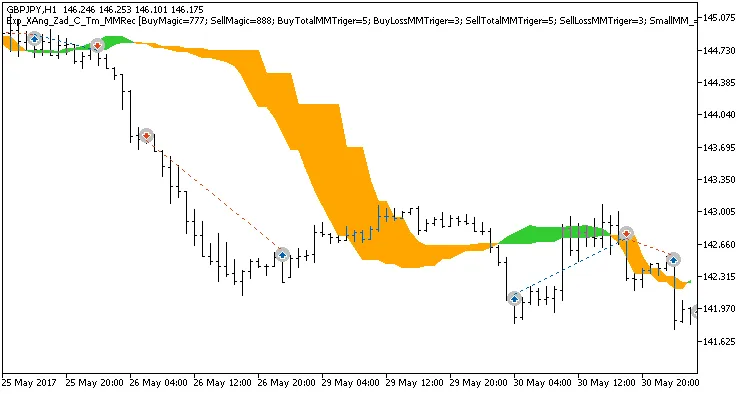
Fig. 3. Examples of deals on the chart. Trading only in the time intervals set in the inputs is enabled.




Comments 0