
Welcome to the TradeXpert blog! This innovative project was developed for the MQL5 Best Graphic Panel Contest.
The main goal of TradeXpert is to enhance the functionality of the MetaTrader 5 terminal while making the best use of your chart space.
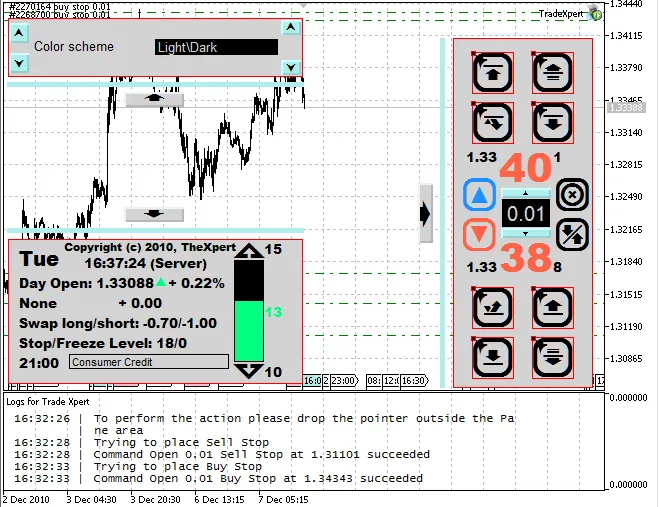
This Expert Advisor features four independent panels, each serving a unique purpose. You can easily hide, restore, or remove any panel from the chart (Log Panel).
For optimal viewing, we recommend a minimum resolution of 600x500.
Note:
The Expert Advisor utilizes the following fonts:
- Lucida Console
- Wingdings
- Wingdings 3
- Arial Black
While the program will still function without these fonts, the design may differ, and some messages could display incorrectly. If you don’t have these fonts on your system, please install them.
You can view the list of available fonts in the Graphic object properties of the MetaTrader 5 terminal.
Panels:
The Expert Advisor includes four panels; three are located in the main window:
- Settings Panel
- Control Panel
- Information Panel
The fourth panel (Log Panel) is in a separate subwindow and can be hidden.
1. Log Panel

To display the logs panel, simply run the TradeXpertLog indicator. It shows the comments from the Expert Advisor.
For an organized workspace, you can add it to the subwindow of another indicator. All logs from the Expert Advisor will be printed in the client terminal logs (Print). We recommend using the Logs panel while trading to keep track of order processing.
This panel is also handy for debugging and for comments from other panels, giving you a focused logging window for essential information.
Time is accurately displayed, even during holidays.
Available settings include:
- Font Size
- Color
- Line Length
- Maximum Number of Lines
2. Trade Panel (Control Panel)
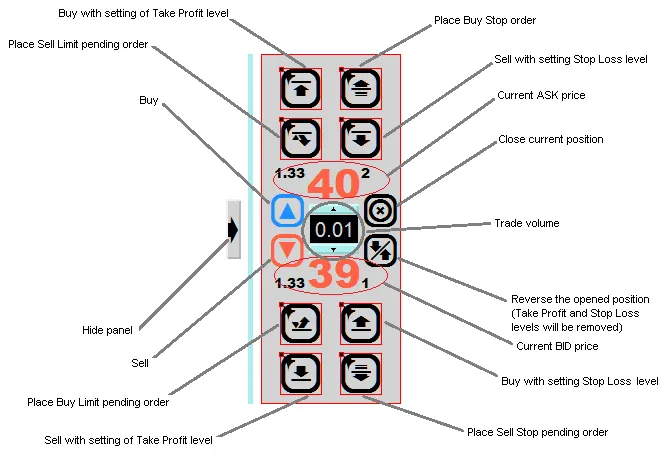
The Trade Panel is your go-to for executing trades.
Here's what you can do:
- Buy a specified volume
- Sell a specified volume
- Buy with a Take Profit level - if volume is 0, just sets Take Profit
- Sell with a Take Profit level - if volume is 0, just sets Take Profit
- Buy with a Stop Loss level - if volume is 0, just sets Stop Loss
- Sell with a Stop Loss level - if volume is 0, just sets Stop Loss
- Place BuyStop, BuyLimit, SellStop, SellLimit orders
- Close the current position
- Reverse the current position, resetting old Stop Loss and Take Profit levels to 0
There’s a unique feature with Stop levels. For instance, if you have a buy position (0.5 lots) and sell 0.1 lots with Take Profit or Stop Loss, the EA won’t set these levels. However, if the trade volume exceeds 0.5 (e.g., 0.7 lots), it will set new Take Profit and Stop Loss values.
Keep in mind, if the volume is 0, the EA will set the Take Profit and Stop Loss levels if they are correct.
The trade volume can be specified here, although automatic volume calculation isn’t implemented. There are many methods for calculating it, and this function isn’t typically used in manual trading. Feel free to implement your own if you prefer.
The EA doesn’t check the margin. After setting the trade volume, its value is modified according to the current symbol settings, so be sure to recheck the volume before trading.
Available settings include:
- Order Filling Type
- Color Scheme
- Panel Animation Delay
For more details on order filling types, three options are supported:
- ORDER_FILLING_FOK -- "Fill or Kill"
- ORDER_FILLING_IOC -- "Available"
- ORDER_FILLING_RETURN -- "Available+"
3. Information Panel
This panel shows symbol information and the status of opened positions.
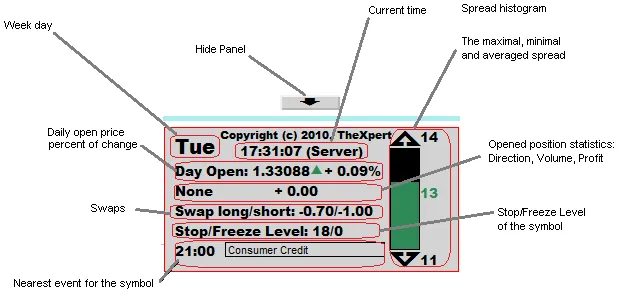
Available settings include:
- Color Scheme
- Animation Delay
- Number of Bars for Spread Calculations
- Time Display: local, server, CET, EST, MSK, GMT
4. Settings Panel
This panel allows you to customize the Expert Advisor settings easily. You can add your own settings by just writing a few lines of code.
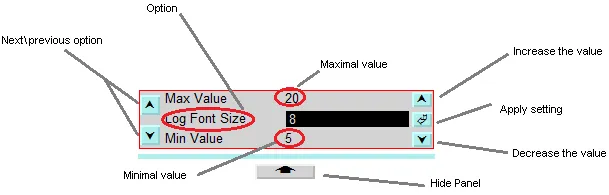
The settings can be adjusted using the




Comments 0