Technical Indicator

Master Forex Trading with the iForexSessions Indicator for MT5
MetaTrader5
Master Forex Trading with the iForexSessions Indicator for MT5

Unlocking the Forex Market with the iForexSessions Indicator Keep track of Forex market sessions like a pro! The iForexSessions indicator is designed for traders who want to stay ahead of the game. It highlights local trading hours for major Forex markets, ensuring you never miss a beat. The typical trading hours are from 8:00 AM to 5:00 PM in most regions, with Sydney’s hours slightly varying from 7:00 AM to 4:00 PM or 9:00 AM to 6:00 PM. Key Features: Displays colored rectangles for each Forex market session: Sydney, Tokyo, London, and New York. Provides accurate session times for Forex pairs and gold charts. Note that Forex trading kicks off at 5:00 PM NY time, while gold trading starts an hour later. Adjusts for GMT offsets and daylight savings based on your broker's server settings and time zones. Utilizes the TimeZoneInfo library for precise time calculations. Includes an additional broker clock in the lower-left corner with helpful info: Server time Broker's GMT offset Time remaining until the weekend (perfect for managing open trades) Status of time synchronization for your local computer, with a helpful link to check your PC time here. Need to debug? Just hold down 'Ctrl' and hover over a chart bar to see the bar number and time, along with corresponding times in the major Forex markets displayed right on your chart. Input Parameters: Parameter: "Load XAUUSD symbol for estimation of the server's TZ/DST" This setting allows the indicator to load the XAUUSD symbol to estimate your broker's timezone offset accurately. This is especially useful during weeks when US and EU daylight saving times are out of sync. If your broker follows the US DST schedule or doesn’t follow any schedule, you can set this to 'false' to use the current chart's symbol instead. To find out your broker's daylight saving time schedule, you can use this script: DST Schedule Script. Note: If you set the XAUUSD loading to TRUE, remember that DST switches may occur an hour later in the strategy tester. Bonus Feature: Debugging made easy! Hold down 'Ctrl' and hover over a chart bar to display the bar number and its time, along with corresponding times in major Forex markets. To clear the debug info, just click anywhere on the chart without holding 'Ctrl'. Explore Other Market Session Indicators: Market_Sessions i-Sessions Trading Sessions Open - Close Forex Market Sessions Identification Keep in mind that many indicators use fixed timezone offsets and ignore daylight saving adjustments on the broker's server, which can lead to inaccuracies. The iForexSessions indicator addresses this issue by adapting to changes in trading schedules throughout the year. Broker Compatibility: The iForexSessions indicator has been tested and confirmed to work with several brokers, including: Admirals Markets FxPro RannForex EXNESS FXOpen IC Markets Octa Markets Tickmill XM Global This indicator is also likely to function correctly with other brokers. Note about Compatibility with Strategy Tester In the strategy tester, TimeGMT() aligns with TimeTradeServer() to simulate server time accurately. The TimeZoneInfo library provides the proper time adjustments based on historical H1 quotes, rather than relying solely on the built-in TimeGMT function. If you opt to load the XAUUSD symbol, be aware that DST switches might happen an hour later during testing.

2024.03.26
Mastering Divergences: Your Go-To Template Indicator for MetaTrader 4
MetaTrader4
Mastering Divergences: Your Go-To Template Indicator for MetaTrader 4

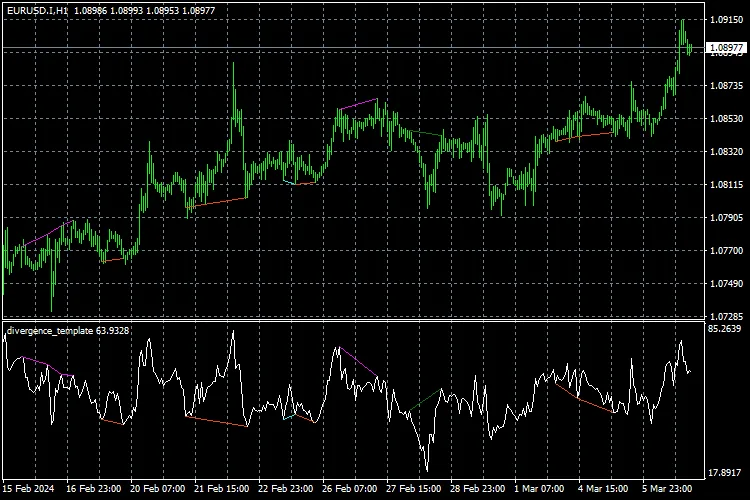
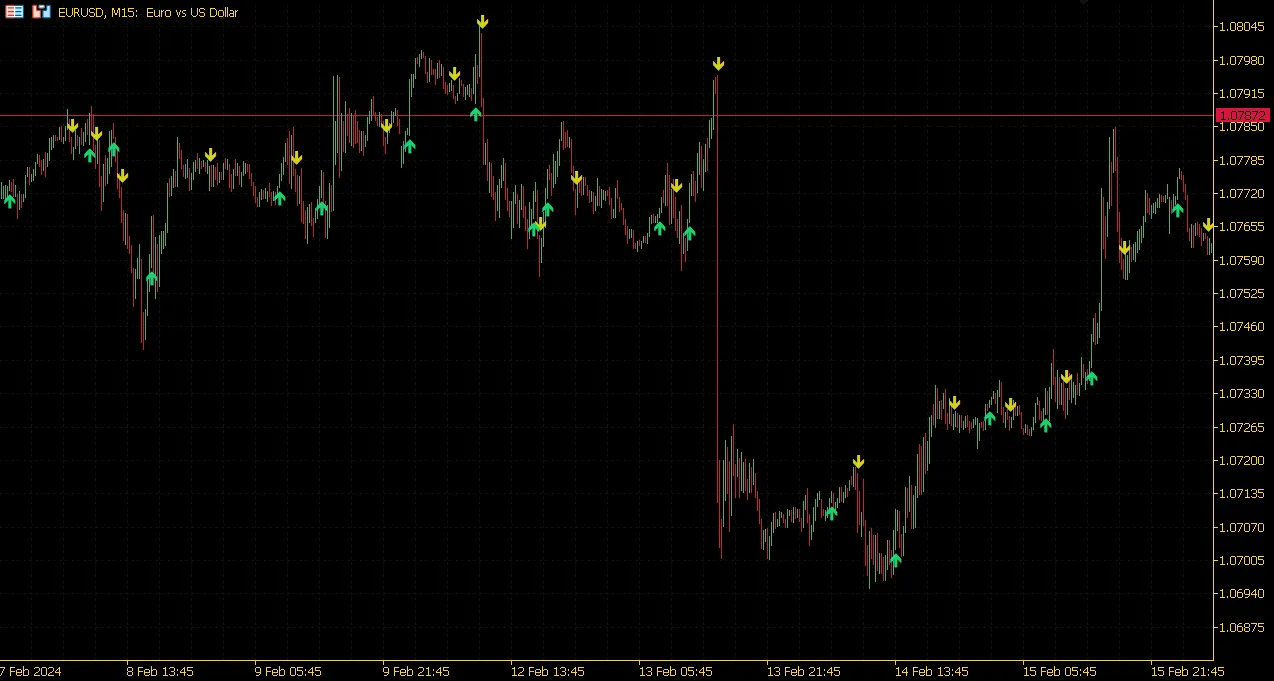
Understanding the Indicator Template The Divergences Template Indicator is designed to help you plot divergences using your favorite oscillator. Whether you lean towards the CCI, RSI, or a custom-built indicator, this template gives you the flexibility you need. To harness the power of your chosen oscillator, you’ll want to tweak the code a bit. Here’s a quick look at how to do that:    /////////////////////////////////////////////   //Load indicator data into buffer   //Easily swap RSI with any indicator   int BARS=MathMax(rates_total-IndicatorCounted()-pivots_period,1);   for(int i=BARS;i>=0;i--)   {      indicatorBuffer[i]=iRSI(_Symbol, PERIOD_CURRENT, 14, PRICE_CLOSE, i);   }   //End of load indicator section   ///////////////////////////////////////////// Signal Buffers Explained This indicator comes equipped with four distinct buffers to track the signals generated. Whenever one of these buffers holds a non-empty value, you’ll have a signal to act on:    SetIndexBuffer(3,bull_reg_divBuffer);   SetIndexBuffer(4,bear_reg_divBuffer);   SetIndexBuffer(5,bull_hid_divBuffer);   SetIndexBuffer(6,bear_hid_divBuffer); Inputs Section input int pivots_period=5; //Period for finding indicator pivotsinput int alert_confirm_candles=1; //#candles for signal confirmation (0=disable alert) Finding pivot highs and pivot lows in the indicatorBuffer is influenced by the pivots_period. A larger value means the indicator will search for bigger swings, giving you more potential divergence signals. The alert_confirm_candles input specifies how many bars to wait for confirming a signal. Since divergence indicators can lag and produce false signals, increasing this value can help reduce those false alarms. It’s all about finding the right balance between timely signals and reliable confirmations. Remember, it’s generally not advisable to set pivots_period to less than 2. The Repaint Issue Indicators that rely on pivot calculations can repaint signals as they depend on the pivots_period to confirm recent highs and lows. Here’s how that looks in code:    BARS=MathMax(rates_total-IndicatorCounted()-pivots_period,pivots_period);   for(int i=BARS;i>=0;i--)   {      PHBuffer[i]=pivothigh(indicatorBuffer, pivots_period, pivots_period, i);      PLBuffer[i]=pivotlow(indicatorBuffer, pivots_period, pivots_period, i);      bull_reg_divBuffer[i]=BullRegDiv(i);      bear_reg_divBuffer[i]=BearRegDiv(i);      bull_hid_divBuffer[i]=BullHidDiv(i);      bear_hid_divBuffer[i]=BearHidDiv(i);   }

2024.03.10
Mastering Historical Levels: A Game-Changer for Your Trading Strategy
MetaTrader5
Mastering Historical Levels: A Game-Changer for Your Trading Strategy

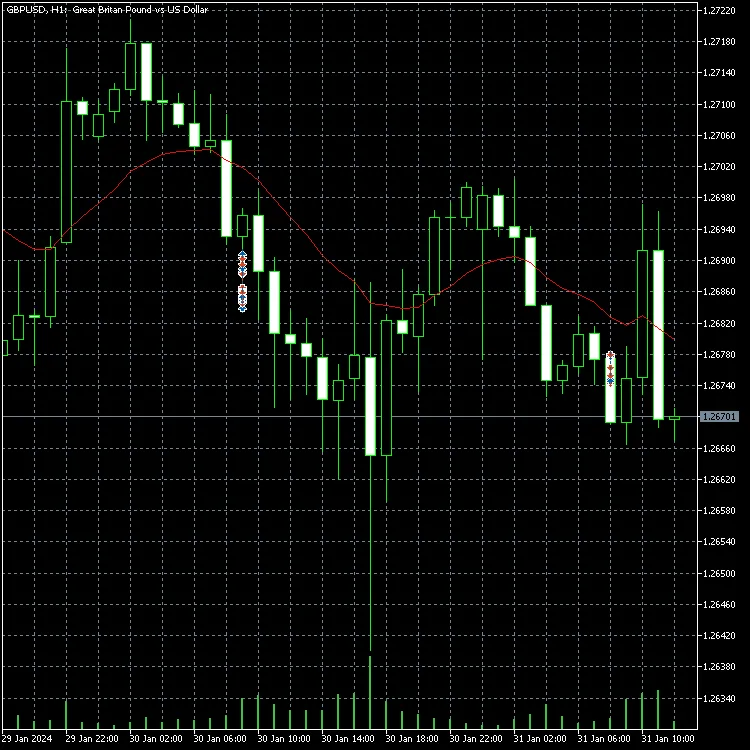
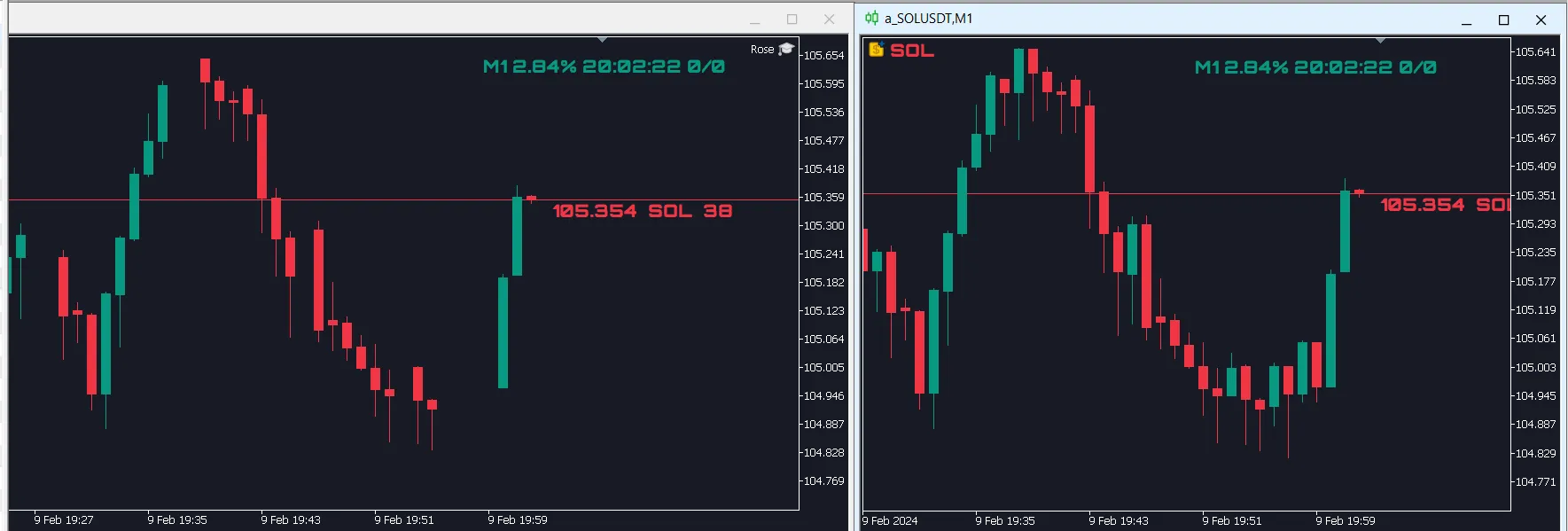
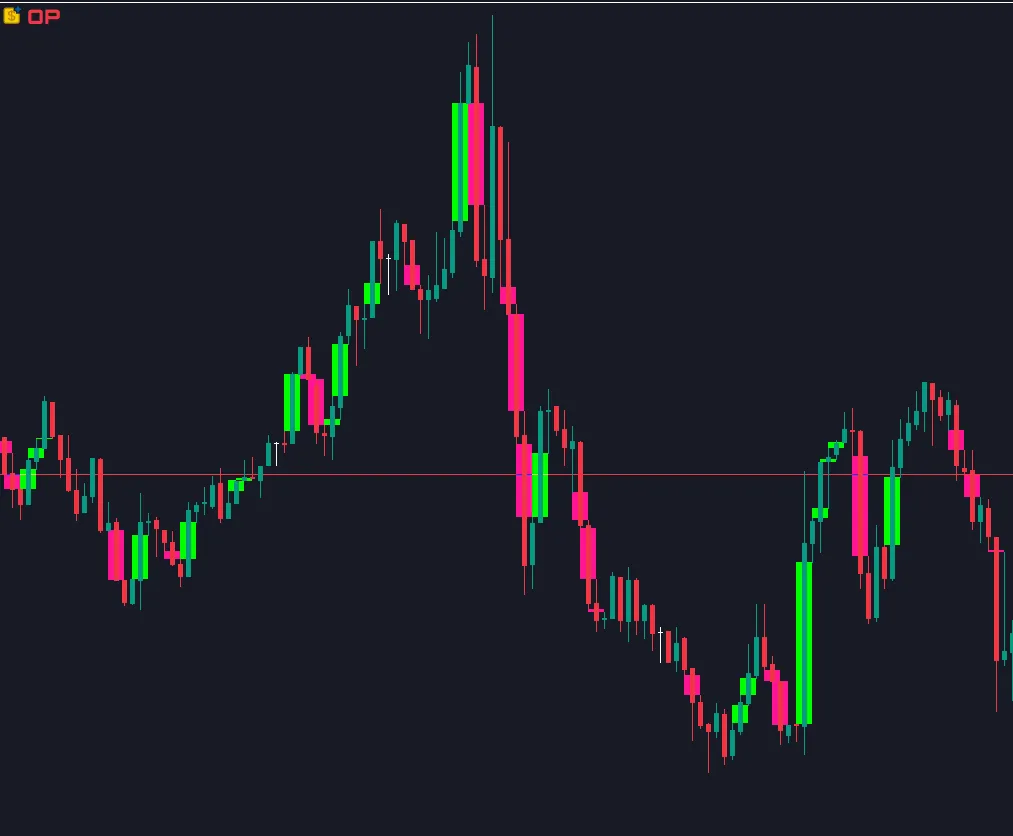
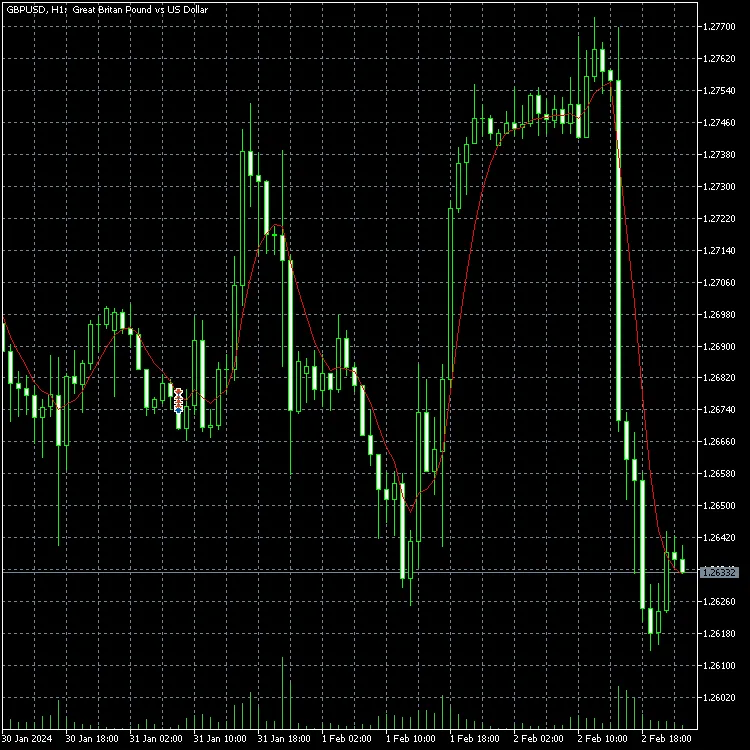
Understanding Historical Levels is crucial for any trader looking to gain an edge in the market. These levels represent price points that have been significant over the history of a trading symbol, often acting as barriers that prices struggle to break through. From a financial perspective, these levels highlight key economic conditions that influence the trading environment of a specific symbol. Research suggests that prices often respect these historical levels, only breaking through them when a substantial shift in market conditions occurs. This makes Historical Levels an invaluable tool for traders aiming to enhance their market analysis. In my journey as a trader, I’ve developed a framework for analyzing these levels through the lens of candlestick formations. How price interacts with these levels can have a profound impact on candle shapes. For instance, when a price approaches a strong historical level, we often see a PRICE JUMP due to the significant volume of trades piled up at that price point or nearby. To effectively utilize this concept, I’ve established two essential rules: Rule 1 (Bullish candle at a support level): If the close - low > Jump Factor Rule 2 (Bullish candle at a resistance level): If close - low > Jump Factor & (close - low) / (high - low) > ratio To clarify these rules, I’ve included two images below: Image 1: Jumping from Support/Resistance levels with a bullish candle on support. Image 2: Jumping from Support/Resistance levels with a bullish candle under resistance. Based on these rules— which can be tailored to your strategy—I developed an indicator that compiles data into two different matrices (sup_mat and res_mat). This indicator displays the number of Support and Resistance levels that adhere to the selected criteria while gathering data. To optimize this process, I utilized the AlgLib (dataanalysis.mqh) library to perform a clustering analysis using the K-means method. The results are presented as columns of Support and Resistance Levels data. Once the levels are established, the indicator opens a chart with the analyzed symbol and overlays all identified levels (clusters) based on the clustering process. To ensure it’s user-friendly, various parameters can be adjusted directly from the screen. Here’s a snapshot of the indicator’s interface and its results: Image 3: Indicator interface. Image 4: Automatic plotting of levels on the chart. In conclusion, this tool proves to be extremely powerful, even with just a couple of straightforward rules in place. The levels it identifies exhibit strong support and resistance characteristics. There’s also room to expand its functionality—additional rules can be added, and the code is designed to be adaptable for further improvements. Future enhancements may include refining clustering areas, exploring maximum distances before retouching levels, and much more. If you’re interested in diving deeper, feel free to reach out!

2024.02.16
Mastering Market Dynamics with the Adaptive Volatility Analysis Indicator for MetaTrader 4
MetaTrader4
Mastering Market Dynamics with the Adaptive Volatility Analysis Indicator for MetaTrader 4

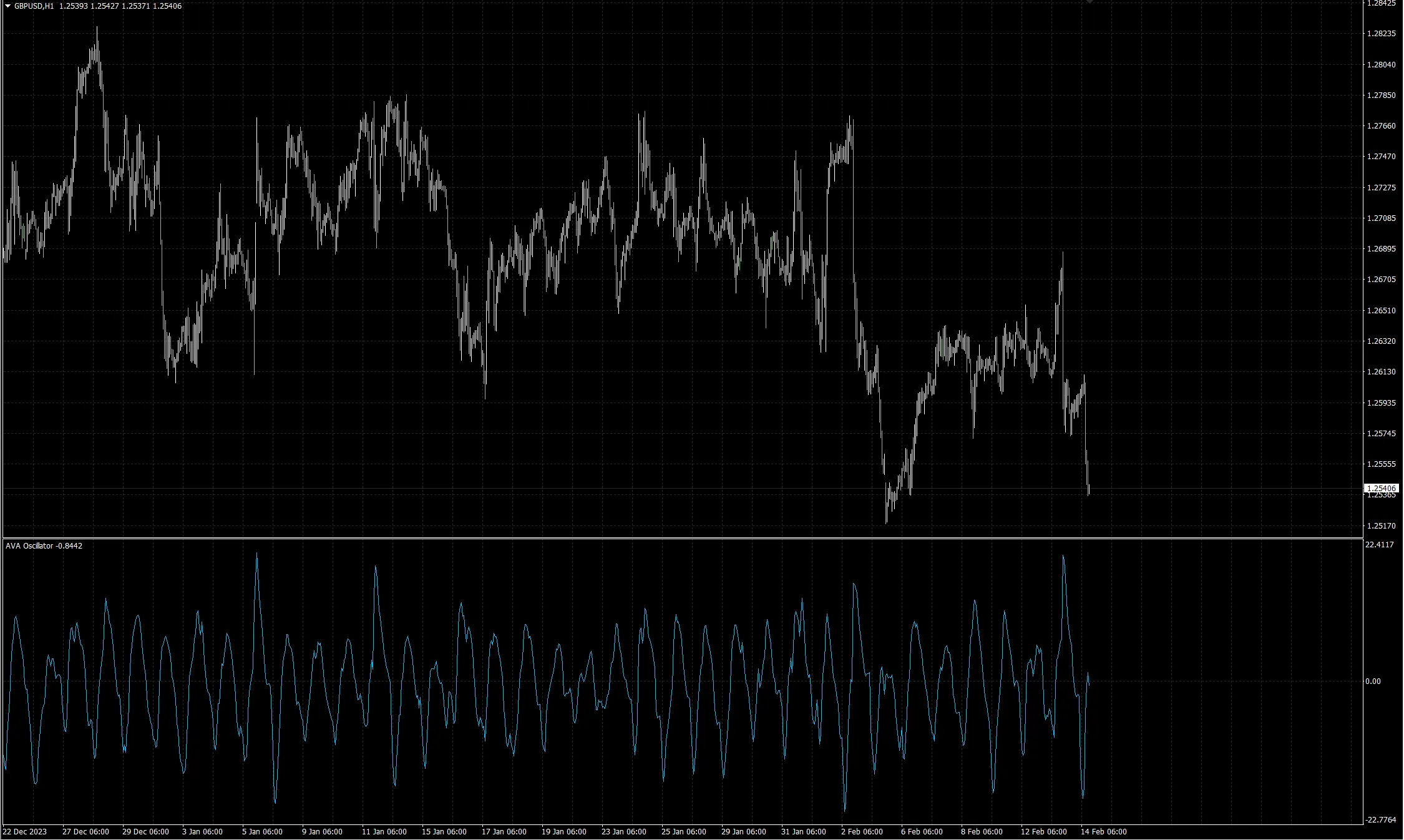
Hey there, fellow traders! Today, I'm excited to introduce you to a powerful tool I developed called the Adaptive Volatility Analysis (AVA) Indicator. This isn't just another run-of-the-mill indicator; it's designed to give you a sharper insight into market price movements. Unlike traditional indicators that provide a one-size-fits-all view, the AVA adapts its analysis based on the current market dynamics. This makes it a game-changer for forecasting shifts toward higher volatility or calmer trading periods. Plus, it works seamlessly with genetic algorithms, enhancing your trading strategies even further. How It Works: Starting With ATR: At the heart of the AVA Indicator is the Average True Range (ATR). This essential metric measures market movement over a set number of past trades, with 14 trades being the default. It’s a fantastic starting point for gauging volatility. Smoothing with EMAs: The AVA utilizes two Exponential Moving Averages (EMAs) on the ATR values—a short-term EMA (default set to 2) and a long-term EMA (default set to 5). For those of you who prefer longer-term analysis, you can easily adjust these to 10 and 50. These EMAs help smooth out the ATR readings, making it much easier to spot trends in price movement. The FAV Ratio: The crux of the AVA Indicator is the FAV (Factor of Adaptive Volatility). We calculate this by dividing the short-term EMA by the long-term EMA of ATR values. This ratio fine-tunes the indicator's sensitivity to market changes, making sure you’re responsive to both subtle shifts and significant market swings. Determining AVA Value: The AVA value is calculated by adjusting the FAV ratio—simply subtract 1 from the FAV and multiply by 100. This gives you a percentage representing the current market volatility level. Exact Calculation: AVA = (FAV - 1) × 100 Where: FAV = EMA_short(ATR) / EMA_long(ATR) Usage Guidelines: Interpreting the Indicator: The AVA Indicator shows up in a separate chart beneath your main trading chart. If you see the AVA value rising, that’s a sign of increasing volatility. On the flip side, a decreasing value indicates a calmer market. Application Insights: In times of rising volatility, think about strategies that leverage those big price swings. Conversely, when volatility is low, it might be wise to hold off for clearer signals or adopt strategies that work better in stable conditions.

2024.02.14
First Previous 12 13 14 15 16 17 18 19 20 21 22 Next Last