System Trading

Unlocking Trading Success with SAR_MACD_EA on MetaTrader 4
MetaTrader4
Unlocking Trading Success with SAR_MACD_EA on MetaTrader 4

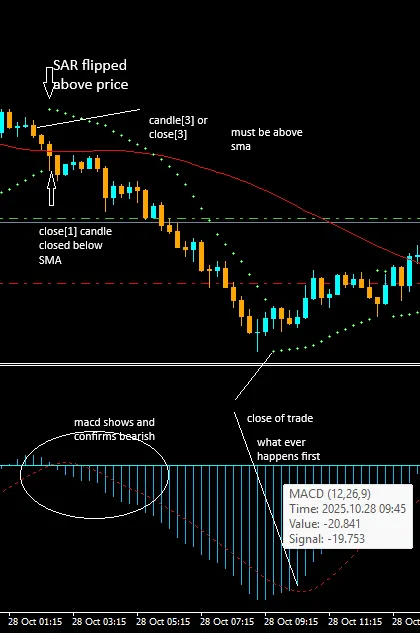
If you’re diving into the world of trading, you might want to take a closer look at the SAR_MACD_EA for MetaTrader 4. This expert advisor operates on a 15-minute bar or candle chart, leveraging the MACD as an early signal for market direction. The primary focus here is the Parabolic SAR, which serves as the first signal for potential buy or sell opportunities. Here’s how it works: when the close of a bar or candle indicates a price action, we look back to see if the third candle prior was below the Simple Moving Average (SMA) while the previous candle closed above it. If the SAR flips below the price at this point, that's your buy signal. If the MACD shows a bullish move and the SAR is below the price, but the previous candle's close (close[1]) remains below the SMA, the strategy dictates waiting for five candles to see if the price closes above the SMA. Let’s break this down with some examples: In the first example, you’ll notice that as soon as the candle closes below the SMA, the third candle should ideally be above it. During this timeframe, the SAR should also flip above the price. By this point, the MACD should confirm a bearish move, either simultaneously or in the previous candles. Now, here’s a look at a buy scenario: This visual demonstrates the ideal conditions for executing a buy based on our strategy. Keeping track of these signals can be a game-changer for your trading approach!

2025.10.30
Unlock Trading Success with Heikin Ashi EA for MetaTrader 4
MetaTrader4
Unlock Trading Success with Heikin Ashi EA for MetaTrader 4

Are you ready to take your trading to the next level? Meet the Heikin Ashi EA for MetaTrader 4, designed specifically to harness the power of Heikin Ashi candles. This Expert Advisor (EA) smooths out price action and filters the market noise, giving you a crystal-clear view of market trends. With this EA, you can ride the strong trends, steer clear of false reversals, and trade with confidence! Key Features & Parameters 1. Heikin Ashi Candle Integration Smoothed Trend Visualization – Say goodbye to random noise and hello to clearer signals. Bullish/Bearish Color Detection – This EA only trades when there’s a definitive trend shift in the Heikin Ashi candles. Customizable Heikin Ashi Settings – Tailor the smoothing options to align with your trading strategy. 2. Smart Trade Management Close on Trend Flip – Get out of trades promptly when the candle colors change. Equity & Profit Controls – Automatically close all trades when your floating profit or loss hits your predefined level. Why You Should Use Heikin Ashi TrendMap EA ✅ Clear Trend Detection – Filters out choppy price movements and misleading signals.✅ Works on Any Pair & Timeframe – Perfect for everything from scalping to swing trading.✅ Hands-Free Automation – Executes trades without any delays or second-guessing.✅ Emotion-Free Trading – Trades are based on Heikin Ashi rules, eliminating human error.✅ Flexible Settings – Adaptable for both aggressive and conservative trading styles.

2025.10.14
Unlocking the Ichimoku Edge: Your Go-To MT4 EA for Trading Success
MetaTrader4
Unlocking the Ichimoku Edge: Your Go-To MT4 EA for Trading Success

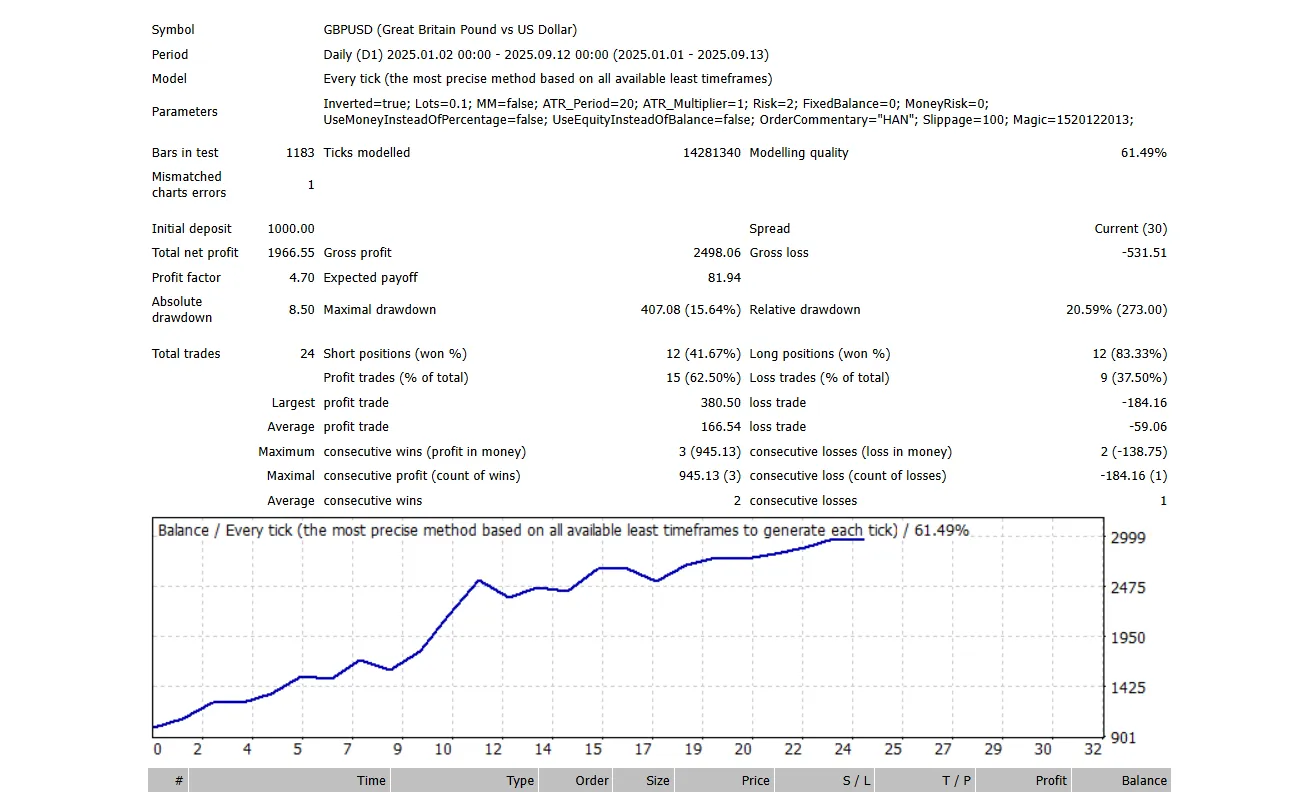
If you're looking to up your trading game, you might want to check out the Ichimoku Edge EA for MetaTrader 4. This automated trading tool is built around the classic Ichimoku Kinko Hyo indicator, using default settings to help you make informed decisions in the market. Backtest Results Strategy Logic A Buy signal is triggered when the Chikou Span crosses the price from below, confirmed when both the current price and the Chikou Span sit above the Kumo (cloud). A Sell signal occurs when the Chikou Span crosses the price from above, confirmed when both the current price and Chikou Span are below the Kumo. All active trades will close automatically when an opposite signal appears. No fixed Stop Loss or Take Profit levels are set; the system relies entirely on signal reversals for exits. Money Management Ichimoku Edge supports two position-sizing modes: Fixed Lot Size — this mode lets you set a predefined volume for your trades. ATR-Based Sizing — this adjusts the lot size dynamically based on your risk percentage or monetary value using the Average True Range (ATR) indicator. Key Input Parameters Ichimoku Settings: Tenkan = 9 Kijun = 26 Senkou = 52 Money Management: Lots – set your fixed position size. MM – enable ATR-based risk management. ATR_Period, ATR_Multiplier – settings for the ATR. Risk / MoneyRisk – choose between percentage or fixed monetary risk. UseMoneyInsteadOfPercentage – switch between using a percentage or currency-based risk approach. UseEquityInsteadOfBalance – opt to risk from your equity instead of your balance. LotDigits – set the precision for your broker's lot size. Miscellaneous: OrderComment – label your orders for easy identification. Slippage – specify the maximum slippage allowed for trades. Magic – a unique identifier for your EA. Notes This EA shines on higher timeframes and during trending markets. For optimal results, it's a good idea to experiment with different Ichimoku and ATR settings before diving into live trading.

2025.10.06
Harness Retail Sentiment for Smarter Trading with the Ziwox Expert Advisor
MetaTrader4
Harness Retail Sentiment for Smarter Trading with the Ziwox Expert Advisor

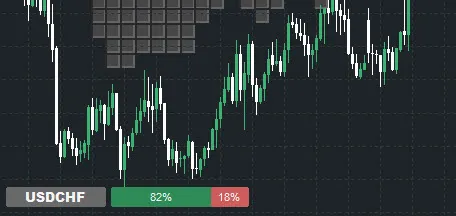
Ziwox Retail Sentiment Expert Advisor Description: Meet the Ziwox Expert Advisor, your new trading companion that taps into retail trader sentiment via the Ziwox API. It’s built on the idea that when many retail traders are leaning one way, it might be time to consider the opposite. If the majority are buying, we look to sell, and if they're selling, we might want to buy. By marrying sentiment analysis with a moving average trend confirmation, this EA offers a fresh, smart approach to trading that echoes the collective mindset of the market. For detailed coding and implementation, check out this MQL5 Article. Why Retail Sentiment Matters: Understanding retail sentiment gives us insight into the behavior of average traders—who often find themselves on the wrong side of significant market moves. Emotional trading, poor risk management, and knee-jerk reactions to news can lead to missteps. By analyzing the long and short ratios of retail traders, we can flip the script and adopt a contrarian strategy that often aligns with the big players in the market. Here’s how sentiment analysis can enhance your trading: Spot overbought or oversold market conditions. Identify potential market reversals before they happen. Augment your technical analysis with behavioral insights. Minimize risk by steering clear of crowded trades. How the EA Works: This Expert Advisor works by pulling retail sentiment data through the Ziwox API and combines it with a moving average crossover filter: API Integration: The EA uses the GetAPI function to send a request to Ziwox’s endpoint, retrieving sentiment data in JSON format. It captures critical fields like Retail Long Ratio, Retail Short Ratio, and Risk Sentiment, which are then parsed into an array (APIJSON) using JsonDataParse. Contrarian Logic: If the Retail Long Ratio is 60% or higher and the fast MA is above the slow MA, the EA will trigger a sell trade. If the Retail Short Ratio is 60% or higher and the fast MA is below the slow MA, a buy trade will be triggered. This ensures we’re trading against the crowd while still respecting the prevailing trend. Technical Filter: The EA employs simple moving averages (iMA) with user-defined periods (shortMAPeriod and longMAPeriod) to filter trades, only executing those that are in line with the trend. Automated Trading: With AutoTrade enabled, the EA opens orders automatically, monitors for new candles with IsNewCandle(), and avoids duplicate trades using OrdersTotal(). Visualization: The EA visualizes sentiment indicators right on your chart through DrawSentiment and ButtonCreate, using color codes to differentiate retail long (green) and short (red) ratios. Key Code Components Explained: GetAPI: Manages API calls to Ziwox, ensuring compliance with rate limits and saving data to a JSON file. JsonDataParse: Reads the JSON data, extracts sentiment values, and stores them in the APIJSON array for use in trading strategies. OnTick: Examines conditions on each tick, applies the contrarian logic alongside the MA trend filter, and executes orders as criteria are met. DrawSentiment & ButtonCreate: Displays sentiment data visually on the MT4 chart for quick reference. IsNewCandle: Ensures trades are evaluated only once per new candle, preventing multiple executions on the same price movement. Usage Instructions: Drop the EA into the Experts folder of MT4. Enter your Ziwox API key in the APIKey field. Set your preferred shortMAPeriod and longMAPeriod. Enable AutoTrade for complete automation. Load the EA on any chart, and watch it fetch sentiment data, visualize it, and execute trades based on its contrarian strategy. Conclusion: The Ziwox Expert Advisor combines insights from retail sentiment with technical analysis to deliver a straightforward yet powerful contrarian trading strategy. By keeping an eye on the collective bias of retail traders, this EA helps identify potential market reversals and steer clear of over-crowded trades, giving you a competitive edge in your trading journey.

2025.09.30
Master the Viral MACD Strategy: Automate Your Trading with This Expert Advisor
MetaTrader4
Master the Viral MACD Strategy: Automate Your Trading with This Expert Advisor

Ever wondered how to level up your trading game? Well, you're in luck! Today, we're diving into a popular MACD strategy that's taken the trading world by storm, racking up over 3.5 million views. This strategy has been recreated and automated into an Expert Advisor (EA) for MetaTrader 4, making it easier than ever to test its effectiveness in real market conditions. Main Features The foundation of this strategy relies on the classic MACD crossover. Here’s the breakdown: Buy Signal: When the main MACD line crosses above the signal line below zero. Sell Signal: When the main MACD line crosses below the signal line above zero. Parameters include: Fast EMA: 12 Slow EMA: 26 Signal Line: (as per MACD standard) To filter trends, we implement a 200-period moving average (MA). If the price is above this MA, we only look for buy opportunities. Conversely, if the price is below, we focus on sell signals. This strategy also integrates price action principles. For a buy trade, the price needs to touch a support level, while for a sell trade, it must move above a resistance level. This is facilitated using a custom Box.mq4 indicator, which shows these critical levels. Keep in mind that support and resistance are somewhat subjective! When it comes to risk management, here's the plan: Place the Stop Loss (SL) above the MA for sell trades and below the MA for buy trades. The SL distance is determined by an input parameter called SLPointDistanceFromMA. As for Take Profit, it’s set to 1.5 times the SL distance. It’s important to note that the MACD and support/resistance signals don’t have to trigger simultaneously. The SignalValidity input dictates how many candles these signals remain valid after they appear. Input Parameters Parameter Description SignalValidity (int) Number of candles a signal remains valid after appearing (default: 7) Lotsize (double) Trade volume for each order SLPointDistanceFromMA (int) Distance (in points) between the MA and the stop loss level

2025.07.28
Unlocking Trading Success with Eliot Waves EA for MetaTrader 4
MetaTrader4
Unlocking Trading Success with Eliot Waves EA for MetaTrader 4

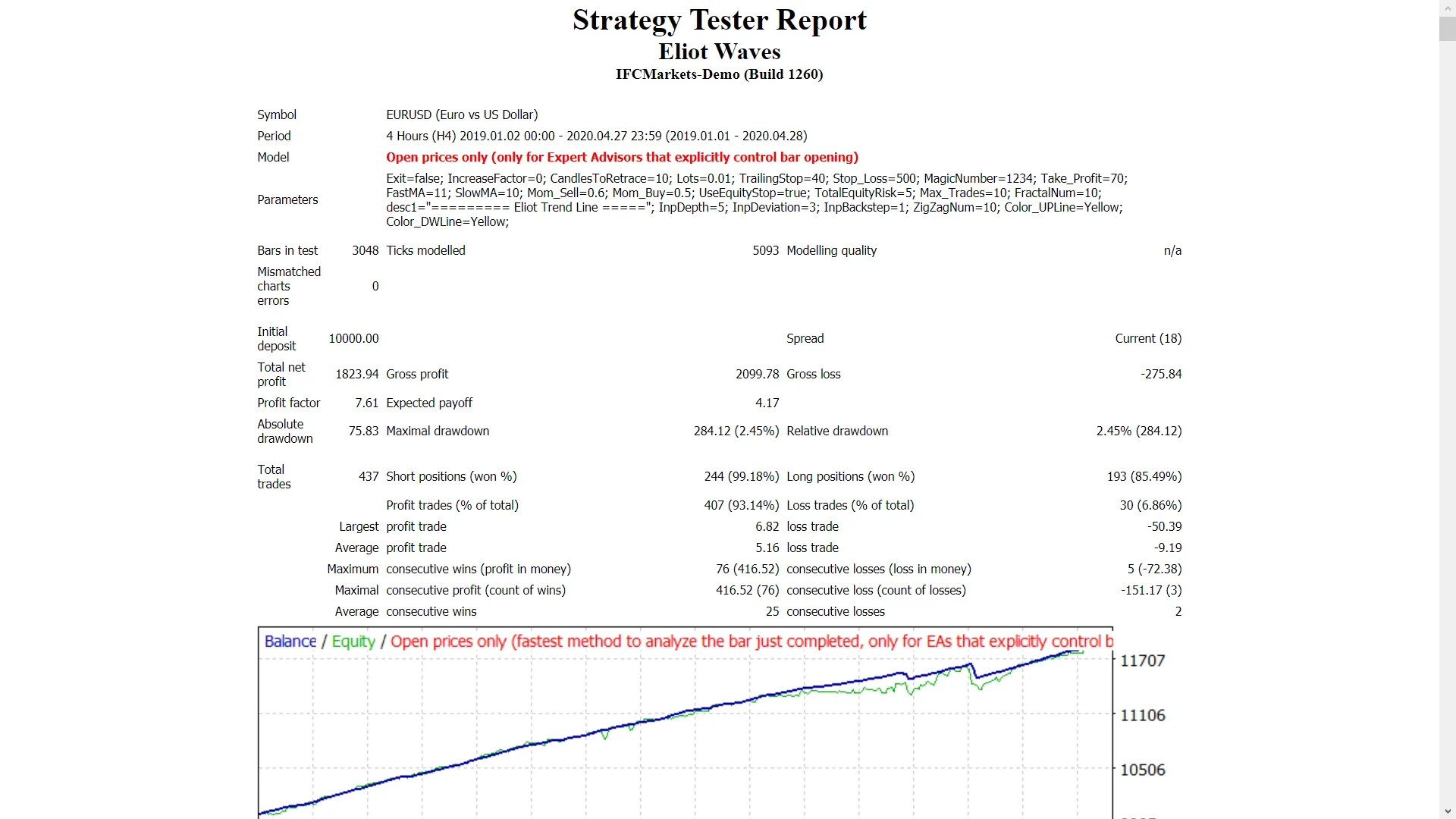
If you're looking to enhance your trading strategy, the Eliot Waves Expert Advisor (EA) might just be your new best friend. This handy tool draws two trend lines using a zigzag pattern on your chart and trades whenever an Eliot retracement forms. It’s equipped with a trailing stop loss and take profit features, making it versatile across all time frames and suitable for major forex pairs as well as NASDAQ stocks. Key Features of Eliot Waves EA Always start with a demo account to get the hang of it! This EA trades exclusively on the price of the open candle! If you prefer not to scale up lot sizes after a loss, set IncreaseFactor=0. The EA combines two moving averages with trend lines for optimal performance. Be aware that trend lines don’t function in test mode. Optimization tests can only be conducted using moving averages. In live trading, the trend lines and moving averages will work hand-in-hand. During tests, the EA merely draws trend lines on the screen in visual mode without incorporating them into trade creation. Make sure to backtest using the open prices only option. The trend lines serve as a filter, increasing the probability of winning trades. Input Settings Use_TP_In_Money: Activate take profit in money (values: true/false). TP_In_Money: Set take profit in money (values: 10-100). Use_TP_In_percent: Enable take profit in percentage (values: true/false). TP_In_Percent: Set take profit in percentage (values: 10-100). Enable_Trailing: Activate trailing stop with money (values: true/false). Take Profit In Money: Set in current currency (values: 25-100). Stop Loss In Money: Set in current currency (values: 1-20). Exit: Close trades if the trend goes against you and control drawdown (values: true/false). Lots: Define lot size (values: 0.01-1). Lots size Exponent: Set exponent (values: 1.01-2). IncreaseFactor: Specify how much to increase lots from total margin after a loss (values: 0.001-0.1). Stop_Loss: Set stop loss (values: 30-500; set value 600 for multiple trades). MagicNumber: Assign magic number (values: 1-100000). TakeProfit: Set take profit (values: 50-200; set value 600 for multiple trades). FastMA: Define fast moving average (values: 1-20). SlowMA: Define slow moving average (values: 50-200). Mom_Sell: Set momentum sell trigger (values: 0.1-0.9). Mom_Buy: Set momentum buy trigger (values: 0.1-0.9). UseEquityStop: Risk control (values: true/false). TotalEquityRisk: Define risk (values: 0.01-30). Max_Trades: Set maximum trades (1-12). Optimizing Your Trading Experience It's essential to optimize this EA every few months using the inputs mentioned above. You can use it either as a hedging grid EA or a single trade EA. For those looking to dive deeper into backtesting, check out this helpful guide: Backtesting Guide.

2025.07.18
Mastering Auto TP and SL: Your Essential Trading Tools on MetaTrader 4
MetaTrader4
Mastering Auto TP and SL: Your Essential Trading Tools on MetaTrader 4

Set Auto TP and SL: The "Set Auto TP and SL" feature—short for Take Profit and Stop Loss—is a vital part of any trader's toolkit. This handy tool automates your risk and reward management, allowing you to set specific price points where your trades will automatically close. This means you can lock in profits (TP) or limit losses (SL) without having to keep a constant watch over the market. When you activate this feature, every position you open will automatically come with your predefined Take Profit and Stop Loss levels. You can customize these levels based on your trading strategy, whether that’s a certain number of pips, a percentage of your account balance, or specific technical levels. This not only saves you valuable time but also shields your trades from sudden market shifts and emotional decision-making that often leads to mistakes. Key Benefits: Risk Management: Automatically caps your potential losses by closing trades at your predetermined SL level, helping you avoid significant drawdowns. Profit Locking: Ensures you secure your gains by closing positions once your TP target is hit, so you won’t miss out on profits even when the market turns volatile. Emotional Discipline: Helps you stick to your trading plan, minimizing the impact of fear and greed—especially crucial in volatile markets. Time Efficiency: Frees up your time by eliminating the need to set SL and TP levels manually for each trade—ideal for scalpers or high-frequency traders. Consistency: Applies uniform logic across all your trades, fostering a more systematic and disciplined trading approach. Whether you’re just starting out and looking to protect your account or you’re a seasoned pro aiming for precision and automation, the "Set Auto TP and SL" function is a must-have for successful trading. It empowers you to trade smarter, not harder, by enabling your strategy to operate with minimal manual input while maximizing your control over risk and reward. You can apply this feature to XAUUSD as well; just tweak your settings accordingly. If you’re looking for the MQL5 version, you can find it here (Auto TP).

2025.06.29
Mastering the Market: Introducing the Pending Tread EA for MetaTrader 4
MetaTrader4
Mastering the Market: Introducing the Pending Tread EA for MetaTrader 4

Pending Tread Expert Advisor (EA) – Your Go-To Trading Companion Meet the Pending Tread EA, a user-friendly trading robot crafted to automate the placement and management of multiple pending orders arranged in a grid pattern around the current market price. Ideal for scalping strategies, this EA shines on any timeframe or currency pair, making it a versatile tool for traders of all styles. Key Features Grid of Pending Orders: The EA can set up a configurable number of pending orders (default is 10) above and below the current price, creating a grid to capture market movements in both directions. Adjustable Order Spacing: You can specify the distance between each pending order using a PipStep parameter (measured in points). For instance, a PipStep of 120 would equal 12 pips for 5-digit brokers. Custom Order Types: The EA allows for different trade directions for orders placed above and below the market. Above market: it can place either buy stop or sell limit orders based on your selection. Below market: it can issue sell stop or buy limit orders. The order placement logic is finely tuned to ensure orders are positioned correctly concerning the current market price. Automated Take Profit: Each pending order is assigned a take profit level determined as a fixed number of pips (TakeProfitPips) from the order price, allowing for automatic profit-taking without manual effort. Lot Size and Slippage Control: You have the flexibility to set your lot size (LotSize) and maximum slippage (Slippage) permitted when orders are sent to the broker, giving you full control over risk and execution. Order Management: The EA keeps an eye on existing pending orders for the current symbol and its unique magic number (MagicNumber) to avoid duplicating or interfering with other trades or EAs on the same account. Throttle Mechanism: To prevent overload, the EA limits its order placement attempts to once every 5 seconds. How It Operates With every tick, the EA checks if the trading context is available and if enough time has passed since the last order was placed. It counts the existing pending orders for both above-market and below-market grids. It calculates new pending order price levels spaced according to the configured pip step. It places new pending orders up to the configured total number per side while respecting broker stop level restrictions. Each pending order includes a take profit set relative to the order price. The EA continuously watches over this grid, re-placing orders as needed if any are executed or canceled. Use Cases Scalping: Grab small price movements by having multiple pending orders ready to trigger in either direction. Range Trading: Automatically place buy and sell orders near key support and resistance levels. Breakout Strategies: Capture breakouts by setting pending stop orders above and below the current price. Important Considerations This EA is designed solely for managing pending orders; it does not handle open positions (no trailing stop or stop loss features). Always practice proper risk management and test the EA on a demo account before going live. The EA performs best with brokers that support 5-digit or 4-digit pricing; be sure to adjust PipStep and TakeProfitPips accordingly.

2025.06.10
Unlock Your Trading Potential with the MA2CCI Strategy for MetaTrader 4
MetaTrader4
Unlock Your Trading Potential with the MA2CCI Strategy for MetaTrader 4

Discover the MA2CCI Trading System Are you looking to elevate your trading game? The MA2CCI system combines the power of two moving averages (2MA) with the Commodity Channel Index (CCI) to help you make informed trading decisions. Let’s dive into how this strategy can work for you! What is the MA2CCI System? The MA2CCI system is a robust trading strategy designed for use with MetaTrader 4. It leverages the intersection of two moving averages to identify potential entry and exit points while the CCI helps to confirm these signals. Here’s a quick breakdown: 2MA: This refers to the use of two different moving averages, which can help determine the overall trend in the market. CCI: The Commodity Channel Index is a momentum indicator that helps identify overbought or oversold conditions. How to Implement the MA2CCI Strategy Getting started with the MA2CCI system is straightforward. Here’s a step-by-step guide: Set Up Your Indicators: Add the two moving averages to your MetaTrader 4 chart and configure the CCI indicator. Identify Signals: Look for crossovers between the two moving averages. A bullish crossover (when the shorter MA crosses above the longer MA) suggests a potential buy, while a bearish crossover indicates a sell signal. Confirm with CCI: Use the CCI to validate your signals. If the CCI is above 100 during a bullish crossover, it strengthens your buy signal. Conversely, if it’s below -100 during a bearish crossover, it reinforces your sell signal. Final Thoughts The MA2CCI strategy is a fantastic tool for traders looking to enhance their trading decisions. By combining the insights from moving averages and the CCI, you can develop a clearer picture of market dynamics. Remember, practice makes perfect, so don’t hesitate to backtest this strategy on a demo account before diving into live trading! Happy trading!

2025.05.19
Master Multi-Timeframe Trading with Stochastic and Bollinger Bands in MT4
MetaTrader4
Master Multi-Timeframe Trading with Stochastic and Bollinger Bands in MT4

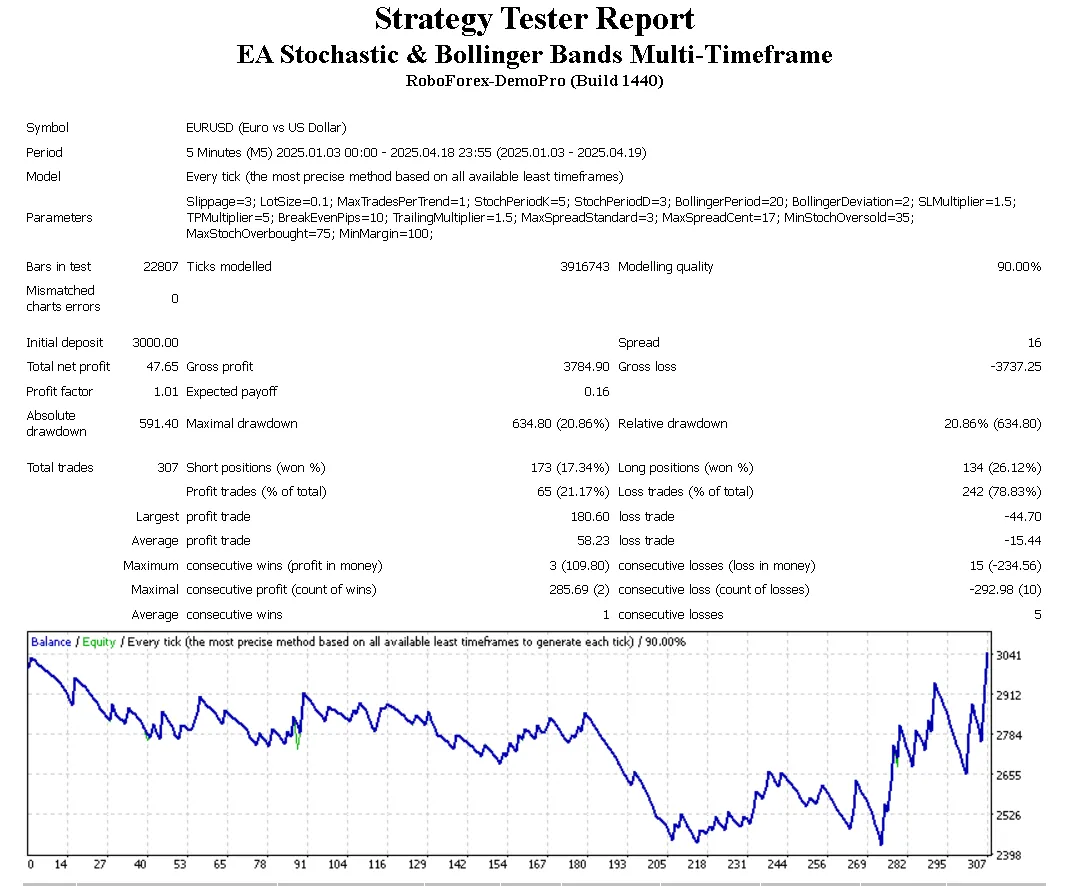
Hey there, fellow traders! If you're looking to enhance your trading strategy on MetaTrader 4, you might want to check out this multi-timeframe EA that harnesses the power of the Stochastic Oscillator and Bollinger Bands. Let’s dive into what makes this tool a must-have on your trading desk! Key Features: Multi-Timeframe Analysis: This EA analyzes Stochastic Oscillator and Bollinger Bands values from M1, M5, and M15 charts, providing you with robust trade entry signals. Entry Conditions: Buy Signal: All three Stochastic K lines need to be below the MinStochOversold level, while the M15 price is hanging below the lower Bollinger Band. Sell Signal: Conversely, for a sell, all three Stochastic K lines should be above the MaxStochOverbought level, with the M15 price sitting above the upper Bollinger Band. Trade Management: It limits the number of trades you can have open at once, adhering to the MaxTradesPerTrend setting. Stop Loss (SL) and Take Profit (TP) levels are intelligently calculated using the Average True Range (ATR) from the M15 timeframe, alongside your SLMultiplier and TPMultiplier inputs. Spread Control: The EA checks the current spread against MaxSpreadStandard (ideal for standard/ECN accounts) and MaxSpreadCent (for cent/micro accounts). If the spread is too wide, it uses buy limit or sell limit orders instead of jumping in with instant execution. Pending Orders: When the market spread is less than ideal for immediate trades, the EA sets pending buy limit or sell limit orders just below the current price for buys and just above for sells. Input Flexibility: Customize the EA to fit your trading style with various parameters, including slippage, lot size, indicator settings, SL/TP multipliers, break-even and trailing stop options, maximum spread limits, and Stochastic overbought/oversold levels. OnTick Function: The OnTick() function acts as the main engine, retrieving indicator values, checking for open orders, and evaluating conditions to potentially trigger new trades. Debugging Tools: This EA includes handy Print() statements for debugging, allowing you to log Stochastic K values across timeframes and monitor the current spread. Give this EA a shot and see how it can help refine your trading strategy. Remember, the market is always evolving, so stay adaptable and keep learning!

2025.04.27
RRS Impulse: Your Go-To Scalping EA for MetaTrader 4
MetaTrader4
RRS Impulse: Your Go-To Scalping EA for MetaTrader 4

If you’re looking to ramp up your trading game, the RRS Impulse EA might just be the scalping tool you need. This powerful Expert Advisor leverages the Relative Strength Index (RSI), Stochastic Oscillator, and Bollinger Bands to spot both trend-following and counter-trend opportunities. What’s more, this EA operates as a multi-pair EA, scanning numerous currency pairs to find those golden signals. With an array of features like Trailing, Risk Management, Money Management, and Restriction Mode, the RRS Impulse EA offers a lot of flexibility. Get your settings dialed in, and you could be on your way to some serious profits! Impulse EA Features: Variable Values Description Trading_Indicator RSI, Stochastic, BollingerBands, RSI_Stochastic_BollingerBands RSI: Analyzes the market using the RSI indicator. Stochastic: Trades based on Stochastic signals. BollingerBands: Utilizes Bollinger Bands for market analysis. RSI_Stochastic_BollingerBands: Combines all three indicators for enhanced accuracy. TradeDirection Trend, CounterTrend Trend: Trades in line with the trend (e.g., buy when RSI is overbought). CounterTrend: Trades against the trend, anticipating reversals (e.g., sell when RSI is overbought). SignalStrength NormalSignal, NormalMultiTimeFrame, StrongSignal, VeryStrongSignal NormalSignal: Evaluates signals based on a single timeframe. NormalMultiTimeFrameSignal: Checks one timeframe at a time. StrongSignal: Confirms signals across multiple timeframes for added reliability. VeryStrongSignal: Analyzes several timeframes for the strongest signals before trading. minLot_Size Double Value Sets the minimum lot size to prevent random lot sizes from dropping too low. maxLot_Size Double Value Establishes the maximum lot size for trading. StopLoss Int Value Defines your stop loss in points/pips (the smallest price change). Set to 0 to disable. TakeProfit Int Value Sets your take profit level in points/pips. Set to 0 to disable. Trailing_Start Int Value (Points/Pips) Indicates when to start trailing, based on pips from the open price. Set to 0 to disable. Trailing_Gap Int Value (Points/Pips) Establishes the gap in pips between the market price and the trailing stop loss. Set to 0 to disable. Risk_In_Money_Type FixedMoney, BalancePercentage FixedMoney: Closes all trades if negative floating loss hits your specified amount. BalancePercentage: Adjusts risk based on account balance. Money_In_Risk Int Value Amount you’re willing to risk based on your selection above. Max_Spread Int Value (Points/Pips) Sets the max spread for trades; if exceeded, the EA waits. Slippage Int Value (Points/Pips) Defines allowable slippage during order execution. MaxOpenTrade Int Value Limits the number of simultaneous open trades. Trade_Currencies String Value Specifies currency symbols for analysis and trading. Impulse Plus: The RRS Impulse Plus EA is the advanced version of the RRS Impulse EA. This upgrade offers more options and flexibility, using RSI, Stochastic, Moving Average, and Bollinger Bands to identify trading opportunities. With this EA, you also get features like Trailing, Risk Management, Money Management, and more. Configure it right, and you could see some impressive gains! Signal Descriptions: Indicator BUY SELL RSI Trend: Buy when RSI is overbought. CounterTrend: Buy when RSI is oversold. Trend: Sell when RSI is oversold. CounterTrend: Sell when RSI is overbought. Stochastic Trend: Buy when both lines are overbought. CounterTrend: Buy when both lines are oversold. Trend: Sell when both lines are oversold. CounterTrend: Sell when both lines are overbought. Bollinger Bands Trend: Buy when price touches the upper band. CounterTrend: Buy when price touches the lower band. Trend: Sell when price touches the lower band. CounterTrend: Sell when price touches the upper band. Moving Average Trend/CounterTrend: Buy when price is above the MA. Trend/CounterTrend: Sell when price is below the MA. Signal Scenarios: Here’s how the signals stack up: RSI Stochastic Bollinger Bands Moving Average Signal Above Above Above Below CounterTrend Sell ✅ Below Below Below Above CounterTrend Buy ✅ Above Above Above Above Trend Buy ✅ Below Below Below Below Trend Sell ✅ Important Notes: Enable web requests in MT4/MT5: Go to Tools → Options → Expert Advisors → Allow Web Request and add: http://nfs.faireconomy.media/ (This service is provided by ForexFactory and fetches news data from their platform.) Recommended Testing: It's highly advised to trial this EA on a demo account for at least 45 days before going live. Wishing you all the best—happy trading! 🚀

2025.04.20
Master Your Trades with the Adjustable Moving Average EA for MT4
MetaTrader4
Master Your Trades with the Adjustable Moving Average EA for MT4

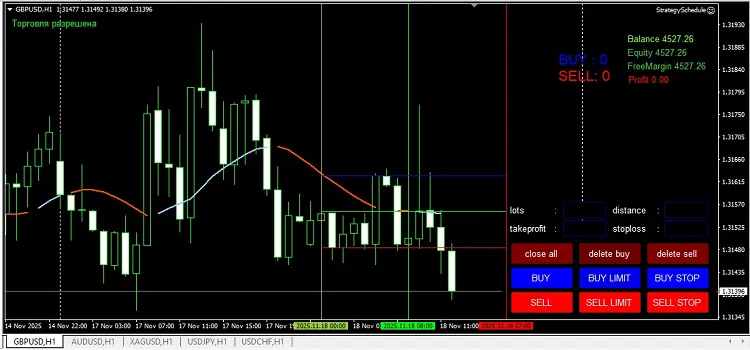
📈 Introducing the Adjustable Moving Average EA for MT4 If you're looking to take your trading to the next level, the Adjustable Moving Average EA is just the tool you need. This Expert Advisor is tailored for traders who want to have complete control over their trading strategies. With its ability to trade based on the crossover of two customizable moving averages, you can fine-tune your entry points, manage risk, and dictate trade direction just the way you like it. ⚙️ Understanding the Input Parameters: FastPeriod: This parameter defines the period for your fast moving average. The shorter the period, the more sensitive it is to price changes. SlowPeriod: Here, you set the period for your slow moving average. A longer period generally smooths out price fluctuations. MAPriceType: Choose the price type for the moving average calculation—options include Close, Open, High, or Low. SL_Points: This sets your Stop Loss in points. If you prefer not to use a Stop Loss, just set this to 0. TP_Points: This is your Take Profit level in points. Setting it to 0 means you won't have a Take Profit in place. TrailStopPips: Enable this feature to activate a trailing stop once your trade is in profit, helping you lock in gains. EntryMode: Select your preferred entry mode: Long-only, Short-only, or Both directions to suit your strategy. FixedLot: Set the lot size for every trade you make—perfect for consistent risk management. MaxSlippage: Define the maximum slippage allowed in points to manage your trade execution better. TradeComment: Add personalized comments to each trade, making it easier to identify them later in your trade history.

2025.04.16
Unlock Profits with the RRS Tangled EA for MetaTrader 4
MetaTrader4
Unlock Profits with the RRS Tangled EA for MetaTrader 4

Hey traders! If you're on the lookout for an innovative tool to enhance your trading game, let me introduce you to the RRS Tangled EA. This is a refined version of the RRS Chaotic EA and the RRS Randomness in Nature EA. What makes it stand out? It takes a unique approach by randomly selecting currency pairs, lot sizes, and order types for trading—no technical indicators or fundamental analysis needed! The magic lies in its Randomness in Nature strategy, which allows it to open trades in a way that can lead to impressive profits, especially when configured with the right settings for Take Profit, Stop Loss, Trailing, and Risk Management. What’s more, this EA is designed to operate across multiple currencies or assets. So even if you link it to just one currency pair, it can still manage trades for others seamlessly! Variable Values Description minLot_Size Double Value Minimum lot size to ensure lot size randomness does not fall below this threshold. maxLot_Size Double Value Maximum lot size to ensure lot size randomness does not exceed this limit. StopLoss Int Value Set your stop loss value in points/pips (the smallest price movement unit for your asset). Set Stop Loss to 0 to turn it off. TakeProfit Int Value Define your take profit value in points/pips. Set Take Profit to 0 to disable it. Trailing_Start Int Value (Points/Pips) Specify the number of pips from the opening price at which trailing starts. Set Trailing Start to 0 to turn off trailing. Trailing_Gap Int Value (Points/Pips) Set the gap in pips between the current market price and the trailing stop loss. Set Trailing Gap to 0 to disable trailing. Risk_In_Money_Type FixedMoney, BalancePercentage FixedMoney: Closes all open trades when the negative floating reaches your specified amount. BalancePercentage: Calculates automatically based on your account balance and closes all trades once this limit is reached. Money_In_Risk Int Value If Risk_In_Money_Type is set to FixedMoney, enter the amount you’re willing to risk. If set to BalancePercentage, the EA calculates the risk based on your balance. Max_Spread Int Value (Points/Pips) Defines the maximum acceptable spread. If the current spread exceeds this value, the EA will hold off on trading until it’s within limits. Slippage Int Value (Points/Pips) Sets the maximum allowed slippage for executing orders. MaxOpenTrade Int Value Allows you to specify the maximum number of open trades at any one time. Wishing you all the best—Happy Trading!

2025.03.23
Unlocking Profits with the RRS Chaotic EA for MetaTrader 4
MetaTrader4
Unlocking Profits with the RRS Chaotic EA for MetaTrader 4

Hey traders! Today, let's dive into the RRS Chaotic EA, a simplified version of the RRS Randomness in Nature EA. This Expert Advisor (EA) takes a unique approach to trading by operating on pure randomness. It opens trades with various currency pairs, lot sizes, and order types without relying on the usual indicators or candlestick patterns. Sounds intriguing, right? Despite its random nature, this EA has shown impressive profitability when set up correctly. It’s all about finding the right settings that work for you. Key Features of the RRS Chaotic EA Multiple Strategies: This EA offers a variety of trading strategies to cater to different styles. Customizable Risk Management: Tailor your risk management plans to fit your trading preferences. User-Friendly Settings: With several customizable options, you can easily adjust your trading parameters. Understanding the Variables Variable Values Description minLot_Size Double Value Sets the minimum lot size to ensure trades remain above this value. maxLot_Size Double Value Sets the maximum lot size to ensure trades do not exceed this value. StopLoss Int Value Define your stop loss in points/pips. Set it to 0 to disable. TakeProfit Int Value Set your take profit in points/pips. Set it to 0 to disable. Risk_In_Money_Type FixedMoney, BalancePercentage FixedMoney: Closes all trades when losses reach your specified amount. BalancePercentage: Calculates risk based on your account balance. Money_In_Risk Int Value Specify the amount you're willing to lose. The EA will manage trades according to this setting. Max_Spread Int Value (Points/Pips) Sets the maximum spread for executing trades. If exceeded, the EA will hold off on trading. Slippage Int Value (Points/Pips) Sets the maximum slippage allowed for order execution. MaxOpenTrade Int Value Limits the number of open trades you can have at any given time. Quick Tip: If you run into any issues with the EA, try removing #property strict from line 8 of the EA code. Happy Trading and Best of Luck!

2025.03.19
1 2 3 4 5 6 Next Last