System Trading

How to Display Indicator Names in MetaTrader 4: A Handy Guide for Traders
MetaTrader4
How to Display Indicator Names in MetaTrader 4: A Handy Guide for Traders

As traders, we often find ourselves sharing snapshots of our charts with indicators attached. But how can we be absolutely sure that the indicator we see in the snapshot is the same one we're expecting? When it comes to Expert Advisors (EAs), there’s a nice little feature that shows the EA’s name right in the top right corner of the chart. Unfortunately, indicators don’t come with that luxury. This can lead to some confusion, especially when we’re trying to analyze or share our trading setups. But fear not! There’s a simple piece of code you can use to display the name of the indicator right on your chart. This little trick makes it easy to confirm which indicator you’re working with at any given time. Not only does this ensure you know exactly what’s attached to your chart, but it can also help if you're checking different versions of the same indicator. By including the version in the name, you can quickly verify you’re using the right one for your analysis. Here’s how to implement it: Add the code snippet: Insert the provided code into your indicator's script. Display the name: The indicator’s name will now show up on your chart, making it easier to reference in your trading discussions. Version control: Don’t forget to include the version number if you’re working with multiple versions of the same indicator. This simple addition can save you a lot of headaches down the line. So, next time you’re about to share your chart, you can do so with confidence, knowing exactly which indicators you're using!

2021.12.17
Maximize Your Trading Efficiency with Time-Specific Expert Advisors for MetaTrader 4
MetaTrader4
Maximize Your Trading Efficiency with Time-Specific Expert Advisors for MetaTrader 4

Master Your Trades with Time-Sensitive Expert Advisors Are you tired of missing out on trading opportunities? Meet your new best friend: the time-specific Expert Advisor (EA) for MetaTrader 4. This handy tool is designed to open and close your trades at precise times, so you can focus on what really matters – trading! How It Works This EA only opens and closes orders for the specific currency pair it’s attached to, making it a reliable partner in your trading journey. Configuration Parameters Day Open Orders - Set the day to open your trades. Hour Open Orders - Specify the hour to initiate trades. Minute Open Orders - Choose the exact minute to open positions. Open Buy Orders - Select this option to open buy trades. Open Sell Orders - Choose this to initiate sell trades. Orders' Lot Size - Define the lot size for your trades. Orders' Take Profit (0=No Take Profit) - Set your take profit level in pips. Orders' Stop Loss (0=No Stop Loss) - Determine your stop loss level in pips. Orders' Handle Magic Number - Manage orders using a specific magic number. Day Close Orders - Specify the day to close your trades. Hour Close Orders - Set the hour to close positions. Minute Close Orders - Choose the exact minute to close trades. Close Only Own Orders In Time - Select this to only close trades opened by the EA. Close All Orders In Time - Opt for this to close all open trades in your account. With these customizable parameters, you can fine-tune your trading strategy to match your unique style and preferences.

2021.11.28
Maximize Your Trading with Break Even Strategies in MetaTrader 4
MetaTrader4
Maximize Your Trading with Break Even Strategies in MetaTrader 4

Hey there, fellow traders! Today, I want to share some insights on a nifty little EA (Expert Advisor) designed to help you manage your trades more effectively, especially when it comes to break-even strategies. Understanding the Orders Count Function The real magic of this EA lies in its Orders Count Function. This function is crucial for keeping track of your active trades and ensuring you're making the most of your positions. int OrdersCounter() { int counter=0; // Count active orders for(int i=OrdersTotal()-1; i>=0; i--) { if(OrderSelect(i,SELECT_BY_POS)) if(OrderMagicNumber()==MagicNumber && OrderSymbol()==Symbol()) { // Check if order belongs to this EA //--- Check for Break Even status double XBreakeven = OrderType()==OP_BUY ? OrderStopLoss() >= OrderOpenPrice() : OrderStopLoss() <= OrderOpenPrice(); if(!XBreakeven) { counter++; // Count the position } } } return counter; } This function counts only the orders that have NOT reached a break-even point. Specifically, for buy orders, we check if the stop-loss is above or equal to the open price, and for sell orders, below the open price. In simple terms, we tally up all orders that haven’t been safeguarded by a break-even or trailing stop. double XBreakeven = OrderType()==OP_BUY ? OrderStopLoss() >= OrderOpenPrice() : OrderStopLoss() <= OrderOpenPrice(); if(!XBreakeven) // Check Break Even status This allows us to create a counter that helps us limit our maximum positions; in this case, we’ve set it to just one open order at a time. if(OrdersCounter()<MaximumOrders) So, every time a break-even occurs, this function ignores it. With only one position active in our example, it will return zero, enabling us to open another trade and keep the momentum going. Implementing the Break Even Function Now, this wouldn’t be possible without a dedicated break-even function. void BreakEvenFunction() { // Loop through orders for(int i=OrdersTotal()-1; i>=0; i--) { if(OrderSelect(i,SELECT_BY_POS)) if(OrderMagicNumber()==MagicNumber && OrderSymbol()==Symbol()) { // Check for buy orders double xHybrid = OrderType()==OP_BUY ? (Bid>OrderOpenPrice()+BreakevenPips*_Point && OrderStopLoss()<OrderOpenPrice()) : (Ask<OrderOpenPrice()-BreakevenPips*_Point && OrderStopLoss()>OrderOpenPrice()); // Check if we need to adjust the stop-loss if(xHybrid) { bool modify = OrderModify(OrderTicket(),OrderOpenPrice(),OrderOpenPrice(),OrderTakeProfit(),0,clrNONE); } } } So, what do you think? Ready to give it a shot? With this setup, you can manage your trades more effectively and stay ahead in the game!

2021.07.13
Mastering the Moving Average Breakout Strategy for MetaTrader 4
MetaTrader4
Mastering the Moving Average Breakout Strategy for MetaTrader 4

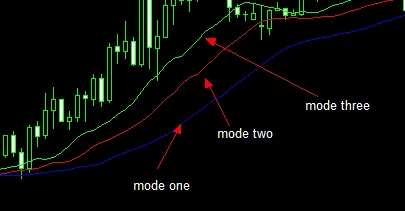
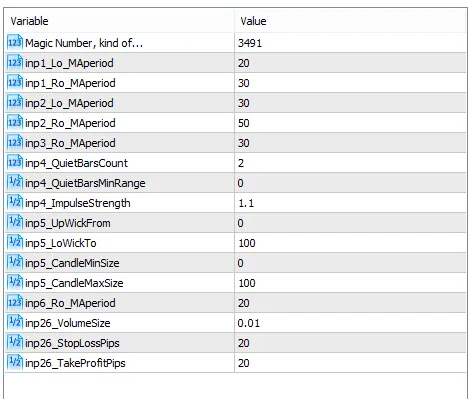
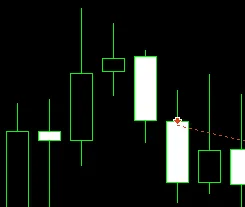
When it comes to trading, one of the most effective strategies is utilizing moving averages, especially in a breakout scenario. Let's dive into how you can set this up in MetaTrader 4! Understanding the Input Parameters For this strategy, I'll break down the inputs as if we're looking at a buy trade. The same principles apply for sell trades, just in reverse. Input 1: Set the 20 EMA to be greater than the 30 EMA. Input 2: Ensure the 30 EMA is greater than the 50 EMA. Input 3: The opening price of the breakout candle should be above the 30 EMA. Breaking Down the Breakout Settings Now, let’s discuss the breakout settings: Quiet Bar Count: This parameter determines how many bars back the breakout must be higher than. Quiet Bar Range: Measured in pips, this sets the minimum range of the quiet bars. Impulse Strength: A value of 1.1 means the breakout must be at least 10% above the highs of the quiet bar range. Optimization Step Value: Set this at 0.1, starting from 1 up to about 5. Wick Length and Breakout Size Next, we need to consider: Input 5: Wick length should be expressed as a percentage of the entire bar. Size in Pips: Set your minimum and maximum sizes for the breakout bar in pips. Final Touches for Your Strategy Lastly, ensure: The low of the breakout candle is equal to or lower than the 20 EMA. Volume lots, stop loss, and target in pips are set accordingly. By following these guidelines, you’ll be well on your way to mastering the moving average breakout strategy in MetaTrader 4. Happy trading!   

2021.07.03
First Previous 9 10 11 12 13 14 15 16 17 18 19 Next Last