System Trading

Mastering Risk Management: Dual Stop Loss for MetaTrader 4
MetaTrader4
Mastering Risk Management: Dual Stop Loss for MetaTrader 4

When it comes to trading, one of the first things on a trader's mind should be money management. A solid strategy for managing risk and capital is crucial, and using a well-defined margin loss for your trades is one effective approach. Many traders often believe that once they set a Stop Loss (or Take Profit), the broker will automatically close their position at that specific price. However, that’s not quite the whole story. It really depends on the type of account you have with your broker. For those trading on ECN accounts, when you set a Stop Loss or Take Profit, the broker will close your position at the first available price once the market hits that limit. If you’ve ever noticed that some of your orders were closed at a different price than you set, you might be dealing with slippage. Moreover, some traders think it’s better not to reveal their exact loss limit to the broker. This is where the concept of the Hidden Stop Loss comes into play. This innovative tool is designed specifically for those who want to keep their loss limits under wraps. Now, you can utilize both Hidden and Regular Stop Losses simultaneously. Setting a Regular Stop Loss for your trades is as straightforward as ever, whether you’re using automated strategies or trading manually. Simply run this robot on a new chart (any chart will do) to manage all your positions effectively. The input value you set determines the distance between your Hidden and Regular Stop Losses, so keep in mind that this value is measured in points, not pips.

2021.04.23
Boost Your Scalping Strategy with Scalper Assistant v1.0 for MetaTrader 4
MetaTrader4
Boost Your Scalping Strategy with Scalper Assistant v1.0 for MetaTrader 4

Why Scalping is a Go-To Strategy for Traders Scalping has become one of the go-to strategies for traders around the globe, and let’s be honest, most of us have dipped our toes into it at least once. With scalpers typically executing over 10 trades a day, keeping track of Stop Loss and Take Profit levels can get a bit tedious. If you’re juggling multiple financial instruments, trying to hit that Break Even point can feel like a juggling act prone to mistakes. Picture this: you’re trading on lower time frames across various currency pairs, and just as you step away for a quick cuppa, the market makes a sharp move, and you miss your Break Even opportunity. It’s a trader’s nightmare, right? The thought of a promising trade turning into a loss can be quite unsettling. Meet Scalper Assistant v1.0 This is where the Scalper Assistant comes into play! This handy tool takes the guesswork out of setting your Stop Loss and Take Profit levels. As soon as you open a trade, the assistant automatically applies the initial values. If the price shifts favorably, it can seamlessly push your trade to Risk-Free or Break-Even status. Key Features of Scalper Assistant Customizable Settings: You can easily adjust the parameters to fit your trading style. Point-Based Inputs: All input values are measured in POINT, not PIP, making it straightforward to track your trades. Break Even Management: Specify how many points away from your entry point a trade needs to be before the EA moves it to Break Even. Stop Loss Distance: Set how far your Stop Loss should be from your entry point. How to Use Scalper Assistant To get started, here are a couple of parameters you might want to set: extern double WhenToMoveToBE: This lets you determine how many points the price should be away from the order entry point for the EA to move the order to Break Even. extern double BEAmount: This allows you to set the distance of the Stop Loss from the entry point. With Scalper Assistant v1.0, you can take your scalping game to the next level without the hassle of manual management. Say goodbye to missed opportunities, and hello to a more efficient trading experience!

2021.04.23
Master Your Trading Hours with the Auto Trading Scheduler for MT4 and MT5
MetaTrader4
Master Your Trading Hours with the Auto Trading Scheduler for MT4 and MT5

If you're a trader looking to take control of your trading sessions, the Auto Trading Scheduler for MetaTrader 4 and 5 is a game-changer. Developed by EarnForex.com, this handy tool allows you to manage exactly when your automated trading kicks in or takes a break. With the Auto Trading Scheduler, you can easily set specific time slots for each day of the week. Whether you’re a night owl or an early bird, this feature ensures that your automated trading will only operate during the periods you choose. No more worrying about trades being executed while you're catching some Z's! Worried about open positions when the trading time is up? No problem! The scheduler can also close all active trades and pending orders before it switches off the auto trading feature. This means you can rest easy knowing your positions are managed properly. Key Features of the Auto Trading Scheduler Customizable Trading Hours: Set specific time periods for trading each day of the week. Automatic Trade Management: Close all trades and pending orders before disabling auto trading. User-Friendly Interface: Easy to navigate and set up without hassle. In short, the Auto Trading Scheduler is perfect for traders who want to maintain control over their trading strategies while still enjoying the benefits of automation. So why not give it a try? It might just be the tool you need to take your trading to the next level!

2021.04.01
Mastering Order Management in MetaTrader 4: Cut Loss or Take Profit with Ease
MetaTrader4
Mastering Order Management in MetaTrader 4: Cut Loss or Take Profit with Ease

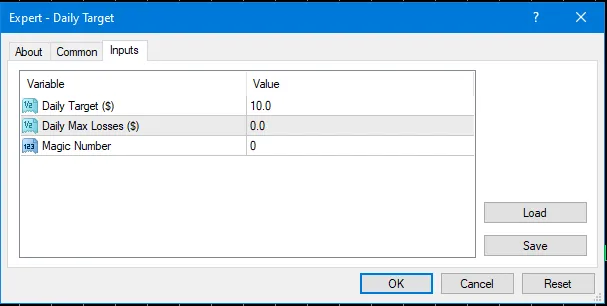
Using the EA for Effective Trade Management Hey fellow traders! Today, we’re diving into an Expert Advisor (EA) that serves as a handy tool for managing your trades in MetaTrader 4. Whether you’re looking to lock in profits or minimize losses, this EA has got your back. Key Inputs for Your EA To get started, you’ll need to configure three essential inputs: Profit Target: This is the amount you aim to gain from your trades. Cut Loss: This is the threshold at which you’ll exit a losing trade to prevent further losses. Magic Number: A unique identifier for your trades that allows the EA to manage them effectively. extern double inTargetProfitMoney = 10; // Target Profit ($) extern double inCutLossMoney = 0.0; // Cut Loss ($) extern int inMagicNumber = 0; // Magic Number Initializing the EA When you run this EA, it first calls the OnInit() function where it checks your inputs and initializes the necessary variables: int OnInit() { //--- if (inTargetProfitMoney = 0; i--) { if (OrderSelect(i, SELECT_BY_POS, MODE_TRADES)) { if (OrderMagicNumber() == inMagicNumber) { tFloating += OrderProfit() + OrderCommission() + OrderSwap(); } } } if (tFloating >= inTargetProfitMoney || (tFloating = 0; i--) { if (OrderSelect(i, SELECT_BY_POS, MODE_TRADES)) { if (OrderMagicNumber() == inMagicNumber && (OrderType() == OP_BUY || OrderType() == OP_SELL)) { priceClose = (OrderType() == OP_BUY) ? MarketInfo(OrderSymbol(), MODE_BID) : MarketInfo(OrderSymbol(), MODE_ASK); if (!OrderClose(OrderTicket(), OrderLots(), priceClose, slippage, clrGold)) { Print("WARNING: Close Failed"); } } } } } Join the Community! For more in-depth information and to share your MQL4 coding experiences, feel free to join our Telegram group. We’d love to have you on board!

2021.03.31
Mastering the Trailing Stop with Magic Number in MetaTrader 4
MetaTrader4
Mastering the Trailing Stop with Magic Number in MetaTrader 4

Hey traders! Let’s dive into how a trailing stop can really boost your trading game by moving the stop loss into profit territory, ensuring we keep our gains secured automatically. We’ll kick things off by setting the input parameters for our trailing stop in the code: input    bool     isTrailingStop = true;  // Enable Trailing Stop input    int       trailingStart  = 15;    // Trailing Start (pips) input    int       trailingStep   = 5;     // Trailing Step (pips) input    int       MagicNumber = 0;        // Magic Number Now, let’s set up a global variable: // Global Variable double   myPoint    = 0.0; When we run this Expert Advisor (EA), the OnInit() function will be executed for the first time, where we will validate and initialize our input variables: int OnInit()   {     if (isTrailingStop && trailingStart <= 0){       Alert ("Parameters incorrect");       return(INIT_PARAMETERS_INCORRECT);    }         myPoint     = GetPipPoint(Symbol());        return(INIT_SUCCEEDED);   } Every time there’s a price movement (tick) on the chart where this EA is active, the OnTick() function will be executed. Inside this function, we’ll call setTrailingStop(): void OnTick()   {   //---      setTrailingStop(MagicNumber);   } Now, let’s look at the setTrailingStop() function: void setTrailingStop(int magicNumber=0){    if (isTrailingStop==false) return;       int      tOrder = 0;    string   pair = "";    double   sl = 0.0, tp = 0.0;       pair = Symbol();       tOrder = OrdersTotal();    for (int i=tOrder-1; i>=0; i--){       bool hrsSelect = OrderSelect(i, SELECT_BY_POS, MODE_TRADES);       if (OrderMagicNumber() == magicNumber && StringFind(OrderSymbol(), pair, 0) == 0 ){          if (OrderType() == OP_BUY){             if ( (Bid - (trailingStart * myPoint)) >= OrderOpenPrice()               && (Bid - ((trailingStart+trailingStep) * myPoint) >= OrderStopLoss() )               ){                sl = NormalizeDouble(Bid - (trailingStart * myPoint), Digits());                if (!OrderModify(OrderTicket(), OrderOpenPrice(), sl, OrderTakeProfit(), 0, clrBlue)){                   Print ("#", OrderTicket(), " failed to update SL");                }             }          }                   if (OrderType() == OP_SELL){             if ( (Ask + (trailingStart * myPoint)) <= OrderOpenPrice()               && ( (Ask + ((trailingStart+trailingStep) * myPoint) <= OrderStopLoss() ) || OrderStopLoss() == 0.0)                )         {                sl = NormalizeDouble(Ask + (trailingStart * myPoint), Digits() );                if (!OrderModify(OrderTicket(), OrderOpenPrice(), sl, OrderTakeProfit(), 0, clrBlue)){                   Print ("#", OrderTicket(), " failed to update SL");                }             }          }       } //end if magicNumber    }//end for } Another essential function you’ll need is GetPipPoint(): // Function GetPipPoint double GetPipPoint(string pair) {    double point= 0.0;    int digits = (int) MarketInfo(pair, MODE_DIGITS);    if(digits == 2 || digits== 3) point= 0.01;    else if(digits== 4 || digits== 5) point= 0.0001;    return(point); } Got questions? Feel free to drop them in the comments below! You can also join our trading group for more insights. Check it out here: t.me/codeMQL Don’t forget to check out our SignalForex App too! Your support means a lot, so download the app and enhance your trading experience! You can find it here: SignalForex App

2021.03.30
Mastering the 2 MA Crossing Strategy for MetaTrader 4
MetaTrader4
Mastering the 2 MA Crossing Strategy for MetaTrader 4

In this post, we're diving into how to create an Expert Advisor (EA) that utilizes the 2 MA Crossing strategy on MetaTrader 4. Let’s kick things off by defining our input variables. //--- Input Parameters input    int      period_ma_fast = 8;  // Fast MA Period input    int      period_ma_slow = 20; // Slow MA Period input    double  takeProfit  = 20.0;  // Take Profit in pips input    double  stopLoss    = 20.0;  // Stop Loss in pips input    double  lotSize     = 0.10;  // Lot Size input    double  minEquity   = 100.0;// Minimum Equity ($) input    int slippage = 3;      // Slippage input    int magicNumber = 889;  // Magic Number Next up, let’s define our global variables. These variables will be accessible to all functions within our EA. // Global Variables double  myPoint    = 0.0; int      mySlippage = 0; int      buyTicket   = 0; int      sellTicket  = 0; When the EA runs, the first function it hits is OnInit(). We often use this function to validate and initialize the global variables we’ll be using. int OnInit() {    // Validate Inputs    if (period_ma_fast >= period_ma_slow || takeProfit < 0.0 || stopLoss < 0.0 || lotSize < 0.01 || minEquity < 10) {       Alert("WARNING - Invalid input data!");       return (INIT_PARAMETERS_INCORRECT);    }       double min_volume=SymbolInfoDouble(Symbol(),SYMBOL_VOLUME_MIN);    if(lotSize<min_volume) {       string message =StringFormat("Volume is less than the allowed minimum of %.2f",min_volume);       Alert (message);       return(INIT_PARAMETERS_INCORRECT);    }       myPoint = GetPipPoint(Symbol());    mySlippage = GetSlippage(Symbol(),slippage);    return(INIT_SUCCEEDED); } As the market price fluctuates (ticks), the OnTick() function will trigger and execute all commands within this block. Within the OnTick() function, we’ll invoke several other functions. First, we’ll call the checkMinEquity() function to ensure we have enough trading equity. If our equity meets the requirement, we’ll set up a signal variable and call the NewCandle() function to recognize when a new candle forms. The getSignal() function will check both moving average indicators and return whether a crossover has occurred, signaling whether to buy or sell. Based on this signal, we’ll pass it to the transaction() function to open a buy or sell position, followed by invoking the setTPSL() function to establish the take profit and stop loss levels. If the equity doesn't meet the minimum requirement, an alert will pop up, and the EA will halt. void OnTick() {    if (checkMinEquity()) {       int signal = -1;       bool isNewCandle = NewCandle(Period(), Symbol());              signal = getSignal(isNewCandle);       transaction(isNewCandle, signal);       setTPSL();    } else {       // Stop trading due to insufficient equity       Print("EA will be stopped due to insufficient equity.");    } } Let’s take a closer look at the setTPSL() function. void setTPSL() {     int  tOrder = 0;     string  strMN = "", pair = "";     double sl = 0.0, tp = 0.0;        pair = Symbol();        tOrder = OrdersTotal();     for (int i=tOrder-1; i>=0; i--) {       bool hrsSelect = OrderSelect(i, SELECT_BY_POS, MODE_TRADES);       strMN = IntegerToString(OrderMagicNumber());       if (StringFind(strMN, IntegerToString(magicNumber), 0) == 0 && StringFind(OrderSymbol(), pair, 0) == 0) {          if (OrderType() == OP_BUY && (OrderTakeProfit() == 0 || OrderStopLoss() == 0)) {             if (takeProfit > 0) {                tp = OrderOpenPrice() + (takeProfit * myPoint);             } else {                tp = OrderOpenPrice();             }             if (stopLoss > 0) {                sl = OrderOpenPrice() - (stopLoss * myPoint);             } else {                sl = OrderStopLoss();             }             if (OrderTakeProfit() != tp || OrderStopLoss() != sl) {                if(OrderModify(OrderTicket(), OrderOpenPrice(), sl, tp, 0, clrBlue)) {                   Print("Order modification successful!");                }             }          }          if (OrderType() == OP_SELL && (OrderTakeProfit() == 0 || OrderStopLoss() == 0)) {             if (takeProfit > 0) {                tp = OrderOpenPrice() - (takeProfit * myPoint);             } else {                tp = OrderOpenPrice();             }             if (stopLoss > 0) {                sl = OrderOpenPrice() + (stopLoss * myPoint);             } else {                sl = OrderStopLoss();             }             if (OrderTakeProfit() != tp || OrderStopLoss() != sl) {                if (OrderModify(OrderTicket(), OrderOpenPrice(), sl, tp, 0, clrRed)) {                   Print("Order modification successful!");                }             }          }       } // End of if magic number && pair     } // End of for } For those looking to connect and share knowledge, feel free to join our community on Telegram at t.me/codeMQL. If you need an app to enhance your trading experience, check out our SignalForex app available on the Play Store! SignalForex App on Play Store

2021.03.30
Unlock Trading Success with 'The Enchantress' - A Deep Learning Expert Advisor for MetaTrader 4
MetaTrader4
Unlock Trading Success with 'The Enchantress' - A Deep Learning Expert Advisor for MetaTrader 4

Hey fellow traders! 🌟 Today, I want to share my journey developing a self-adapting Expert Advisor (EA) that’s designed to elevate your trading game. Meet ‘The Enchantress’ - a deep learning system that’s all about harnessing market patterns. The inspiration for this EA came after I created another tool that focuses on static patterns, known as 'The Unreal Engine'. If you're curious, you can check it out here. Now, let’s get to the nitty-gritty. I hit a bit of a snag while testing ‘The Enchantress’ due to my computer's limitations. With a dual-core PC and just 4GB of RAM, I found it hard to fully explore the capabilities of this advanced EA. If you’re serious about testing it over the long haul, you might want to invest in a more powerful machine, or be prepared for a lengthy testing process. What does ‘The Enchantress’ do? This EA meticulously collects and analyzes every market pattern it encounters. It then opens virtual orders with stop-loss and take-profit parameters, ensuring that it pinpoints the best conditions to execute real trades. Important Note: Since this is a deep learning EA, it requires a bit of time to begin its real trading operations. Plan on running it for at least 3 to 5 months before you see it in action. And remember, always test on a strategy tester first before diving into live trading! If you decide to give ‘The Enchantress’ a spin, I’d love to hear about your results! Feel free to share your experiences here. For optimal results, I recommend testing it on a 5-digit currency pair with a minimum timeframe of H1. Best of luck, and happy trading!

2021.03.13
Creating the Easiest EA with the DeMarker Indicator for MetaTrader 4
MetaTrader4
Creating the Easiest EA with the DeMarker Indicator for MetaTrader 4

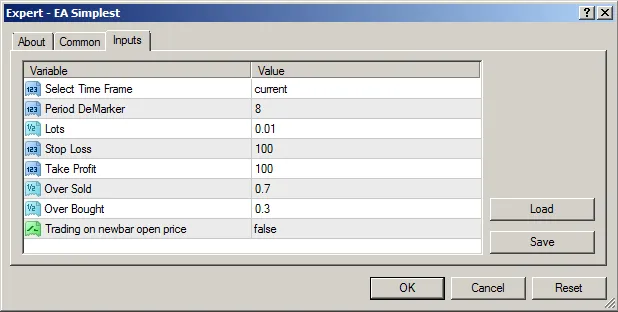
Hey fellow traders! If you’ve ever considered using an Expert Advisor (EA) to enhance your trading strategy, you’re in the right place. Today, I’m sharing my experience with a straightforward EA that I’ve developed, which I think you’ll find super useful. After reading through, I’d love for you to share your thoughts! This EA is designed to operate on a single currency pair and comes with customizable settings for timeframe, lot size, stop loss, and take profit, all easily accessible in the menu properties. extern ENUM_TIMEFRAMES TF = PERIOD_CURRENT;// Select Time Frame extern int period = 8;// Period DeMarker extern double lt = 0.01;// Lots extern int sl = 100;// Stop Loss extern int tp = 100;// Take Profit extern double OB = 0.7;// Over Sold extern double OS = 0.3;// Over Bought extern bool OPENBAR = false;// Trading on new bar open price Now, here’s a little secret: I break down the EA into three key parts: Data | TimeframeOrder ManagementCurrency Pair //+------------------------------------------------------------------+ //-- Time frame | Indicator double dmrk[5]; int signal = -1;//-- 0.buy 1.sell int hold = 0; //-- Order Management int ticket = 0; double lot = 0.0; int typ = -1; //-- Currency Pair datetime t1 = 0; bool newbar = false; bool entry = false; //+------------------------------------------------------------------+ In the OnInit() function, I set up the DeMarker indicator and check for the minimum lot size required by the broker. Here’s how it works: //+------------------------------------------------------------------+ //| Initialization void OnInit() &nbsp;&nbsp;{ &nbsp;&nbsp; ArrayInitialize(dmrk,0.0); &nbsp;&nbsp;//--- &nbsp;&nbsp;&nbsp;&nbsp;&nbsp;&nbsp;const double test_lot = SymbolInfoDouble(Symbol(),SYMBOL_VOLUME_MIN); &nbsp;&nbsp;&nbsp;&nbsp;&nbsp;&nbsp;if(lt < test_lot) lt = test_lot; &nbsp;&nbsp;} Now, let’s dive into the OnTick() function, where we calculate the DeMarker indicator and identify our buy and sell signals: //--------------------------------------------------------------------------- &nbsp;&nbsp; signal = -1; //--------------------------------------------------------------------------- //--- Calculate &nbsp;&nbsp; for(int i = 0; i < ArraySize(dmrk); i++) &nbsp;&nbsp;&nbsp;&nbsp; { &nbsp;&nbsp;&nbsp;&nbsp;&nbsp;&nbsp;dmrk[i] = iDeMarker(Symbol(), TF, period, i); &nbsp;&nbsp;&nbsp;&nbsp; } //--- &nbsp;&nbsp; if(dmrk[1] > OB) &nbsp;&nbsp;&nbsp;&nbsp; { &nbsp;&nbsp;&nbsp;&nbsp;&nbsp;&nbsp;hold = 1;// Set hold &nbsp;&nbsp;&nbsp;&nbsp; } &nbsp;&nbsp; else &nbsp;&nbsp;&nbsp;&nbsp;&nbsp;&nbsp;if(dmrk[1] < OS) &nbsp;&nbsp;&nbsp;&nbsp;&nbsp;&nbsp;&nbsp;&nbsp;{ &nbsp;&nbsp;&nbsp;&nbsp;&nbsp;&nbsp;&nbsp;&nbsp; hold = -1;// Set hold &nbsp;&nbsp;&nbsp;&nbsp;&nbsp;&nbsp;&nbsp;&nbsp;} &nbsp;&nbsp;&nbsp;&nbsp;&nbsp;&nbsp;else &nbsp;&nbsp;&nbsp;&nbsp;&nbsp;&nbsp;&nbsp;&nbsp;{ &nbsp;&nbsp;&nbsp;&nbsp;&nbsp;&nbsp;&nbsp;&nbsp; hold = 0;// Reset hold &nbsp;&nbsp;&nbsp;&nbsp;&nbsp;&nbsp;&nbsp;&nbsp;} &nbsp;&nbsp; if(hold == 1) &nbsp;&nbsp;&nbsp;&nbsp; { &nbsp;&nbsp;&nbsp;&nbsp;&nbsp;&nbsp;if(dmrk[0] < OB && dmrk[1] > OB) &nbsp;&nbsp;&nbsp;&nbsp;&nbsp;&nbsp;&nbsp;&nbsp;{ &nbsp;&nbsp;&nbsp;&nbsp;&nbsp;&nbsp;&nbsp;&nbsp;&nbsp;&nbsp; signal = OP_SELL; &nbsp;&nbsp;&nbsp;&nbsp;&nbsp;&nbsp;&nbsp;&nbsp;} &nbsp;&nbsp;&nbsp;&nbsp; } &nbsp;&nbsp; if(hold == -1) &nbsp;&nbsp;&nbsp;&nbsp; { &nbsp;&nbsp;&nbsp;&nbsp;&nbsp;&nbsp;if(dmrk[0] > OS && dmrk[1] < OS) &nbsp;&nbsp;&nbsp;&nbsp;&nbsp;&nbsp;&nbsp;&nbsp;{ &nbsp;&nbsp;&nbsp;&nbsp;&nbsp;&nbsp;&nbsp;&nbsp;&nbsp;&nbsp; signal = OP_BUY; &nbsp;&nbsp;&nbsp;&nbsp;&nbsp;&nbsp;&nbsp;&nbsp;} &nbsp;&nbsp;&nbsp;&nbsp; } To execute buy and sell orders, we use the following logic: //--------------------------------------------------------------------------- &nbsp;&nbsp; if(signal != -1) &nbsp;&nbsp;&nbsp;&nbsp;&nbsp;&nbsp;if(newbar == true) &nbsp;&nbsp;&nbsp;&nbsp;&nbsp;&nbsp;&nbsp;&nbsp; if(entry == false)// Door open &nbsp;&nbsp;&nbsp;&nbsp;&nbsp;&nbsp;&nbsp;&nbsp;&nbsp;&nbsp; { &nbsp;&nbsp;&nbsp;&nbsp;&nbsp;&nbsp;&nbsp;&nbsp;&nbsp;&nbsp;&nbsp;&nbsp;//--- &nbsp;&nbsp;&nbsp;&nbsp;&nbsp;&nbsp;&nbsp;&nbsp;&nbsp;&nbsp;&nbsp;&nbsp;entry = true;// Set entry &nbsp;&nbsp;&nbsp;&nbsp;&nbsp;&nbsp;&nbsp;&nbsp;&nbsp;&nbsp;&nbsp;&nbsp;//--- &nbsp;&nbsp;&nbsp;&nbsp;&nbsp;&nbsp;&nbsp;&nbsp;&nbsp;&nbsp;&nbsp;&nbsp;if(signal == OP_BUY) &nbsp;&nbsp;&nbsp;&nbsp;&nbsp;&nbsp;&nbsp;&nbsp;&nbsp;&nbsp;&nbsp;&nbsp;&nbsp;&nbsp;{ &nbsp;&nbsp;&nbsp;&nbsp;&nbsp;&nbsp;&nbsp;&nbsp;&nbsp;&nbsp;&nbsp;&nbsp;&nbsp;&nbsp;ticket = OrderSend(Symbol(), OP_BUY, lt, Ask, (int)((Ask - Bid) / Point, &nbsp;&nbsp;&nbsp;&nbsp;&nbsp;&nbsp;&nbsp;&nbsp;&nbsp;&nbsp;&nbsp;&nbsp;&nbsp;&nbsp;&nbsp;&nbsp;&nbsp;&nbsp;&nbsp;&nbsp;&nbsp;&nbsp;sl > 0? Bid - sl * Point: 0.0, &nbsp;&nbsp;&nbsp;&nbsp;&nbsp;&nbsp;&nbsp;&nbsp;&nbsp;&nbsp;&nbsp;&nbsp;&nbsp;&nbsp;&nbsp;&nbsp;&nbsp;&nbsp;&nbsp;&nbsp;&nbsp;&nbsp;tp > 0? Bid + tp * Point: 0.0, &nbsp;&nbsp;&nbsp;&nbsp;&nbsp;&nbsp;&nbsp;&nbsp;&nbsp;&nbsp;&nbsp;&nbsp;&nbsp;&nbsp;&nbsp;&nbsp;&nbsp;&nbsp;&nbsp;&nbsp;&nbsp;&nbsp;EAName + ":signal= " + IntegerToString(signal) + ":hold= " + IntegerToString(hold), &nbsp;&nbsp;&nbsp;&nbsp;&nbsp;&nbsp;&nbsp;&nbsp;&nbsp;&nbsp;&nbsp;&nbsp;&nbsp;&nbsp;&nbsp;&nbsp;&nbsp;&nbsp;&nbsp;&nbsp;&nbsp;&nbsp;EANumber, &nbsp;&nbsp;&nbsp;&nbsp;&nbsp;&nbsp;&nbsp;&nbsp;&nbsp;&nbsp;&nbsp;&nbsp;&nbsp;&nbsp;&nbsp;&nbsp;&nbsp;&nbsp;&nbsp;&nbsp;&nbsp;&nbsp;0, &nbsp;&nbsp;&nbsp;&nbsp;&nbsp;&nbsp;&nbsp;&nbsp;&nbsp;&nbsp;&nbsp;&nbsp;&nbsp;&nbsp;&nbsp;&nbsp;&nbsp;&nbsp;&nbsp;&nbsp;&nbsp;&nbsp;clrBlue); &nbsp;&nbsp;&nbsp;&nbsp;&nbsp;&nbsp;&nbsp;&nbsp;&nbsp;&nbsp;&nbsp;&nbsp;&nbsp;&nbsp; signal = -1; &nbsp;&nbsp;&nbsp;&nbsp;&nbsp;&nbsp;&nbsp;&nbsp;&nbsp;&nbsp;&nbsp;&nbsp;&nbsp;&nbsp;//hold = 0; &nbsp;&nbsp;&nbsp;&nbsp;&nbsp;&nbsp;&nbsp;&nbsp;&nbsp;&nbsp;&nbsp;&nbsp;&nbsp;&nbsp;}// Reset &nbsp;&nbsp;&nbsp;&nbsp;&nbsp;&nbsp;&nbsp;&nbsp;&nbsp;&nbsp;&nbsp;&nbsp;else &nbsp;&nbsp;&nbsp;&nbsp;&nbsp;&nbsp;&nbsp;&nbsp;&nbsp;&nbsp;&nbsp;&nbsp;&nbsp;&nbsp;if(signal == OP_SELL) &nbsp;&nbsp;&nbsp;&nbsp;&nbsp;&nbsp;&nbsp;&nbsp;&nbsp;&nbsp;&nbsp;&nbsp;&nbsp;&nbsp;&nbsp;&nbsp; { &nbsp;&nbsp;&nbsp;&nbsp;&nbsp;&nbsp;&nbsp;&nbsp;&nbsp;&nbsp;&nbsp;&nbsp;&nbsp;&nbsp;&nbsp;&nbsp;&nbsp;&nbsp;ticket = OrderSend(Symbol(), OP_SELL, lt, Bid, (int)((Ask - Bid) / Point, &nbsp;&nbsp;&nbsp;&nbsp;&nbsp;&nbsp;&nbsp;&nbsp;&nbsp;&nbsp;&nbsp;&nbsp;&nbsp;&nbsp;&nbsp;&nbsp;&nbsp;&nbsp;&nbsp;&nbsp;&nbsp;&nbsp;sl > 0? Ask + sl * Point: 0.0, &nbsp;&nbsp;&nbsp;&nbsp;&nbsp;&nbsp;&nbsp;&nbsp;&nbsp;&nbsp;&nbsp;&nbsp;&nbsp;&nbsp;&nbsp;&nbsp;&nbsp;&nbsp;&nbsp;&nbsp;&nbsp;&nbsp;tp > 0? Ask - tp * Point: 0.0, &nbsp;&nbsp;&nbsp;&nbsp;&nbsp;&nbsp;&nbsp;&nbsp;&nbsp;&nbsp;&nbsp;&nbsp;&nbsp;&nbsp;&nbsp;&nbsp;&nbsp;&nbsp;&nbsp;&nbsp;&nbsp;&nbsp;EAName + ":signal= " + IntegerToString(signal) + ":hold= " + IntegerToString(hold), &nbsp;&nbsp;&nbsp;&nbsp;&nbsp;&nbsp;&nbsp;&nbsp;&nbsp;&nbsp;&nbsp;&nbsp;&nbsp;&nbsp;&nbsp;&nbsp;&nbsp;&nbsp;&nbsp;&nbsp;&nbsp;&nbsp;EANumber, &nbsp;&nbsp;&nbsp;&nbsp;&nbsp;&nbsp;&nbsp;&nbsp;&nbsp;&nbsp;&nbsp;&nbsp;&nbsp;&nbsp;&nbsp;&nbsp;&nbsp;&nbsp;&nbsp;&nbsp;&nbsp;&nbsp;0, &nbsp;&nbsp;&nbsp;&nbsp;&nbsp;&nbsp;&nbsp;&nbsp;&nbsp;&nbsp;&nbsp;&nbsp;&nbsp;&nbsp;&nbsp;&nbsp;&nbsp;&nbsp;&nbsp;&nbsp;&nbsp;&nbsp;clrRed); &nbsp;&nbsp;&nbsp;&nbsp;&nbsp;&nbsp;&nbsp;&nbsp;&nbsp;&nbsp;&nbsp;&nbsp;&nbsp;&nbsp;&nbsp;&nbsp;&nbsp;&nbsp;signal = -1; &nbsp;&nbsp;&nbsp;&nbsp;&nbsp;&nbsp;&nbsp;&nbsp;&nbsp;&nbsp;&nbsp;&nbsp;&nbsp;&nbsp;&nbsp;&nbsp;&nbsp;&nbsp;//hold = 0; &nbsp;&nbsp;&nbsp;&nbsp;&nbsp;&nbsp;&nbsp;&nbsp;&nbsp;&nbsp;&nbsp;&nbsp;&nbsp;&nbsp;&nbsp;&nbsp;&nbsp;&nbsp;}// Reset signal &nbsp;&nbsp;&nbsp;&nbsp;&nbsp;&nbsp;&nbsp;&nbsp;&nbsp;&nbsp;} And when it comes to closing orders... &nbsp;&nbsp; if(entry == true) // Closing &nbsp;&nbsp;&nbsp;&nbsp; { &nbsp;&nbsp;&nbsp;&nbsp;&nbsp;&nbsp;if(OrderSelect(ticket, SELECT_BY_TICKET)) &nbsp;&nbsp;&nbsp;&nbsp;&nbsp;&nbsp;&nbsp;&nbsp;{ &nbsp;&nbsp;&nbsp;&nbsp;&nbsp;&nbsp;&nbsp;&nbsp; if(OrderCloseTime() == 0)//-- Order is active &nbsp;&nbsp;&nbsp;&nbsp;&nbsp;&nbsp;&nbsp;&nbsp;&nbsp;&nbsp; { &nbsp;&nbsp;&nbsp;&nbsp;&nbsp;&nbsp;&nbsp;&nbsp;&nbsp;&nbsp;&nbsp;&nbsp;/* Condition to close */ &nbsp;&nbsp;&nbsp;&nbsp;&nbsp;&nbsp;&nbsp;&nbsp;&nbsp;&nbsp;&nbsp;&nbsp;//entry = false; &nbsp;&nbsp;&nbsp;&nbsp;&nbsp;&nbsp;&nbsp;&nbsp;&nbsp;&nbsp; } &nbsp;&nbsp;&nbsp;&nbsp;&nbsp;&nbsp;&nbsp;&nbsp; // Else &nbsp;&nbsp;&nbsp;&nbsp;&nbsp;&nbsp;&nbsp;&nbsp;&nbsp;&nbsp;&nbsp;&nbsp;if(OrderCloseTime() != 0)//-- Close by manual, SL/TP, or EA &nbsp;&nbsp;&nbsp;&nbsp;&nbsp;&nbsp;&nbsp;&nbsp;&nbsp;&nbsp;&nbsp;&nbsp;&nbsp;&nbsp;{ &nbsp;&nbsp;&nbsp;&nbsp;&nbsp;&nbsp;&nbsp;&nbsp;&nbsp;&nbsp;&nbsp;&nbsp;&nbsp;&nbsp; entry = false;// Reset entry &nbsp;&nbsp;&nbsp;&nbsp;&nbsp;&nbsp;&nbsp;&nbsp;&nbsp;&nbsp;&nbsp;&nbsp;&nbsp;&nbsp;} &nbsp;&nbsp;&nbsp;&nbsp;&nbsp;&nbsp;&nbsp;&nbsp;} &nbsp;&nbsp;&nbsp;&nbsp; }

2020.12.17
Creating a CSV File with MetaTrader 4: A Simple Guide for Traders
MetaTrader4
Creating a CSV File with MetaTrader 4: A Simple Guide for Traders

Hey there, fellow traders! I'm Lucas, and I wanted to give back to this amazing community that has taught me so much through insightful articles and discussions. As a forex and stock market investor who codes my own trading tools for personal use, I'm excited to share this contribution with you all! Today, I'm going to walk you through a simple example of how to create a CSV file for order data using MetaTrader 4. While this expert advisor is not intended for live trading just yet, it's a great way to demonstrate how you can implement this functionality in your own trading strategies. This little expert will open trades in your chosen direction, and orders can be closed virtually using the menu settings for Take Profit (TP) and Stop Loss (SL). If you set 'WriteCloseData' to true, a CSV file will be generated in your terminal, capturing essential order details such as direction, gain/loss, price, and more. When you test this expert in the strategy tester, you can find your CSV file in the following location: OpenDataFolder/tester/CSVexpert/CSVexample. The 'CSVexpert' directory will automatically be created when you start testing, along with the 'CSVexample' file that stores all your data. Once you decide to implement this functionality into your own expert or continue building upon this example for demo or live accounts, you can access the generated file from MQL4/Files/CSVexpert/CSVexample. You can rename the directory and file to whatever you like, just remember to keep the .csv extension intact. I want to emphasize again that this is purely an example of what you can achieve with this feature. Please be cautious and avoid using it for trading until you're confident in its performance! Happy trading and coding!

2020.11.14
First Previous 10 11 12 13 14 15 16 17 18 19 20 Next Last