System Trading

Mastering Your Exit Strategy: A Comprehensive Guide for MetaTrader 4 Traders
MetaTrader4
Mastering Your Exit Strategy: A Comprehensive Guide for MetaTrader 4 Traders

As traders, we often focus on our entry points, but let's not forget about the importance of a solid exit strategy. The Master Exit Plan is a collection of straightforward strategies designed to help you effectively manage your open trades and pending orders. Important Note: This is not an Expert Advisor that opens trades for you—it’s all about managing what you already have on the table. Here’s a breakdown of the exit strategies you can utilize: Equity Target: This feature helps safeguard your account's equity in a conservative manner. Hard Stop-Loss: Set a fixed, visible stop-loss for every trade you enter. Hidden Stop-Loss: Implement a fixed, hidden stop-loss on your trades to minimize risk while remaining discreet. Dynamic Hard Stop-Loss: This stop-loss moves along with the price, allowing you to trade as if you have no stop-loss in place. You can dive deeper into this game-changing concept in the e-book Uncharted Stratagems: Unknown Depths of Forex Trading, which also includes more than a dozen innovative ideas worth exploring. Hidden Dynamic Stop-Loss: As the name implies, this is a concealed version of the dynamic stop-loss. Trailing Stop: This isn’t your ordinary trailing stop method. It introduces a unique twist, triggering the trailing stop only when a specific percentage of positive profit is achieved, ensuring you secure some positive pips. Trail Pending Order: This feature trails stop orders to optimize your profitable positions. By incorporating these strategies into your trading routine, you can significantly enhance your ability to exit trades effectively, protecting your profits and minimizing losses. Happy trading!

2020.11.07
Mastering the Rijfie Pyramid 1.12: A Guide for MetaTrader 4 Traders
MetaTrader4
Mastering the Rijfie Pyramid 1.12: A Guide for MetaTrader 4 Traders

Hey there, fellow traders! Today, I want to share my strategy using the Rijfie Pyramid version 1.12 with MetaTrader 4. If you're looking to fine-tune your trading game, you might find my approach helpful. Here’s the plan: Stock Selection: Start by searching for U.S. stocks priced under €20 or $20. Initial Purchase: Once the price rises above the stochastic low level, buy your first lot (0.01). Adding More: If the price dips, snag another lot (0.01). Trailing Stop: When the price climbs above your buy price plus the spread, that’s when your trailing stop kicks in. Regarding the stochastic indicators, when it crosses the level of 10, it’s time to buy a lot. Keep in mind: Max Price: No lots will be purchased above this price (max = price + spread). Low Price: No buys below the established low. Magic Number: Remember to change this for every new chart you analyze. Time Settings: Specify the hour and minute for your trades. For your profit settings, if you set it to 0, all open profitable orders will be closed at the specified closing time if Close All is set to true. Here’s how it works: For instance, if Close All is true, profit is set to 10, hour is 20:00, and minute is 55, then all open orders with a profit greater than 10 will close between 20:55 and 21:00. It's smart to look for stocks with low swap rates, such as Zynga, Nokia, and Vale. And here's a tip: setting your low price to 1 allows you to estimate your potential maximum loss. For example: With a max loss of 1% on a stock priced at €5, you risk about €500. For a stock priced at €15, your max loss would be around €1,500. Keep in mind, you only risk this if the company goes belly up. If you decide to close all trades while in the red, you're going to take a hit. You could also face losses if your broker no longer supports the stock. This is the latest version I like to use: Rijfie Pyramid version 1.12.mq4. Just a quick reminder—when using this EA, consider closing all open orders above 0 just before market close to avoid gaps the next day. With version 1.10, you can close profitable trades before the market closes by setting Close All to true along with your desired hour and minute. In the new version 1.12, you can adjust the percentage by setting Steplevel1. For instance, setting it at 1 means 1% and at 5 means 5%. At the end of the day, you'll notice some losses, but that's just part of the testing process. Happy trading, and may your charts always be green!

2020.10.26
Unlocking Success: The DreamBot Trading Robot for MetaTrader 4
MetaTrader4
Unlocking Success: The DreamBot Trading Robot for MetaTrader 4

Introduction Hey traders! If you're diving into the world of automated trading, you might have come across the DreamBot for MetaTrader 4. Now, let's be clear: this isn't a magic bullet or some kind of holy grail that will instantly make you rich. But what it can do is help streamline your trading process and take some of the guesswork out of your strategy. In this post, we're going to explore how DreamBot works, its features, and whether it’s a good fit for your trading style. What is DreamBot? DreamBot is an Expert Advisor designed for MetaTrader 4, which means it can automate your trading strategies based on specific algorithms. For those of you who prefer to kick back while the robot does the heavy lifting, this could be a game-changer! Key Features of DreamBot Automated Trading: Set it and forget it! DreamBot executes trades on your behalf based on pre-set criteria. User-Friendly Interface: You don’t need to be a tech wizard to get started. The setup is straightforward and intuitive. Backtesting Options: Test your strategies against historical data to see how they might perform in real market conditions. Customizable Settings: Tailor the bot’s parameters to match your trading style and risk tolerance. Before you jump in, remember that while DreamBot can make trading more efficient, it’s not foolproof. No robot can guarantee success in the unpredictable world of trading. Is DreamBot Right for You? If you’re a trader looking to automate your strategies but still want to maintain control over your trades, DreamBot might just be worth a shot. It can complement your trading approach, but always keep an eye on the market and adjust your strategies as needed. In conclusion, while DreamBot isn’t the holy grail of trading, it certainly has the potential to enhance your trading experience on MetaTrader 4. As with any trading tool, do your research, test it out, and see how it fits with your trading goals.

2020.10.22
Unlock Trading Success with MarketsMaster EA for MetaTrader 4
MetaTrader4
Unlock Trading Success with MarketsMaster EA for MetaTrader 4

Are you ready to take your trading to the next level? The MarketsMaster EA is an Expert Advisor designed specifically for MetaTrader 4, equipped with four reliable signals derived from six powerful indicators. Whether you’re trading Forex, indices, or metals, this EA can be tailored to your needs with the right parameters. Available in both English and Spanish, this tool is versatile enough to fit any trader's style. From my experience, it shines on timeframes from M15 to H1. However, any timeframe can yield profits if your strategy aligns with the market conditions. You have the flexibility to open orders with fixed lots or use a percentage of your account balance based on your risk appetite. The MarketsMaster EA operates using a combination of indicators like Volumes, PSAR, Stochastic, Bull and Bear Power, ATR, and MFI. It’s all about finding the right mix that works for your trading strategy. Profit management is handled through trailing stops, allowing you to maximize gains. For multiple open orders, profits can be taken in either monetary terms or as a percentage of your balance. Just a quick tip: if you don’t activate the loss percentage, it’s like setting it to 100%—so keep that in mind! Before you dive into backtesting, I recommend setting up the indicators on your chart first. Check the minimum volumes for trends and assess which indicators work best together across different timeframes. This will streamline your backtesting process and help you optimize your parameters. Also, consider evaluating the average price movement per trade to better set your trailing profit value. A friendly reminder: Don’t forget to add URLs under Tools / Options / Expert Advisors. Ensure you activate "Allow WebRequest for listed URL" and include both URLs for news updates. Just a heads up—news cannot be fetched for indices and metals, so avoid activating it for those, as it can disrupt other EAs on your charts. If anyone is interested in translating this to MQL5, that would be fantastic! I’m still getting the hang of MQL5 myself. If you do, please send me a copy! 😉

2020.10.04
Streamline Your Trading with VR Watch List and Linker Lite for MetaTrader 4
MetaTrader4
Streamline Your Trading with VR Watch List and Linker Lite for MetaTrader 4

Hey there, fellow traders! If you’re looking to enhance your trading experience, let’s dive into the VR Watch List and Linker Lite. This handy tool is designed to make trading on MetaTrader 4 a breeze. One of the standout features is its ability to change financial instruments with a simple drag-and-drop from the Market Watch window. Just grab your desired financial instrument and drop it onto the chart where your advisor is set up. This means you can effortlessly view any of your financial instruments across all open charts, without the hassle of switching templates or profiles. It’s all about efficiency! When you swap out a financial instrument, only that specific instrument will change on the charts. Your chart period, indicators, and their settings stay intact, which is a huge time-saver. The VR Watch List and Linker Lite is a lightweight, open-source version of the original VR Watch List and Linker. Perfect for those who want to keep things simple! Quick Tip: It’s a good idea to install the advisor in each chart window. That way, it won’t matter which window you drag your financial instrument to. Flexibility at its best! Important Note: Keep in mind that changing the financial instrument in the windows will reinitialize all indicators and advisors. So, if your advisor was trading on EUR/USD and you switch to a different instrument, it will start trading on the new one. For those of you interested in programming, the code behind this tool is quite straightforward. It’s especially beneficial for novice programmers, and it’s worth noting that it works seamlessly on both MetaTrader 4 and MetaTrader 5 terminals.

2020.08.13
Maximize Your Trading Efficiency with the NNFX Auto Trader for MetaTrader 4
MetaTrader4
Maximize Your Trading Efficiency with the NNFX Auto Trader for MetaTrader 4

The NNFX Auto Trader is a game-changer for traders looking to CREATE, MANAGE, and EXIT trades using the No Nonsense Forex strategy with remarkable speed. This tool not only refines your risk management but also helps eliminate emotional trading, allowing you to execute trades with just a click. Inputs - X/Y Position: Adjust the position of the trading box on your chart. - Default Risk: This defines the percentage of your account allocated to a single trade (this setting is preserved between sessions). The default value is 2%. - Pip Decimal Shift: Some brokers provide 5 decimal places instead of the standard 4. You can set this parameter to 1 if that’s the case. - Lots Decimals: This indicates the precision of lot sizes. If your broker allows trading with nano lots, set this to 3 decimals. The default is 2. **Extra Account: While this isn’t a parameter, it can easily be changed in the code (line 43: rewrite, save, and compile). This feature accounts for external funds, such as $10,000 in another broker or bank, ensuring that you don’t split your risk. Since this needs to be updated across all 28 pairs each time, it’s quicker to input directly in the code and recompile, which updates all instances while keeping other parameters intact. Controls - RISK INPUT: Quickly change the risk value, but note that this won’t save once you close MT4. - SELL/BUY: Opens two trades, each with half the lot size. Both have a stop loss set at ATR*1.5, but only one has a take profit at ATR. - SL to BREAKEVEN: Adjusts the stop loss of every open trade back to its initial price. - TRAILING STOP: Updates the stop loss but only activates after the price moves more than 2*ATR. - SHOW: Displays the pip value, the current ATR in pips, and the lot sizes that closely match the risk (along with the real cost). - USE ADVANCED: This option allows you to set custom stop losses and take profits. Do be cautious if this window is open, as those values will be applied when opening new trades or adjusting trailing stops. If USE DATE is set to true (the default setting), the system selects the current ATR based on the hours leading up to the daily candle close, and the latest ATR after a new candle is formed. Common Errors and Misuses - Opening trades when the lots that match the risk are 0.01 or 0.00 (using 2 decimals) will result in an invalid lot size. For instance, with 0.01, one trade opens at 0.01 lots, while the other becomes invalid. - Setting breakeven on a losing trade can also trigger an error. - The EA may interfere with other open trades in the same pair since it doesn’t recognize which trades it has opened. - This EA is optimized for D1 charts. If you’re using other timeframes, ensure USE DATE is set to false or that you’re using custom TP-SL settings. - Manual modifications to orders are still possible. - Avoid clicking SELL or BUY multiple times, as this will open two trades each time. - Keep an eye on your margin; the EA doesn’t check it and won’t prevent overexposure to a single currency across multiple trades. - While it's primarily tested with major forex pairs, it might also work with metals, commodities, or stocks, but that’s not guaranteed. Feel free to report any bugs or make code changes as you see fit. If you’re a beginner (like I am), I strongly recommend understanding risk calculations before diving into this EA. Also, conduct a forward test before using it on real accounts (and confirm your broker supports Expert Advisors, as this can impact performance). Edit: Issue with buy orders not scaling out has been resolved.

2020.08.10
Unlocking Currency Strength: Your Go-To Expert Advisor for MetaTrader 4
MetaTrader4
Unlocking Currency Strength: Your Go-To Expert Advisor for MetaTrader 4

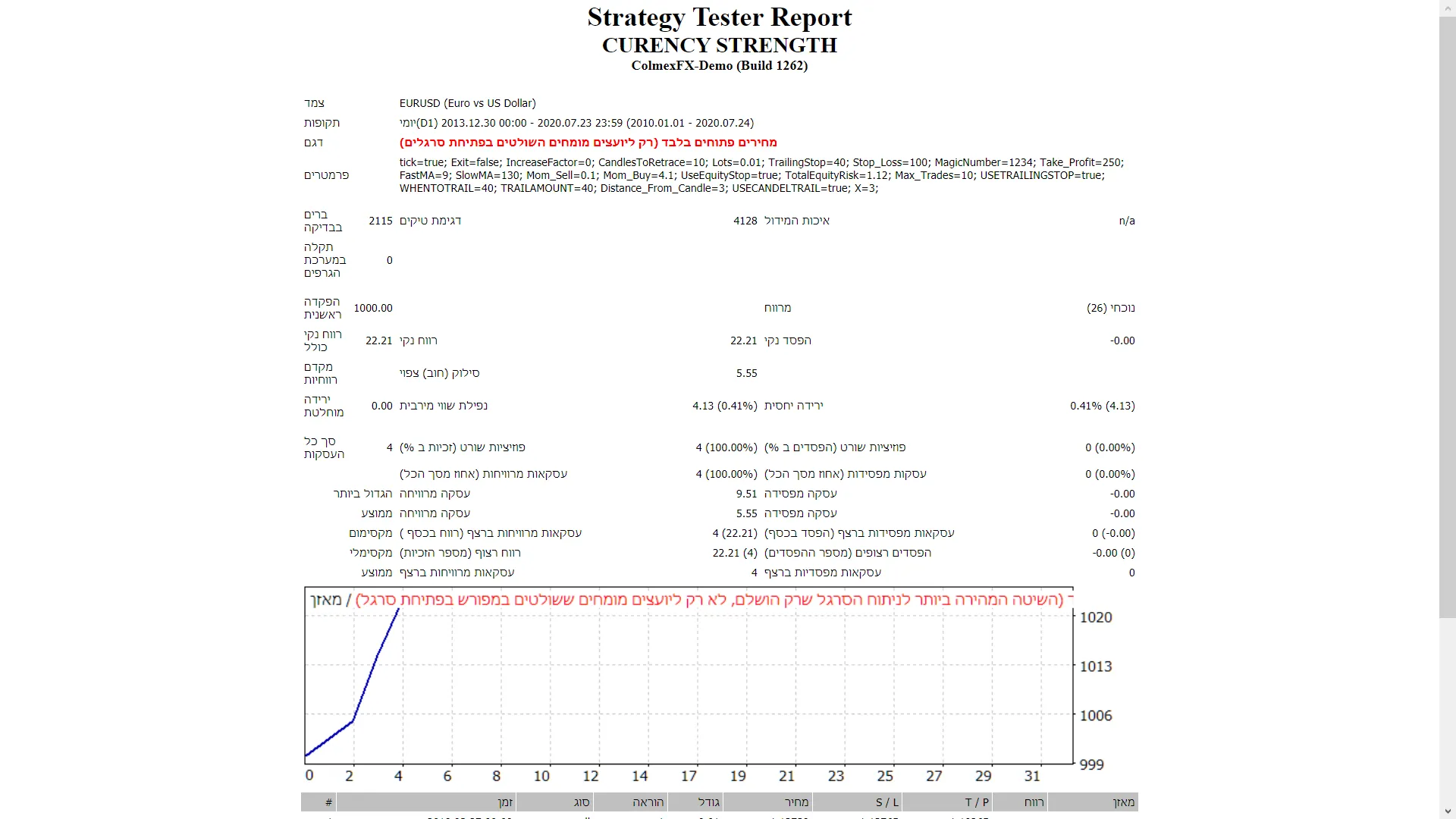
Are you looking to amp up your trading game? Look no further than the Currency Strength Expert Advisor (EA), designed specifically for MetaTrader 4. This nifty tool helps you identify the strongest and weakest currencies among the 8 major players and employs moving averages to execute trades. Plus, it comes packed with features like Trailing Stop Loss and Take Profit, making it a versatile option across all time frames and major Forex pairs. Here’s a quick rundown of the different versions: Version 1: Analyzes just one candle back. Version 2: Looks at several candles back using a method similar to the ROC indicator. Check out the details here. Version 3: Utilizes the RSI indicator to assess strength. Version 4: Leverages the Moving Average indicator for calculations. Before diving in, here are a few tips: Always test it on a demo account first to get the hang of it. This EA operates strictly with the price of the open candle! If you're not keen on increasing lot sizes after a losing trade, set the IncreaseFactor to 0. Inputs you can customize: Use_TP_In_Money: Enable or disable Take Profit in monetary terms (true/false). TP_In_Money: Set Take Profit in money (values: 10-100). Use_TP_In_percent: Enable or disable Take Profit in percentage (true/false). TP_In_Percent: Set Take Profit in percentage (values: 10-100). Enable_Trailing: Turn on trailing stop with money (true/false). Take Profit In Money: Specify an amount in current currency (values: 25-100). Stop Loss In Money: Set a stop loss in current currency (values: 1-20). Exit: Close trades if the trend reverses against you to control drawdown (true/false). Lots: Define lot size (values: 0.01-1). IncreaseFactor: Specify how much to increase lot sizes from total margin after a loss (values: 0.001-0.1). Stop_Loss: Set your stop loss (values: 30-500). MagicNumber: Assign a magic number (values: 1-100000). TakeProfit: Set your take profit (values: 50-200). FastMA: Define the fast moving average (values: 1-20). SlowMA: Define the slow moving average (values: 50-200). Mom_Sell: Set the momentum sell trigger (values: 0.1-0.9). Mom_Buy: Set the momentum buy trigger (values: 0.1-0.9). UseEquityStop: Enable or disable equity stop (true/false). TotalEquityRisk: Specify total equity risk (values: 0.01-30). Max_Trades: Define the maximum number of trades (1-12). Just a heads up: you should optimize this EA every few months using the same inputs mentioned above. It can serve as both a hedging grid EA or a single trade EA. Want to learn how to backtest it? Check out this backtesting guide.

2020.07.28
Unlocking Profits with RingSystemEA: Your Guide to Triangular Arbitrage on MetaTrader 4
MetaTrader4
Unlocking Profits with RingSystemEA: Your Guide to Triangular Arbitrage on MetaTrader 4

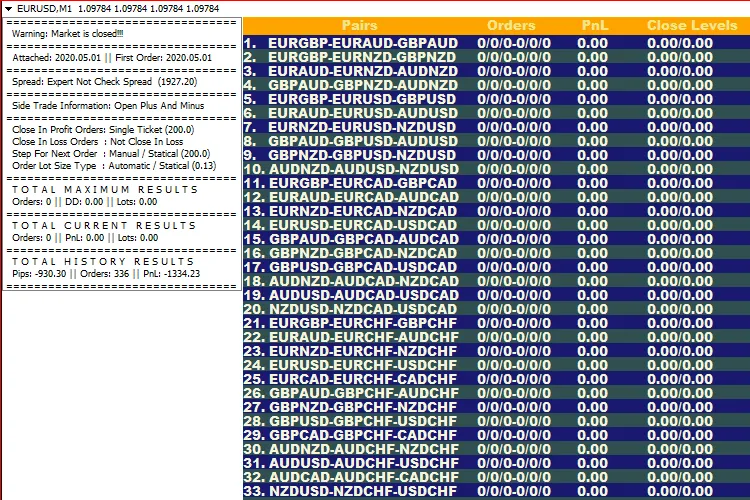
Hey fellow traders! Are you ready to take your trading game to the next level? Let’s dive into the world of RingSystemEA, a nifty tool designed specifically for MetaTrader 4 that leverages triangular arbitrage to maximize your trading potential. What is RingSystemEA? At its core, RingSystemEA is a triangular arbitrage system. This means it uses three currencies to create three pairs, allowing you to open hedge orders efficiently. The beauty of this system is in its simplicity and effectiveness! How It Works The expert advisor kicks off by opening six orders for each ring—three in the positive direction and three in the negative. It patiently waits for price movements in one direction, creating a grid of orders. This setup is perfect for capitalizing on market volatility. Currency Pairing One of the standout features of RingSystemEA is its versatility. You can work with a maximum of eight currencies, creating up to 28 pairs and a whopping 56 rings! Just remember, the order of currencies matters—always arrange them from strongest to weakest. The recommended order is: EUR GBP AUD NZD USD CAD CHF JPY Getting Started To kick things off, you'll need to input a minimum of three currencies and a maximum of eight. The parameters are straightforward, and you can find all the details on this blog. Customizing Your Setup From the external parameters, you can choose to skip certain pairs and set the expert to use only the currencies you prefer. It doesn’t matter which chart or time frame you attach it to; the expert will automatically select the best options for you. Understanding Currency Rings Here's a quick breakdown of how the number of currencies translates to rings: 3 currencies = 1 ring 4 currencies = 4 rings 5 currencies = 10 rings 6 currencies = 20 rings 7 currencies = 35 rings 8 currencies = 56 rings Important Tips Before you dive in, it's crucial to test the expert on a demo account first. This will give you a feel for how it operates without risking your hard-earned cash. Keep in mind, this expert can’t perform a backtest due to its multi-pair strategy. The orders opened in a backtest may seem random and won’t reflect actual trading conditions.

2020.05.03
First Previous 11 12 13 14 15 16 17 18 19 20 21 Next Last