System Trading

Unlocking the Mean Reversion Trend EA for MetaTrader 5: Your Ultimate Trading Companion
MetaTrader5
Unlocking the Mean Reversion Trend EA for MetaTrader 5: Your Ultimate Trading Companion

1. Overview If you’re looking for a robust trading tool, the Mean Reversion Trend EA is a solid choice. This expert advisor combines the best of both worlds: trend following and mean reversion strategies. It utilizes Moving Averages and ATR-based volatility measurements, along with a built-in trade validation system to ensure reliable execution in various market conditions. 2. Key Features Dual Strategy: Merges trend following (MA crossovers) and mean reversion (price-to-MA deviations). Adaptive Signals: Leverages fast and slow moving averages to identify trends effectively. Volatility Integration: Uses ATR to gauge market volatility for mean reversion entries. Built-in Validator: A comprehensive trade validation system that checks volume, margin, and stop levels. Safety Mechanism: Incorporates safety trade functionalities for backtest validation. Defensive Position Management: Offers fixed or proportional SL/TP with appropriate validation. Multi-Asset Compatible: Works seamlessly with forex, commodities, indices, and stocks while ensuring proper lot sizing. 3. How It Works Monitors moving average crosses to detect changes in trend direction. Measures price deviations from the slow MA using ATR-based volatility bands. Generates buy signals when the fast MA crosses above the slow MA or when the price dips below the volatility band. Issues sell signals when the fast MA crosses below the slow MA or when the price rises above the volatility band. Validates and executes trades while adhering to risk management parameters. 4. Inputs Fast_MA_Period (20), Slow_MA_Period (50), ATR_Period (14) ATR_Multiplier (2.0) for calculating mean reversion bands LotSize (0.1) for effective position sizing SL_Points (500), TP_Points (1000) for managing risk Magic_Number (123456) for easy order identification 5. Usage Notes Ideal for all major currency pairs and other liquid instruments. Compatible with all timeframes, though H1-H4 is recommended for better signal quality. Ensure you have sufficient historical data for accurate indicator calculations. Best suited for trending markets that also present occasional reversion opportunities. The robust validation system guarantees reliable execution across different brokers. 6. Code Structure CTradeValidator: A comprehensive class for trade validation. Functions for initializing indicators and processing data. Signal generation that fuses trend and reversion logic. Trade execution that adheres to validation and risk management protocols. Safety mechanisms to ensure backtesting integrity. 7. Disclaimer This information is provided as-is for educational purposes. Remember, past performance isn’t indicative of future results. Always test extensively on demo accounts before diving into live trading.

2025.03.14
Unlock Your Trading Potential with BreakRevertPro EA: The Ultimate Tool for Breakout and Mean Reversion
MetaTrader5
Unlock Your Trading Potential with BreakRevertPro EA: The Ultimate Tool for Breakout and Mean Reversion

Overview: If you're looking to enhance your trading game, the BreakRevertPro EA is a game-changer. This advanced tool blends statistical analysis with robust validation features, effectively implementing both breakout and mean reversion strategies. Plus, it comes with built-in safeguards to ensure your trades are protected. Key Features: Statistical trade identification utilizing Weibull, Poisson, and Exponential distributions to pinpoint opportunities. A validation-optimized design featuring an automatic safety trade mechanism to keep your investments secure. Smart position sizing, with special handling for precious metals to maximize your trading efficiency. Multi-timeframe analysis covering M1, M15, and H1 for a thorough assessment of market conditions. Dynamic stop loss and take profit validation to adapt to changing market scenarios. Automatic detection of validation environments to ensure your strategy is always on point. Technical Highlights: An integrated validator class that ensures compliance with broker requirements. Conservative risk management featuring multiple margin safety checks for peace of mind. Adaptive execution tailored to current market conditions to optimize performance. Persistent data storage for continuous strategy refinement, helping you stay ahead of the curve. This EA is crafted for reliable performance, whether you're trading live or conducting validation testing. It’s time to take your trading to the next level!

2025.03.09
Mastering EA Performance Tracking with a Magic Number Dashboard in MetaTrader 5
MetaTrader5
Mastering EA Performance Tracking with a Magic Number Dashboard in MetaTrader 5

Individual Strategy Insights When you're running multiple trading strategies on the same account, the big hurdle is figuring out how each one is performing. Without magic numbers, you’re left with vague details like trade comments or ticket ranges, making it tricky to assess performance. That's where magic numbers come into play—they're systematic, numeric tags that your EA applies automatically to keep things organized. Accurate Performance Tracking With magic numbers, you can easily see which system is facing a drawdown or which one is hitting it out of the park. This insight allows you to make quicker decisions, like putting a pause on a struggling EA or pumping more capital into a successful strategy. Simpler Analysis & Logging Forget sifting through endless logs or digging through the history tab. With a neat dashboard, you get a single panel that aggregates each EA’s total closed profit, the number of trades, and relevant comment fields. This is a game changer for record-keeping, strategy optimization, and even client reporting if you’re managing accounts for others.Full Code Attached. Usage Tips Attach the Script/EA: Just link it to any chart in MT5. Once compiled, it’ll show you a table with each magic number right away. Check Chart Size: If your chart window is too narrow, some text might get cut off on the right. Widen the chart or reduce the font size for better visibility. Match Font: We recommend using Courier New for tidy column alignment, but feel free to tweak it in the code if you’re after a different style. Adjust Timings: The script updates every 5 seconds by default. If you want to change that, just modify EventSetTimer(5) for more or less frequent updates.

2025.02.25
Download All Tick Data for Symbols in MetaTrader 5
MetaTrader5
Download All Tick Data for Symbols in MetaTrader 5

If you're looking to download all available tick data for a specific symbol in MetaTrader 5, this guide is for you! This nifty expert advisor will scan your broker's market watch and pull all the ticks or ticks up to a specified date. Having access to comprehensive historical data is crucial for backtesting your strategies or creating custom charts based on ticks. Just a heads-up: be sure you have enough hard drive space, as the terminal stores this data in the data folder. Before we dive into the code, we'll need a download manager to facilitate the download process. The CDownloadManager structure will hold everything we need. struct CDownloadManager &nbsp;&nbsp;{ &nbsp;&nbsp; bool m_started, m_finished; &nbsp;&nbsp; string m_symbols[], m_current; &nbsp;&nbsp; int m_index; } State of the download (started/finished) List of symbols to scan Current symbol being processed Index of the symbol being scanned We’ll also need functions to read and write to the hard drive, especially since we’re working with symbols. Here’s how we can write a string to a file: void writeStringToFile(int f, string thestring) &nbsp;&nbsp;{ &nbsp;&nbsp;&nbsp;&nbsp;// Save symbol string &nbsp;&nbsp;&nbsp;&nbsp;char sysave[]; &nbsp;&nbsp;&nbsp;&nbsp;int charstotal = StringToCharArray(thestring, sysave, 0, StringLen(thestring), CP_ACP); &nbsp;&nbsp;&nbsp;&nbsp;FileWriteInteger(f, charstotal, INT_VALUE); &nbsp;&nbsp;&nbsp;&nbsp;for(int i = 0; i < charstotal; i++) &nbsp;&nbsp;&nbsp;&nbsp;&nbsp;&nbsp;{ &nbsp;&nbsp;&nbsp;&nbsp;&nbsp;&nbsp;&nbsp;&nbsp;FileWriteInteger(f, sysave[i], CHAR_VALUE); &nbsp;&nbsp;&nbsp;&nbsp;&nbsp;&nbsp;} } This function takes: File handle f (opened for writing with binary flags FILE_WRITE|FILE_BIN) The string to write to the file It writes the length of the string followed by each character. To load the string from a file, here’s how you can do it: string readStringFromFile(int f) &nbsp;&nbsp;{ &nbsp;&nbsp;&nbsp;&nbsp;string result = ""; &nbsp;&nbsp;&nbsp;&nbsp;// Load symbol string &nbsp;&nbsp;&nbsp;&nbsp;char syload[]; &nbsp;&nbsp;&nbsp;&nbsp;int charstotal = (int)FileReadInteger(f, INT_VALUE); &nbsp;&nbsp;&nbsp;&nbsp;if(charstotal > 0) &nbsp;&nbsp;&nbsp;&nbsp;{ &nbsp;&nbsp;&nbsp;&nbsp;&nbsp;&nbsp;ArrayResize(syload, charstotal, 0); &nbsp;&nbsp;&nbsp;&nbsp;&nbsp;&nbsp;for(int i = 0; i < charstotal; i++) &nbsp;&nbsp;&nbsp;&nbsp;&nbsp;&nbsp;&nbsp;&nbsp;{ &nbsp;&nbsp;&nbsp;&nbsp;&nbsp;&nbsp;&nbsp;&nbsp;syload[i] = (char)FileReadInteger(f, CHAR_VALUE); &nbsp;&nbsp;&nbsp;&nbsp;&nbsp;&nbsp;} &nbsp;&nbsp;&nbsp;&nbsp;&nbsp;&nbsp;result = CharArrayToString(syload, 0, charstotal, CP_ACP); &nbsp;&nbsp;&nbsp;&nbsp;} &nbsp;&nbsp;&nbsp;&nbsp;return(result); } This function takes: File handle f (opened for reading as binary, flags FILE_READ|FILE_BIN) It reads the integer length of characters expected, processes them into a char array, and returns the result as a string. Now, let's initialize the download manager and fill it with symbols from the market watch: //+------------------------------------------------------------------+ //| Grab symbols from the market watch | //+------------------------------------------------------------------+ void grab_symbols() &nbsp;&nbsp;{ &nbsp;&nbsp;&nbsp;&nbsp;//! Only from the market watch! &nbsp;&nbsp;&nbsp;&nbsp;int s = SymbolsTotal(true); &nbsp;&nbsp;&nbsp;&nbsp;ArrayResize(m_symbols, s, 0); &nbsp;&nbsp;&nbsp;&nbsp;for(int i = 0; i < ArraySize(m_symbols); i++) &nbsp;&nbsp;&nbsp;&nbsp;&nbsp;&nbsp;{ &nbsp;&nbsp;&nbsp;&nbsp;&nbsp;&nbsp;&nbsp;&nbsp;m_symbols[i] = SymbolName(i, true); &nbsp;&nbsp;&nbsp;&nbsp;&nbsp;&nbsp;} &nbsp;&nbsp;} Here's a quick rundown of what this function does: It checks how many symbols are in the market watch (active) Resizes the m_symbols array to accommodate them Loops through the total symbols to request their names Next, we need a function to manage the download process: //+------------------------------------------------------------------+ //| Manage the download of symbols process | //+------------------------------------------------------------------+ void manage(string folder, string filename) &nbsp;&nbsp;{ &nbsp;&nbsp;&nbsp;&nbsp;// Essentially this starts or navigates to the next symbol &nbsp;&nbsp;&nbsp;&nbsp;// If set &nbsp;&nbsp;&nbsp;&nbsp;if(ArraySize(m_symbols) > 0) &nbsp;&nbsp;&nbsp;&nbsp;{ &nbsp;&nbsp;&nbsp;&nbsp;&nbsp;&nbsp;// If not started &nbsp;&nbsp;&nbsp;&nbsp;&nbsp;&nbsp;if(!m_started) &nbsp;&nbsp;&nbsp;&nbsp;&nbsp;&nbsp;&nbsp;&nbsp;{ &nbsp;&nbsp;&nbsp;&nbsp;&nbsp;&nbsp;&nbsp;&nbsp;m_started = true; &nbsp;&nbsp;&nbsp;&nbsp;&nbsp;&nbsp;&nbsp;&nbsp;// Go to first symbol &nbsp;&nbsp;&nbsp;&nbsp;&nbsp;&nbsp;&nbsp;&nbsp;m_current = m_symbols[0]; &nbsp;&nbsp;&nbsp;&nbsp;&nbsp;&nbsp;&nbsp;&nbsp;m_index = 1; &nbsp;&nbsp;&nbsp;&nbsp;&nbsp;&nbsp;&nbsp;&nbsp;save(folder, filename); &nbsp;&nbsp;&nbsp;&nbsp;&nbsp;&nbsp;&nbsp;&nbsp;if(_Symbol != m_current) &nbsp;&nbsp;&nbsp;&nbsp;&nbsp;&nbsp;&nbsp;&nbsp;{ &nbsp;&nbsp;&nbsp;&nbsp;&nbsp;&nbsp;&nbsp;&nbsp;&nbsp;&nbsp;ChartSetSymbolPeriod(ChartID(), m_current, _Period); &nbsp;&nbsp;&nbsp;&nbsp;&nbsp;&nbsp;&nbsp;&nbsp;} &nbsp;&nbsp;&nbsp;&nbsp;&nbsp;&nbsp;&nbsp;&nbsp;else &nbsp;&nbsp;&nbsp;&nbsp;&nbsp;&nbsp;&nbsp;&nbsp;{ &nbsp;&nbsp;&nbsp;&nbsp;&nbsp;&nbsp;&nbsp;&nbsp;&nbsp;&nbsp;ENUM_TIMEFRAMES new_period = PERIOD_M1; &nbsp;&nbsp;&nbsp;&nbsp;&nbsp;&nbsp;&nbsp;&nbsp;&nbsp;&nbsp;for(int p = 0; p < ArraySize(TFS); p++) &nbsp;&nbsp;&nbsp;&nbsp;&nbsp;&nbsp;&nbsp;&nbsp;&nbsp;&nbsp;&nbsp;&nbsp;{ &nbsp;&nbsp;&nbsp;&nbsp;&nbsp;&nbsp;&nbsp;&nbsp;&nbsp;&nbsp;&nbsp;&nbsp; if(_Period != TFS[p]) &nbsp;&nbsp;&nbsp;&nbsp;&nbsp;&nbsp;&nbsp;&nbsp;&nbsp;&nbsp;&nbsp;&nbsp;{ &nbsp;&nbsp;&nbsp;&nbsp;&nbsp;&nbsp;&nbsp;&nbsp;&nbsp;&nbsp;&nbsp;&nbsp;new_period = TFS[p]; &nbsp;&nbsp;&nbsp;&nbsp;&nbsp;&nbsp;&nbsp;&nbsp;&nbsp;&nbsp;&nbsp;&nbsp; break; &nbsp;&nbsp;&nbsp;&nbsp;&nbsp;&nbsp;&nbsp;&nbsp;&nbsp;&nbsp;&nbsp;&nbsp;} &nbsp;&nbsp;&nbsp;&nbsp;&nbsp;&nbsp;&nbsp;&nbsp;&nbsp;&nbsp;} &nbsp;&nbsp;&nbsp;&nbsp;&nbsp;&nbsp;&nbsp;&nbsp;ChartSetSymbolPeriod(ChartID(), m_current, new_period); &nbsp;&nbsp;&nbsp;&nbsp;&nbsp;&nbsp;} &nbsp;&nbsp;&nbsp;&nbsp;&nbsp;&nbsp;return; &nbsp;&nbsp;&nbsp;&nbsp;} &nbsp;&nbsp;&nbsp;&nbsp;// If started &nbsp;&nbsp;&nbsp;&nbsp;else &nbsp;&nbsp;&nbsp;&nbsp;{ &nbsp;&nbsp;&nbsp;&nbsp;&nbsp;&nbsp;m_index++; &nbsp;&nbsp;&nbsp;&nbsp;&nbsp;&nbsp;if(m_index

2025.02.22
Mastering the Smart Trend Follower EA for MetaTrader 5
MetaTrader5
Mastering the Smart Trend Follower EA for MetaTrader 5

Welcome, fellow traders! Today, we're diving into the Smart Trend Follower, an expert advisor (EA) designed for MetaTrader 5 that helps you ride the market waves with ease. Whether you're a seasoned pro or just getting your feet wet, understanding how this EA operates can give you a serious edge. Let’s break down its features and functions in a way that keeps you ahead of the game. 1. Enum Types enumJnsSignal: This enum defines the types of signals used in the EA. You have two options here: eTypeCrossMA: This one utilizes the signal from the crossing of two Moving Averages (MA). eTypeTrend: This follows the trend using both Moving Averages and the Stochastic indicator. enumOrderType: This enum specifies the type of order: eBuy: Represents a Buy order. eSell: Represents a Sell order. eNone: Indicates no order is executed. 2. Input Parameters inMagicNumber: A unique identifier for orders generated by this EA. inLotSize: The initial lot size for each order. inMultiply: The multiplier used in your lot size strategy. inJarakLayer: The pip distance between trading positions in a grid or layering strategy. inMAPeriodFast &amp; inMAPeriodSlow: The periods set for fast and slow Moving Averages. inSTOKPeriod, inSTODPeriod, inSTOSlowing: These are parameters for the Stochastic Oscillator. inTakeProfit &amp; inStopLoss: Settings for your Take Profit and Stop Loss levels. 3. Struct DataTrades This structure stores essential data about open trading positions, including the total number of positions (ttlPos), average price of positions (hargaTA, hargaTB), and total volume (ttlLot). 4. OnInit() Function This function kicks off the initialization process for the EA, validating input parameters (like ensuring the fast MA period is less than the slow MA period) and creating handles for the MA and Stochastic indicators. 5. OnTick() Function The heartbeat of our EA, this function runs every time there's a price tick. It calls GetSignal() to check for new trading signals. If a valid signal pops up, manageTrading() takes the reins to execute the trades. Additionally, setTPSL() is triggered to ensure your Take Profit and Stop Loss settings are always up to date. 6. isNewCandle() Function This function checks if a new candle has formed, which is crucial since our EA only looks for signals with new candle formations. 7. GetSignal() Function This function identifies if a valid trading signal exists based on your chosen strategy: For eTypeCrossMA, it checks for crossings between fast and slow Moving Averages. For eTypeTrend, it looks for confirmations using both MA and Stochastic indicators. 8. manageTrading() Function This function oversees trade execution. When a valid signal is detected, the EA opens a position using the lot size calculated by getLotSize(). A grid or layering strategy is also applied to open additional positions based on the pip distance defined in inJarakLayer. 9. updateDataTrades() Function This function keeps your data fresh, calculating the average price and total volume of all open positions. 10. openTrade() Function This function opens a new trading position based on the generated signal and calculated lot size, executing orders with OrderSend(). 11. setTPSL() Function This function sets or updates the Take Profit and Stop Loss for each open position. 12. modifTPSL() Function This function modifies the Take Profit and Stop Loss of existing positions if the new values differ from what's currently set. 13. validateLot() Function This function ensures that the lot size used falls within the allowed minimum and maximum ranges in accordance with the minimum lot step (gLotStep). 14. getLotSize() Function This function calculates the lot size based on the initial lot size and the number of currently open positions, factoring in the multiplier (inMultiply). In summary, the Smart Trend Follower EA is designed to automatically capture market trends and manage trading positions using technical signals from Moving Averages and the Stochastic indicator. By understanding its functions, you can optimize your trading strategy and make more informed decisions. Happy trading!

2025.02.04
Maximize Your Trading Efficiency with the CloseAll Orders EA for MetaTrader 4
MetaTrader4
Maximize Your Trading Efficiency with the CloseAll Orders EA for MetaTrader 4

Why Use the CloseAll Orders EA in MetaTrader 4? As traders, we know that the markets can be unpredictable. Having a reliable tool at your disposal can make all the difference. The CloseAll Orders EA is designed to help you manage your trades efficiently. Here’s why you should consider using it: Emergency Closure: Sometimes, the market takes a turn, and you need to exit all your positions quickly. This EA lets you close all open and pending orders in one go, minimizing any potential losses. Risk Management: It’s a solid risk management tool. When market conditions change dramatically, this EA allows you to clear your trades instantly, freeing you up to reassess your strategy without the stress of open positions. Time Efficiency: Let’s face it, manually closing each order can be a pain, especially during volatile times. The CloseAll Orders EA automates this process, giving you back precious time. Avoiding Emotional Trading: Emotions can cloud judgment. By automating order closures, this EA takes the emotional guesswork out of trading, ensuring you stick to your pre-set rules instead of reacting in panic or greed. Testing and Strategy Changes: If you’re experimenting with new strategies or need to make adjustments, this EA allows you to close all positions quickly, helping you start fresh without any lingering trades. Error Reduction: We’re all human, and mistakes happen. Manual trading can lead to errors, like accidentally closing the wrong order. The EA handles the task systematically, minimizing the risk of costly mistakes. After-Hours Trading: Need to head out but want to ensure all your positions are closed? You can set this EA to automatically close all orders, giving you peace of mind even when you’re away from your trading station.

2025.01.25
Maximize Your Trading with an EA for Forex News Events: A Guide to MQL5 Calendar
MetaTrader5
Maximize Your Trading with an EA for Forex News Events: A Guide to MQL5 Calendar

Unlocking the Power of Forex News with an EA If you're looking to elevate your trading game, using an Expert Advisor (EA) that reacts to high-impact forex news events is a smart move. This guide will walk you through how to leverage the MQL5 Calendar to create an automated trading system that capitalizes on significant economic announcements, such as inflation data (CPI/PPI) or interest rate decisions. How the EA Works This EA taps into the MQL5 Calendar functions to pinpoint upcoming news events that matter for the currency pairs you're trading. When it detects a high-impact event for either the base or quote currency, it kicks into gear with a breakout trading strategy. This means it’ll place pending orders—Buy Stop and Sell Stop—just above and below the current price, ready to ride the wave of volatility created by these news releases. Customizing Your EA One of the great things about this EA is its flexibility. You can tweak several inputs to match your trading style: Type: Choose whether you want the EA to trade automatically or just send alerts when a high-impact news event is on the horizon. Magic: Set the Magic number for your orders if you opt for automatic trading. TP Points: Define your Take Profit points, applicable only in trading mode. SL Points: Set your Stop Loss points, also relevant if trading mode is selected. Volume: Specify the volume for your pending orders if you’re in trading mode. Learn More and Get Started If you're keen to dive deeper into the code or just want to get a better grasp of how the MQL5 Calendar is structured, I’ve put together a detailed YouTube video on the topic. It’s a great way to enhance your understanding and make the most of this powerful tool! Happy trading!

2025.01.22
Maximize Your Trading with the Market Watch Panel Utility for MetaTrader 4
MetaTrader4
Maximize Your Trading with the Market Watch Panel Utility for MetaTrader 4

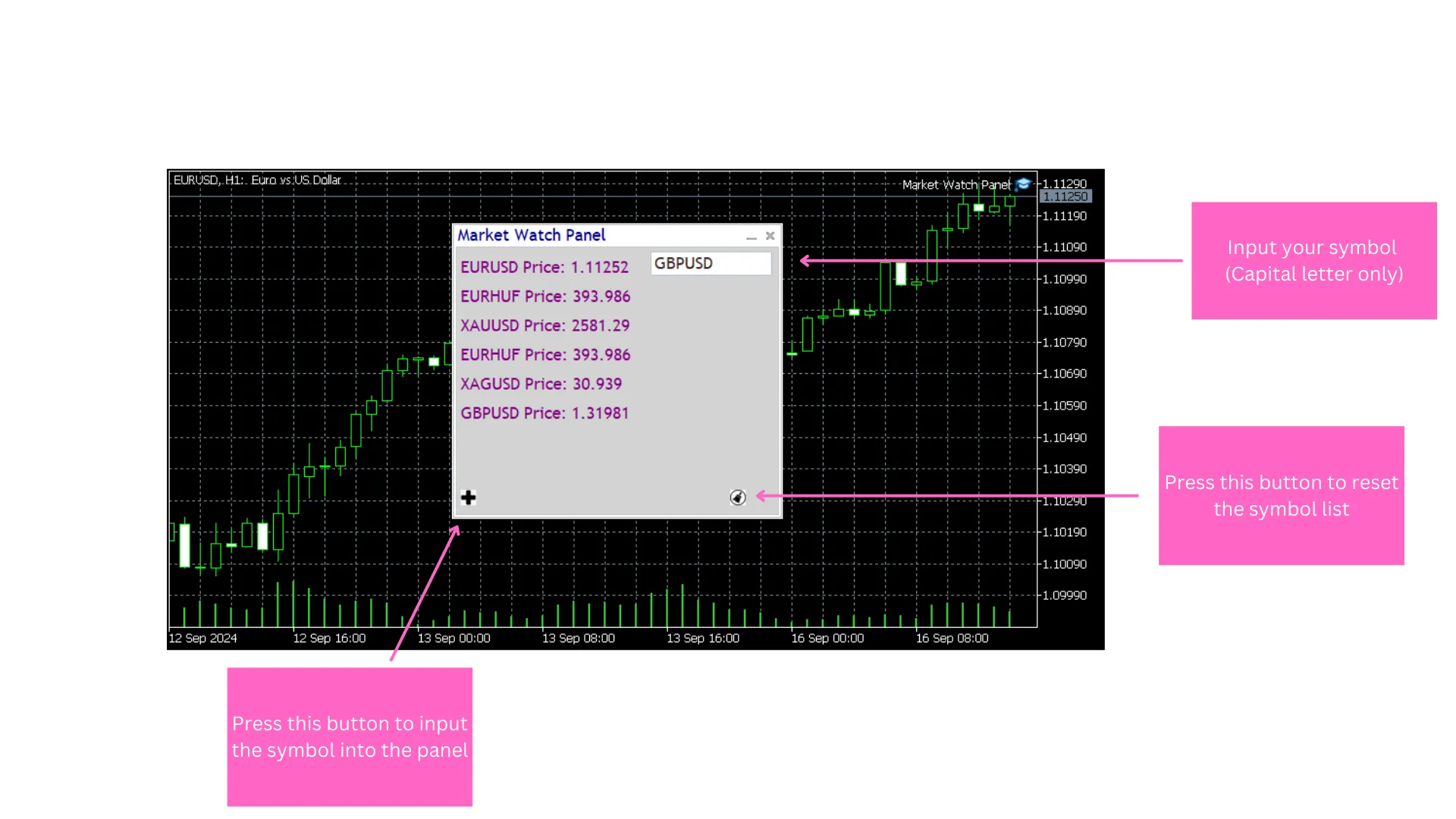
Stay on Top of Your Trades with the Market Watch Panel Utility If you're looking to streamline your trading experience, the Market Watch Panel Utility for MetaTrader 4 is a game changer. This nifty tool offers real-time monitoring of financial symbols, allowing you to keep your finger on the pulse of the markets with ease. The clean and intuitive interface displays essential data like closing prices, making it a breeze to switch between symbols and conduct focused market analysis. With this utility, you can stack multiple symbols and customize your trading setup, ensuring that you can track market movements efficiently and make informed decisions in no time. Key Features of the Market Watch Panel Utility The Market Watch Panel Utility isn't just about looks; it delivers functionality that can enhance your trading strategy. Here are some of its standout features: Save Your Symbols: You can store symbols in a text file, so every time you load the panel, your saved symbols will be right there waiting for you. Customization Options: Tailor the panel to your taste by changing the text and window colors. It operates like a traditional market data window, giving you a straightforward way to monitor prices and stay updated. Customizing Your Panel Here's a quick overview of the main inputs you can tweak to make the panel truly yours: Panel Background Color: Set the entire panel's background color (default: White). Panel Text Color: Choose the color for the text displayed on the panel (default: DarkBlue). Client Area Background: Adjust the client area background color within the panel (default: LightGray). Main Text Color: Specify the main text color for better visibility (default: Purple). Personalize Your Button Image ***NOTE***: The current version of the Market Watch Panel Utility does not include a default button image. While the button will function, it may remain invisible unless you add a BMP image. Here’s how to customize it: Place your own BMP image (24-bit format) into the MQL5/Images folder. Modify the code to point to your custom image by updating the resource path. Make sure that your image is correctly formatted and that the path is accurate to prevent any errors during compilation. This way, you can add a personal touch to your Market Watch Panel Utility with a custom button image. Happy trading!

2025.01.20
Master Your Trading with the Symbol Swap Panel for MetaTrader 4
MetaTrader4
Master Your Trading with the Symbol Swap Panel for MetaTrader 4

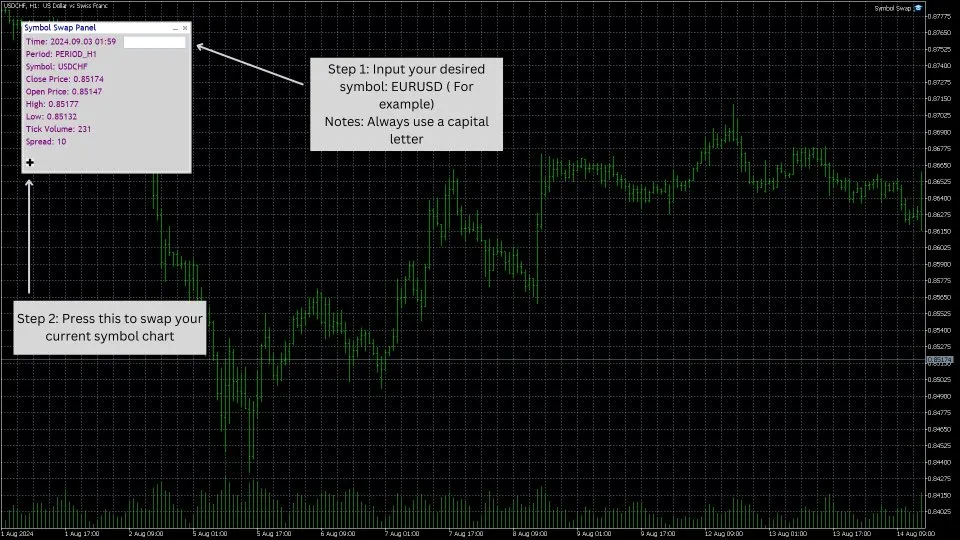
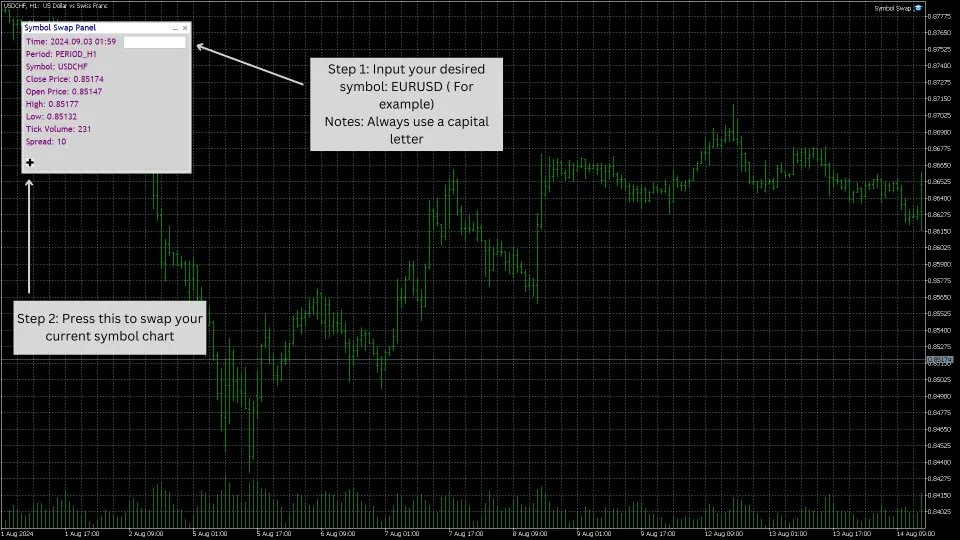
Description: The Symbol Swap Panel is a must-have utility for traders who want to take control of their chart symbols and Market Watch with ease. This handy tool lets you effortlessly swap the current symbol on your chart while automatically adding the chosen symbol to your Market Watch. It's specifically designed for traders who need quick access to various symbols and real-time market data, all without interrupting their trading flow. Key Features: 1. Effortless Symbol Swapping: &nbsp; &nbsp;- Switch the active symbol on your chart with just one click. This feature allows you to make quick adjustments to your strategy without the hassle of navigating through multiple menus. 2. Automatic Market Watch Updates: &nbsp; &nbsp;- Every time you switch a symbol on the chart, the new symbol is instantly added to Market Watch, ensuring you're always up-to-date with real-time data and market insights. 3. Streamlined Trading Workflow: &nbsp; &nbsp;- By merging symbol management with Market Watch, this panel enhances your trading process, cutting down on the time and effort needed to track and analyze multiple symbols. 4. Historical Data Insights: &nbsp; &nbsp;- The panel allows for symbol swaps backed by historical data, empowering traders to analyze past market conditions for better decision-making. 5. Optimized Data Loading: &nbsp; &nbsp;- Designed for efficient data synchronization, it's a good idea to toggle back and forth when changing timeframes to ensure all relevant data loads correctly for consistent performance. Practical Use Case: If you're a trader who juggles multiple symbols, the Symbol Swap Panel offers a speedy and efficient way to switch between charts and refresh Market Watch without missing a beat on your market analysis. Whether you're diving into currency pairs or stocks, this tool keeps all pertinent data at your fingertips, boosting your ability to react to market shifts in real time. This utility is perfect for active traders and analysts looking for a streamlined approach to managing symbols and Market Watch entries, providing a practical solution for staying focused and efficient in fast-paced trading scenarios. ***NOTE***:The current Symbol Swap Panel code doesn’t include a default button image. While the button will function, it will be invisible without adding a BMP image. To customize the button image in the Symbol Swap Panel Utility, follow these steps: Place your own BMP image (24-bit format) in the MQL5/Images folder. Update the code to point to your custom image by changing the resource path to the new image file. Make sure the image is properly formatted and the path is correct to avoid any compilation errors. This allows you to personalize the panel with your own button images. Link to the product: MT5:&nbsp;https://www.mql5.com/en/market/product/122618 MT4:&nbsp;https://www.mql5.com/en/market/product/122620

2025.01.19
Enhance Your Trading with the Symbol Swap Panel for MetaTrader 5
MetaTrader5
Enhance Your Trading with the Symbol Swap Panel for MetaTrader 5

Description: Are you tired of juggling multiple symbols and market data while trading? The Symbol Swap Panel is here to save the day! This handy utility is crafted for traders who want to manage their chart symbols and Market Watch efficiently. With this tool, you can effortlessly swap the current symbol on your chart and have the selected symbol added to Market Watch automatically. It’s perfect for those who need quick access to various symbols and real-time market data without breaking their stride. Key Features: 1. Seamless Symbol Swapping: &nbsp; &nbsp;- With just a click, you can instantly switch the active symbol on your chart. This feature is a game-changer for making quick adjustments to your trading strategy without having to wade through multiple settings. 2. Automatic Market Watch Integration: &nbsp; &nbsp;- Every time you swap a symbol on your chart, that new symbol gets automatically added to Market Watch. This ensures you have immediate access to real-time data and market insights. 3. Enhanced Trading Workflow: &nbsp; &nbsp;- By linking symbol management with Market Watch, the panel streamlines your trading process. This means you can monitor and analyze multiple symbols more efficiently, saving you time and effort. 4. Historical Data Analysis: &nbsp; &nbsp;- The panel allows for symbol swaps based on historical data, which helps traders review and analyze past market conditions. This leads to smarter decision-making. 5. Optimized for Accurate Data Loading: &nbsp; &nbsp;- This tool is designed for efficient data synchronization. However, when changing timeframes, it’s best to switch back and forth to make sure all relevant data loads accurately for consistent performance. Practical Use Case: For traders who constantly keep an eye on multiple symbols, the Symbol Swap Panel offers a quick and efficient way to switch between charts and update Market Watch without disrupting your market analysis flow. Whether you’re diving into different currency pairs or stocks, this tool ensures all relevant data is at your fingertips, helping you respond promptly to market shifts. This utility is perfect for active traders and analysts who need a streamlined method for managing symbols and Market Watch entries, providing a practical solution for maintaining focus and efficiency in fast-paced trading environments. ***NOTE***: To personalize the button image in the Symbol Swap Panel Utility, just follow these simple steps: Place your BMP image (24-bit format) in the MQL5/Images folder. Modify the code to point to your custom image by changing the resource path. Ensure the image is formatted correctly and the path is accurate to avoid compilation errors. This allows you to customize the panel with your own button images! Links to the product: MT5: https://www.mql5.com/en/market/product/122618 MT4: https://www.mql5.com/en/market/product/122620

2025.01.19
MarketPredictor: Your New Trading Companion for MetaTrader 5
MetaTrader5
MarketPredictor: Your New Trading Companion for MetaTrader 5

Introducing MarketPredictor: An Open-Source EA for MetaTrader 5 Hey there, fellow traders! I'm thrilled to share my latest open-source project with you all: MarketPredictor. This innovative EA is designed for MetaTrader 5 and brings a fresh approach to market analysis. Utilizing proven mathematical models like Sinusoidal functions, Fast Fourier Transform (FFT), Sigmoid functions, and Monte Carlo simulations, MarketPredictor aims to accurately analyze and predict market movements. Whether you’re a developer, a math whiz, or simply a trading enthusiast, this project is crafted for those passionate about blending technology with financial markets. Mathematical Foundations of MarketPredictor: Sinusoidal Functions: These help model cyclical price movements, allowing you to spot long-term trends. Fast Fourier Transform (FFT): This tool analyzes historical price data to uncover dominant frequency patterns. Sigmoid Functions: These capture nonlinear market movements while considering volatility. Monte Carlo Simulations: This method forecasts future price scenarios by simulating random deviations. Current Status and Challenges: While the EA is packed with sophisticated trading logic and analytical functions, it’s currently not executing trades—though the trading strategy is in place. By releasing this project as open source, I hope to engage the community in resolving this issue and enhancing the EA. What Can MarketPredictor Do for You? Sinusoidal Component: This identifies cyclical patterns and market trends using random frequencies. Fractal Component (FFT): Decomposes historical price data to pinpoint dominant trends. Sigmoid Component: This models the effects of price jumps and market volatility. Monte Carlo Simulation: Simulates potential future price movements and calculates average predictions. Trading Logic: It makes buy and sell decisions based on predicted prices and set thresholds. How You Can Get Involved: Parameter Optimization: Are there any new parameters we could introduce or tweak? Improving Trading Logic: What strategies can we add to boost performance? Bug Fixes: Help figure out why trades aren’t executing and suggest improvements for the logic. Performance Enhancements: What methods could enhance the EA's efficiency and speed? Advanced Analytical Tools: Which additional mathematical or statistical models should we consider adding? Repository and License Information: You can find the full source code on GitHub: ComplexMarketPredictor for MetaTrader 5 – GitHub Repository License: This project is shared under a specific license that details terms of use and redistribution. Please review the license carefully to avoid any misunderstandings—it clearly states what rights and restrictions apply. Important Reminder: Before diving into live trading, make sure to thoroughly test MarketPredictor on a demo account and conduct extensive backtesting. This will help ensure the EA's reliability and performance. I can’t wait to hear your thoughts, suggestions, and contributions! Together, we can evolve this project into a powerful tool for all traders. Cheers, Mustafa Seyyid Sahin

2024.12.11
Unlock Trading Success with SUPERMACBOT for MetaTrader 5
MetaTrader5
Unlock Trading Success with SUPERMACBOT for MetaTrader 5

The SUPERMACBOT is your go-to automated trading buddy, expertly blending the Moving Average Crossover strategy with the MACD Indicator. This nifty little EA (Expert Advisor) is built to deliver accurate and reliable trade signals, and it plays well with all symbols and timeframes. Whether you're a scalper or a swing trader, it's got you covered! Core Features: Dual Strategy Framework: Moving Average Crossover: Sniffs out trend reversals and trade opportunities by watching the dance between fast and slow moving averages. MACD Confirmation: Gives the green light to signals using the MACD line, Signal line, and Histogram, adding a layer of accuracy. Multi-Timeframe Compatibility: Adapts effortlessly to any timeframe, making it a perfect fit for scalping, day trading, or swing trading. Robust Risk Management: Equipped with customizable Stop Loss and Take Profit settings to safeguard your capital. Fixed Lot Size option ensures consistent position sizing across trades. Trailing Stop Functionality: Utilizes a Moving Average trailing stop to boost profits while locking in gains. Highly Configurable: Parameters for Moving Averages (period, method, applied price) give you control. Customizable MACD settings (fast EMA, slow EMA, signal line) to fit your strategy. Adjustable thresholds for signals and trade execution to match your trading style. Effortless Automation: Runs seamlessly on any chart with minimal setup, letting you focus on trading without the emotional rollercoaster. Why Choose SUPERMACBOT? Accurate Signal Generation: Merges trend detection with momentum analysis for trades you can trust. Versatility: Works across all market instruments and timeframes without any manual fuss. User-Friendly: A perfect match for both newbies and seasoned traders wanting to automate their strategies. Inputs &amp; Customization Options: Moving Average Parameters: You can tweak periods, shifts, methods, and price types. MACD Settings: Customize fast EMA, slow EMA, and signal smoothing periods. Risk Management: Set a fixed lot size and determine your Stop Loss and Take Profit levels. Trailing Stop: Configure a Moving Average-based trailing stop that fits your trading approach. Support &amp; Updates: Enjoy free updates that enhance performance and roll out new features. Dedicated support is available for installation, optimization, and any troubleshooting you might need. Try SUPERMACBOT Today and Start Your Journey Toward Consistent Trading Success!

2024.11.15
Master Your Trades with a Simple MT5 Trade Copier
MetaTrader5
Master Your Trades with a Simple MT5 Trade Copier

If you're looking to streamline your trading strategy, our Simple MT5 Trade Copier is just what you need. Here’s a breakdown of its key features: 1. Trade Copying Made Easy At its core, this system allows you to replicate trades from one account (the Master) to another (the Slave). This is especially handy for: Fund managers juggling multiple client accounts Traders aiming to implement the same strategy across various brokers Diversifying risk by spreading trades across different platforms 2. Account Structure The setup is straightforward: Master Account: This is your original source of trades. Slave Account(s): These accounts mimic the trades initiated from the Master. Communication between these accounts is file-based, ensuring efficiency and reliability. 3. Technical Implementation We use a binary file communication system: The Master writes position data to a binary file. The Slave reads this file to sync up. This method is quicker than traditional text-based systems and uses common folder access for seamless inter-terminal communication. 4. Position Management Keep track of your positions in real-time with these features: Replication of open positions Syncing of stop loss and take profit levels Closure of positions aligned with the Master account 5. Symbol Mapping The trade copier can handle different symbol names across brokers, which is crucial: For instance, XAUUSD.ecn on one platform may simply be labeled as GOLD on another. This flexibility means you can adapt to different broker conventions without a hitch. 6. Risk Management Our trade copier ensures: Exact position sizes are maintained Stop loss and take profit levels are preserved Synchronized risk management across all accounts 7. Operational Features The system is designed for constant monitoring: Regular polling every 50 milliseconds to check for updates Bi-directional verification: Identifies new positions to copy Confirms that existing positions remain valid Closes positions that no longer exist on the Master account 8. Error Handling and Recovery Our trade copier is equipped to manage common trading hurdles: Failed order executions Communication failures Symbol availability issues Price discrepancies between brokers With the Simple MT5 Trade Copier, you can trade smarter, not harder. Whether you're a fund manager or an individual trader, this tool can help you keep your strategies on track across multiple accounts.

2024.11.11
Unlocking the Potential of the EuroSurge EA for MT4: A Trader's Guide
MetaTrader4
Unlocking the Potential of the EuroSurge EA for MT4: A Trader's Guide

A Friendly Introduction to the EuroSurge Expert Advisor If you're on the lookout for a reliable trading assistant, the EuroSurge Expert Advisor (EA) for MetaTrader 4 might just be what you need. This streamlined version leverages multiple technical indicators to generate trade signals, offers customizable lot sizing, and manages trades based on specific conditions. Getting Started with the Default Settings The default settings are optimized for trading EUR/USD on a 5-minute chart, and they’ve been fine-tuned since 2020 to help you find your footing in the market. Understanding Input Parameters Trade Size Calculation: This EA supports three methods for calculating trade size: Fixed lot size for consistent trading. Percentage of account balance to tailor your risk. Percentage of account equity to better manage your trades. Parameters like FixedLotSize, TradeSizePercent, and MagicNumber help you configure the lot size while uniquely identifying trades. Indicator Settings: This EA utilizes a range of indicators to generate buy and sell signals: Moving Average (MA) with an adjustable period. Relative Strength Index (RSI) with customizable overbought/oversold levels. MACD featuring adjustable EMA and signal line settings. Bollinger Bands with modifiable periods and deviations. Stochastic Oscillator with configurable %K, %D, and slowing parameters. You can easily toggle each indicator on or off using parameters like UseMA or UseRSI. Signal Detection Made Easy IsBuySignal(): This function checks if all conditions for a buy signal are met based on your selected indicators. Here’s what it looks for: MA Condition: Short-term MA must be above the long-term MA. RSI Condition: RSI should be below 50 (relaxed from the oversold level of 30). MACD Condition: Compares the MACD line with the signal line. Bollinger Bands Condition: Looks for price to be below the lower band. Stochastic Condition: %K and %D values should be below 50 (relaxed from 20). IsSellSignal(): This function mirrors IsBuySignal() but for selling conditions, such as: MA Short < MA Long RSI > 50 (relaxed from the overbought level of 70) MACD line < signal line Price above the upper Bollinger band Executing Trades with Confidence When your buy or sell conditions align, the EA will place a trade with a calculated stop loss (SL) and take profit (TP) based on your chosen multipliers (SL_Multiplier, TP_Multiplier). The lot size is determined using the CalculateLotSize() function, which adjusts according to your selected trade size method. Trades are executed using the OrderSend() function, complete with error handling to ensure everything runs smoothly. Happy trading! With the EuroSurge EA, you’re one step closer to enhancing your trading strategy.

2024.10.15
First Previous 1 2 3 4 5 6 7 8 9 10 Next Last