
If you're diving into algorithmic trading with MetaTrader 5, the MQL5 Wizard is an invaluable tool for creating Expert Advisors (EAs) tailored to your trading strategies. This guide will walk you through crafting EAs that utilize the 'Dark Cloud Cover' and 'Piercing Line' candlestick patterns, confirmed by the RSI indicator.
Creating a custom trading signal class is straightforward. For the details on structuring this class, check out the article MQL5 Wizard: How to Create a Module of Trading Signals. The gist is to derive your class from CExpertSignal and override the methods for signal conditions.
In this post, we’ll focus on the reversal candlestick patterns—specifically the 'Dark Cloud Cover' and 'Piercing Line'—along with their confirmation through the RSI indicator.
1. Understanding the Candlestick Patterns
1.1 Dark Cloud Cover
The 'Dark Cloud Cover' is a bearish reversal pattern often spotted at the end of an uptrend. It’s marked by a long white candlestick followed by a gap up, with the second day closing below the midpoint of the first day’s body.
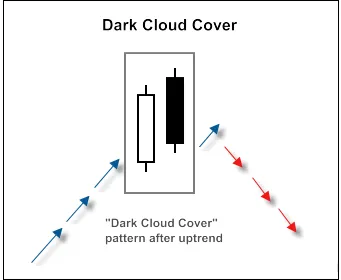
Figure 1. Dark Cloud Cover candlestick pattern
To recognize this pattern, we can use the CheckPatternDarkCloudCover() method from the CCandlePattern class:
//+------------------------------------------------------------------+//| Checks formation of "Dark Cloud Cover" candlestick pattern        |//+------------------------------------------------------------------+bool CCandlePattern::CheckPatternDarkCloudCover() {
//--- Dark Cloud Cover
if((Close(2)-Open(2)>AvgBody(1)) &&

     (Close(1)2)) &&

     (Close(1)>Open(2)) &&

     (MidOpenClose(2)>CloseAvg(1)) &&

     (Open(1)>High(2)))

    return (true);
//---

  return (false);

}
The CheckCandlestickPattern(CANDLE_PATTERN_DARK_CLOUD_COVER) method in the CCandlePattern class checks for the formation of the 'Dark Cloud Cover' pattern.
1.2 Piercing Line
The 'Piercing Line' pattern is a bullish reversal that forms after a downtrend. Here, the second day's close is above the midpoint of the first day's body, signaling potential bullish momentum.
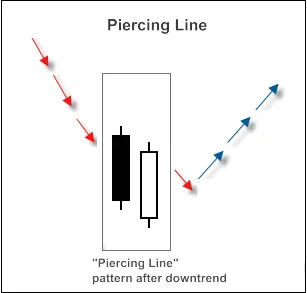
Figure 2. Piercing Line candlestick pattern
To identify this pattern, we utilize the CheckPatternPiercingLine() method of the CCandlePattern class:
//+------------------------------------------------------------------+//| Checks formation of "Piercing Line" candlestick pattern            |//+------------------------------------------------------------------+bool CCandlePattern::CheckPatternPiercingLine() {
//--- Piercing Line
if((Close(1)-Open(1)>AvgBody(1)) &&

     (Open(2)-Close(2)>AvgBody(1) &&

     (Close(1)>Close(2) &&

     (Close(1)<Open(2)) &&

     (MidOpenClose(2)<CloseAvg(2)) &&

     (Open(1)<Low(2)))

    return (true);
//---

  return (false);

}
Use the CheckCandlestickPattern(CANDLE_PATTERN_PIERCING_LINE) method to verify the formation of the 'Piercing Line' pattern.
2. Confirming Trade Signals with RSI
Trade signals for opening long or short positions must be validated by the RSI indicator. For a long position, the RSI needs to be below 40, while for a short position, it should be above 60.
You can close an open position based on two scenarios:
- If the RSI reaches the opposite critical level (70 for long positions, 30 for short positions).
- If the reversal signal isn't confirmed (when the RSI hits 30 for long positions, and 70 for short positions).
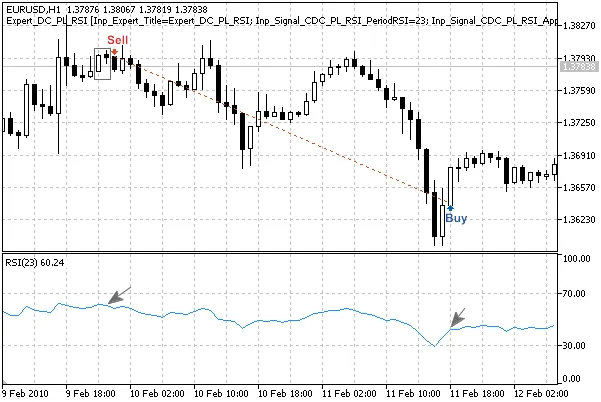
Figure 3. Dark Cloud Cover pattern confirmed by RSI indicator
int CDC_PL_RSI::LongCondition()- checks conditions to open a long position (returns 80) and closes the short position (returns 40);int CDC_PL_RSI::ShortCondition()- checks conditions to open a short position (returns 80) and closes the long position (returns 40).
2.1 Opening Long Positions and Closing Shorts
Confirm the 'Piercing Line' pattern with the RSI: RSI(1) must be less than 40.
Close the short position if the RSI crosses upward over the critical levels 70 or 30.
//+------------------------------------------------------------------+//| Checks conditions for entry and exit from market                  |//+------------------------------------------------------------------+int CDC_PL_RSI::LongCondition() {
int result=0;
//--- Check conditions to open long position
if(CheckCandlestickPattern(CANDLE_PATTERN_PIERCING_LINE) && (RSI(1)<40))

    result=80;
//--- Check conditions to close short position
if(((RSI(1)>30) && (RSI(2)<30)) || ((RSI(1)>70) && (RSI(2)<70)))

    result=40;
//--- Return result
return(result);

}
2.2 Opening Short Positions and Closing Longs
Confirm the 'Dark Cloud Cover' pattern with the RSI: RSI(1) must be greater than 60.
Close the long position if the RSI crosses downward over the critical levels 70 or 30.
//+------------------------------------------------------------------+//| Checks conditions for entry and exit from market                  |//+------------------------------------------------------------------+int CDC_PL_RSI::ShortCondition() {
int result=0;
//--- Check conditions to open short position
if(CheckCandlestickPattern(CANDLE_PATTERN_DARK_CLOUD_COVER) && (RSI(1)>60))

    result=80;
//--- Check conditions to close long position
if(((RSI(1)<70) && (RSI(2)>70)) || ((RSI(1)<30) && (RSI(2)>30)))

    result=40;
//--- Return result
return(result);

}
2.3 Creating the Expert Advisor with MQL5 Wizard
To implement the CDC_PL_RSI class, download the adc_pl_rsi.mqh file and save it in your terminal_data_folder\MQL5\Include\Expert\Signal\MySignals. Repeat the same for the acandlepatterns.mqh file. Restart MetaEditor for changes to take effect.
Now, let’s launch the MQL5 Wizard to create your Expert Advisor:
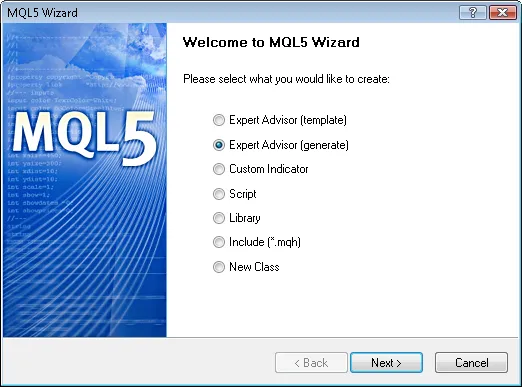
Figure 4. Creating Expert Advisor using MQL5 Wizard
First, specify the name of your Expert Advisor:
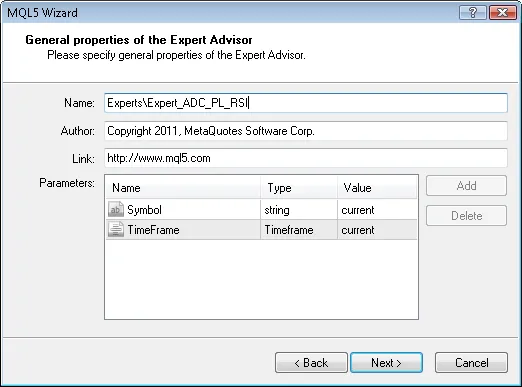
Figure 5. General properties of the Expert Advisor
Next, select the trading signal modules you want to use.

Figure 6. Signal properties of the Expert Advisor
In this case, we only need one module for our signals:
Add the Signals based on Dark Cloud Cover/Piercing Line confirmed by RSI module:
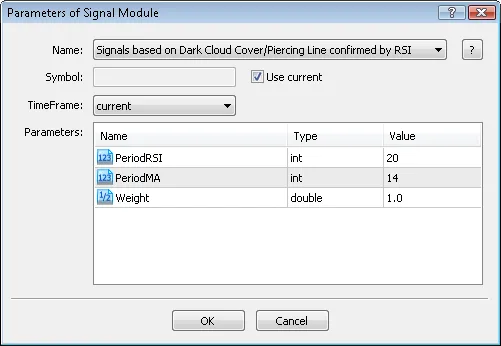
Figure 7. Signal properties of the Expert Advisor
You can select trailing properties, but we will go with the option of no trailing stop:
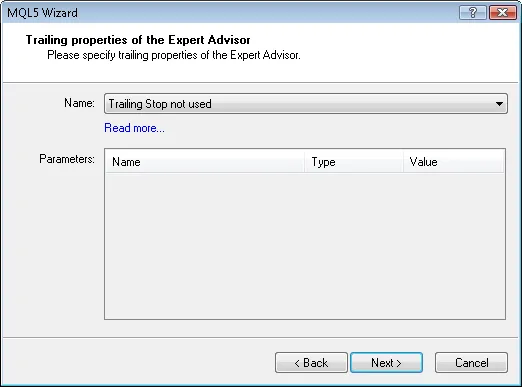
Figure 9. Trailing properties of the Expert Advisor
For money management, we will use a fixed trading volume:
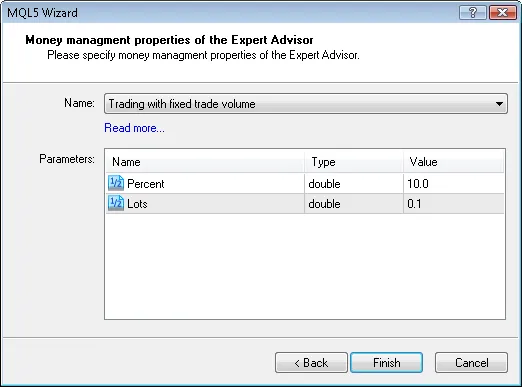
Figure 10. Money management properties of the Expert Advisor
Once you hit the 'Finish' button, the code for your new Expert Advisor will be generated, saved as Expert_ADC_PL_RSI.mq5 in the terminal_data_folder\MQL5\Experts\.
The default input parameters for your generated EA will be:
//--- inputs for main signalinputint Signal_ThresholdOpen = 10; // Threshold to open positioninputint Signal_ThresholdClose = 10; // Threshold to close positioninputdouble Signal_PriceLevel = 0.0; // Price level to execute a dealinputdouble Signal_StopLevel = 50.0; // Stop Loss levelinputdouble Signal_TakeLevel = 50.0; // Take Profit level
These parameters should be adjusted to:
//--- inputs for main signalinputint Signal_ThresholdOpen = 40; // Threshold to open positioninputint Signal_ThresholdClose = 20; // Threshold to close positioninputdouble Signal_PriceLevel = 0.0; // Price level to execute a dealinputdouble Signal_StopLevel = 0.0; // Stop Loss levelinputdouble Signal_TakeLevel = 0.0; // Take Profit level
The Signal_ThresholdOpen and Signal_ThresholdClose parameters specify the threshold levels for opening and closing positions.
In the code for the LongCondition() and ShortCondition() methods, fixed values were initially set:
- Open position: 80;
- Close position: 40.
The EA generated by MQL5 Wizard opens and closes positions based on "votes" from the signal modules. The main module's LongCondition() and ShortCondition() methods always return 0, meaning they don't influence the decision to trade.
The votes from the main module are averaged in the decision-making process. In our case, we've combined the main module with one trading signal module, which means we need to adjust the threshold values to 40 (average of 0 and 80) for opening and 20 (average of 0 and 40) for closing.
Set Signal_StopLevel and Signal_TakeLevel to 0, indicating that positions will only close under the specified conditions.
2.4 Backtesting the Expert Advisor
Now, let’s take a look at backtesting results for the Expert Advisor on historical data (EURUSD H1, testing period: 2010.01.01-2011.02.23, PeriodRSI=20, MA_period=14).
We used a fixed volume (Trading Fixed Lot, 0.1) and did not implement a Trailing Stop algorithm (Trailing not used).

Figure 11. Testing results of the Expert Advisor, based on Dark Cloud Cover/Piercing Line + RSI
The best set of input parameters can be determined using the Strategy Tester in the MetaTrader 5 client terminal.
The code for the Expert Advisor created by the MQL5 Wizard is attached as expert_ad_pl_rsi.mq5.




Comments 0