
MQL5 Wizard is your go-to tool for automatically creating Expert Advisors, even if you don’t know a lick of programming! If you’re looking to up your trading game, this could be just what you need.
In this post, we’ll dive into how to set up trading signals using the crossover of the MACD indicator lines. We refer to this strategy as "Signals Based on Crossover of Main and Signal MACD Lines". This is one of the options you can select when generating an EA in MQL5 Wizard.
The main line of the MACD indicator is calculated as the difference between the fast and slow Exponential Moving Averages (EMAs). The signal line, on the other hand, is a smoothed version of the main line, using the PeriodSignal setting.
Here are your trade signals:
- Buy: when the main MACD line crosses upward over the signal line.
- Sell: when the main MACD line crosses downward under the signal line.
This strategy is implemented within the CSignalMACD class of the MQL5 Standard Library (found in MQL5\Include\Expert\Signal\SignalMACD.mqh).
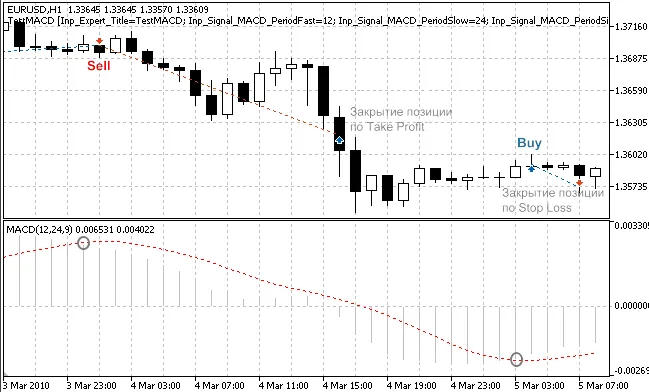
Figure 1. Trade signals based on crossover of MACD lines
Understanding Trade Signals
The trading strategy is encapsulated in the CSignalMACD class, which includes several helpful methods to easily access indicator values:
double MainMACD(int ind);  // Returns the value of the main MACD line of the bar

double SignalMACD(int ind);  // Returns the value of the signal MACD line of the bar

double StateMACD(int ind);  // Returns the difference between the main and signal MACD lines

int ExtStateMACD(int ind); // Returns the number of sign changes between the main and signal lines
1. Opening a Long Position
Here’s what you need to check before you can open a long position:
- ExtStateMACD(1) == 1; this indicates that the main line has crossed upwards over the signal line.
//+------------------------------------------------------------------+
//| Checks conditions to open long position (buy)                   |
//+------------------------------------------------------------------+
bool CSignalMACD::CheckOpenLong(double& price, double& sl, double& tp, datetime& expiration)
{
    price = 0.0;
    sl = m_symbol.Ask() - m_stop_loss * m_adjusted_point;
    tp = m_symbol.Ask() + m_take_profit * m_adjusted_point;
    return (ExtStateMACD(1) == 1);
}
2. Closing a Long Position
To close your long position, you’ll need to check the following:
- ExtStateMACD(1) == -1; this means the main line has crossed downward under the signal line.
//+------------------------------------------------------------------+
//| Checks conditions to close long position                         |
//+------------------------------------------------------------------+
bool CSignalMACD::CheckCloseLong(double& price)
{
    price = 0.0;
    return (ExtStateMACD(1) == -1);
}
3. Opening a Short Position
The conditions to open a short position mirror those for closing a long position:
//+------------------------------------------------------------------+
//| Checks conditions to open short position (sell)                 |
//+------------------------------------------------------------------+
bool CSignalMACD::CheckOpenShort(double& price, double& sl, double& tp, datetime& expiration)
{
    price = 0.0;
    sl = m_symbol.Bid() + m_stop_loss * m_adjusted_point;
    tp = m_symbol.Bid() - m_take_profit * m_adjusted_point;
    return (ExtStateMACD(1) == -1);
}
4. Closing a Short Position
The conditions to close a short position are the same as those for opening a long position:
//+------------------------------------------------------------------+
//| Checks conditions to close short position                        |
//+------------------------------------------------------------------+
bool CSignalMACD::CheckCloseShort(double& price)
{
    price = 0.0;
    return (ExtStateMACD(1) == 1);
}
Creating Your Expert Advisor with MQL5 Wizard
To whip up a trading robot based on this strategy, select the signal properties as "Signals Based on Crossover of Main and Signal MACD Lines" within the MQL5 Wizard under the "Creating Ready-Made Expert Advisors" option:

Figure 2. Select "Signals Based on Crossover of Main and Signal MACD Lines" in MQL5 Wizard
Next, specify your desired trailing stop algorithm and money and risk management system. The EA code will be generated automatically, and you can compile and test it in the Strategy Tester of the MetaTrader 5 client terminal.
Backtesting Results
Let’s take a look at how the Expert Advisor performs during backtesting on historical data (EURUSD H1, testing period: 1.1.2010-05.01.2011, PeriodFast=12, PeriodSlow=24, PeriodSignal=9, StopLoss=20, TakeProfit=80).
For this Expert Advisor setup, we used a fixed volume method (Trading Fixed Lot, 0.1) and opted not to use any trailing stop algorithm (Trailing Not Used).
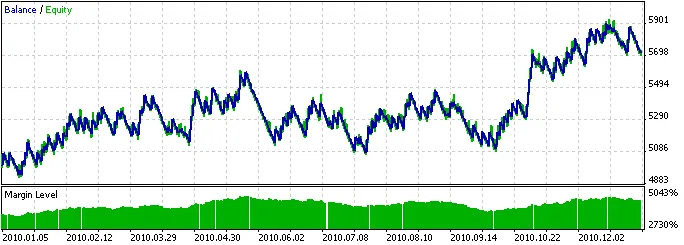
Figure 3. Testing Results of the Expert Advisor with Trading Signals Based on Crossover of MACD Lines
Attachments: The SignalMACD.mqh file, which includes the CSignalMACD class, is located in the MQL5\Include\Expert\Signal folder. The testmacd.mq5 file contains the EA code generated with MQL5 Wizard.




Comments 0