
Welcome traders! Today, we're diving into the Test_ChartEvent.mq4 Expert Advisor, which showcases how to handle various chart events in MetaTrader. Whether it's key presses, mouse clicks, or custom events, this EA is designed to demonstrate it all. For a quick refresher, press the 'H' key for help, and hit 'M' to switch to mouse move mode.
This code is compatible with both MetaTrader 4 and MetaTrader 5, making it a versatile tool for your trading toolbox.
Function Prototype
- bool Obj_Create()
- bool Obj_Delete()
- bool Obj_Move(int hSens,int vSens) - moves an object around the chart.
- void Print_Info() - outputs information about the objects on the chart.
- int MouseMove(int aXX,int aYY,string sState) - handles mouse movement events.
Global Variables
- int gChartNo = 0
- int gSubWinNo = 0
- string gsObj_Name_selected = "" - holds the name of the currently selected object.
Custom Events
We've defined three types of custom events for this EA:
- #define cMyEvent_1 0
- #define cMyEvent_2 1
- #define cMyEvent_3_broadcast 2
OnTimer() Function
This function periodically generates custom chart events, including cMyEvent_1, cMyEvent_2, and cMyEvent_3_broadcast. Notably, the cMyEvent_3_broadcast event is sent to all open chart windows, ensuring you don’t miss out on any important updates.
Example of Class
The class CObjectMan is created to manage the functionality of objects on the chart. We declare two instances of this class: gObjectMan1 and gObjectMan2, which are associated with the graphic objects named "Green Button" and "Yellow Button" respectively.
Event Processing
Let's talk about the void OnChartEvent() function:
Here's a rundown of the CHARTEVENT_KEYDOWN events:
- Use the arrow keys or the directional keys on your keyboard to move the selected object.
- Press 'H' to print help information in the expert log window.
- Hit 'I' to print the positions of the two objects.
- Press 'M' to activate mouse move mode.
Custom Events
This section prints information about the custom events, particularly for the MyEvent_3_broadcast event.
Object Events
- CHARTEVENT_OBJECT_CHANGE, CHARTEVENT_OBJECT_DRAG, CHARTEVENT_OBJECT_DELETE - these events print the name of the corresponding object.
- CHARTEVENT_OBJECT_CLICK - this event prints the name of the object being clicked, allowing you to select it for movement using the direction keys.
Mouse Events
- CHARTEVENT_CLICK - prints the clicked bar's information, including prices (open, close) and time.
- CHARTEVENT_MOUSE_MOVE - this event prints information about the covered interval, including the number of bars and price variations.
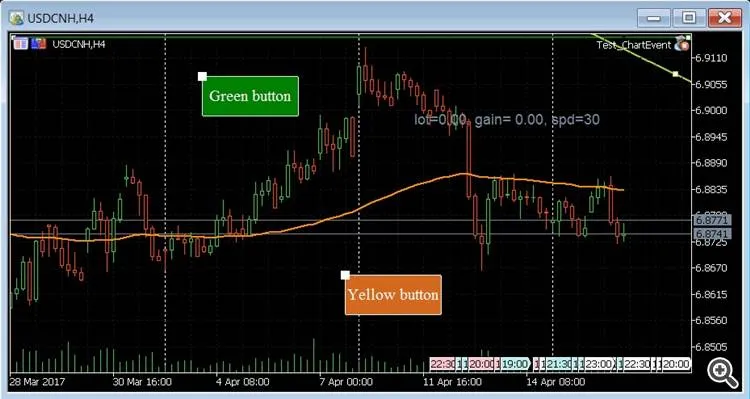
Demonstration
Ready to put this into practice? Here are a few tests you can try:
- Click on either of the two buttons to select it, then use the arrow keys to move the selected object around.
- Click on a graphic bar and check the log tab for the bar's information.
- Press 'M' to enter mouse move mode. Use Ctrl+F to display the crosshair, then try a drag-and-drop operation. If you don’t see the log message, consider adjusting the input parameter: "iLogLevel".




Comments 0