
Hey there, fellow traders! Have you ever found yourself needing to copy and paste graphical objects between different charts? If so, you're not alone! Unfortunately, MetaTrader doesn't offer a straightforward "Copy & Paste" feature for these objects. The closest solution is using templates (tpl-files), but they save the entire chart state—indicators, settings, and all that extra fluff—which is often more than you need.
That's where my handy indicator, ChartObjectsCopyPaste.mq5, comes into play. This tool allows you to select and copy graphical objects directly to your clipboard, making it a breeze to paste them onto other charts—no strings attached!
This indicator is built on the foundation of another one you might know from the algotrading book: ObjectGroupEdit.mq5. If you're curious about the underlying classes like ObjectMonitor and MapArray, feel free to check them out!
To get started, you’ll want to attach the indicator to at least two charts: the source chart where you want to copy objects from, and the target chart where you plan to paste them. While it’s running, the indicator keeps an eye on existing graphical objects and tracks which ones you’ve selected for copying.
As with any good copy-and-paste operation, you’ll need to remember a couple of hotkeys:
- Press Ctrl+Q to copy all selected objects to your Windows clipboard as text. You can open this clipboard content in any text editor—an example is shared below.
- On your target chart, hit Ctrl+J to paste the objects you've copied.
Now, you might be wondering why I chose Ctrl+Q and Ctrl+J. Well, unfortunately, MetaTrader intercepts many common hotkeys, so these two were some of the few available options. Standard hotkeys like Ctrl+C and Ctrl+V just don’t work in this context.
If you’re a bit tech-savvy, the source code is available for you to tweak those hotkeys to something else if you prefer!
Since this indicator uses system DLLs to access the Windows clipboard, you’ll need to allow DLL imports in the Properties dialog, specifically under the Dependencies tab.
Just a heads up: because the Codebase doesn’t allow DLL imports, the clipboard-related code is wrapped in a conditional preprocessor directive. Be sure to uncomment the line:
#define DLL_LINK
before you compile it. Otherwise, you’ll get alerts when you try to use the hotkeys, but nothing will actually happen!
Here are the inputs you can work with:
- MakeAllSelectable: A flag to make all objects selectable (normally false for objects created programmatically).
- LogDetails: A flag to output all properties of transferred objects to the log.
Keep in mind, the indicator doesn’t verify if the pasted objects match the target chart’s specifications, like symbol, price range, or number of subwindows—that’s up to you!
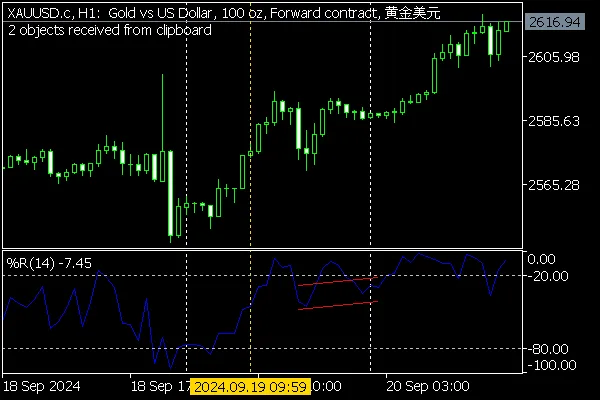
Here’s an example of what the clipboard text looks like with two objects:
OBJ_VLINE       H1 Vertical Line 5578   0       0enumENUM_OBJECT_PROPERTY_INTEGER0       OBJPROP_COLOR   552951       OBJPROP_STYLE   22       OBJPROP_WIDTH   13       OBJPROP_BACK    04       OBJPROP_SELECTED        17       OBJPROP_TYPE    08       OBJPROP_TIME    172673994010      OBJPROP_SELECTABLE      111      OBJPROP_CREATETIME      172684700912      OBJPROP_TIMEFRAMES      2097151200     OBJPROP_LEVELS  0207     OBJPROP_ZORDER  0208     OBJPROP_HIDDEN  01032    OBJPROP_RAY     1enumENUM_OBJECT_PROPERTY_DOUBLE9       OBJPROP_PRICE   1.11449enumENUM_OBJECT_PROPERTY_STRING5       OBJPROP_NAME    H1 Vertical Line 55786       OBJPROP_TEXT
206     OBJPROP_TOOLTIPOBJ_CHANNEL     H1 Equidistant Channel 40885    5       1enumENUM_OBJECT_PROPERTY_INTEGER0       OBJPROP_COLOR   2551       OBJPROP_STYLE   02       OBJPROP_WIDTH   13       OBJPROP_BACK    04       OBJPROP_SELECTED        17       OBJPROP_TYPE    58       OBJPROP_TIME    17267580008       OBJPROP_TIME.1  17267976008       OBJPROP_TIME.2  172675800010      OBJPROP_SELECTABLE      111      OBJPROP_CREATETIME      172684788312      OBJPROP_TIMEFRAMES      2097151200     OBJPROP_LEVELS  0207     OBJPROP_ZORDER  0208     OBJPROP_HIDDEN  01003    OBJPROP_RAY_LEFT        01004    OBJPROP_RAY_RIGHT       01031    OBJPROP_FILL    0enumENUM_OBJECT_PROPERTY_DOUBLE9       OBJPROP_PRICE   -28.1138790035587159       OBJPROP_PRICE.1  -21.7081850533807779       OBJPROP_PRICE.2  -48.04270462633452enumENUM_OBJECT_PROPERTY_STRING5       OBJPROP_NAME    H1 Equidistant Channel 408856       OBJPROP_TEXT
206     OBJPROP_TOOLTIP
And here’s what those objects look like once pasted onto the chart:




Comments 0