
Hey there, fellow traders! If you're looking to streamline your trading experience on MetaTrader 4, a personal assistant might just be the game-changer you need. Think of it as your own trading buddy, providing essential information and executing your orders, just like a real-life assistant would.
Here’s why I developed this EA (Expert Advisor):
- To show key information directly on the chart while I’m in full-screen mode on MetaTrader 4.
- To easily manage and view manually opened orders by their ID, so if you're juggling multiple strategies or EAs, you can keep tabs on them without a hitch.
- To calculate critical metrics like Stop Loss, Take Profit, required margin, and tick value for me.
- To allow quick order actions with just a click of a button.
So, what can this personal assistant do for you? Here are its main functions:
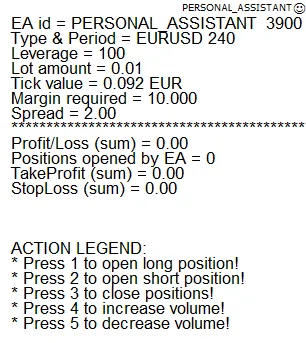
- Display the EA name and ID, so you can distinguish between multiple assistants attached to your charts.
- Show the trading symbol and timeframe.
- Indicate the leverage for your account.
- Provide the current lot volume value you’ve selected.
- Display the tick value for the lot volume in your deposit currency.
- Calculate and show the margin required for new orders based on your current lot value.
- Display the current spread.
- Sum up profits and losses for all orders opened by this EA in your deposit currency.
- Show the number of active orders currently managed by this EA.
- Calculate and display the average Take Profit for open orders that have it set.
- Calculate and display the average Stop Loss for open orders that have it set.
- Open a long position with the press of the number 1 key, using the EA's current settings.
- Open a short position with the press of the number 2 key, again using the EA's current settings.
- Close positions opened by this EA with the number 3 key — just a heads-up, if the market shifts rapidly, it might not close all orders, so double-check your opened orders afterward.
- Quickly increase lot volume with the number 4 key — hold it down for a faster adjustment.
- Quickly decrease lot volume with the number 5 key — again, hold it down for a quicker change.
IMPORTANT: Use this tool with caution. You’re responsible for any unintended orders, so make sure you’ve got the right chart selected when issuing commands!
Check out how the Personal Assistant looks on your chart:
User Input Variables:
- ID — This is your EA’s Magic Number and the identifier for orders opened by the EA.
- Display_legend — Show a legend on the chart for buttons/commands (open long, open short, close orders, increase volume, decrease volume).
- LotSize — Set the initial volume value.
- Slippage — Adjust slippage for opening and closing orders.
- Text_size — Define the size of the text displayed on the chart.
- Text_color — Choose the color for the text displayed on the chart.
- Right_edge_shift — Position the text from the right edge of the window in pixels.
- Upper_edge_shift — Position the text from the upper edge of the window in pixels and set the spacing between rows.
Be sure to test this on a DEMO account first and alert me if you run into any potential issues!
UPDATE:
- Now shows how many open positions have SL and TP set.
- Fixed SL and TP value calculations.




Comments 0