
Hey there, fellow traders! Today, we're diving into the MACD Sample EA that's included with MetaTrader 5. If you're looking to harness the power of the MACD indicator in your trading strategy, you've come to the right place.
The MACD Sample EA is a great tool for anyone wanting to automate their trading using the MACD indicator. You can find it in the standard pack of the MetaTrader 5 client terminal. This EA serves as an excellent example of how to implement automated trading strategies.
1. EA Properties
1.1. EA Properties Overview
#property copyright "Copyright 2009-2013, MetaQuotes Software Corp."
#property link "https://www.mql5.com"
#property version "5.20"
#property description "Ensure the expert works with a normal chart and no mistakes in input variables (Lots, TakeProfit, TrailingStop). We check TakeProfit on a chart of more than 2 * trend_period bars."
The first few lines of code contain comments, while the subsequent lines set properties such as copyright, version, and description. These properties are displayed in the "Common" tab when you run the EA.

Figure 1: Common parameters of the MACD Sample EA
1.2. Include Files
The #include directive includes necessary files such as trade classes from the Standard Library:
- Trade.mqh (CTrade - for trade operations);
- SymbolInfo.mqh (CSymbolInfo - for properties of trading instruments);
- PositionInfo.mqh (CPositionInfo - for open position properties);
- AccountInfo.mqh (CAccountInfo - for trade account properties).
#include <Trade\Trade.mqh>
#include <Trade\SymbolInfo.mqh>
#include <Trade\PositionInfo.mqh>
#include <Trade\AccountInfo.mqh>
Instances of these classes are used as member variables within the CExpert class.
1.3. Inputs
The inputs define the type, name, default values, and corresponding comments. This is crucial for configuring your EA's behavior:
input double InpLots = 0.1; // Lots
input int InpTakeProfit = 50; // Take Profit (in pips)
input int InpTrailingStop = 30; // Trailing Stop Level (in pips)
input int InpMACDOpenLevel = 3; // MACD open level (in pips)
input int InpMACDCloseLevel = 2; // MACD close level (in pips)
input int InpMATrendPeriod = 26; // MA trend period
Notice that all input parameters start with the prefix "Inp" for clarity.
1.4. Global Variables
The global variable ExtTimeOut is declared for controlling the execution time of trade operations:
int ExtTimeOut = 10; // time (in seconds) between trade operations
Another global variable, ExtExpert, is created as an instance of the CSampleExpert class:
CSampleExpert ExtExpert;
2. Event Handling Functions
2.1. The OnInit() Function
The OnInit() function initializes the EA. If something goes wrong, it exits with the INIT_FAILED code:
int OnInit() {
    if (!ExtExpert.Init())
        return (INIT_FAILED);
    return (INIT_SUCCEEDED);
}
2.2. The OnTick() Function
The OnTick() function executes whenever a new price quote is received. This is where the main decisions for trading are made:
void OnTick() {
    static datetime limit_time = 0;
    if (TimeCurrent() >= limit_time) {
        if (Bars(Symbol(), Period()) > 2 * InpMATrendPeriod) {
            if (ExtExpert.Processing())
                limit_time = TimeCurrent() + ExtTimeOut;
        }
    }
}
This method checks if the required time has elapsed before processing trading conditions again.
2.3. The OnDeInit() Function
The OnDeInit() function is called when the EA is removed from the chart. In this case, no actions are taken.
3. The CSampleExpert Class
3.1. Class Structure
The CSampleExpert class consists of member variables and methods essential for the EA's functionality:
class CSampleExpert {
protected:
    double m_adjusted_point;
    CTrade m_trade;
    CSymbolInfo m_symbol;
    CPositionInfo m_position;
    CAccountInfo m_account;
    int m_handle_macd;
    int m_handle_ema;
    double m_buff_MACD_main[];
    double m_buff_MACD_signal[];
    double m_buff_EMA[];

public:
    CSampleExpert();
    ~CSampleExpert();
    bool Init();
    void Deinit();
    bool Processing();
};
The class contains all necessary methods and variables for managing the trading operations.
3.2. Constructor and Destructor
The constructor initializes the class variables, while the destructor is empty, as no special cleanup is needed:
CSampleExpert::CSampleExpert() : m_adjusted_point(0), m_handle_macd(INVALID_HANDLE), m_handle_ema(INVALID_HANDLE) {
    ArraySetAsSeries(m_buff_MACD_main, true);
    ArraySetAsSeries(m_buff_MACD_signal, true);
    ArraySetAsSeries(m_buff_EMA, true);
}
3.3. Initialization Method
The Init() method sets the EA properties and verifies input parameters:
bool CSampleExpert::Init() {
    m_symbol.Name(Symbol());
    m_trade.SetExpertMagicNumber(12345);
    m_adjusted_point = m_symbol.Point() * ((m_symbol.Digits() == 3 || m_symbol.Digits() == 5) ? 10 : 1);
    return InitCheckParameters();
}
4. Backtesting
You can find the optimal parameter values using the Strategy Tester in MetaTrader 5. Figure 3 shows the results of backtesting the MACD Sample EA for 2013 with default settings.
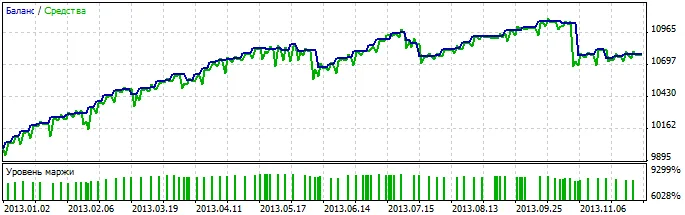
Figure 3: Backtesting results of the MACD Sample Expert Advisor
Conclusions
The MACD Sample EA included in MetaTrader 5 provides a hands-on example of how to apply an object-oriented approach to EA development. It's a fantastic starting point for traders looking to automate their strategies using the MACD indicator.
Happy trading, and may your pips be plentiful!




Comments 0