
If you're diving into the world of automated trading, then the MQL5 Wizard is your best friend. This tool allows you to whip up ready-made Expert Advisors (EAs) using the Standard Library classes included with your MetaTrader 5 terminal. Check out our guide on Creating Ready-Made EAs in MQL5 Wizard for a deeper dive.
The beauty of MQL5 Wizard is the speed at which you can turn your trading ideas into reality. With just a few clicks, you can create your own trading signal class. If you're curious about how to structure this class, be sure to read our article on MQL5 Wizard: How to Create a Module of Trading Signals.
At its core, you'll derive your trading signals class from CExpertSignal. The next step is to override the LongCondition() and ShortCondition() methods with your own logic.
In the realm of trading strategies, one insightful resource is the book "Strategies of Best Traders" (in Russian), which explores various trading strategies. For our focus, we'll zero in on the reversal candlestick patterns, particularly the 3 Black Crows and 3 White Soldiers, backed by indicators like Stochastic, CCI, MFI, and RSI.
To effectively check for candlestick patterns, it’s best to create a separate class derived from CExpertSignal. This class can be tailored to include features such as confirmation from oscillators.
In this guide, we’ll specifically look at signals based on the 3 Black Crows and 3 White Soldiers patterns, confirmed by the Market Facilitation Index (MFI). Our trading signals module will utilize the CCandlePattern class, providing a straightforward example of how to create trade signals using these candlestick patterns.
1. Understanding 3 Black Crows and 3 White Soldiers Patterns
1.1. 3 Black Crows
The 3 Black Crows is a bearish candlestick pattern that signals a potential reversal of an uptrend. It consists of three consecutive long-bodied candlesticks, each closing lower than the previous day, with each session opening within the body of the preceding candle.

Fig. 1. 3 Black Crows candlestick pattern
You can recognize the 3 Black Crows pattern using the CheckPatternThreeBlackCrows method from the CCandlePattern class.
//+------------------------------------------------------------------+//| Checks formation of "3 Black Crows" candlestick pattern      |//+------------------------------------------------------------------+bool CCandlePattern::CheckPatternThreeBlackCrows()
  {
//--- 3 Black Crows
   if((Open(3)-Close(3)>AvgBody(1)) && //
      (Open(2)-Close(2)>AvgBody(1)) &&
      (Open(1)-Close(1)>AvgBody(1)) &&
      (MidPoint(2)<MidPoint(3)) &&
      (MidPoint(1)<MidPoint(2)))
     return(true);
//---
   return(false);
  }
The CheckCandlestickPattern(CANDLE_PATTERN_THREE_BLACK_CROWS) method from the CCandlePattern class is what you'll use to verify the formation of the 3 Black Crows pattern.
1.2. 3 White Soldiers Pattern
The 3 White Soldiers is a bullish candlestick pattern that signals a potential reversal of a downtrend. This pattern consists of three consecutive long-bodied candlesticks, each closing higher than the previous day, with each session's open occurring within the body of the preceding candle.
This pattern remains valid as long as the candle of day two opens in the upper half of day one's range and closes near its high, minimizing or eliminating the upper shadow. Day three should follow with the same pattern.
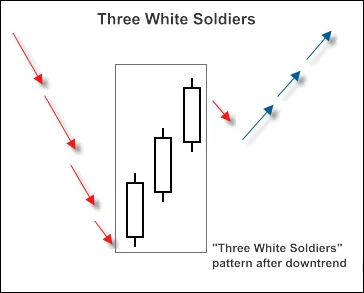
Fig. 2. 3 White Soldiers candlestick pattern
To recognize the 3 White Soldiers pattern, you can use the following method:
//+------------------------------------------------------------------+//| Checks formation of "3 White Soldiers" candlestick pattern       |//+------------------------------------------------------------------+bool CCandlePattern::CheckPatternThreeWhiteSoldiers()
  {
   //--- 3 White Soldiers
   if((Close(3)-Open(3)>AvgBody(1)) &&
      (Close(2)-Open(2)>AvgBody(1)) &&
      (Close(1)-Open(1)>AvgBody(1)) &&
      (MidPoint(2)>MidPoint(3)) &&
      (MidPoint(1)>MidPoint(2)))
     return(true);
//---
   return(false);
  }
The CheckCandlestickPattern(CANDLE_PATTERN_THREE_WHITE_SOLDIERS) method from the CCandlePattern class is how you check for the formation of the 3 White Soldiers pattern.
2. Trade Signals Confirmed by MFI Indicator
Any trading signals to open long or short positions must be confirmed by the MFI indicator. For long positions, the MFI value should be below 40, while for short positions, it should be above 60.
Closing an opened position hinges on the MFI indicator's values. You can close a position in two scenarios:
- If MFI hits the opposite critical level (70 for long positions, 30 for short).
- If the reverse signal isn't confirmed (when the MFI reaches 30 for long positions and 70 for short).

Fig. 3. 3 Black Crows pattern, confirmed by MFI indicator
- int CBC_WS_MFI::LongCondition() - checks conditions to open a long position (returns 80) and close a short position (returns 40);
- int CBC_WS_MFI::ShortCondition() - checks conditions to open a short position (returns 80) and close a long position (returns 40).
2.1. Opening Long Positions/Closing Short Positions
The formation of the 3 White Soldiers pattern must be confirmed by the MFI indicator: MFI(1) must be less than 40 (the MFI value of the last completed bar).
Close the short position if the MFI crosses above the critical levels (70 or 30).
//+------------------------------------------------------------------+//| Checks conditions for entry and exit from market                 |//| 1) Market entry (open long position, result=80)                  |//| 2) Market exit (close short position, result=40)                 |//+------------------------------------------------------------------+int CBC_WS_MFI::LongCondition()
  {
   int result=0;
//--- idx can be used to determine EA work mode//--- idx=0 - EA checks trade conditions at each tick//--- idx=1 - EA checks trade conditions only at news bars
  int idx   =StartIndex();
//--- checking of conditions to open long position//--- formation of 3 White Soldiers pattern and MFI
  if(CheckCandlestickPattern(CANDLE_PATTERN_THREE_WHITE_SOLDIERS) && (MFI(1)<40))
     result=80;
//--- checking of conditions to close short position//--- signal line crossover of overbought/oversold levels (upward 30, upward 70)
  if(((MFI(1)>30) && (MFI(2)<30)) || ((MFI(1)>70) && (MFI(2)<70)))
     result=40;
//--- return result
   return(result);
  }
2.2. Opening Short Positions/Closing Long Positions
The formation of the 3 Black Crows pattern must be confirmed by the MFI indicator: MFI(1) must be above 60 (the MFI value of the last completed bar).
Close the long position if the MFI crosses above the critical levels (70 or 30).
//+------------------------------------------------------------------+//| Checks conditions for entry and exit from market                 |//| 1) Market entry (open short position, result=80)                 |//| 2) Market exit (close long position, result=40)                  |//+------------------------------------------------------------------+int CBC_WS_MFI::ShortCondition()
  {
   int result=0;
//--- idx can be used to determine EA work mode//--- idx=0 - EA checks trade conditions at each tick//--- idx=1 - EA checks trade conditions only at news bars
  int idx   =StartIndex();
//--- checking of conditions to open short position//--- formation of 3 Black Crows pattern and MFI>60
  if(CheckCandlestickPattern(CANDLE_PATTERN_THREE_BLACK_CROWS) && (MFI(1)>60))
     result=80;
//--- checking of conditions to close long position//--- signal line crossover of overbought/oversold levels (upward 70, downward 30)
   if(((MFI(1)>70) && (MFI(2)<70)) || ((MFI(1)<30) && (MFI(2)>30)))
     result=40;
//--- return result
   return(result);
  }
2.3. Creating an Expert Advisor Using MQL5 Wizard
To get started with the CBC_WS_MFI class, remember that it’s not part of the Standard Library classes. You’ll need to download the abc_ws_mfi.mqh file (check attachments) and save it in client_terminal_data\MQL5\Include\Expert\Signal\MySignals. Do the same for the acandlepatterns.mqh file. After restarting the MetaEditor, you can use it in MQL5 Wizard.
To create your Expert Advisor, launch the MQL5 Wizard:

Fig. 4. Creating Expert Advisor using MQL5 Wizard
First, specify the name of your Expert Advisor:

Fig. 5. General properties of the Expert Advisor
Next, select the trading signal modules to utilize.

Fig. 6. Signal properties of the Expert Advisor
In our case, we’ll be using just one module of trading signals.
Add the Signals based on 3 Black Crows/3 White Soldiers confirmed by MFI trading signals module:

Fig. 7. Signal properties of the Expert Advisor
The trading signals module is now added:
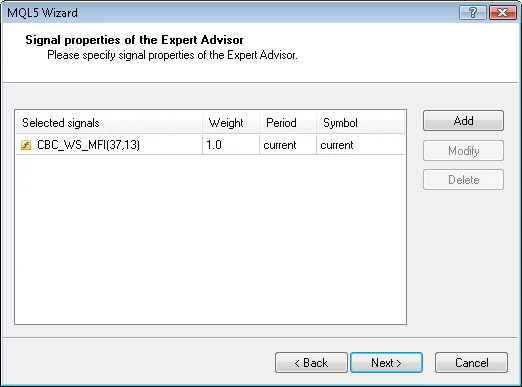
Fig. 8. Signal properties of the Expert Advisor
You can choose any trailing properties, but we’ll keep it simple with “Trailing Stop not used”:
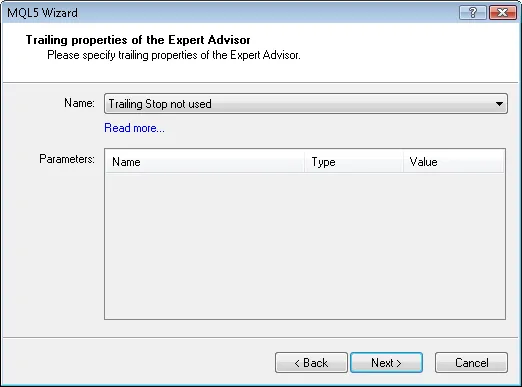
Fig. 9. Trailing properties of the Expert Advisor
For money management, we’ll opt for “Trading with fixed trade volume”:

Fig. 10. Money management properties of the Expert Advisor
When you hit the “Finish” button, the code for your newly created Expert Advisor will be saved as Expert_ABC_WS_MFI.mq5 in terminal_data_folder\MQL5\Experts\.
The default input parameters for this generated Expert Advisor are as follows:
//--- inputs for main signalinputint Signal_ThresholdOpen =10; // Signal threshold value to open [0...100]inputint Signal_ThresholdClose =10; // Signal threshold value to close [0...100]inputdouble Signal_PriceLevel =0.0; // Price level to execute a dealinputdouble Signal_StopLevel =50.0; // Stop Loss level (in points)inputdouble Signal_TakeLevel =50.0 // Take Profit level (in points)
Feel free to adjust these parameters as needed:
//--- inputs for main signalinputint Signal_ThresholdOpen =40; // Signal threshold value to open [0...100]inputint Signal_ThresholdClose =20; // Signal threshold value to close [0...100]inputdouble Signal_PriceLevel =0.0; // Price level to execute a dealinputdouble Signal_StopLevel =0.0; // Stop Loss level (in points)inputdouble Signal_TakeLevel =0.0 // Take Profit level (in points)
The Signal_ThresholdOpen/Signal_ThresholdClose input parameters let you specify the threshold levels for opening and closing positions.
In the code for the LongCondition() and ShortCondition() methods of the trading signals class, we’ve set the fixed values for the threshold:
- Opening position: 80;
- Closing position: 40.
The Expert Advisor created by MQL5 Wizard will open and close positions based on the “votes” from the trading signals modules. The vote from the main module (which houses all added modules) is also utilized, but its LongCondition() and ShortCondition() methods always return 0.
The main module's vote is taken into account in the “votes” averaging. In this case, we have: main module + 1 module of trading signals, so we need to consider this when setting threshold values. Because of this, the ThresholdOpen and ThresholdClose must be set to 40=(0+80)/2 and 20=(0+40)/2.
The values for Signal_StopLevel and Signal_TakeLevel are set to 0, meaning that positions will only close when the relevant conditions are met.
2.4. Backtesting Results
Let’s take a look at the backtesting results for the Expert Advisor based on historical data (EURUSD H1, testing period: 2010.01.01-2011.03.16, PeriodMFI=37, MA_period=13).
For this Expert Advisor, we used a fixed volume (Trading Fixed Lot, 0.1), and the Trailing Stop algorithm was not applied (Trailing not used).
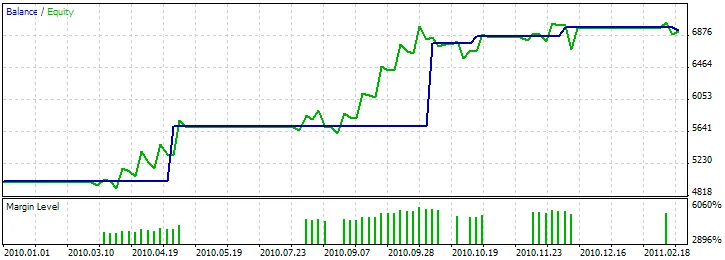
Fig. 11. Testing results of the Expert Advisor, based on 3 Black Crows/3 White Soldiers + MFI
To find the best set of input parameters, utilize the Strategy Tester available in the MetaTrader 5 terminal.
The code for the Expert Advisor generated by MQL5 Wizard is attached in expert_abc_ws_mfi.mq5.




Comments 0