
Hey traders! If you've ever found yourself struggling to view your favorite indicators clearly on MetaTrader 5, you're not alone. That's where the SubScaler comes into play. This nifty tool lets you adjust the vertical scale of a subwindow interactively using your keyboard, making it easy to zoom in and out on those crucial graphs.
Sometimes, you might encounter those massive candles that can really squash your overall view along the vertical axis. While this issue is rare, it can be frustrating when you want to dive deep into the details. Unfortunately, MetaTrader doesn’t have a built-in feature for quick zoom adjustments, but that’s where SubScaler shines!
It’s important to note that SubScaler doesn’t display any data on its own; it’s a helper indicator. To get started, make sure that SubScaler is the first indicator in your subwindow. This means you'll need to add it to the main window first, which will create a new subwindow. Then, you can drop your preferred indicator (the one you want to scale) right into that empty subwindow with SubScaler.
Pro Tip: Don’t forget to enable the 'Inherit Scale' option for the indicator you're scaling!
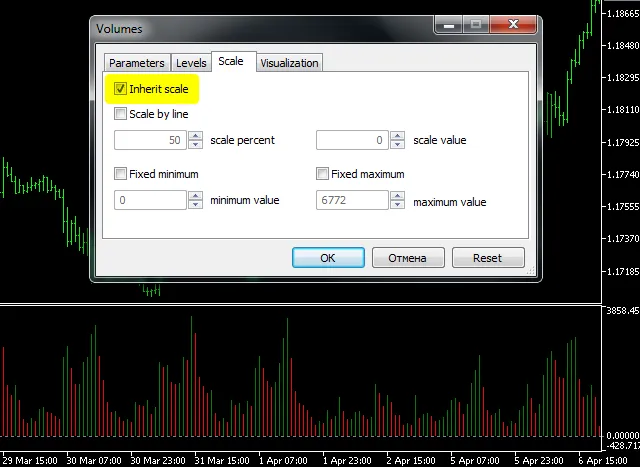
The image above shows how to enable this for the standard Volumes indicator, but it works just as well for custom indicators too!
Once you have both indicators set up in the subwindow, you can use the Up and Down arrow keys to scale your view up or down. If you want to move the view up or down, just hold down the Shift key while using those arrow keys.
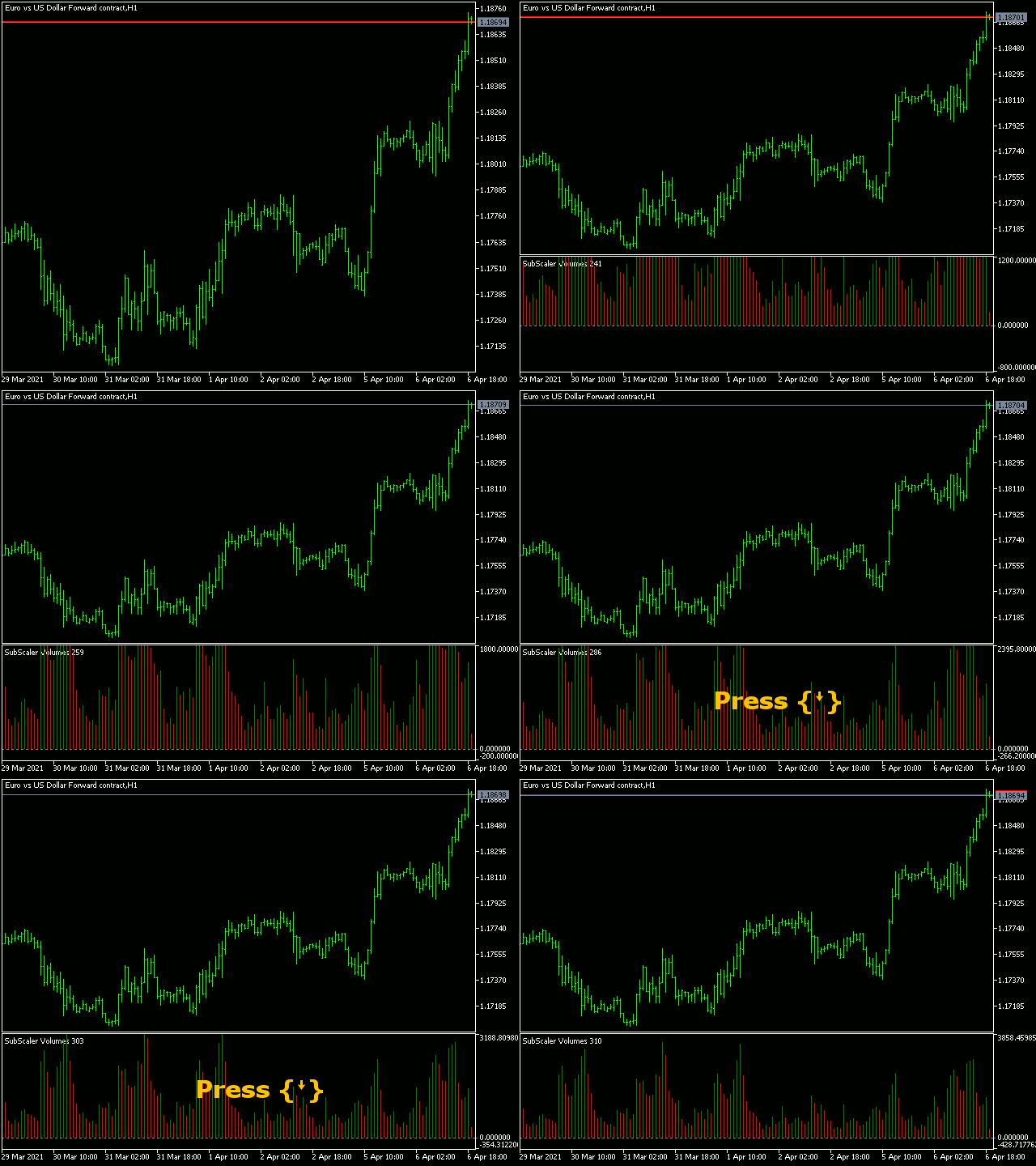
Just remember, scaling up means zooming in, which can sometimes clip the view, while scaling down zooms out and gives you a broader picture.
For the key commands to work, make sure your chart is focused; otherwise, they won’t take effect.
Input Parameters
- Initial Maximum: This is the upper limit of your data range when you first place it on the chart. The default is +1000.
- Initial Minimum: This sets the lower limit of your data range, with a default of -1000.
- Scale Factor: This defines the step for scaling up or down, ranging from [0.01 to 0.5] with a default of 0.1.
When you restore a chart upon starting up the terminal or from a loaded template, SubScaler will automatically pick up the scale from its previous state, so you can jump right back into trading!




Comments 0