
Meet the Creator:
This latest version of the HarmonikManual is a collaborative effort that brings together the best from various sources:
- Harmonik_Ratios developed by the trading community;
- Support and Resistance techniques from Barry Stander;
- My own custom programming tweaks.
We've taken the original concept and made it even more user-friendly and visually appealing!
What’s New?
This upgraded indicator is designed to help you:
- Identify the names of patterns as you plot them;
- Spot potential emerging patterns;
- Automatically detect possible reversal patterns.
Getting Started:
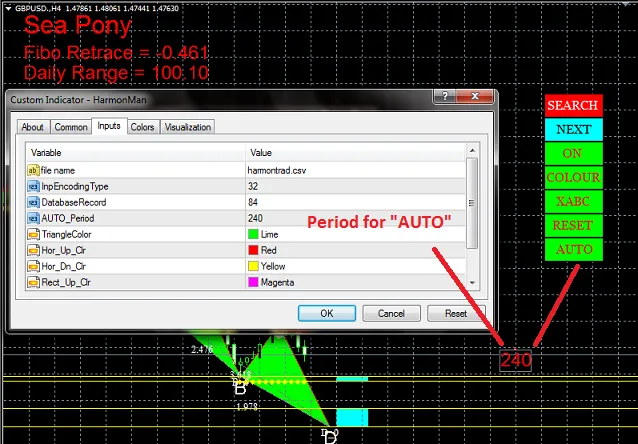
To utilize the HarmonikManual, simply click the feature button located at the top right corner of your chart. Here’s a quick rundown of what each button does:
- SEARCH: Find all potential patterns that could develop next.
- NEXT: Shift the point "D" on the identified pattern to reveal its name.
- ON/OFF: Toggle the indicator on or off.
- COLOUR/NONE: Adjust the color of the harmonic patterns.
- XABC: Position the XABC point at the nearest high or low.
- RESET: Press this if you encounter an undefined error.
- AUTO: Automatically search for the next potential pattern.
- Move Menu: Hold down the "M" key, then click to reposition the menu.
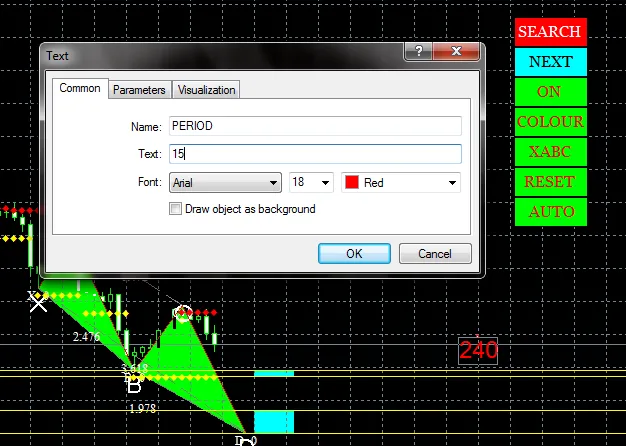
The AUTO feature will generate a text object displaying the PERIOD for searching potential reversal patterns. You can adjust this PERIOD by changing the text object accordingly.
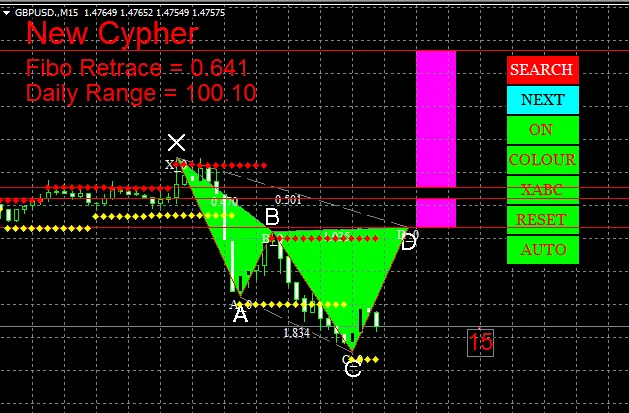
After clicking the "AUTO" button again, you’ll see the results displayed similarly to the figure below:
Plus, you can customize the "Harmonics Pattern" database with your own by simply changing the input "file name" and "DatabaseRecord". Don't stress about the number in "DatabaseRecord" being incorrect; the indicator will automatically adjust if the number is too high and will only read according to your specified input if it's too low.
Just make sure to save your database file in <terminal_data_folder>\MQL4\Files.




Comments 0