Technical Indicator

Mastering Market Trends with Baseline: iMA + ATR Bands for MT5
MetaTrader5
Mastering Market Trends with Baseline: iMA + ATR Bands for MT5

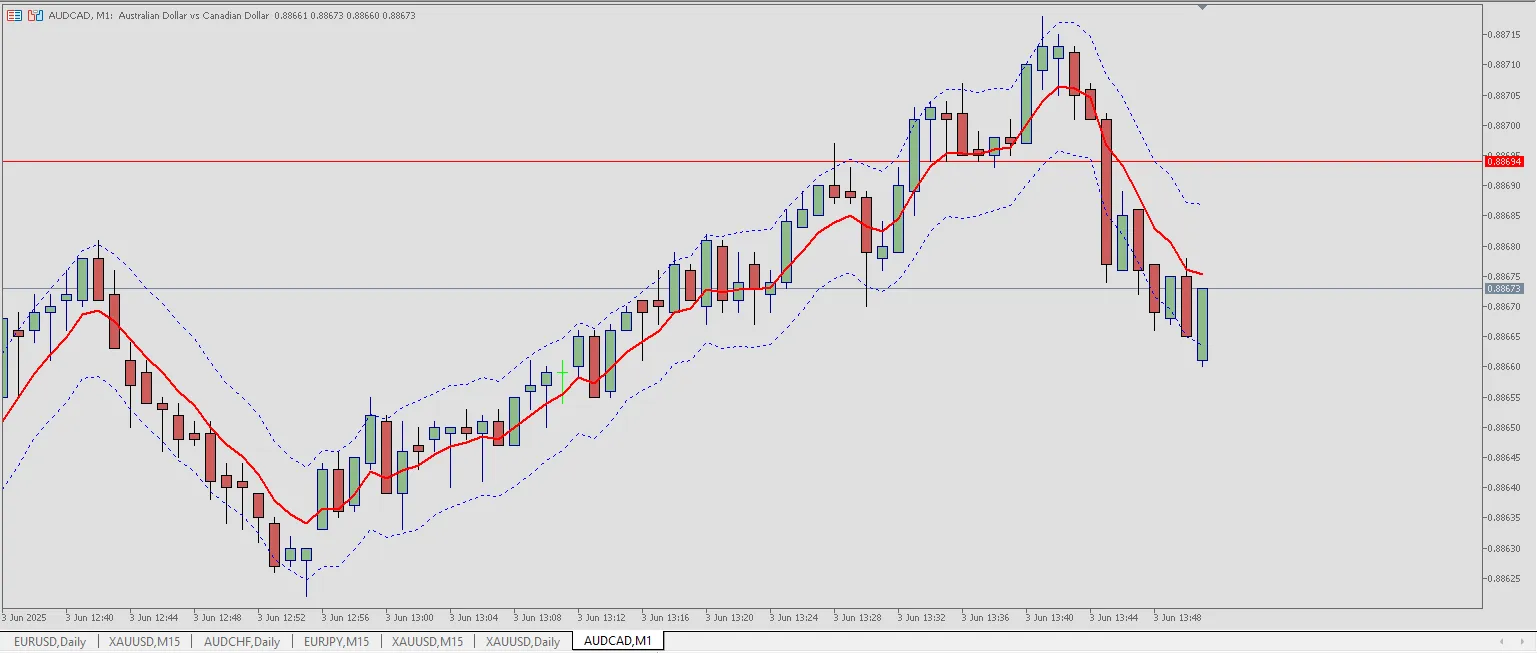
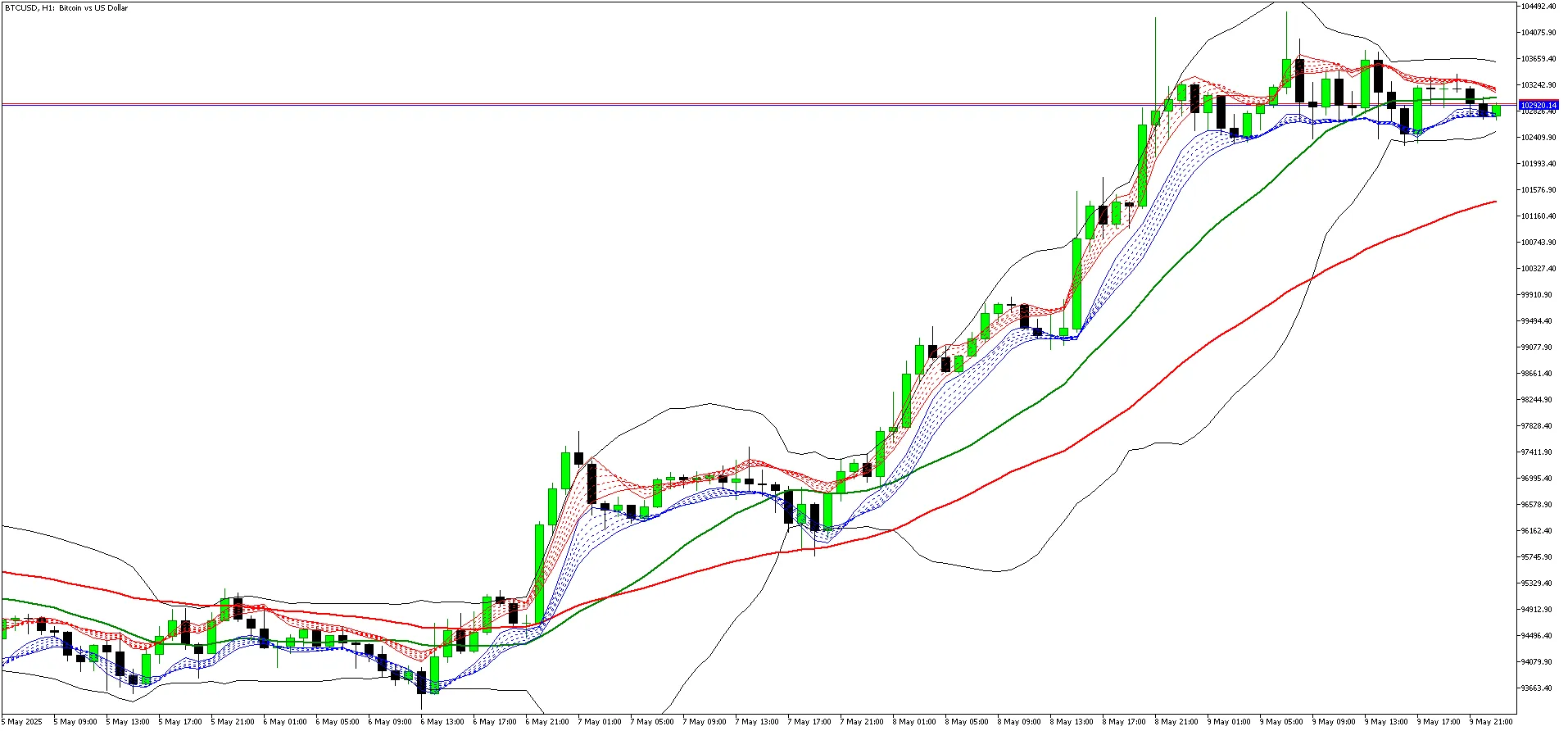
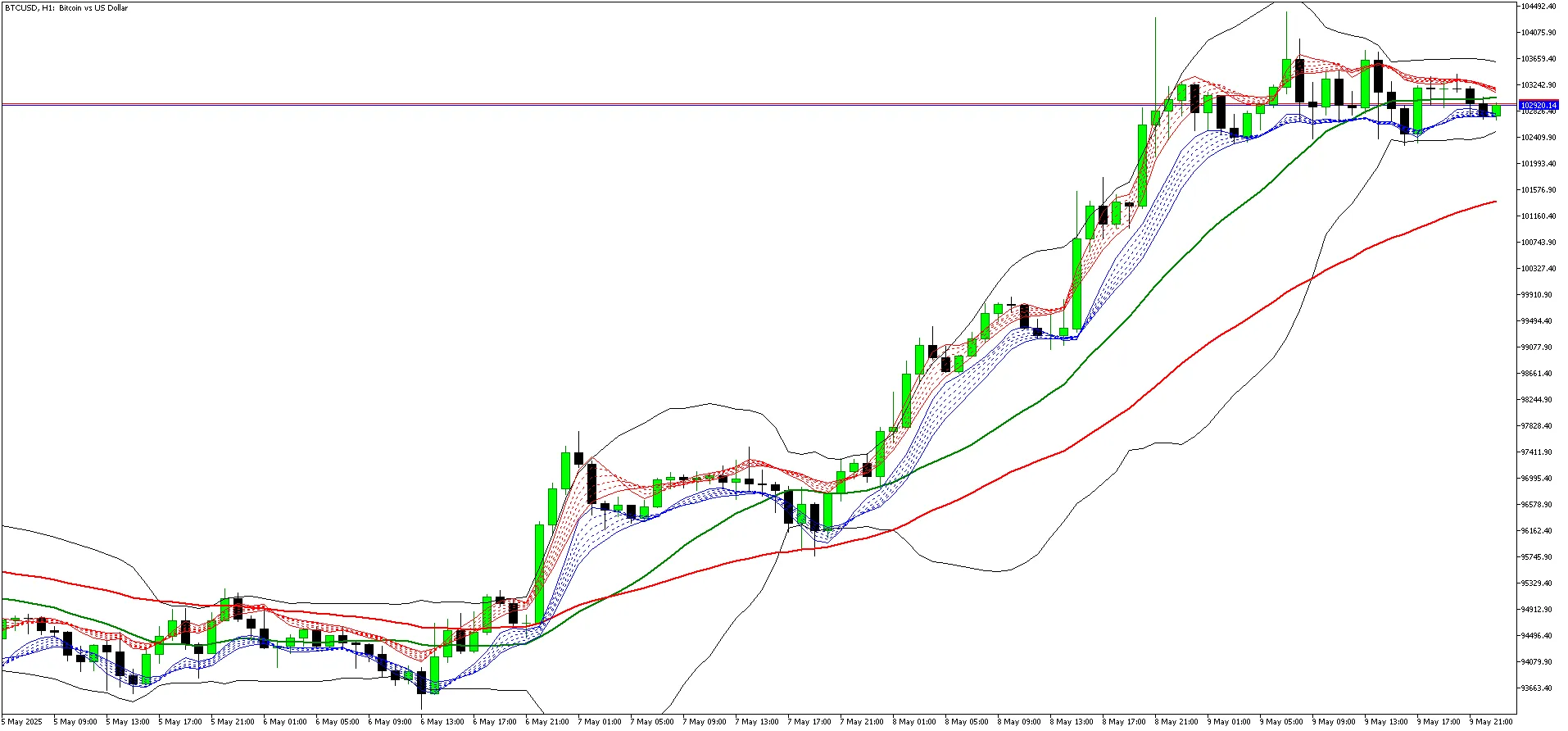
Indicator Name: Baseline: iMA + ATR Bands Description: The Baseline: iMA + ATR Bands is a custom trading indicator that merges a standard Moving Average (MA) with upper and lower bands based on the Average True Range (ATR). This combination creates an intuitive and effective visual tool for spotting market trends, potential breakouts, and overall volatility. Background: Inspired by the No Nonsense Forex (NNFX) trading approach, the Baseline serves as a crucial trend filter. I designed it to simplify the baseline setup, making it easier for traders to interpret directly from their charts. How to Use: iMA Period: This refers to the number of bars used to calculate the Moving Average. iMA Method: Choose the type of Moving Average you prefer (simple, exponential, smoothed, or linear weighted). Applied Price: Select the source price for your MA (like Close, Open, High, or Low). ATR Period: Specify the number of bars used for the ATR calculation. ATR Multiplier: This factor modifies the ATR value to determine the upper and lower bands. Trading Suggestions (not financial advice): Use the MA line to act as your baseline trend filter. When the price crosses above the upper band, it may indicate bullish momentum. Conversely, if the price drops below the lower band, it could suggest bearish momentum. Always combine this indicator with additional confirmation, volume, and exit signals according to your trading strategy (like NNFX guidelines). Screenshots: Input Settings: Color & Lines Settings: About:

2025.06.03
Unlock Trading Potential: Double Moving Averages with Fibonacci for MetaTrader 4
MetaTrader4
Unlock Trading Potential: Double Moving Averages with Fibonacci for MetaTrader 4

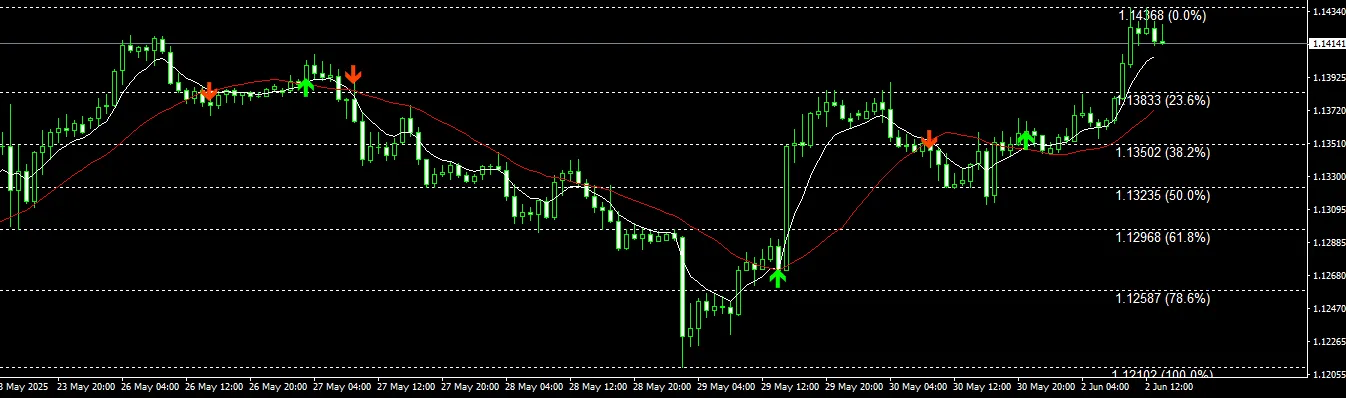
Exciting news, traders! There’s a new update ready for you. You can download the Double MA with Special Time Frame including Fibonacci for free! Double Moving Averages with Fibonacci is an innovative MQL4 indicator designed for traders who want to combine trend-following strategies with support and resistance tools all in one go. This indicator uses two customizable moving averages to signal when to buy or sell based on their crossover points. When the quicker moving average crosses above the slower one, it’s your cue to buy—indicated by a handy visual arrow. On the flip side, a downward crossover suggests it’s time to sell. These signals are crucial for spotting trend changes and pinpointing entry opportunities. But that’s not all! This indicator also integrates Fibonacci retracement levels along with optional Fibonacci Fan lines, calculated from recent swing highs and lows. These Fibonacci tools serve as dynamic support and resistance zones, helping you identify potential reversal points or continuation trends. What’s more, it offers real-time alerts through pop-up notifications, sounds, and emails, so you won’t miss any trading signals as they pop up. It’s versatile enough to be used across all time frames—perfect for scalping, day trading, or swing trading strategies. You even have the ability to manually set Fibonacci levels, giving you complete control over your technical setup based on your unique trading style. With its clear visual layout and multiple alert options, this tool is designed to enhance your decision-making process when trading.

2025.06.02
Mastering Trends with the 2 Moving Averages Indicator for MetaTrader 4
MetaTrader4
Mastering Trends with the 2 Moving Averages Indicator for MetaTrader 4

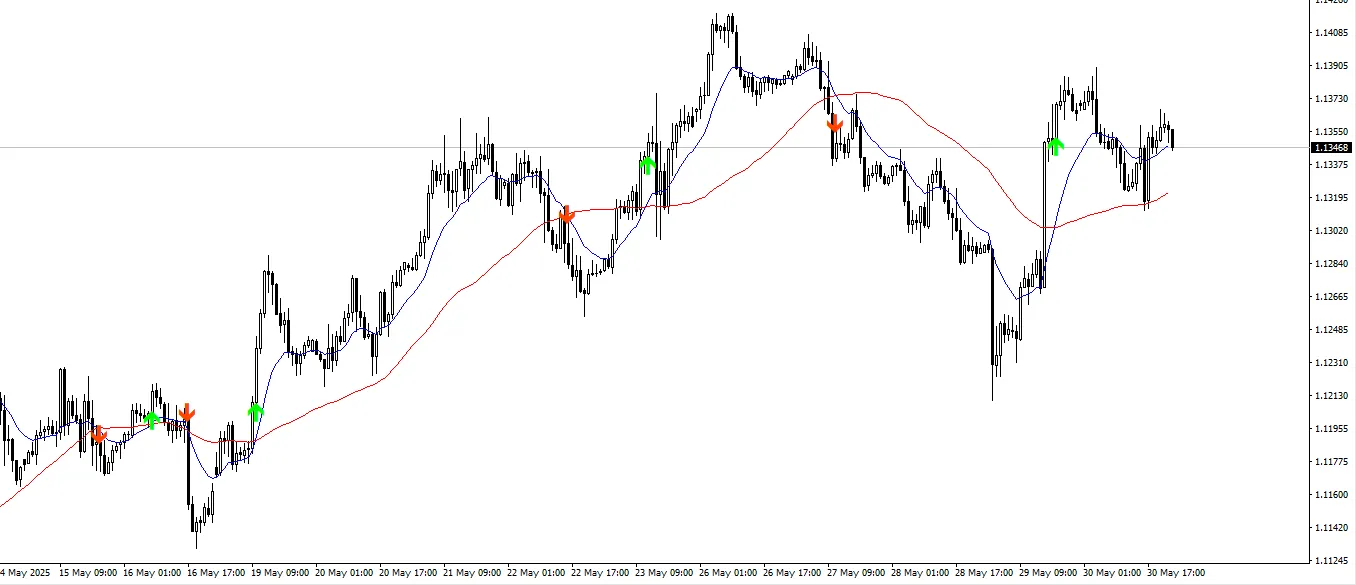
Exciting news! We've just rolled out a new update. You can download the Double MA with Special Time Frame and Fibo for free! 2 Moving Averages is an invaluable MQL4 tool that helps traders pinpoint trend directions, potential entry points, and gauge market momentum. It does this through the use of two moving averages—generally a fast (short-term) and a slow (long-term) average. The main concept here is the moving average crossover strategy: when the fast moving average crosses above the slow one, it signals a buy opportunity, and conversely, a sell signal is generated when it crosses below. What makes this indicator stand out is its ability to integrate dynamic support and resistance level plotting. This feature gives traders an extra layer of confirmation for their trading decisions. By highlighting key price levels where the market has previously reversed or consolidated, it aids in avoiding false signals, enhancing the accuracy of your entries and exits. You can easily customize the periods and types of moving averages (e.g., Simple, Exponential, Smoothed, or Linear Weighted), making this tool versatile for various trading styles and market conditions. Plus, it operates seamlessly across all time frames, making it ideal for scalpers, swing traders, and those focusing on long-term trends. Key Features: Configurable fast and slow moving averages Buy/sell signals based on MA crossovers Automatic detection and plotting of support and resistance levels Alerts or visual markers for crossovers and key zones Compatible with all symbols and time frames Whether you're a newbie eager for a straightforward trend-following system or a seasoned pro looking to refine your entry points, Double Moving Averages delivers a powerful blend of simplicity and depth to enhance your technical analysis.

2025.06.01
How to Customize Candle Colors in MetaTrader 5 for Better Trading Insights
MetaTrader5
How to Customize Candle Colors in MetaTrader 5 for Better Trading Insights

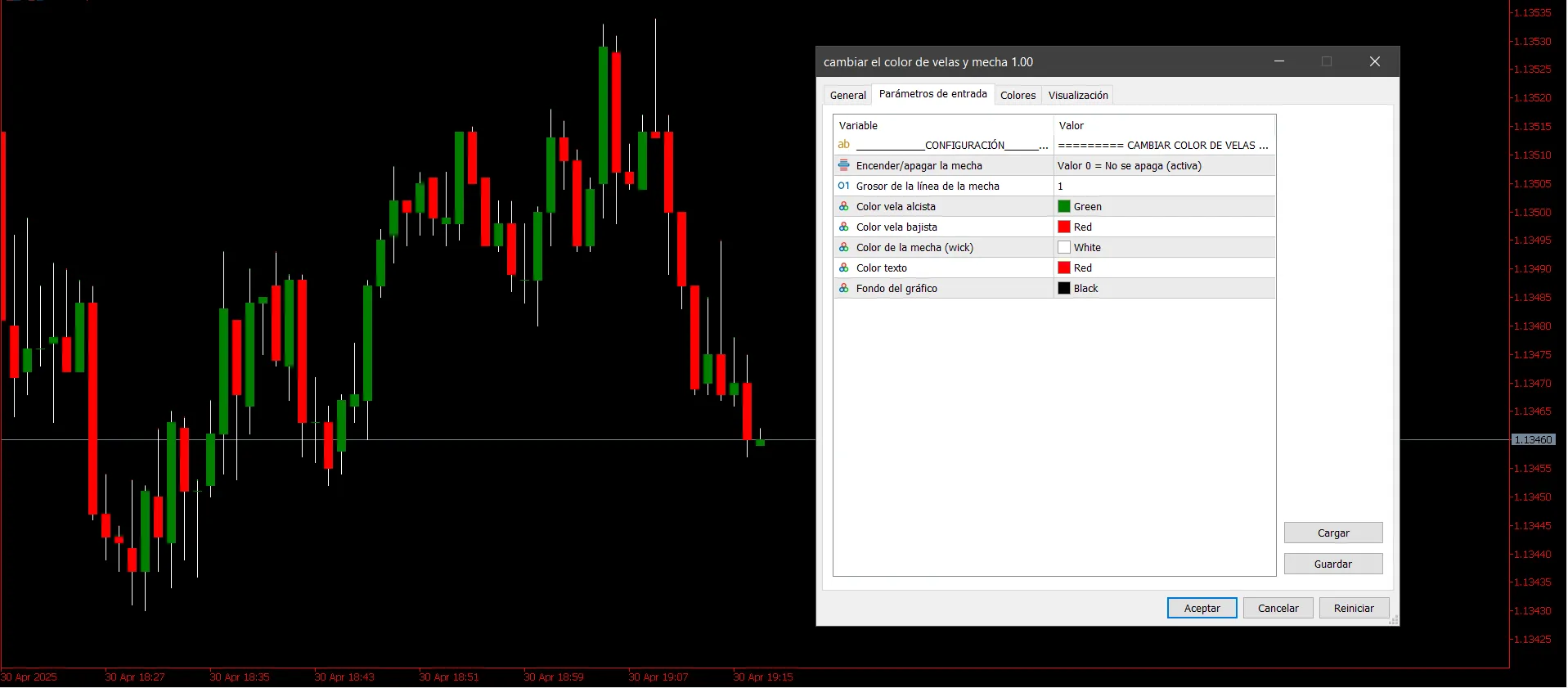
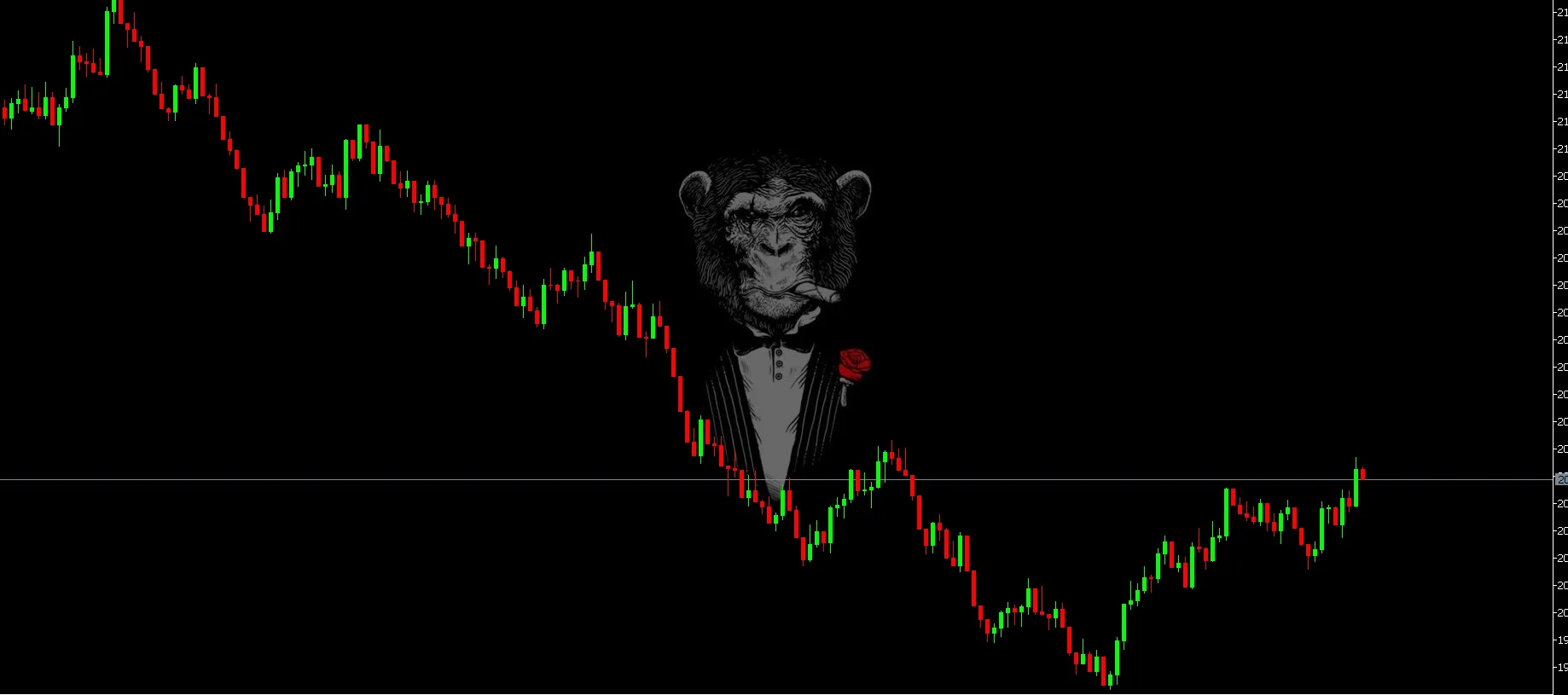
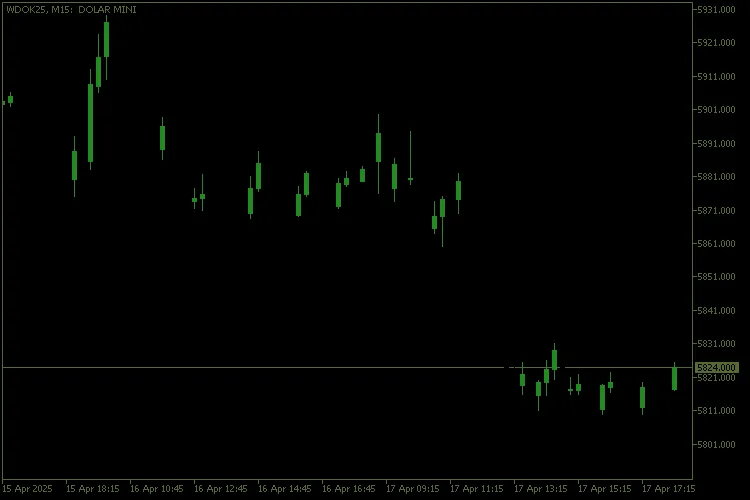
Hey traders! If you’re looking to spice up your MetaTrader 5 charts and make them more visually appealing, you’ve come to the right place! Today, I’m going to walk you through how to change the candle and wick colors to enhance your trading experience. Understanding Candle Structure First off, let’s break down what we’re dealing with: The Wicks: These are the thin lines that extend from the top and bottom of each candle, showing the highest and lowest prices during a specific period. The Body: This is the rectangle that represents the opening and closing prices. If the closing price is higher than the opening price, it’s a bullish candle; if not, it’s bearish. Customizing Colors Now, let’s talk about the fun part – color customization! You can easily change the colors for both bullish and bearish candles, as well as their wicks. For instance: Bearish candles can have a maroon body (clrMaroon). Wicks of bearish candles can be light violet (clrOrchid). This customization allows you to: Create a unique visual style for your charts. Easily differentiate between bullish and bearish candles. Analyze price movements more effectively. Check Out These Examples Visuals can make a huge difference. Here’s how your charts can look with these customizations: By implementing these color changes, you’ll not only enhance your charts' aesthetics but also improve your trading analysis. So go ahead, give your MetaTrader 5 platform a makeover!

2025.05.31
Mastering the Trendline Zigzag Indicator for MetaTrader 5
MetaTrader5
Mastering the Trendline Zigzag Indicator for MetaTrader 5

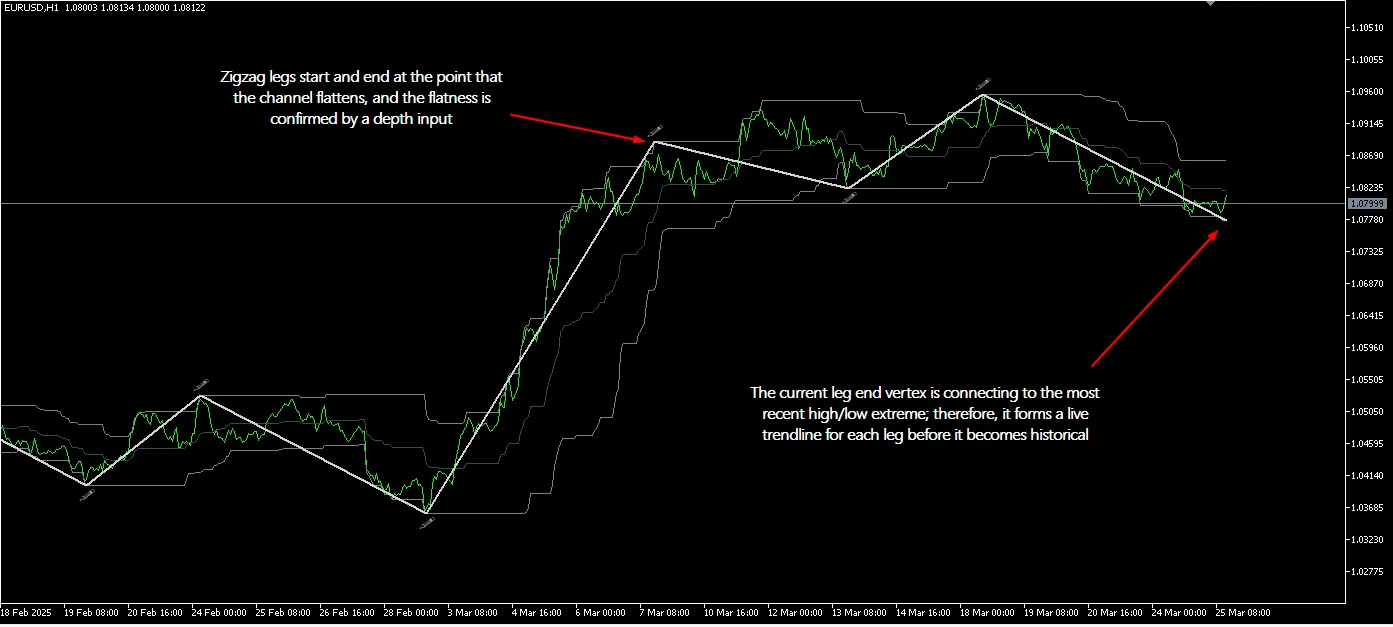
Hey fellow traders! Today, let’s dive into a cool tool that can really amp up your trading game—the Trendline Zigzag Indicator for MetaTrader 5. This isn’t just any indicator; it’s a modern twist on the classic Donchian channel. So, how does it work? This indicator identifies pivots using a zigzag structure along with graphical markers. These pivots are drawn straight from how the channel behaves. You’ll notice that a pivot gets triggered when the channel flattens out, creating a connection point for the next zigzag leg. To ensure that we're not falling for weak or insignificant pivots, there’s a handy depth parameter that confirms the channel’s flatness before a new pivot is marked. The logic behind the pivots is kept straightforward, with no forward corrections, which means you might experience a bit of lag due to the confirmation requirement. Now, let’s make this indicator even more beneficial for live trading. The current “live” leg is displayed as a dynamic trendline stretching from the most recent confirmed pivot to the current price extreme. This trendline stays relevant until a new pivot comes into play, which means you’ll have a constantly updating cycle of trendlines. This not only improves your visual interpretation of the channel but also gives you an analytical edge. The main goal of this indicator is to watch how price action interacts with the trendline. Is it bouncing off the trendline, showing respect, or is it breaking through and signaling a potential shift in direction? Keep in mind that this tool offers qualitative insights rather than exact signals, so it’s not meant to predict precise market movements or be your sole decision-making tool. ----- Just a quick note: A new version (1.02) has been uploaded, featuring a complete code overhaul along with input options for leg correction and the ability to enable or disable the trendline. Happy trading!

2025.05.27
Master Your Trading Performance with the Cumulative P&L Indicator for MetaTrader 5
MetaTrader5
Master Your Trading Performance with the Cumulative P&L Indicator for MetaTrader 5

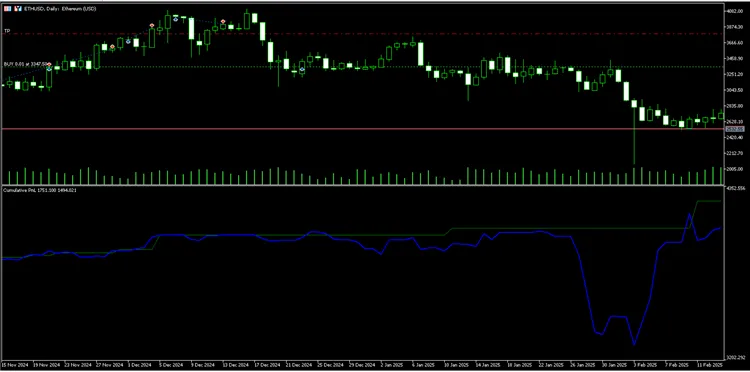
Cumulative P&L Indicator OVERVIEW The Cumulative P&L Indicator is a powerful tool that visually tracks your account's balance and equity over time, displaying them as two distinct lines on your chart. It allows you to see your trading performance by capturing both realized profits (balance) and unrealized profits (equity) throughout your trading journey. FEATURES Balance Line (Green): Displays the cumulative realized P&L from closed trades, including profits, swaps, and commissions. Equity Line (Blue): Shows total equity, which is the sum of your balance and unrealized P&L from open trades. Multi-Symbol Support: Tracks positions across all instruments, not just the one displayed on your chart. Historical Accuracy: Reconstructs your portfolio's state at each bar, ensuring precise historical equity curves. Swap Tracking: Takes overnight swap charges into account for accurate calculations. Currency Conversion: Automatically manages profit calculations for trades in various currencies. HOW IT WORKS This indicator: Analyzes your entire trading history from the moment you opened your account. Calculates realized P&L at each bar from closed trades. Tracks open positions and computes unrealized P&L based on historical prices. Combines both figures to illustrate the evolution of your equity curve. INSTALLATION Download the indicator file. Place it in your MQL5/Indicators folder. Compile it in MetaEditor by pressing F7. Attach it to any chart. USAGE To get started, simply attach the indicator to any chart. It will: Display in a separate window below your main chart. Show two lines: Balance (green) and Equity (blue). Update in real-time as your positions change. TECHNICAL DETAILS Indicator Type: Separate window indicator. Buffers: 2 (Balance and Equity). Timeframe: Compatible with all timeframes. Symbols: Tracks all instruments in your account. BENEFITS Performance Visualization: Easily observe how your account has grown over time. Risk Assessment: Identify periods of drawdown by comparing equity to balance. Strategy Validation: Assess whether your trading strategy is consistently profitable. Multi-Asset Tracking: Monitor and evaluate performance across different instruments. NOTES The indicator displays cumulative values starting from your first trade. For optimal performance on accounts with extensive history, consider using higher timeframes (H1, D1). The equity line includes current swap charges for open positions. VERSION Current Version: 1.0

2025.05.25
Master Your Trading with the Candle Filter Indicator for MetaTrader 5
MetaTrader5
Master Your Trading with the Candle Filter Indicator for MetaTrader 5

Main FeaturesCandle Filtering: The Candle Filter indicator is a game-changer for your trading strategy. It lets you focus only on the candles that matter to you by filtering them based on specific criteria: Bullish: Only shows bullish candles. Bearish: Only shows bearish candles. Doji: Displays only Doji candles. All: Shows all candles in their respective colors. Doji Candle Detection: The Doji candle detection is driven by a customizable threshold (`InpDojiThreshold`). This setting defines the ratio between the candle's body and its overall range, ensuring you accurately spot those neutral candles. Candle Color Customization: As a trader, you can tailor the colors of each candle type to suit your preferences: - Bullish: Default is green (`clrForestGreen`).- Bearish: Default is dark red (`clrDarkRed`).- Doji: Default is gold (`clrGold`).- Background: Default is black (`clrBlack`). Chart Cleaning: The indicator cleans up your chart by removing unnecessary visual clutter, like grids and volume indicators. This helps you focus on the analysis without distractions. How It Works: 1. Initialization (`OnInit`): Buffers are set up to store Open, High, Low, Close (OHLC) values along with corresponding colors. Custom colors are assigned to the indicator's color indices. The chart is cleaned by removing any visual elements that could distract you. 2. Main Calculation (`OnCalculate`): For each candle on the chart, the indicator checks if it meets your selected criteria (`InpCandleShow`). Candles that don’t meet the criteria are shown in the background color (`InpBackgroundColor`). Candles that do meet the criteria are highlighted with your custom colors. 3. Deinitialization (`OnDeinit`): When you remove the indicator, it restores the original chart settings, bringing your trading environment back to its default state. Usage Examples: Trend Analysis: Set `InpCandleShow` to `ShowBullish` or `ShowBearish` to focus on candles indicating an uptrend or downtrend. Identifying Neutral Zones: Use `ShowDoji` to highlight Doji candles and pinpoint potential reversal or consolidation areas. Full Visualization: Select `ShowAllCandle` to display every candle in its respective color for a comprehensive view of market behavior. Improvements Implemented: Accurate Doji Detection: The configurable threshold (`InpDojiThreshold`) ensures that only genuine neutral candles are classified as Doji. Full Customization: You have complete control over the colors and background of your chart. Automatic Cleaning: The indicator removes unnecessary elements, enhancing chart readability.

2025.05.22
Maximize Your Trading Success with the EquiPeak Drawdown Tracker for MetaTrader 5
MetaTrader5
Maximize Your Trading Success with the EquiPeak Drawdown Tracker for MetaTrader 5

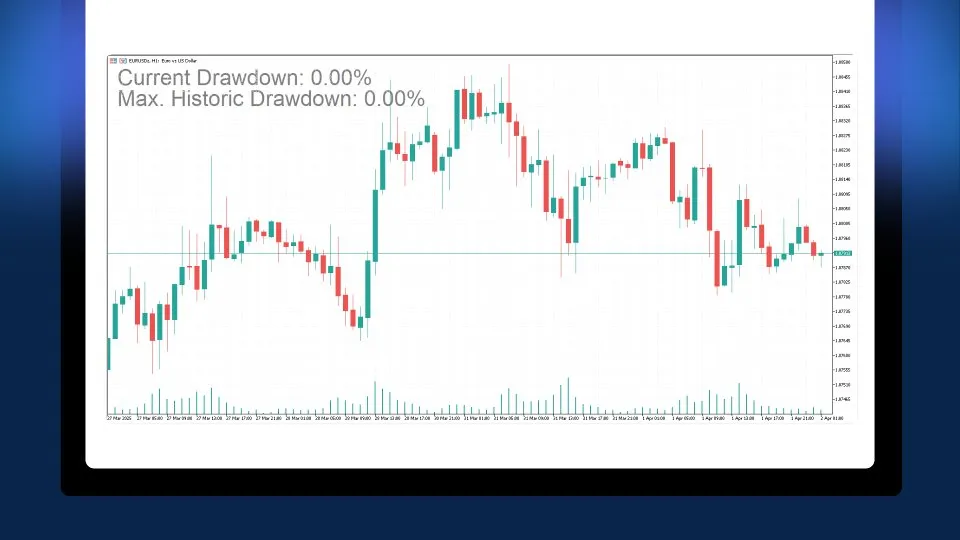
What is the EquiPeak Drawdown Tracker? Visual Performance Reference: This handy tool lets you manually input the known or expected Maximum Historical Drawdown of your trading strategy. Whether you derived it from backtesting or past results, it gives you a clear benchmark to see if your EA is operating within expected limits or facing unusual circumstances. Real-Time Risk Monitoring: Keep tabs on your current drawdown live and ensure you're not breaching critical thresholds that require immediate action. Smart Notifications: Get push notifications sent straight to your mobile via the MetaTrader app whenever a new drawdown record is established or at your chosen intervals, keeping you informed without overwhelming you with alerts. Automatic Logging: The tracker continuously logs drawdown data into an external file (CSV or TXT) for thorough analysis later on. Who Will Benefit from It? Traders using automated or semi-automated systems who want quick insights into whether their EA is staying within expected drawdown limits. Users keen on visually assessing their strategies' performance in real-time against prior expectations. Any trader focused on effective risk management and who wishes to be alerted immediately if their trading goes awry. Comprehensive Configuration Guide (Inputs) Here’s a rundown of the customizable parameters: Magics to Monitor: (-1 tracks all) - Specify the Magic Numbers of the positions to monitor. Use -1 for all. Initial Max DD (%): Enter the known Historical Maximum Drawdown of your EA (i.e., the peak result from extensive backtesting). This serves as a visual benchmark. Refresh Interval (seconds): Set how frequently the calculations refresh. Max DD Update Mode: Choose how the historical maximum updates: UPDATE_MAX_DD_IF_BIGGER: Automatically updates if the current exceeds the historical value. NO_UPDATE_MAX_DD: Keeps the manually entered historical value intact but sends notifications every 60 minutes about the current status. Send Push Notifications? Toggle this to enable or disable mobile alerts. Fixed or Peak Reference?: Decide how to define the balance reference: REF_FIXED_BALANCE: Set a fixed balance manually. REF_PEAK_BALANCE: Automatically uses the highest balance reached. Fixed Balance (0 => current): If you input 0, it takes the current balance when the indicator loads. Colour for Current DD Text: Choose the color for the current drawdown text. Colour for Max DD Text: Set the color for the historical drawdown text. Font Size (Current DD): Adjust the font size for the current drawdown. Font Size (Max DD): Adjust the font size for historical drawdown. Labels Behind Chart?: Opt to place text behind the chart. Label X (pixels): Set the horizontal distance from the left edge. Label Y (pixels): Set the vertical distance from the top edge. Vertical Spacing: Adjust vertical spacing between texts. Print Logs in Journal?: Enable detailed messages in the Journal. Enable File Log: Automatically logs current drawdown to an external file. File Extension (CSV or TXT): Choose the format for the generated file. Automatic Logging to File Drawdown values are automatically logged with date and time in either CSV or TXT format, stored in your common MT5 folder (MetaTrader 5 Terminal/Common/Files/). This is perfect for analyzing your results down the line. Tips for Getting the Most Out of It Always input the expected Historical Maximum Drawdown (backtesting result, previous performance, etc.) in the input "Initial Max DD (%)". This will help you quickly gauge whether your EA is experiencing normal fluctuations or needs adjustments. Place the indicator on a dedicated chart to monitor all magic numbers, or use it on each specific chart for separate data tracking. Carefully fine-tune the refresh rate, colors, position, and text size for the best display according to your preferences. How to Receive Push Notifications on Your Mobile Open MetaTrader on your mobile and copy your MetaQuotes ID (Settings > Messages). In MetaTrader 5 desktop, navigate to Tools > Options > Notifications. Check Enable Push Notifications and paste your MetaQuotes ID.

2025.05.18
Mastering the DailyHighLow Indicator for MetaTrader 5
MetaTrader5
Mastering the DailyHighLow Indicator for MetaTrader 5

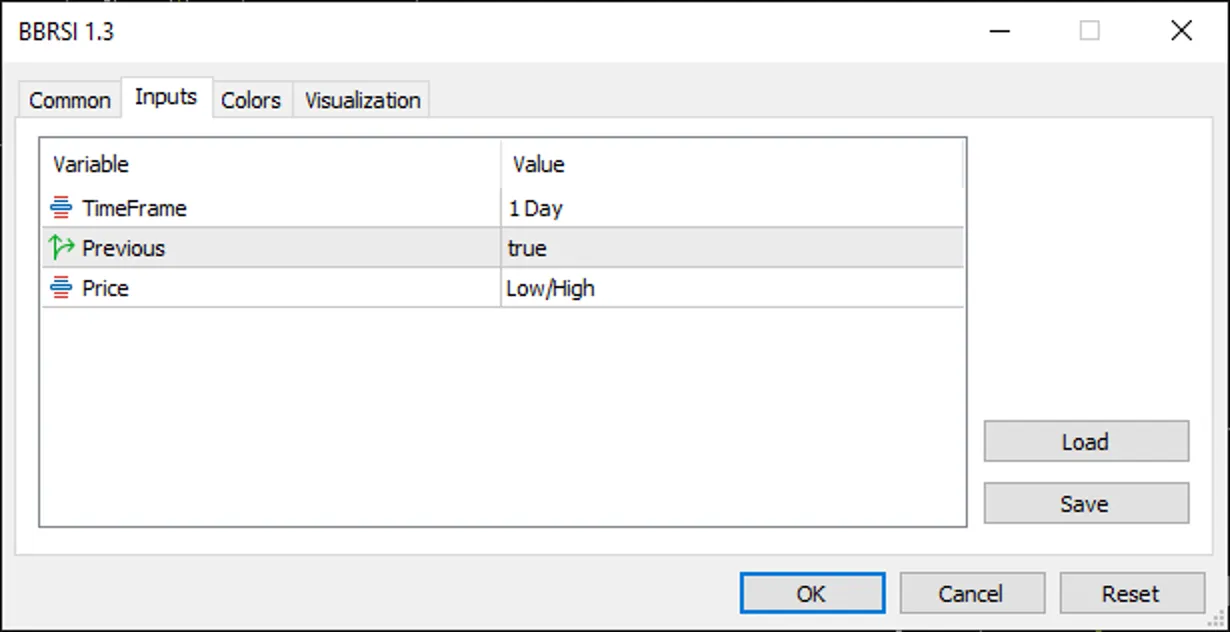
Features and FunctionalityThe DailyHighLow indicator is a handy tool that plots two essential lines on your chart: one for the high price and another for the low price, based on user-defined settings. Here are its standout features:Customizable Timeframe: You can choose your preferred timeframe—be it daily, hourly, or something else—using the TimeFrame setting, which defaults to PERIOD_D1 (daily). The indicator makes sure that the selected timeframe is not smaller than your current chart timeframe, keeping your data accurate.Price Calculation Options: With the Price input, you can select from three modes:Low/High (DHL_LOWHIGH): This option shows the highest and lowest prices of your chosen timeframe.Open/Close (DHL_OPENCLOSE): This mode plots the highest and lowest of the open and close prices.Close/Close (DHL_CLOSECLOSE): Here, you’ll see the highest and lowest closing prices.Previous Period Option: The Previous setting (default: true) lets you display the high/low values from the previous period, which can be great for historical analysis.Visual Customization: The indicator uses solid silver lines for both the high and low plots, with a width of 1, providing clear visibility without cluttering your chart.How It WorksThe indicator kicks into gear by initializing two buffers—HighBuffer and LowBuffer—to store and display high and low price levels. During initialization (OnInit), it sets these buffers and checks the timeframe. The heart of the operation lies in the OnCalculate function, processing price data for each bar:Data Preparation: It sets up arrays for time, open, close, high, and low prices for reverse indexing.Timeframe Alignment: The indicator calculates bar shifts using iBarShift to ensure alignment with your chosen timeframe.Price Calculation:For DHL_LOWHIGH, it directly retrieves high and low prices using iHigh and iLow.For DHL_OPENCLOSE and DHL_CLOSECLOSE, it finds the highest/lowest open or close prices in the timeframe using iHighest and iLowest.Previous Period Handling: If the Previous option is enabled, calculations shift to the earlier period, offering historical context.Optimization: The indicator limits calculations to new or updated bars (limit) for efficiency, avoiding unnecessary processing.Practical ApplicationsThe DailyHighLow indicator is perfect for traders using strategies based on critical price levels, such as:Support and Resistance: Spotting daily or custom timeframe high/low levels to identify breakout or reversal opportunities.Trend Analysis: Assessing current price action against previous highs and lows to determine market direction.Risk Management: Setting stop-loss or take-profit levels based on significant price points.Usage InstructionsInstallation: To get started, add the indicator to your MetaTrader 5 platform by copying the code into the MQL5/Indicators folder and compiling it.Configuration:Set your desired TimeFrame (like PERIOD_D1 for daily levels).Choose a Price mode (DHL_LOWHIGH, DHL_OPENCLOSE, or DHL_CLOSECLOSE) that aligns with your trading strategy.Toggle the Previous option to switch between current and previous period data.Chart Application: Simply attach the indicator to any chart, and you’ll see two silver lines indicating the high and low levels.ConclusionThe DailyHighLow indicator is an effective tool for MQL5 traders, offering flexibility in terms of timeframe and price calculation methods. Its lightweight nature and efficient processing make it a great fit for both novice and seasoned traders looking to step up their technical analysis game.FeedbackIf you have any suggestions or run into issues, please drop a comment on the MQL5 CodeBase page or connect with me through the MQL5 community. Your feedback is crucial for enhancing this tool!Contact me: MQL5 Link

2025.05.17
Unlock Trading Success with Custom MACD: Real-Time Alerts for Your Phone
MetaTrader5
Unlock Trading Success with Custom MACD: Real-Time Alerts for Your Phone

Introduction Hey fellow traders! If you’re looking to take your trading game up a notch, let me introduce you to the Custom MACD. This isn’t just your average Moving Average Convergence Divergence (MACD) indicator; it’s a turbocharged version designed for MetaTrader 5. Not only does it harness the classic MACD's ability to spot trends and reversals, but it also packs a game-changing feature: real-time signal alerts that ping straight to your phone! With its open-source code and user-friendly setup, it’s perfect for both newbies and seasoned pros alike. How Custom MACD Works So, how does the Custom MACD work? It follows the traditional MACD formula: MACD Line: The difference between the Fast EMA (default: 12) and Slow EMA (default: 26). Signal Line: The Simple Moving Average of the MACD line (default: 9). Histogram: The difference between the MACD and Signal Line, providing a quick look at market momentum. Visually, you’ll see: MACD Line in vibrant Dodger Blue. Signal Line in eye-catching Orange. Histogram in lively Lime Green, giving you insight into trend strength. Key Differentiator: Phone Signal Alerts What truly sets Custom MACD apart from the standard MACD in MetaTrader 5? It’s the real-time alerts! Here’s what you can expect: Instant Alerts: When a Bullish Crossover (that’s when the MACD crosses above the Signal Line, signaling a buy) or a Bearish Crossover (the MACD crossing below the Signal Line, signaling a sell) happens, you’ll get a notification sent directly to your phone via MetaTrader 5 (just make sure you set up push notifications on your MT5 app). Boosted Trading Efficiency: With these instant alerts, you can jump on market movements, even when you’re away from your trading station. While the default MACD only gives you on-chart data without any automatic alerts, Custom MACD keeps you plugged into the market, fine-tuning your trading strategy. Key Features Customizable Parameters: Fast EMA period (InpFastEMA, default: 12). Slow EMA period (InpSlowEMA, default: 26). Signal SMA period (InpSignalSMA, default: 9). Enable/disable alerts (ShowAlerts, default: true). User-Friendly Interface: Optimized colors and line thicknesses for easy signal spotting across any timeframe. Open-Source Code: Easily tweak it to add features like signal arrows or integrate with other indicators. High Performance: Fine-tuned for smooth operation on MetaTrader 5, even with large data sets. Benefits for Traders Never Miss an Opportunity: Get instant phone notifications for buy or sell signals, enabling quick action. Flexible for All Strategies: Whether you’re scalping, day trading, or swinging, Custom MACD works great across all currency pairs and timeframes. Enhanced Accuracy: Combine MACD signals with other tools (like SMA or RSI) to confirm trends and cut down on false signals. Community-Oriented: Built for sharing on the MQL5 Code Base, allowing you to give back to the trading community. How to Use Installation: Download Custom MACD from the MQL5 Code Base. Compile the file in MetaEditor and drag the indicator onto a MetaTrader 5 chart. Set Up Push Notifications: In MetaTrader 5, head to Tools > Options > Notifications and configure push notifications for the MT5 mobile app. Ensure that ShowAlerts is enabled in the indicator’s input parameters. Trading Strategy: Buy: When the MACD crosses above the Signal Line (Bullish Crossover) and the Histogram goes positive. Sell: When the MACD crosses below the Signal Line (Bearish Crossover) and the Histogram turns negative. Combine with support/resistance levels or other indicators for added reliability. Why Choose Custom MACD? The Custom MACD isn’t just another indicator—it’s a robust tool that keeps you in sync with the market 24/7. The phone alert feature is a major upgrade from the default MACD, saving you time and boosting your profits. Plus, its open-source design and flexible customization make it a fantastic choice for traders eager to enhance their performance. Conclusion Ready to level up your trading? Download the Custom MACD from the MQL5 Code Base today and experience the power of MACD with real-time alerts! If you have any questions or want to customize additional features, drop a comment or reach out. Let’s elevate your trading journey together! Author: Duy Van NguyContact: MQL5 LinkVersion: 1.00Updated: May 11, 2025

2025.05.11
First Previous 1 2 3 4 5 6 7 8 9 10 11 Next Last