System Trading

Master Multi-Timeframe Trading with Stochastic and Bollinger Bands in MT4
MetaTrader4
Master Multi-Timeframe Trading with Stochastic and Bollinger Bands in MT4

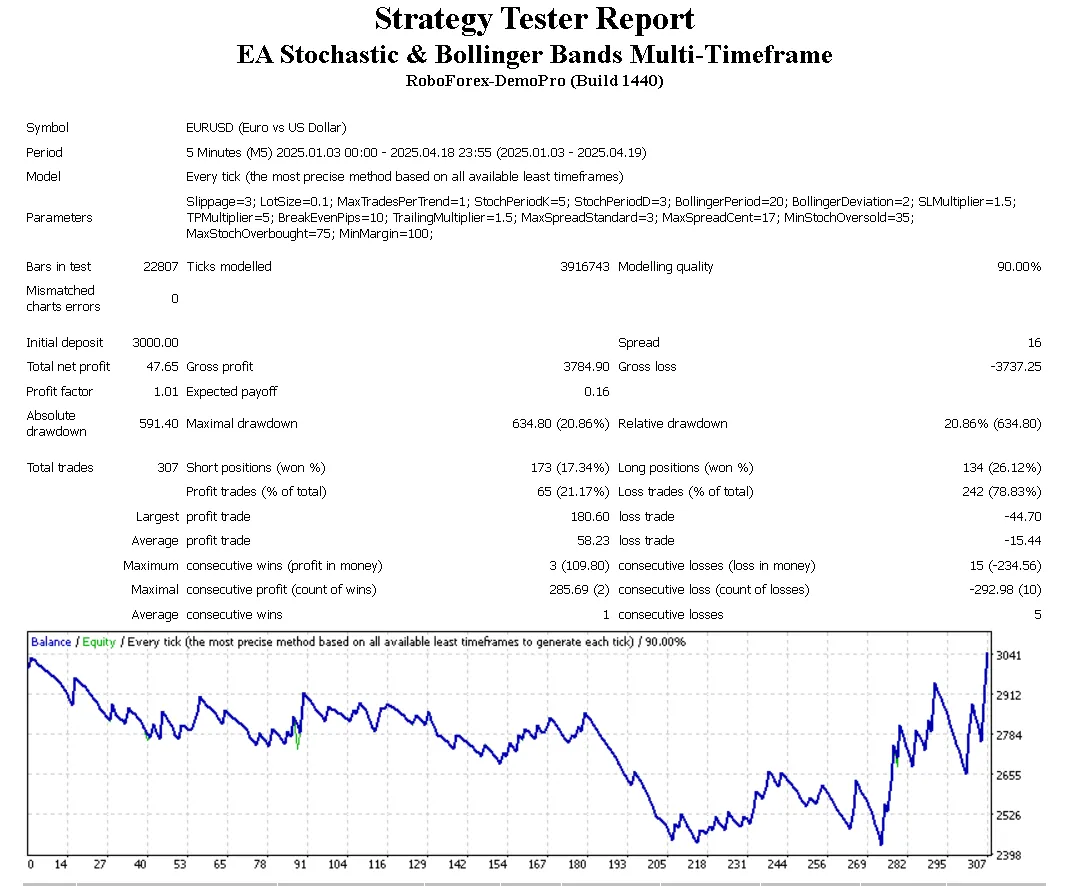
Hey there, fellow traders! If you're looking to enhance your trading strategy on MetaTrader 4, you might want to check out this multi-timeframe EA that harnesses the power of the Stochastic Oscillator and Bollinger Bands. Let’s dive into what makes this tool a must-have on your trading desk! Key Features: Multi-Timeframe Analysis: This EA analyzes Stochastic Oscillator and Bollinger Bands values from M1, M5, and M15 charts, providing you with robust trade entry signals. Entry Conditions: Buy Signal: All three Stochastic K lines need to be below the MinStochOversold level, while the M15 price is hanging below the lower Bollinger Band. Sell Signal: Conversely, for a sell, all three Stochastic K lines should be above the MaxStochOverbought level, with the M15 price sitting above the upper Bollinger Band. Trade Management: It limits the number of trades you can have open at once, adhering to the MaxTradesPerTrend setting. Stop Loss (SL) and Take Profit (TP) levels are intelligently calculated using the Average True Range (ATR) from the M15 timeframe, alongside your SLMultiplier and TPMultiplier inputs. Spread Control: The EA checks the current spread against MaxSpreadStandard (ideal for standard/ECN accounts) and MaxSpreadCent (for cent/micro accounts). If the spread is too wide, it uses buy limit or sell limit orders instead of jumping in with instant execution. Pending Orders: When the market spread is less than ideal for immediate trades, the EA sets pending buy limit or sell limit orders just below the current price for buys and just above for sells. Input Flexibility: Customize the EA to fit your trading style with various parameters, including slippage, lot size, indicator settings, SL/TP multipliers, break-even and trailing stop options, maximum spread limits, and Stochastic overbought/oversold levels. OnTick Function: The OnTick() function acts as the main engine, retrieving indicator values, checking for open orders, and evaluating conditions to potentially trigger new trades. Debugging Tools: This EA includes handy Print() statements for debugging, allowing you to log Stochastic K values across timeframes and monitor the current spread. Give this EA a shot and see how it can help refine your trading strategy. Remember, the market is always evolving, so stay adaptable and keep learning!

2025.04.27
RRS Impulse: Your Go-To Scalping EA for MetaTrader 4
MetaTrader4
RRS Impulse: Your Go-To Scalping EA for MetaTrader 4

If you’re looking to ramp up your trading game, the RRS Impulse EA might just be the scalping tool you need. This powerful Expert Advisor leverages the Relative Strength Index (RSI), Stochastic Oscillator, and Bollinger Bands to spot both trend-following and counter-trend opportunities. What’s more, this EA operates as a multi-pair EA, scanning numerous currency pairs to find those golden signals. With an array of features like Trailing, Risk Management, Money Management, and Restriction Mode, the RRS Impulse EA offers a lot of flexibility. Get your settings dialed in, and you could be on your way to some serious profits! Impulse EA Features: Variable Values Description Trading_Indicator RSI, Stochastic, BollingerBands, RSI_Stochastic_BollingerBands RSI: Analyzes the market using the RSI indicator. Stochastic: Trades based on Stochastic signals. BollingerBands: Utilizes Bollinger Bands for market analysis. RSI_Stochastic_BollingerBands: Combines all three indicators for enhanced accuracy. TradeDirection Trend, CounterTrend Trend: Trades in line with the trend (e.g., buy when RSI is overbought). CounterTrend: Trades against the trend, anticipating reversals (e.g., sell when RSI is overbought). SignalStrength NormalSignal, NormalMultiTimeFrame, StrongSignal, VeryStrongSignal NormalSignal: Evaluates signals based on a single timeframe. NormalMultiTimeFrameSignal: Checks one timeframe at a time. StrongSignal: Confirms signals across multiple timeframes for added reliability. VeryStrongSignal: Analyzes several timeframes for the strongest signals before trading. minLot_Size Double Value Sets the minimum lot size to prevent random lot sizes from dropping too low. maxLot_Size Double Value Establishes the maximum lot size for trading. StopLoss Int Value Defines your stop loss in points/pips (the smallest price change). Set to 0 to disable. TakeProfit Int Value Sets your take profit level in points/pips. Set to 0 to disable. Trailing_Start Int Value (Points/Pips) Indicates when to start trailing, based on pips from the open price. Set to 0 to disable. Trailing_Gap Int Value (Points/Pips) Establishes the gap in pips between the market price and the trailing stop loss. Set to 0 to disable. Risk_In_Money_Type FixedMoney, BalancePercentage FixedMoney: Closes all trades if negative floating loss hits your specified amount. BalancePercentage: Adjusts risk based on account balance. Money_In_Risk Int Value Amount you’re willing to risk based on your selection above. Max_Spread Int Value (Points/Pips) Sets the max spread for trades; if exceeded, the EA waits. Slippage Int Value (Points/Pips) Defines allowable slippage during order execution. MaxOpenTrade Int Value Limits the number of simultaneous open trades. Trade_Currencies String Value Specifies currency symbols for analysis and trading. Impulse Plus: The RRS Impulse Plus EA is the advanced version of the RRS Impulse EA. This upgrade offers more options and flexibility, using RSI, Stochastic, Moving Average, and Bollinger Bands to identify trading opportunities. With this EA, you also get features like Trailing, Risk Management, Money Management, and more. Configure it right, and you could see some impressive gains! Signal Descriptions: Indicator BUY SELL RSI Trend: Buy when RSI is overbought. CounterTrend: Buy when RSI is oversold. Trend: Sell when RSI is oversold. CounterTrend: Sell when RSI is overbought. Stochastic Trend: Buy when both lines are overbought. CounterTrend: Buy when both lines are oversold. Trend: Sell when both lines are oversold. CounterTrend: Sell when both lines are overbought. Bollinger Bands Trend: Buy when price touches the upper band. CounterTrend: Buy when price touches the lower band. Trend: Sell when price touches the lower band. CounterTrend: Sell when price touches the upper band. Moving Average Trend/CounterTrend: Buy when price is above the MA. Trend/CounterTrend: Sell when price is below the MA. Signal Scenarios: Here’s how the signals stack up: RSI Stochastic Bollinger Bands Moving Average Signal Above Above Above Below CounterTrend Sell ✅ Below Below Below Above CounterTrend Buy ✅ Above Above Above Above Trend Buy ✅ Below Below Below Below Trend Sell ✅ Important Notes: Enable web requests in MT4/MT5: Go to Tools → Options → Expert Advisors → Allow Web Request and add: http://nfs.faireconomy.media/ (This service is provided by ForexFactory and fetches news data from their platform.) Recommended Testing: It's highly advised to trial this EA on a demo account for at least 45 days before going live. Wishing you all the best—happy trading! 🚀

2025.04.20
Master Your Trades with the Adjustable Moving Average EA for MT4
MetaTrader4
Master Your Trades with the Adjustable Moving Average EA for MT4

📈 Introducing the Adjustable Moving Average EA for MT4 If you're looking to take your trading to the next level, the Adjustable Moving Average EA is just the tool you need. This Expert Advisor is tailored for traders who want to have complete control over their trading strategies. With its ability to trade based on the crossover of two customizable moving averages, you can fine-tune your entry points, manage risk, and dictate trade direction just the way you like it. ⚙️ Understanding the Input Parameters: FastPeriod: This parameter defines the period for your fast moving average. The shorter the period, the more sensitive it is to price changes. SlowPeriod: Here, you set the period for your slow moving average. A longer period generally smooths out price fluctuations. MAPriceType: Choose the price type for the moving average calculation—options include Close, Open, High, or Low. SL_Points: This sets your Stop Loss in points. If you prefer not to use a Stop Loss, just set this to 0. TP_Points: This is your Take Profit level in points. Setting it to 0 means you won't have a Take Profit in place. TrailStopPips: Enable this feature to activate a trailing stop once your trade is in profit, helping you lock in gains. EntryMode: Select your preferred entry mode: Long-only, Short-only, or Both directions to suit your strategy. FixedLot: Set the lot size for every trade you make—perfect for consistent risk management. MaxSlippage: Define the maximum slippage allowed in points to manage your trade execution better. TradeComment: Add personalized comments to each trade, making it easier to identify them later in your trade history.

2025.04.16
Mastering the iCHO Trend and CCIDualOnMA Filter for MetaTrader 5
MetaTrader5
Mastering the iCHO Trend and CCIDualOnMA Filter for MetaTrader 5

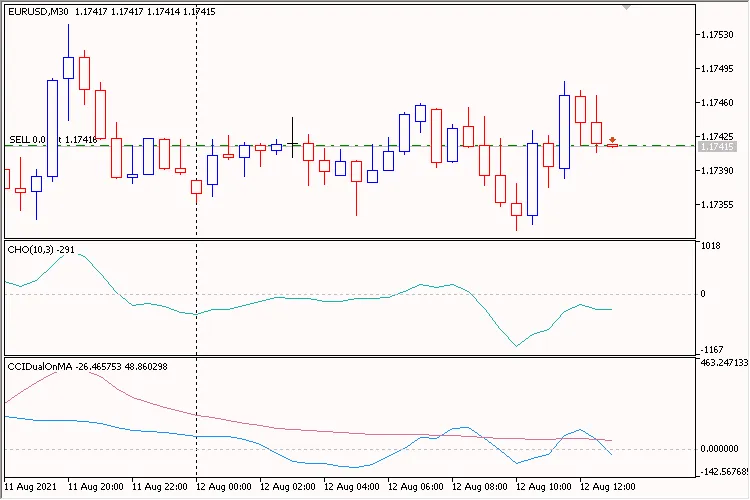
Welcome, fellow traders! Today, we’re diving deep into a powerful trading strategy using the iCHO Trend and CCIDualOnMA Filter for MetaTrader 5. If you’re looking to enhance your trading game, this could be just what you need! Trading Strategy Overview The Expert Advisor (EA) we’re discussing leverages two key indicators: the iCHO (Chaikin Oscillator) and the custom CCIDualOnMA. The iCHO serves as a trend indicator, signaling when to close positions based on its crossing of the zero line. Meanwhile, the CCIDualOnMA acts as a filter for adding positions, ensuring we’re making informed decisions. Both indicators are crafted on a specified working timeframe, which is crucial for determining the birth of new bars—this is especially important for parameters like Trailing on ... and Search signals on .... Trading Signals: Closing Positions: Crossing Positions: Reverse Trade Mode Crossing from bottom to top 'false' -> close all SELL positions ('Allowed only BUY positions' OR 'Allowed BUY and SELL positions') -> open BUY position 'true' -> close all BUY positions ('Allowed only SELL positions' OR 'Allowed BUY and SELL positions') -> open SELL position Top-down intersection 'false' -> close all BUY positions ('Allowed only SELL positions' OR 'Allowed BUY and SELL positions') -> open SELL position 'true' -> close all SELL positions ('Allowed only BUY positions' OR 'Allowed BUY and SELL positions') -> open BUY position Normal Signals (Adding a Position) When the iCHO indicator is above zero and the fast CCI crosses the slow CCI from the bottom upwards (while the fast CCI is below zero), it’s our signal to open a BUY position. Conversely, if the iCHO indicator is below zero and the fast CCI crosses the slow CCI from top to bottom (with the fast CCI above zero), we should look to open a SELL position. Fig. 1. iCHO Trend CCIDualOnMA Filter Key Features: The EA can be tailored to fit your working timeframe. Only one 'market entry' trade is permitted per bar, which is an internal parameter not included in the input settings. In 'inside bar' mode, the current bar is bar #0. When in 'only when a new bar is born' mode, the current bar is bar #1. The 'Trade mode' parameter restricts which trades can be executed: 'Allowed only BUY positions', 'Allowed only SELL positions', or 'Allowed BUY and SELL positions'. The 'Use time control' parameter sets the time interval for searching trading signals from 'Start Hour':'Start Minute' to 'End Hour':'End Minute', which can span over a day. Let’s break down each group of parameters: Trading Settings: 'Working timeframe' is the timeframe on which indicators operate and where new bar searches occur. Stop Loss, Take Profit, and Trailing are defined in Points. Any of these parameters can be disabled by setting them to '0.0'. Check out the TrailingStop code for visual examples of how trailing works. Position Size Management (Lot Calculation): Lot size can be constant (set to 'Constant lot' with a fixed size) or dynamic (a percentage of risk per deal set to 'Risk in percent for a deal'). Time Control: This section allows you to define the time range for searching trading signals. It’s activated via 'Use time control', allowing you to set the time interval for signal searching from 'Start Hour':'Start Minute' to 'End Hour':'End Minute'. Additional Features: The 'Positions: Only one' flag ensures that the EA holds no more than one position in the market at a time. IMPORTANT: Setting 'Positions: Only one' to 'true' does not negate 'Positions: Close opposite' set to 'true'! This means that opposite positions will be closed first. The 'Positions: Reverse' flag controls the reversal of signals. The 'Positions: Close opposite' flag, when set to 'true', ensures that opposite positions are closed before opening a new position. Plus, the 'Print log' feature provides detailed logging of all operations, while the 'Freeze and StopsLevels Coefficient' parameter helps manage stop and freeze levels effectively. A value of '3' is recommended here.

2025.04.04
Mastering MA Trend 2: Your Go-To EA for MetaTrader 5
MetaTrader5
Mastering MA Trend 2: Your Go-To EA for MetaTrader 5

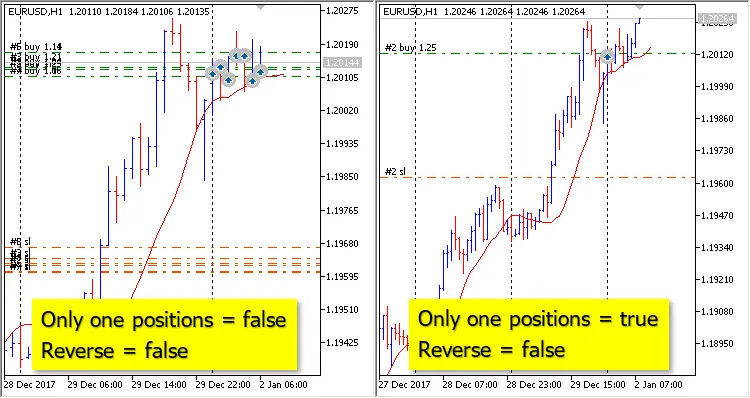
If you're diving into the world of automated trading, let me introduce you to the latest version of MA Trend. This Expert Advisor (EA) has taken strides with the addition of a new parameter: Type Trading restrictions. Type Trading Restrictions Only BUY - This option allows you to open only BUY positions. Only SELL - Here, you can only open SELL positions. BUY and SELL - This is the most flexible option, allowing both BUY and SELL positions. MA Trend operates using the iMA (Moving Average) indicator and comes packed with various settings to tailor your trading experience: Key Settings Only One Position - Limits you to holding a single position in the market at any given time. Reverse - This flips the trading signals if you want to go against the trend. Close Opposite - This feature automatically closes any opposite positions when a new trading signal is generated. How Trading Signals Are Formed With default settings, trading signals are generated based on the following criteria: If the current ASK price is higher than the indicator value on bar #1, it's a signal to open a BUY position. If the current BID price is lower than the indicator value on bar #1, it's a signal to open a SELL position. Behind the Scenes: MQL5 Code Here's how this works in MQL5 code:       if(m_symbol.Ask()>ma[1])          m_need_open_buy=true;       else if(m_symbol.Bid()<ma[1])          m_need_open_sell=true; Practical Example: Position Handling Let’s look at how the Only One Position feature affects trade execution: In this example, with Only One Position set to true, Reverse to false, and Close Opposite to true: a BUY position was opened. Later, when a signal for a SELL position came in, the EA first closed the BUY position (since it's the opposite) before opening the new SELL position. With MA Trend, you can streamline your trading strategy and make more informed decisions. So why not give it a spin and see how it can enhance your trading game?

2025.04.04
How to Detect the Start of a New Candle in MetaTrader 5
MetaTrader5
How to Detect the Start of a New Candle in MetaTrader 5

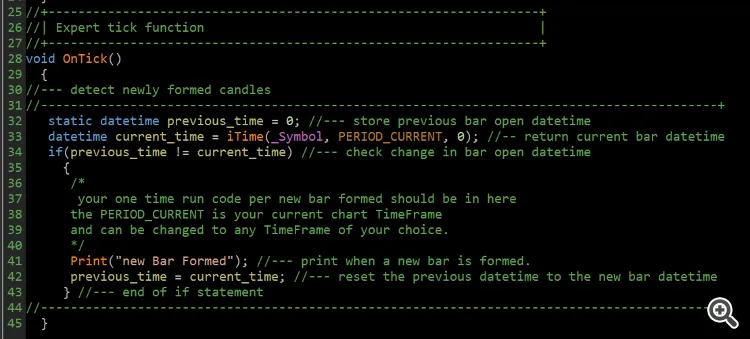
If you're using an Expert Advisor (EA) in MetaTrader 5, you probably know that the platform calls the OnTick() function every time a new quote (or "tick") comes in. But here's the kicker: there’s no built-in function to signal when a new bar, or candle, starts. To get around this, you’ll need to keep an eye on the opening time of the most recent candle. When that changes, it means a new candle has started, and that’s your cue to act. Below is a sample code that works for both MQL4 and MQL5, showing how to do this: // Standard tick event handler    void OnTick()    {       // Check for a new candle (works for both MQL4 and MQL5).          static datetime dtCurrentCandle   = WRONG_VALUE;                 datetime dtPreviousCandle = dtCurrentCandle;                          dtCurrentCandle   = iTime( _Symbol, _Period, 0 );                 bool     bNewCandleEvent  = ( dtCurrentCandle != dtPreviousCandle );       // Respond to the new candle event.          if( bNewCandleEvent )          {             // Check if this is the first tick received.                /* This could happen when your EA is first applied to the chart and the bar is not at the start of a new candle. */                if( dtPreviousCandle == WRONG_VALUE )                {                   // Handle the first tick or middle of a candle...                }                else                {                   // Handle a normal candle opening...                };       // Execute other actions regardless of previous conditions.      }       else      {             // Handle other scenarios...      };     // Additional operations...    }; In this snippet, the static variable tracks the opening time of the candle, allowing it to retain its value even when the OnTick() function completes. This persistence is crucial for detecting when a new candle opens. Keep in mind that when you first attach your EA to a chart, it may behave as though a new candle has just opened. You’ll want to account for this condition if it requires a different approach. Also, for those of you interested, you can now access the source code of all my CodeBase publications directly through MetaEditor's "Public Projects" under the name "FMIC".

2025.04.03
Unlock Profits with the Candlestick Analysis EA for MetaTrader 5
MetaTrader5
Unlock Profits with the Candlestick Analysis EA for MetaTrader 5

This MetaTrader 5 Expert Advisor (EA) is a game-changer for traders looking to enhance their strategy. It seamlessly blends multi-timeframe candlestick pattern analysis with fundamental event filtering, ensuring disciplined risk management at every turn. Core Strategy Price Action Focus: This EA relies exclusively on candlestick patterns like pin bars, engulfing candles, and hammers/shooting stars across three different timeframes: M5, H1, and H4. By focusing on these signals, you can make informed trading decisions. Multi-TF Confluence: It requires alignment between the 5-minute triggers and the trend structure on the higher timeframes (H1 and H4). This confluence helps confirm trade entries, making your strategy more robust. Risk Management 1.5:1 Risk-Reward Ratio: The EA automatically calculates the take-profit level at 1.5 times the stop-loss distance, ensuring a favorable risk-reward setup. Margin Safeguards: It limits margin usage to less than 30% by default and adjusts position sizing automatically to maintain capital safety. Dynamic Stops: Depending on market volatility, it employs ATR (Average True Range) scaling or fixed pip distances for optimal stop-loss placement. News Filter Pre-Event Shutdown: The EA closes all positions two hours before high-impact news events such as GDP, NFP, and CPI to mitigate risks associated with market volatility. Volatility Avoidance: It avoids opening new trades during scheduled high-risk periods, keeping your account secure during turbulent times. Operational Design 5-Minute Execution: Trades are triggered on the M5 chart while respecting the broader context provided by H1 and H4 charts. Session Limits: This EA trades only during peak liquidity hours, specifically from 8 AM to 5 PM server time, optimizing your chances for success. Strengths Eliminates indicator lag through pure price action analysis. Strict risk control via fixed risk-reward ratios and margin caps. Adapts to both trending and ranging markets effectively. Ideal For: Traders focusing on EURUSD and other major pairs during active trading sessions. Those seeking systematic execution with built-in event-risk protection. This EA strikes a perfect balance between technical pattern recognition and macroeconomic awareness. It prioritizes preserving your capital while aiming for consistent 1.5:1 reward scenarios, making it a valuable addition to any trader's toolkit.

2025.03.31
Unlock Profits with the RRS Tangled EA for MetaTrader 4
MetaTrader4
Unlock Profits with the RRS Tangled EA for MetaTrader 4

Hey traders! If you're on the lookout for an innovative tool to enhance your trading game, let me introduce you to the RRS Tangled EA. This is a refined version of the RRS Chaotic EA and the RRS Randomness in Nature EA. What makes it stand out? It takes a unique approach by randomly selecting currency pairs, lot sizes, and order types for trading—no technical indicators or fundamental analysis needed! The magic lies in its Randomness in Nature strategy, which allows it to open trades in a way that can lead to impressive profits, especially when configured with the right settings for Take Profit, Stop Loss, Trailing, and Risk Management. What’s more, this EA is designed to operate across multiple currencies or assets. So even if you link it to just one currency pair, it can still manage trades for others seamlessly! Variable Values Description minLot_Size Double Value Minimum lot size to ensure lot size randomness does not fall below this threshold. maxLot_Size Double Value Maximum lot size to ensure lot size randomness does not exceed this limit. StopLoss Int Value Set your stop loss value in points/pips (the smallest price movement unit for your asset). Set Stop Loss to 0 to turn it off. TakeProfit Int Value Define your take profit value in points/pips. Set Take Profit to 0 to disable it. Trailing_Start Int Value (Points/Pips) Specify the number of pips from the opening price at which trailing starts. Set Trailing Start to 0 to turn off trailing. Trailing_Gap Int Value (Points/Pips) Set the gap in pips between the current market price and the trailing stop loss. Set Trailing Gap to 0 to disable trailing. Risk_In_Money_Type FixedMoney, BalancePercentage FixedMoney: Closes all open trades when the negative floating reaches your specified amount. BalancePercentage: Calculates automatically based on your account balance and closes all trades once this limit is reached. Money_In_Risk Int Value If Risk_In_Money_Type is set to FixedMoney, enter the amount you’re willing to risk. If set to BalancePercentage, the EA calculates the risk based on your balance. Max_Spread Int Value (Points/Pips) Defines the maximum acceptable spread. If the current spread exceeds this value, the EA will hold off on trading until it’s within limits. Slippage Int Value (Points/Pips) Sets the maximum allowed slippage for executing orders. MaxOpenTrade Int Value Allows you to specify the maximum number of open trades at any one time. Wishing you all the best—Happy Trading!

2025.03.23
Unlocking Profits with the RRS Chaotic EA for MetaTrader 4
MetaTrader4
Unlocking Profits with the RRS Chaotic EA for MetaTrader 4

Hey traders! Today, let's dive into the RRS Chaotic EA, a simplified version of the RRS Randomness in Nature EA. This Expert Advisor (EA) takes a unique approach to trading by operating on pure randomness. It opens trades with various currency pairs, lot sizes, and order types without relying on the usual indicators or candlestick patterns. Sounds intriguing, right? Despite its random nature, this EA has shown impressive profitability when set up correctly. It’s all about finding the right settings that work for you. Key Features of the RRS Chaotic EA Multiple Strategies: This EA offers a variety of trading strategies to cater to different styles. Customizable Risk Management: Tailor your risk management plans to fit your trading preferences. User-Friendly Settings: With several customizable options, you can easily adjust your trading parameters. Understanding the Variables Variable Values Description minLot_Size Double Value Sets the minimum lot size to ensure trades remain above this value. maxLot_Size Double Value Sets the maximum lot size to ensure trades do not exceed this value. StopLoss Int Value Define your stop loss in points/pips. Set it to 0 to disable. TakeProfit Int Value Set your take profit in points/pips. Set it to 0 to disable. Risk_In_Money_Type FixedMoney, BalancePercentage FixedMoney: Closes all trades when losses reach your specified amount. BalancePercentage: Calculates risk based on your account balance. Money_In_Risk Int Value Specify the amount you're willing to lose. The EA will manage trades according to this setting. Max_Spread Int Value (Points/Pips) Sets the maximum spread for executing trades. If exceeded, the EA will hold off on trading. Slippage Int Value (Points/Pips) Sets the maximum slippage allowed for order execution. MaxOpenTrade Int Value Limits the number of open trades you can have at any given time. Quick Tip: If you run into any issues with the EA, try removing #property strict from line 8 of the EA code. Happy Trading and Best of Luck!

2025.03.19
Unlocking Profits with the RRS Randomness EA for MetaTrader 4
MetaTrader4
Unlocking Profits with the RRS Randomness EA for MetaTrader 4

Hey there, fellow traders! If you’re on the hunt for a trading tool that brings a fresh approach to your MetaTrader 4 setup, let me introduce you to the RRS Randomness EA. This Expert Advisor operates on pure randomness, shaking things up by randomly selecting currency pairs, lot sizes, and order types. And the best part? It doesn’t lean on traditional technical skills like indicators, price action, news events, or candlestick patterns. Instead, it offers a variety of trading strategies, risk management options, and customizable settings to fit your trading style. Even though it’s all about randomness, this EA has still managed to deliver some impressive profits. So, let’s dive into what makes it tick! Key Features of the RRS Randomness EA Trading Strategy: Choose between OneSide (one trade, either Buy or Sell) or DoubleSide (one Buy and one Sell trade). minLot_Size: Sets the minimum lot size to maintain randomness without going below this value. maxLot_Size: Defines the maximum lot size to keep randomness in check. StopLoss: Set your stop loss in points/pips. Want to disable it? Just set it to 0. TakeProfit: Determine your take profit in points/pips, or disable it by setting it to 0. Trailing_Start: Indicate how many pips from the open trade price the trailing should start. Disable by setting it to 0. Trailing_Gap: Set the gap in pips between the current market price and the trailing stop loss. Again, set to 0 to disable. Risk_In_Money_Type: Choose between FixedMoney (closes trades when losses hit your specified amount) or BalancePercentage (automatically calculates based on your balance). Money_In_Risk: If you selected FixedMoney, enter the amount you can afford to lose. With BalancePercentage, the EA will manage this for you. Max_Spread: Sets the maximum spread acceptable for trade execution. If exceeded, the EA will hold off on trading. Slippage: Define the maximum slippage you’re willing to accept for order execution. Important Note If you encounter any issues with the EA, try removing #property strict from line 8 in the code. It might just do the trick! Wishing you all the best, and happy trading!

2025.03.19
Unlocking the Power of RRS Non-Directional EA for MetaTrader 4
MetaTrader4
Unlocking the Power of RRS Non-Directional EA for MetaTrader 4

If you’re looking for a trading assistant that doesn’t rely on traditional strategies, the RRS Non-Directional EA might just be what you need. This Expert Advisor (EA) operates without any technical indicators, price action analysis, or even news events. Instead, it embraces a more random approach to trading, allowing for a variety of strategies that you can customize to fit your trading style. Despite its random nature, this EA has proven to generate profits when paired with solid risk management practices. Let’s dive into its features and settings to see how it can enhance your trading experience. Key Features of RRS Non-Directional EA Trading Strategies: Hedge_Style: Simultaneously opens both Buy and Sell trades. BuySell_Random: Randomly opens either a Buy or Sell trade. Buy_Sell: Follows the last closed order type; if the last was a Buy, it opens a Sell. Auto_Swap: Only opens trades in the direction of positive swap charges. Buy_Order: Exclusively opens Buy trades. Sell_Order: Exclusively opens Sell trades. Customizable Settings Variable Values Description New_Trade True/False True: EA can take trades. False: EA will not take any trades. Lot_Size Double Value Choose your desired lot size for each trade taken by the EA. StopLoss_Type Virtual_SL, Classic_SL Virtual SL: Closes the trade when the specified stop loss is reached, invisible to the broker. Classic SL: A visible stop loss that is registered on the broker’s server. StopLoss Int Value Set your stop loss value in points/pips. Set Stop Loss to 0 to disable it. TakeProfit_Type Virtual_TP, Classic_TP Virtual TP: The take profit level is not visible to the broker. Classic TP: Visible take profit level registered on the broker’s server. TakeProfit Int Value Set your take profit value in points/pips. Set Take Profit to 0 to disable it. Trailing_Type Virtual_Trailing, Classic_Trailing Virtual Trailing: Modifications remain on your local PC. Classic Trailing: Updates directly on the broker’s server. Trailing_Start Int Value (Points/Pips) Specify the number of pips from the opening price at which trailing begins. Trailing_Gap Int Value (Points/Pips) Set the gap in pips between the market price and the trailing stop loss. Risk_In_Money_Type FixedMoney, BalancePercentage Fixed Money: Closes trades when losses reach a specified amount. Balance Percentage: Calculates based on your account balance. Money_In_Risk  Int Value If Risk_In_Money_Type is FixedMoney, enter the amount you’re willing to lose. If set to BalancePercentage, the EA calculates risk based on your balance. Max_Spread Int Value (Points/Pips) Sets the maximum spread allowable for trading. Slippage Int Value (Points/Pips) Set the maximum slippage allowed during order execution. Note: If you run into issues with EA performance, try removing #property strict from line 6 of the EA code. Good Luck and Happy Trading!

2025.03.17
First Previous 1 2 3 4 5 6 7 8 9 Next Last