System Trading

Quick Guide to Access Last Closed Trade Data in MetaTrader 5
MetaTrader5
Quick Guide to Access Last Closed Trade Data in MetaTrader 5

If you're looking to quickly access the details of your last closed trade in MetaTrader 5, you're in the right place! This guide will walk you through a straightforward code snippet that retrieves this information without the hassle of loops. Getting Started First, you might want to create a variable to set the current day's start time, although this step isn't strictly necessary. It’s also a good idea to create additional variables to help with chart output, which can be useful in other parts of your code. By placing this code inside the OnTick(); function, you can display results for every tick. Alternatively, you can set it to run once per bar. Code Example // Variables string DayStart = "00:00"; // Day Start Time double LastClosed_Profit; // Last Closed trade profit string TradeSymbol, TradeType; // Expert Initializing -------------------- int OnInit()   {    return(INIT_SUCCEEDED);   } // Expert DeInitializing ------------------- void OnDeinit(const int reason)   {   } // Expert OnTick -------------------------- void OnTick()   {    // Check for last closed trade.    CheckLastClosed();   } //+------------------------------------------------------------------+ //+------------------------------------------------------------------+ void CheckLastClosed()   {    datetime HistoryTime = StringToTime(DayStart);    // History from "Day beginning to current time"    if(HistorySelect(HistoryTime,TimeCurrent))      {       int Total = HistoryDealsTotal();       // Get the last deal ticket number and select it for further work.       ulong Ticket = HistoryDealGetTicket(Total -1);       // Retrieve the necessary data.       LastClosed_Profit = NormalizeDouble(HistoryDealGetDouble(Ticket,DEAL_PROFIT),2);       TradeSymbol      = HistoryOrderGetString(Ticket,ORDER_SYMBOL);       // Identify a sell trade.       if(HistoryDealGetInteger(Ticket,DEAL_TYPE) == DEAL_TYPE_BUY)         {          TradeType = "Sell Trade";         }       // Identify a buy trade       if(HistoryDealGetInteger(Ticket,DEAL_TYPE) == DEAL_TYPE_SELL)         {          TradeType = "Buy Trade";         }       // Output to chart.       Comment("\n","Deals Total - :  ", Total,               "\n","Last Deal Ticket - :  ", Ticket,               "\n", "Last Closed Profit -:  ", LastClosed_Profit,               "\n", "Last Trade was -:  ", TradeType);      }   } //+------------------------------------------------------------------+ //+------------------------------------------------------------------+ You can also retrieve the entire trading history from the very start of your account using the HistorySelect(); function like this: // Get entire history HistorySelect(0,TimeCurrent());

2024.04.22
Master Market Moves with QuickTradeKeys123 for MetaTrader 5
MetaTrader5
Master Market Moves with QuickTradeKeys123 for MetaTrader 5

Welcome to the world of efficient trading! If you’re looking to enhance your trading game, the QuickTradeKeys 123 EA might just be the tool you need. Designed for lightning-fast market responses, this Expert Advisor lets you trade directly from your chart with a simple keystroke. Let’s dive into what makes this EA a must-have for traders! How QuickTradeKeys 123 Works Key '1': Instantly opens a buy position using a predefined lot size. Key '2': Quickly opens a sell position with your chosen lot size. Key '3': Closes all open positions initiated by the EA based on the specified magic number. This EA is user-friendly, making it an ideal choice for both beginners and seasoned traders looking for immediate control over their trades through keyboard shortcuts. Who Can Use It? The QuickTradeKeys 123 EA is versatile and can be applied to any currency pair and timeframe. For the best results, it’s advisable to trade in conditions with low spreads and seamless market access. Getting Started Installation is a breeze! Just drag the EA onto your preferred chart in MetaTrader 5, enable automated trading, and ensure the EA has the necessary permissions to execute trades. Don’t forget to set your magic number in the input settings to match your trading strategy. Important Note This EA is not meant for live trading accounts unless you fully grasp how it operates and are aware of the risks involved. It’s highly recommended to first test it on a demo account to get a feel for its functionality. Ready to take your trading to the next level? Give QuickTradeKeys 123 a shot, and watch your market responsiveness soar!

2024.04.20
Mastering Classic and Virtual Trailing in MetaTrader 4
MetaTrader4
Mastering Classic and Virtual Trailing in MetaTrader 4

As traders, we’re always on the lookout for ways to optimize our strategies and maximize our profits. One powerful tool that can help us achieve this is the trailing stop feature in MetaTrader 4. Today, let’s dive into the differences between Classic Trailing and Virtual Trailing, and how each can impact your trading performance. Understanding Classic Trailing Classic Trailing allows you to use a stop loss to automatically follow the price movement. What this means is that as the market moves in your favor, your stop loss will adjust accordingly, locking in profits while still giving you room to breathe. The key thing to note is that this adjustment is reflected on your broker’s server, which means you have real-time tracking and execution. Discovering Virtual Trailing On the other hand, Virtual Trailing operates a bit differently. Instead of adjusting your stop loss directly, it works behind the scenes, meaning it doesn’t reflect on your broker’s server. This can be advantageous in certain scenarios where you want to keep your stop loss hidden from the market, but it requires a bit more attention to your trades. Key Concepts to Consider Trailing Gap: This is the gap between the bid and ask price. Understanding this gap is crucial for effective trailing. Trailing Start: This indicates the distance from your order entry price at which the trailing starts. Setting this up correctly can make a big difference in your strategy. Both Classic and Virtual Trailing have their pros and cons, and the best choice often depends on your trading style and objectives. Experiment with both in a demo account to see which one fits your strategy best!

2024.04.19
Mastering Counters in MetaTrader 5: Count, Wait, and Execute
MetaTrader5
Mastering Counters in MetaTrader 5: Count, Wait, and Execute

01. Count "X" Times and Then Execute. Step 01 - Create a variable to set the count limit. You can also use this as an input parameter for optimization in your code. Step 02 - Set another variable to track how many times the count has occurred. Step 03 - When the Counter reaches your set count limit, it’s time to execute the specified code block. Step 04 - After executing the code, remember to reset the counter. Failing to do so will cause it to count indefinitely. You can also implement filtering conditions for the Counter block, like: >> "IF this is true, then count once." input int count = 50; // Set the counting limit as an input int Counter; // Counter variable // Expert Initialization -------------------- int OnInit() { return(INIT_SUCCEEDED); } // Expert Deinitialization ------------------- void OnDeinit(const int reason) { } // Expert OnTick -------------------------- void OnTick() { Counter ++; // Increment the counter on each tick. Comment("Current Count -:", Counter); if(Counter == count) // Count "X" times and execute {      // Your code goes here...... Alert(count," Times counted"); Counter = 0; // Reset the counter at the end of your code block. } } // OnTick End  <<---------------------- 02. Pass "X" Times and Then Wait "X" Times Before Executing. This method can be used for various execution patterns like wait and pass, or pass and wait. Step 01 - Create variables to set both the count limit and the wait limit. These can also serve as input parameters for optimization. Step 02 - Set up another variable to store both the counted limit and the wait limit. Step 03 - When the Counter reaches the count limit, it’s time to execute the specified code block. Step 04 - Once the Waiter reaches the wait limit, it’s time to pause for a bit. Step 05 - After the waiting limit is met, make sure to reset both the counter and the waiter. Otherwise, it will stop functioning. You can set filtering conditions for both the Counter and Waiter blocks, such as: >> "IF this is true, wait a bit." input int count = 50; // Set the counting limit as an input input int wait = 50; // Set the waiting limit as an input int Counter; // Counter variable, default value is "0" int Waiter; // Waiting variable, default value is "0" // Expert Initialization -------------------- int OnInit()   {    return(INIT_SUCCEEDED);   } // Expert Deinitialization ------------------- void OnDeinit(const int reason)   {   } // Expert OnTick -------------------------- void OnTick()   {    Comment("Counted Ticks -: ", Counter, "\n", "Waited Ticks -: ", Waiter);    if(Counter < count) // Pass "X" times      {       Counter++; // Update the counter       // Your code goes here.      }    else       if(Waiter < wait) // Wait for "X" times         {          Waiter++; // Update the waiter          // Your code goes here.         }    if(Waiter == wait) // Waiting limit is reached      {       Counter = 0; // Reset counter       Waiter = 0; // Reset waiter      }   } // OnTick End  <<---------------------- //+------------------------------------------------------------------+ Special Note: You can modify the above code to create a "Pass X times and stop" function by simply removing the waiting code block. This will allow it to count a specific number of times and then stop until the counter is reset. You can reset it anywhere in your code if you declare these variables on a global scale.

2024.04.14
Detecting New Candle Bars Efficiently in MetaTrader 5
MetaTrader5
Detecting New Candle Bars Efficiently in MetaTrader 5

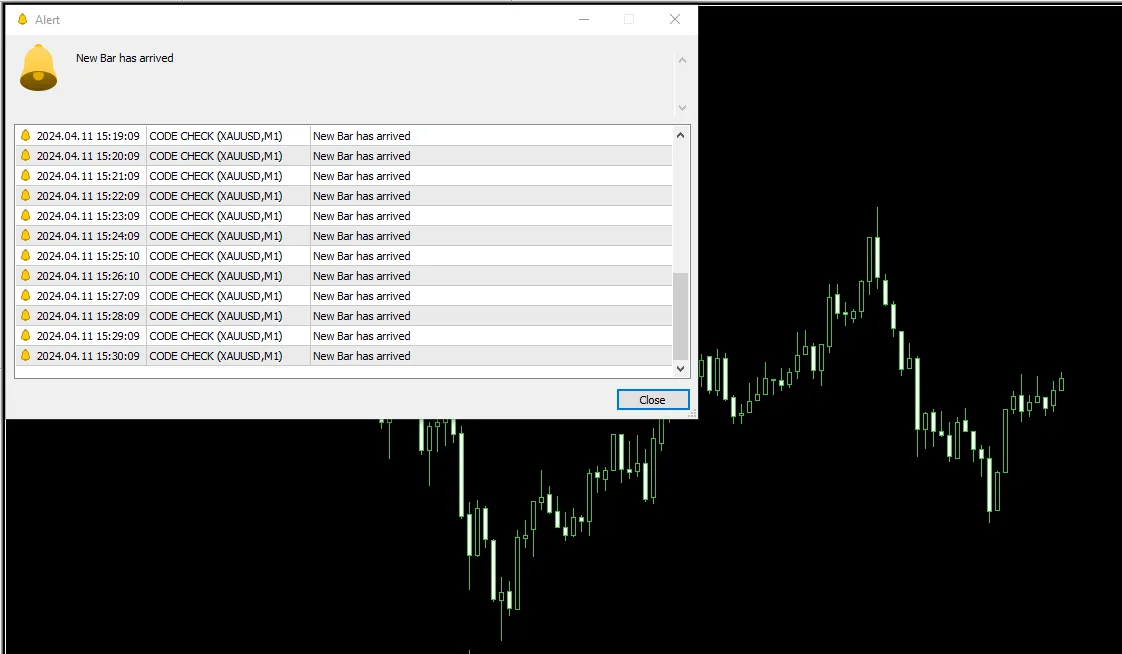
Hey fellow traders! Today, we're diving into a nifty way to detect a new candle or bar using bar counts instead of relying solely on time. This method is not only lighter on your system but also faster, which means you can stay ahead of the game! Here’s a quick rundown of how to implement this: Declare Variables: Start by declaring your variables as integer data types to store the bar counts. Initialization: During initialization, assign the bar count to the variable BarsTotal_OnInt. Live Updates: Use the iBars(); function to update the bar count for the variable BarsTotal_OnTick every tick on the live chart. Check Accuracy: Utilize comments and alerts to verify that your code is running as intended. Here’s the code snippet to get you started: int BarsTotal_OnInt; int BarsTotal_OnTick; //+------------------------------------------------------------------+ //| Expert initialization function | //+------------------------------------------------------------------+ int OnInit()   {      BarsTotal_OnInt = iBars(NULL,PERIOD_CURRENT); // Assign the total bars at initialization    return(INIT_SUCCEEDED);   }    void OnTick() // OnTick Function   {      BarsTotal_OnTick = iBars(NULL,PERIOD_CURRENT); // Stores the latest amount       if(BarsTotal_OnTick > BarsTotal_OnInt) // New bar has arrived    {     BarsTotal_OnInt = BarsTotal_OnTick; // Updates the history.     Alert("New Bar has arrived");     Comment("Bars Count in history -: ", BarsTotal_OnInt, "\n", "Bars Count in Live -: ", BarsTotal_OnTick); // Your Code goes here. -------------------------- // You can update a "flag" / variable to use it on later too.    }   } Give this a whirl in your own trading setup and watch how smoothly you can detect new bars. Happy trading!

2024.04.11
Mastering Trade Management with Virtual SL TP Pending and Trailing Stop in MetaTrader 4
MetaTrader4
Mastering Trade Management with Virtual SL TP Pending and Trailing Stop in MetaTrader 4

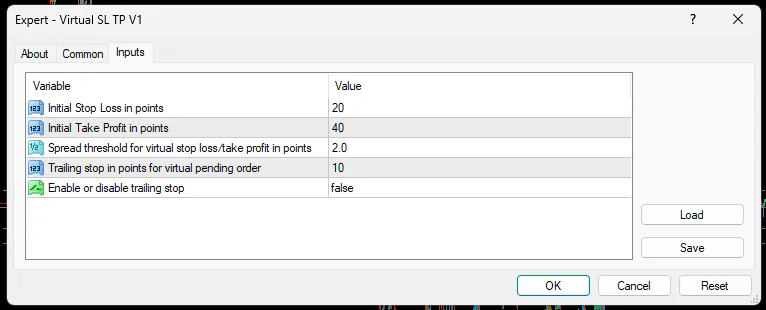
Hey there, fellow traders! Today, I want to talk about a nifty tool that can really streamline your trading process in MetaTrader 4: the Virtual_SL_TP_Pending_with_SL_Trailing.mq4. This script is designed to help you manage your trades more effectively by setting virtual stop loss and take profit levels, along with a pending order that features a trailing stop loss option. Let’s Dive Into the Details Here’s a quick rundown of what this script offers: Copyright and Link: It includes copyright information and a link to the creator's website, so you know where to find more resources. Version: The script indicates its version, which is handy for tracking updates. Description: You’ll get insights about the script, including the creator's email, intellectual property notes, and a friendly reminder to use it at your own risk. Input Parameters: These are external variables that let you customize how the Expert Advisor (EA) behaves, including: StopLossPoints: Set your initial stop loss in points. TakeProfitPoints: Define your initial take profit in points. SpreadThreshold: Set the spread threshold for your virtual stop loss/take profit in points. TrailingStopPoints: Determine the trailing stop in points for your virtual pending order. EnableTrailing: Choose whether to enable or disable the trailing stop feature. Global Variables: These are used throughout the script to store important data like initial spread, virtual stop loss, take profit, and pending order prices. Initialization Function (OnInit): This function kicks in when the EA is attached to a chart, calculating initial virtual stop loss, take profit, and pending order price based on your input settings. Tick Function (OnTick): This function runs with every tick of the price. It checks if the spread has increased beyond your set threshold and adjusts the virtual stop loss, take profit, and pending order price as needed. It also monitors price movements to close positions at your virtual stop loss or take profit. Plus, if you have trailing stops enabled and the price hits your pending order price, it will place a virtual pending order with a trailing stop loss. Close Position Function (ClosePosition): This function will close your position once the price touches the virtual stop loss or take profit. Place Pending Order Function (PlacePendingOrder): This function places a virtual pending order with a trailing stop loss if you've enabled the trailing option. This EA is a fantastic way to automate your trade management process using virtual levels and a trailing stop feature, making it easier for you to focus on your trading strategy. Happy trading!

2024.04.10
Mastering Continuous Trend-Following: A Simple MT4 Strategy for Smart Traders
MetaTrader4
Mastering Continuous Trend-Following: A Simple MT4 Strategy for Smart Traders

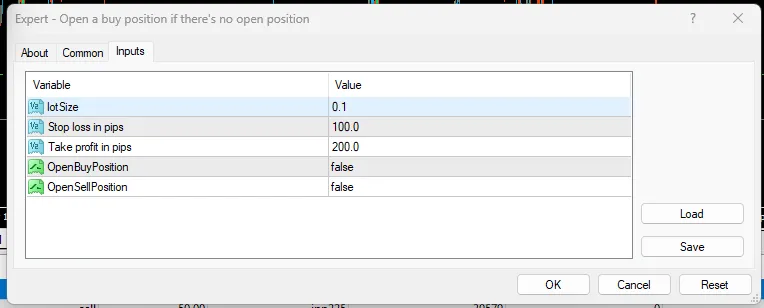
If you're looking to sharpen your trading game, this MetaTrader 4 (MT4) script is a gem. It's designed to help you effortlessly buy and sell based on a straightforward continuous trend-following strategy. Let's dive into the ins and outs of this script: Initialization: The script kicks off by initializing itself and gives you a heads-up when it's ready to roll. Deinitialization: When it's time to wrap things up, the script deinitializes and lets you know it’s done. OnTick Function: This function comes into play with every new tick (price change) in the market. Reset Position Tracking Variables: The script clears out any variables that track your open buy and sell positions. Check Open Orders: It goes through all open orders to see if you've got any active buy or sell positions. Open Buy Position: If there’s no active buy position and the "OpenBuyPosition" flag is set to true, it’ll try to open one using the current market bid price, complete with a stop loss and take profit set for good measure. Open Sell Position: Similarly, if there’s no active sell position and the "OpenSellPosition" flag is true, it will attempt to open a sell order based on the current market ask price, also setting a stop loss and take profit. Check Closed Orders: It keeps an eye out for any closed orders. If one of your buy or sell orders closes in the green, it’ll reset the corresponding position flag. Input Parameters: You’ve got the flexibility here with input parameters for lot size, stop loss, take profit, and options to control whether to open buy or sell positions. Disclaimer: A word of caution—this script comes with a warning. Use it at your own risk, as the creator isn’t responsible for any potential losses or damages. In a nutshell, this script is all about automating your trading by executing buy and sell orders based on a solid trend-following strategy. You can customize parameters like lot size and trade direction to fit your style. Just remember to tread carefully and do your homework before you hit the live trading button!

2024.04.10
Implementing a Trailing Stop in MetaTrader 5: A Step-by-Step Guide
MetaTrader5
Implementing a Trailing Stop in MetaTrader 5: A Step-by-Step Guide

This code snippet is versatile - it works whether you're using a Stop Loss or not. Let's dive into the requirements for setting up a trailing stop in your MetaTrader 5 EA. Requirements First off, you’ll need to include "Trade.mqh" to gain access to the CTrade class. This class is essential for managing your positions and orders. #include <Trade\Trade.mqh> // <<------------------------------------------ Include this "Trade.mqh" to access the CTrade Class Next, set an input parameter to adjust your trailing distance. Though not mandatory, it makes things easier. input double Trailing_Step = 3.0; Now, you need to declare an instance of the CTrade class. Feel free to name it whatever you like, but it's a good idea to define it right after the OnInit event handler. CTrade trade; // <<------------------------------------------ Declare the "CTrade" class. You can replace "trade" with any name you want. Then, create an if statement to check if any positions are currently open. This statement will call the Check_TrailingStop(); function on every tick. This is crucial for ensuring that your EA trails prices smoothly and effectively. Make sure to place this statement at the top of the OnTick event handler for optimal performance. //+------------------------------------------------------------------+ //| Expert initialization function | //+------------------------------------------------------------------+ int OnInit() { //--- create timer EventSetTimer(60); //--- return(INIT_SUCCEEDED); } CTrade trade; // <<------------------------------------------ Declare the "CTrade" class. You can replace "trade" with any name you want. void OnTick() { if(PositionsTotal() > 0) // Calls the trailing stop function for every tick if there are positions running. { Check_TrailingStop(); } } Next, declare a custom function named Check_TrailingStop(); (you can choose any name you prefer). This function will loop through all open positions and apply the trailing stop based on your specified distance. void Check_TrailingStop() { int totalPositions = PositionsTotal(); for(int count = 0; count < totalPositions; count++) { ulong TicketNo = PositionGetTicket(count); // Get Position Ticket number using the 'index' of the position. if(PositionSelectByTicket(TicketNo)) // Select a position using the ticket number { if(PositionGetInteger(POSITION_TYPE) == POSITION_TYPE_BUY) { double openPrice = PositionGetDouble(POSITION_PRICE_OPEN); double stopLoss = PositionGetDouble(POSITION_SL); // Get Position Current Stop Loss double takeProfit = PositionGetDouble(POSITION_TP); double bidPrice = SymbolInfoDouble(_Symbol, SYMBOL_BID); ulong ticket = PositionGetTicket(count); double trailingLevel = NormalizeDouble(bidPrice - (Trailing_Step * Point()), _Digits); if(stopLoss < openPrice) // No stop loss is true. { if(bidPrice > openPrice && trailingLevel > openPrice) { trade.PositionModify(ticket, trailingLevel, takeProfit); // Modify trailing Stop using "CTrade.trade" } } if(bidPrice > openPrice && trailingLevel > stopLoss) { trade.PositionModify(ticket, trailingLevel, takeProfit); // Modify trailing Stop using "CTrade.trade" } } if(PositionGetInteger(POSITION_TYPE) == POSITION_TYPE_SELL) { double openPrice = PositionGetDouble(POSITION_PRICE_OPEN); double stopLoss = PositionGetDouble(POSITION_SL); double takeProfit = PositionGetDouble(POSITION_TP); double bidPrice = SymbolInfoDouble(_Symbol, SYMBOL_BID); double askPrice = SymbolInfoDouble(_Symbol, SYMBOL_ASK); ulong ticket = PositionGetTicket(count); double trailingLevel = NormalizeDouble(askPrice + (Trailing_Step * Point()), _Digits); if(stopLoss < openPrice) // No stop loss is true. { if(askPrice < openPrice && trailingLevel < openPrice) { trade.PositionModify(ticket, trailingLevel, takeProfit); // Modify trailing Stop using "CTrade.trade" } } if(askPrice < openPrice && trailingLevel < stopLoss) { trade.PositionModify(ticket, trailingLevel, takeProfit); // Modify trailing Stop using "CTrade.trade" } } } } } And there you have it! With this setup, you can effectively manage your trailing stops to lock in profits as market conditions shift.

2024.04.05
Effortlessly Detect New Bars in MetaTrader 5 with This Simple Code
MetaTrader5
Effortlessly Detect New Bars in MetaTrader 5 with This Simple Code

Hey traders! Today, I’m excited to share a neat little code snippet that helps you detect a New Bar or New Candle in MetaTrader 5. It’s pretty straightforward, so let’s dive in! The core idea behind this code is simple yet effective. First, it stores the Time of the Previous Bar/Candle. Then, it adds 60 seconds (equivalent to 1 minute, but feel free to adjust the time as needed) to the time of the previous bar to get the Closing Time Value of the Current Bar/Candle. Once the current time matches the closing time of the current bar, it means a new bar has arrived. The flag (a boolean variable called NewBarReceived) prevents this code block from being triggered multiple times. Essentially, the code executes only once per bar/candle. The Comment() function and the PlaySound("ok.wav") are included to verify the accuracy of the code—you can remove them if you prefer. After the current time surpasses the closing time of the current candle, the flag resets to false, preparing to check for the next bar's arrival (take a look at the comments for more details). //+------------------------------------------------------------------+ //|                                                 New Bar Detect.mq5 | //|                                                   by H A T Lakmal | //|                                            https://t.me/Lakmal846 | //+------------------------------------------------------------------+ bool NewBarReceived = false; // Flag for control. //+------------------------------------------------------------------+ //| Expert initialization function                                    | //+------------------------------------------------------------------+ int OnInit()   { //--- create timer    EventSetTimer(60); //---    return(INIT_SUCCEEDED);   } //+------------------------------------------------------------------+ //| Expert deinitialization function                                    | //+------------------------------------------------------------------+ void OnDeinit(const int reason)   { //--- destroy timer    EventKillTimer();   } //+------------------------------------------------------------------+ //| Expert tick function                                              | //+------------------------------------------------------------------+ void OnTick()   {    datetime TimePreviousBar = iTime(_Symbol,PERIOD_M1,1);    datetime TimeCurrentClose = TimePreviousBar + 60; // Closing Time of the current bar.    datetime Time_Current = TimeCurrent();    if(Time_Current == TimeCurrentClose && NewBarReceived == false)      {       PlaySound("ok.wav");   // For the statement work of not.       NewBarReceived = true; // Update the flag to avoid multiple  calls.       // Your Code goes here ----- (Do Something)      }    else       if(Time_Current > TimeCurrentClose)         {          NewBarReceived = false; // Reset the flag for next bar open.          // Your Code goes here ----- (Do Something)         }    Comment("\n" +  "\n" +  "Time Current Bar -: " + TimeToString(TimePreviousBar,TIME_DATE|TIME_MINUTES|TIME_SECONDS) +            "\n" + "Time Current Close -: " +TimeToString(TimeCurrentClose,TIME_DATE|TIME_MINUTES|TIME_SECONDS) +            "\n" + "Time Current -: " + TimeToString(Time_Current,TIME_DATE|TIME_MINUTES|TIME_SECONDS) + "\n" +"\n" + "A New Bar Received -: " + NewBarReceived); // For check calculations   } //+------------------------------------------------------------------+ //| Timer function                                                    | //+------------------------------------------------------------------+ void OnTimer()   { //---   } //+------------------------------------------------------------------+ //| Trade function                                                    | //+------------------------------------------------------------------+ void OnTrade()   { //---   } //+------------------------------------------------------------------+ //| ChartEvent function                                               | //+------------------------------------------------------------------+ void OnChartEvent(const int id,                   const long &lparam,                   const double &dparam,                   const string &sparam)   { //---   } //+------------------------------------------------------------------+  

2024.04.05
Master Your Trades: Close on Profit or Loss with This Expert Advisor for MetaTrader 4
MetaTrader4
Master Your Trades: Close on Profit or Loss with This Expert Advisor for MetaTrader 4

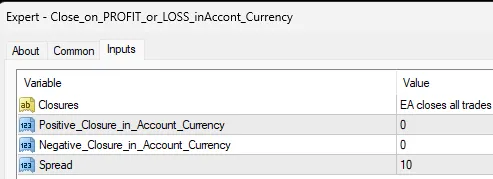
Close on Profit or Loss in Account Currency - Expert Advisor Update Hey traders! If you’re looking to streamline your trading strategy, you’ll want to check out the latest version of the Close on Profit or Loss in Account Currency Expert Advisor for MetaTrader 4. Here’s what’s new: Error Handling: This update includes robust error handling to manage situations where orders can't be closed or deleted. Code Optimization: We’ve cleaned up the code to make it more efficient and easier to read. Increased Efficiency: Unnecessary loops and computations have been removed, enhancing the overall performance. Clean Slate: All chart objects will now be cleared upon EA deinitialization. When you set the EA to 0, it won’t take any action. Remember, for the Positive Closure in Account Currency to trigger, it must be greater than your current equity. For example, if your equity is $55,000, set the Positive Closure to $55,500 to lock in a $500 profit. Example: If your equity is $55,000 and you set the Positive Closure to $55,500, it will execute immediately if it falls below that amount. On the flip side, for the Negative Closure in Account Currency, it should be lower than your current equity to avoid immediate execution. For instance, if your equity is $55,000, set the Negative Closure to $54,500 to limit your loss to $500. Example: If your equity is $55,000 and the Negative Closure is set to $54,500, it will execute immediately if it goes above that value. To avoid spread spikes, consider adjusting the spread number, but keep in mind that the market can be unpredictable, leading to higher gains or losses. Also, if the spread is set lower than the average for the pairs you’re trading, those positions won’t be executed. WARNING: Use this software at your own risk. The Forex market is known for its volatility! #property copyright "Copyright 2024, MetaQuotes Ltd." #property link "https://www.mql5.com" #property version "1.01" #property description "persinaru@gmail.com" #property description "IP 2024 - free open source" #property description "This EA closes all trades on Profit and Losses calculated in Account Currency." #property description "WARNING: Use this software at your own risk." #property description "The creator of this script cannot be held responsible for any damage or loss." #property strict #property show_inputs Here’s a quick summary of the inputs: Closures: EA closes all trades and pending orders when a profit or loss is reached, calculated in Account Currency. Positive Closure in Account Currency: Set this to your desired profit level (default is 0). Negative Closure in Account Currency: Set this to your acceptable loss level (default is 0). Spread: Default is set to 10. Happy trading, and may your profits be plentiful!

2024.03.25
Unlock Trading Success with Neural Networks: A Guide to MQL5
MetaTrader5
Unlock Trading Success with Neural Networks: A Guide to MQL5

The book Neural Networks for Algorithmic Trading with MQL5 is your ultimate resource for diving into the world of machine learning and neural networks in trading. If you're an algorithmic trader eager to develop cutting-edge trading strategies using AI techniques, this guide is tailor-made for you! The book is structured into 7 comprehensive chapters, covering all the essentials you need to get started with neural networks and seamlessly integrate them into your trading robots using MQL5. The explanations are straightforward, making it easy for you to grasp the fundamentals of machine learning. You'll also uncover various types of neural networks, including convolutional and recurrent models, along with more intricate architectural solutions and attention mechanisms. Throughout the book, you'll find a treasure trove of practical examples to help you integrate these advanced solutions into your trading algorithms within the MQL5 environment. Plus, it delves into several techniques for enhancing model convergence, such as Batch Normalization and Dropout. Moreover, the author offers hands-on advice on how to train neural networks and incorporate them into your trading strategies. You’ll learn to create Expert Advisors that can test the performance of trained models on new data, allowing you to evaluate their effectiveness in real-world financial markets. "Neural Networks for Algorithmic Trading with MQL5" isn’t just any book; it’s a practical guide designed to help you incorporate advanced decision-making techniques into your trading algorithms, potentially enhancing your financial outcomes. Start exploring the powerful capabilities of machine learning today, and elevate your trading game!

2024.02.29
Master Manual Trading with the Buy Sell Close EA for Newbies on MetaTrader 4
MetaTrader4
Master Manual Trading with the Buy Sell Close EA for Newbies on MetaTrader 4

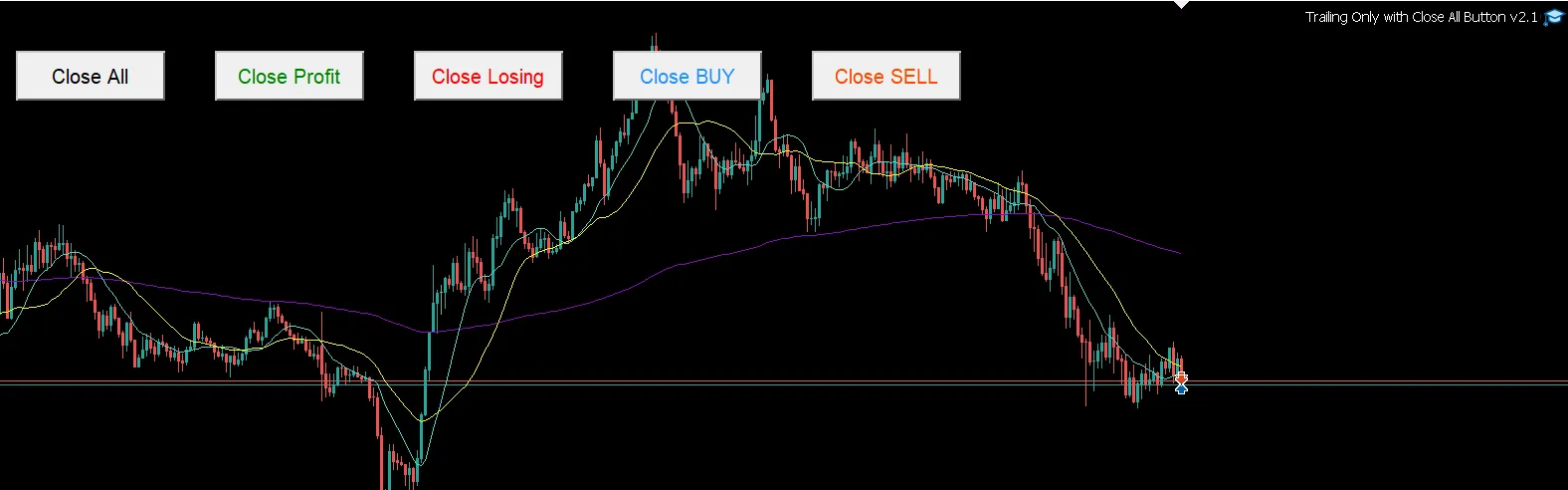
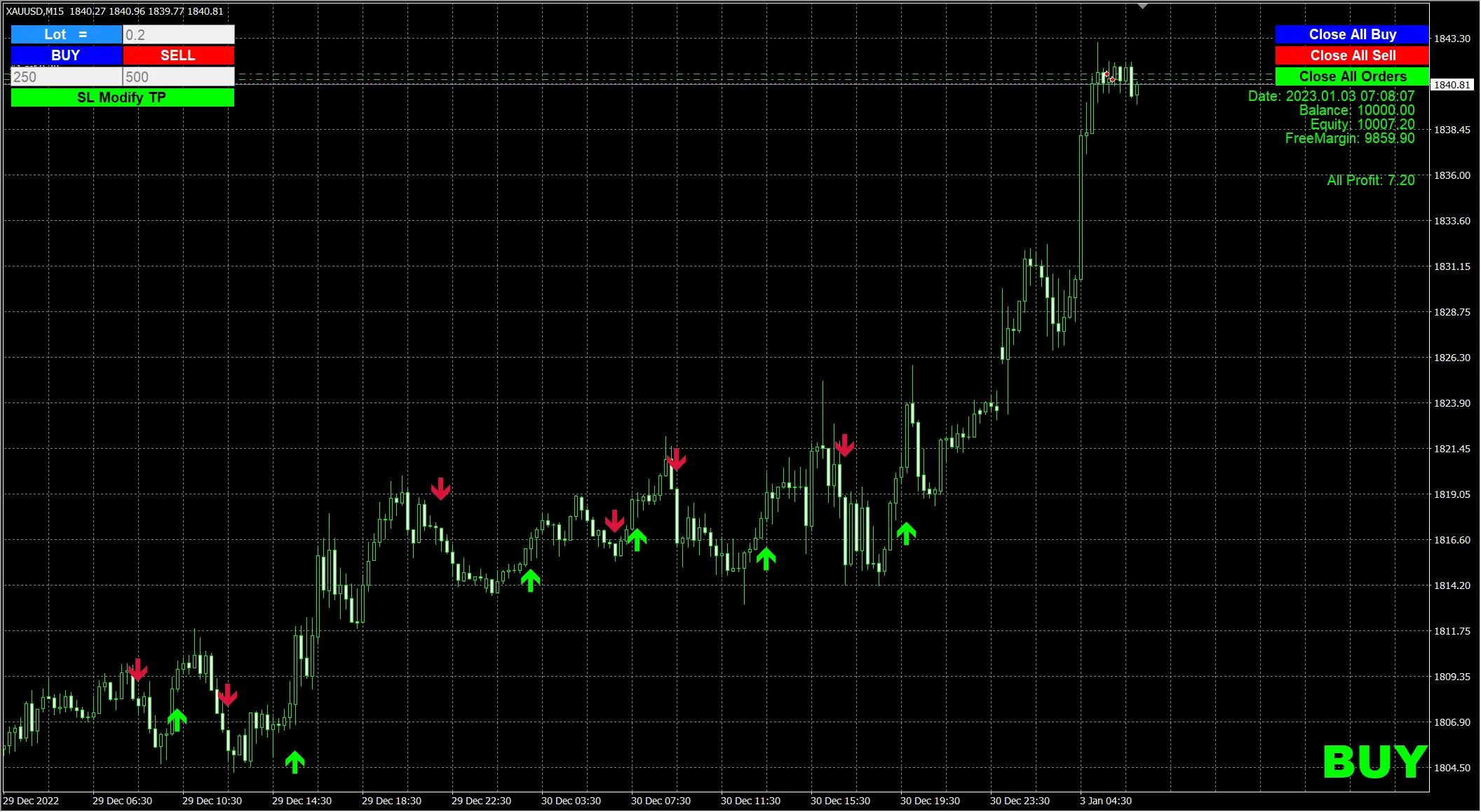
Hey there, fellow traders! If you’re just dipping your toes into the trading waters, you might want to check out the Buy Sell Close manual trading EA. This tool is perfect for beginners, allowing you to not only backtest your strategies in visual mode but also to trade live with confidence. With this EA, you can practice and refine your own trading system during backtesting sessions, which is a fantastic way to get the hang of things. The Buy Sell Close EA allows for manual operation, giving you the flexibility to pause or adjust the speed of your backtests. This is particularly beneficial for those who prefer hands-on trading exercises. Getting Started: Lots Button: Adjust the number of lots directly in the input box to suit your trading style. BUY Button: Click this to place an additional order above your current lot size. SELL Button: Use this to open a short position based on the specified lot size. SL Modify TP Button: This option lets you modify the Stop Loss and Take Profit levels for all open orders relative to the current market price. Close All Buy Button: Press this button to close all your Buy orders in one go. Close All Sell Button: This will close all open Sell orders with a single click. Close All Orders Button: Use this to shut down all of your trading positions at once. On the right side of your display, you’ll find valuable information about your open orders, profits, and more. Parameter Breakdown: MM: Automatically calculates the default lot size based on your risk ratio. Risk: Set at 0.2 for a balance of £10,000, which equates to 0.2 lots. Lots: If MM is set to FALSE, this fixed number of lots will be used. SL (Stop Loss): The default setting is 250 micro-points. TP (Take Profit): The default is set at 500 micro-points. So, why not give it a go? You can practice your own trading strategies with the Buy Sell Close EA. Happy trading, everyone!

2024.02.29
Understanding Drawdown Calculation in MetaTrader 4: A Trader's Guide
MetaTrader4
Understanding Drawdown Calculation in MetaTrader 4: A Trader's Guide

Hey fellow traders! Let’s dive into a crucial aspect of trading—drawdown calculations in MetaTrader 4 (MT4). If you're using an Expert Advisor or a trading bot, understanding how drawdown works can help you manage risk more effectively.First off, it’s important to note that the drawdown calculation can be based on specific parameters, like the magic number and symbol. This means you can tailor your approach to fit your trading style or the particular strategies you’re employing.If you're only interested in assessing the overall performance of your account without getting bogged down by individual trades, you can simply remove the magic number and symbol filters from your code. This way, you’ll get a clearer picture of your total drawdown across the board.Why Does Drawdown Matter?Understanding drawdown is essential because it gives you insight into the potential risks of your trading strategy. Here are a few key points to remember:Risk Management: Knowing your drawdown helps you set proper stop-loss levels.Performance Evaluation: It’s a strong indicator of how well your trading strategy holds up under pressure.Emotional Control: Being aware of potential drawdowns can help keep your emotions in check during tough trading periods.In summary, calculating drawdown in MT4 isn’t just about numbers—it’s about enhancing your trading strategy and managing your risks wisely. So, whether you’re a seasoned trader or just starting out, make sure you’re keeping an eye on your drawdown!

2024.02.14
First Previous 2 3 4 5 6 7 8 9 10 11 12 Next Last