MetaTrader5
Mastering the Fibonacci ZigZag Indicator for MetaTrader 5
Getting Started with the Fibonacci ZigZag Indicator To set up the Fibonacci ZigZag indicator in MetaTrader 5, you'll need the following components: 1 zigzag plot 2 data buffers for tracking highs and lows Input parameters for customization A set of system variables that reset during recalculations Here’s a snippet of the code you’ll be working with: #property indicator_buffers 2
#property indicator_plots 1
input double retracement=23.6;// Retracement amount
input double minSizeInAtrUnits=0.0;// Minimum size of waves in ATR units
input int rollingAtrPeriod=14;// Rolling ATR period
input color Color=clrDodgerBlue;// Wave color
input int Width=3;// Wave width
input ENUM_LINE_STYLE Style=STYLE_SOLID;// Wave style
//+------------------------------------------------------------------+ In this setup, the upWaves array will hold the highs, while the dwWaves array captures the lows. Next, let's define our system variables. We need to track the last wave type, where it began and ended, and the bar distances from each point: //--- Managing the zigzag
//--- Wave types: [0] None, [1] Up, [2] Down
int wave_type=0;
//--- Starting price of the wave
double wave_start_price=0.0;
//--- Ending price of the wave
double wave_end_price=0.0;
//--- Distance in bars from starting price
int wave_start_distance=0;
//--- Distance in bars from ending price
int wave_end_distance=0;
//--- High price tracking
double high_mem=0.0;
int distance_from_high=0;
//--- Low price tracking
double low_mem=0.0;
int distance_from_low=0;
//--- Rolling ATR
double rollingAtr=0.0;
int rollingAtrs=0; This sets up the rolling ATR unit and keeps track of how many have been calculated. Next, we’ll create a system reset function to clear out old data: void resetSystem(){
ArrayFill(upWaves,0,ArraySize(upWaves),0.0);
ArrayFill(dwWaves,0,ArraySize(dwWaves),0.0);
wave_type=0;
wave_start_price=0.0;
wave_end_price=0.0;
wave_start_distance=0;
wave_end_distance=0;
high_mem=0.0;
low_mem=0.0;
distance_from_high=0;
distance_from_low=0;
rollingAtr=0.0;
rollingAtrs=0;
} Here we simply fill the arrays with zeroes and reset the system variables. During initialization, we set up the buffers, the plot, and call reset for the first time: SetIndexBuffer(0,upWaves,INDICATOR_DATA);
SetIndexBuffer(1,dwWaves,INDICATOR_DATA);
PlotIndexSetDouble(0,PLOT_EMPTY_VALUE,0.0);
PlotIndexSetInteger(0,PLOT_DRAW_TYPE,DRAW_ZIGZAG);
PlotIndexSetInteger(0,PLOT_LINE_COLOR,0,Color);
PlotIndexSetInteger(0,PLOT_LINE_WIDTH,Width);
PlotIndexSetInteger(0,PLOT_LINE_STYLE,Style);
resetSystem(); Now, let’s dive into the calculations. First on our list is managing the rolling ATR. We won’t proceed until we have more bars than the ATR period: If we haven't collected enough bars, we keep adding the range of the found bars to a summation. Once we have enough bars, we perform our first division (averaging). After that, we clip one portion of the rolling ATR and add a new portion based on the current bar's range. We do this first to minimize accessing multiple conditions. //--- Manage the ATR
rollingAtrs++;
if(rollingAtrs>rollingAtrPeriod){
double new_portion=((high[i]-low[i])/_Point)/((double)rollingAtrPeriod);
//--- Remove an old portion and add a new one
rollingAtr=(rollingAtr)-(rollingAtr/((double)rollingAtrPeriod))+new_portion;
}
else if(rollingAtrs<=rollingAtrPeriod){
rollingAtr+=(high[i]-low[i])/_Point;
if(rollingAtrs==rollingAtrPeriod){
rollingAtr/=((double)rollingAtrs);
//--- Initialize memory for highs and lows
high_mem=high[i];
low_mem=low[i];
distance_from_high=0;
distance_from_low=0;
}
} Now, there's an important point to consider. For a retracement to take place, we need at least one wave. But how do we define that first wave? Here’s how: Once the ATR fills up (i.e., we’ve collected the period), we’ll capture the high and low in our system variables. Whichever side forms a wave with a valid size in ATR units, forming a new high (upwave) or a new low (downwave), is the winner! This way, we avoid having a retracement as the initial wave, but it’s still a necessary step to kick things off. Here’s how we handle things when there’s no wave yet: //--- If there's no wave type yet
else{
//--- If we break the high but not the low
if(high[i]>high_mem&&low[i]>=low_mem){
double new_wave_size_in_atr_units=((high[i]-low_mem)/_Point)/rollingAtr;
//--- Check if the new wave size is valid
if(new_wave_size_in_atr_units>=minSizeInAtrUnits){
//--- Start a new up wave
wave_type=1;
wave_start_price=low_mem;
wave_start_distance=distance_from_low;
wave_end_price=high[i];
wave_end_distance=0;
//--- Draw the wave
dwWaves[i-wave_start_distance]=low_mem;
upWaves[i]=high[i];
//--- Update the high
high_mem=high[i];
distance_from_high=0;
//--- Update the low
low_mem=low[i];
distance_from_low=0;
}
}
//--- If we break the low but not the high
else if(low[i]<low_mem&&high[i]<=high_mem){
double new_wave_size_in_atr_units=((high_mem-low[i])/_Point)/rollingAtr;
//--- If the new wave size is valid
if(new_wave_size_in_atr_units>=minSizeInAtrUnits){
//--- Start a new down wave
wave_type=-1;
wave_start_price=high_mem;
wave_start_distance=distance_from_high;
wave_end_price=low[i];
wave_end_distance=0;
//--- Draw the wave
upWaves[i-wave_start_distance]=high_mem;
dwWaves[i]=low[i];
//--- Update the high
high_mem=high[i];
distance_from_high=0;
//--- Update the low
low_mem=low[i];
distance_from_low=0;
}
}
//--- If we break both high and low
else if(low[i]<low_mem&&high[i]>high_mem){
//--- Update both values
high_mem=high[i];
low_mem=low[i];
distance_from_high=0;
distance_from_low=0;
}
} Now, let’s wrap things up. If we have an upwave: If a new high is made, move the zigzag from the previous high position to the new one. This allows us to retain bar distances and capture the lowest low since the peak for potential retracement. If a new low is made, we calculate the distance from the peak to the low, divide it by the wave size, and scale it to match the input parameter. If the new wave size meets the ATR criteria, we start a new downwave, updating local highs and lows as well as distances. Here’s the relevant code: //--- If we have an up wave
if(wave_type==1){
//--- If the wave expands upwards
if(high[i]>wave_end_price){
//--- Remove the previous end price from its array position (0.0=empty)
upWaves[i-wave_end_distance]=0.0;
//--- Place it on the new position
upWaves[i]=high[i];
wave_end_price=high[i];
wave_end_distance=0;
//--- Update the high
high_mem=high[i];
distance_from_high=0;
//--- Update the low
low_mem=low[i];
distance_from_low=0;
}
//--- Check for retracement
if(low[i]<low_mem||distance_from_low==0){
low_mem=low[i];
distance_from_low=0;
double size_of_wave=(wave_end_price-wave_start_price)/_Point;
double size_of_retracement=(wave_end_price-low_mem)/_Point;
if(size_of_wave>0.0){
double retraced=(size_of_retracement/size_of_wave)*100.0;
double new_wave_size_in_atr_units=((wave_end_price-low_mem)/_Point)/rollingAtr;
//--- If the new wave size is valid
if(new_wave_size_in_atr_units>=minSizeInAtrUnits){
//--- If the retracement is significant, start a down wave
wave_type=-1;
wave_start_price=high[i-distance_from_high];
wave_start_distance=distance_from_high;
wave_end_price=low[i];
wave_end_distance=0;
//--- Draw the wave
upWaves[i-wave_start_distance]=high_mem;
dwWaves[i]=low[i];
//--- Update the high
high_mem=high[i];
distance_from_high=0;
//--- Update the low
low_mem=low[i];
distance_from_low=0;
}
}
}
}
}
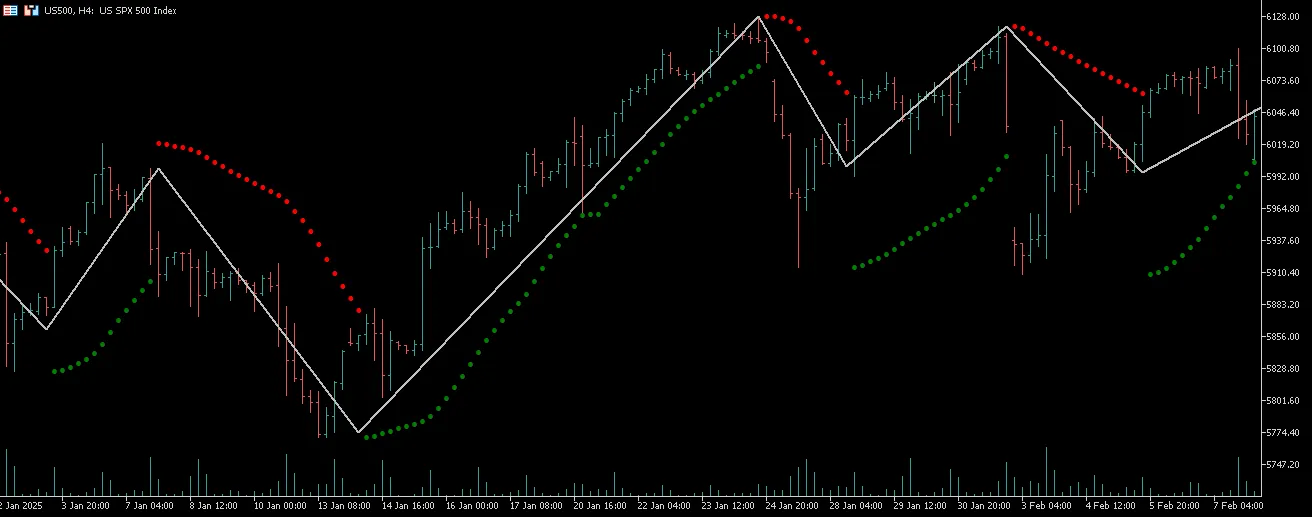
} We’ll do the opposite for a down wave. And just like that, our retracement zigzag is set up and ready to roll! Take a look at the zigzag with 23.6% retracement and 0.0 min size of waves in ATR units: And here's the same zigzag with 3 min size of waves in ATR units: Happy trading!
2025.03.03