System Trading

Unlocking the AK-47 Scalper EA: Your Ultimate MetaTrader 4 Companion
MetaTrader4
Unlocking the AK-47 Scalper EA: Your Ultimate MetaTrader 4 Companion

1. Input Parameters #define ExtBotName "AK-47 Scalper EA" //Bot Name #define  Version "1.00" //--- input parameters extern string  EASettings        = "---------------------------------------------"; //-------- <EA Settings> -------- input int      InpMagicNumber    = 124656;   //Magic Number extern string  TradingSettings   = "---------------------------------------------"; //-------- <Trading Settings> -------- input double   Inpuser_lot       = 0.01;     //Lots input double   InpSL_Pips        = 3.5;      //Stoploss (in Pips) input double   InpMax_spread     = 0.5;      //Maximum allowed spread (in Pips) (0 = floating) extern string  MoneySettings     = "---------------------------------------------"; //-------- <Money Settings> -------- input bool     isVolume_Percent  = true;     //Allow Volume Percent input double   InpRisk           = 3        //Risk Percentage of Balance (%) input string   TimeSettings      = "---------------------------------------------"; //-------- <Trading Time Settings> -------- input bool     InpTimeFilter     = true      //Trading Time Filter input int      InpStartHour      = 2         //Start Hour input int      InpStartMinute    = 30        //Start Minute input int      InpEndHour        = 21        //End Hour input int      InpEndMinute      = 0         //End Minute 2. Variable Initialization //--- Variables int      Pips2Points;               // Slippage  3 pips    3=points    30=points double   Pips2Double;               // Stoploss 15 pips    0.015      0.0150 int      InpMax_slippage   = 3;     // Maximum slippage allow_Pips. bool     isOrder           = false; // just open 1 order int      slippage; string   strComment        = ""; 3. Main Code a/ Expert Initialization Function int OnInit()   { //---      //3 or 5 digits detection    //Pip and point    if (Digits % 2 == 1)    {       Pips2Double  = _Point*10;       Pips2Points  = 10;       slippage = 10* InpMax_slippage;    }    else    {           Pips2Double  = _Point;       Pips2Points  =  1;       slippage = InpMax_slippage;    }    //---    return(INIT_SUCCEEDED);   } b/ Expert Tick Function void OnTick()   { //---      if(IsTradeAllowed() == false)      {       Comment("AK-47 EA\nTrade not allowed.");       return;      }             MqlDateTime structTime;        TimeCurrent(structTime);        structTime.sec = 0;               //Set starting time        structTime.hour = InpStartHour;        structTime.min = InpStartMinute;              datetime timeStart = StructToTime(structTime);               //Set Ending time        structTime.hour = InpEndHour;        structTime.min = InpEndMinute;        datetime timeEnd = StructToTime(structTime);               double acSpread = MarketInfo(Symbol(), MODE_SPREAD);        StopLevel = MarketInfo(Symbol(), MODE_STOPLEVEL);              strComment = "\n" + ExtBotName + " - v." + (string)Version;       strComment += "\nGMT time = " + TimeToString(TimeGMT(),TIME_DATE|TIME_SECONDS);       strComment += "\nTrading time = [" + (string)InpStartHour + "h" + (string)InpStartMinute + " --> " +  (string)InpEndHour + "h" + (string)InpEndMinute + "]";              strComment += "\nCurrent Spread = " + (string)acSpread + " Points";       strComment += "\nCurrent stoplevel = " + (string)StopLevel + " Points";              Comment(strComment);          //Update Values       UpdateOrders();              TrailingStop();              //Check Trading time       if(InpTimeFilter)       {          if(TimeCurrent() >= timeStart && TimeCurrent() < timeEnd)          {             if(!isOrder) OpenOrder();          }       }       else       {          if(!isOrder) OpenOrder();       }   } 3.1 Calculate Signal to Send Orders void OpenOrder(){       //int OrdType = OP_SELL;//-1;    double TP = 0;    double SL = 0;    string comment = ExtBotName;    //Calculate Lots    double lot1 = CalculateVolume();       //if(OrdType == OP_SELL){       double OpenPrice = NormalizeDouble(Bid - (StopLevel * _Point) - (InpSL_Pips/2) * Pips2Double, Digits);       SL = NormalizeDouble(Ask + StopLevel * _Point + InpSL_Pips/2 * Pips2Double, Digits);              if(CheckSpreadAllow())                                    //Check Spread       {          if(!OrderSend(_Symbol, OP_SELLSTOP, lot1, OpenPrice, slippage, SL, TP, comment, InpMagicNumber, 0, clrRed))          Print(__FUNCTION__,"--> OrderSend error ",GetLastError());       }    //} } 3.2 Calculate Volume double CalculateVolume()   {    double LotSize = 0;    if(isVolume_Percent == false)      {       LotSize = Inpuser_lot;      }    else      {       LotSize = (InpRisk) * AccountFreeMargin();       LotSize = LotSize /100000;       double n = MathFloor(LotSize/Inpuser_lot);       //Comment((string)n);       LotSize = n * Inpuser_lot;       if(LotSize < Inpuser_lot)          LotSize = Inpuser_lot;       if(LotSize > MarketInfo(Symbol(),MODE_MAXLOT))          LotSize = MarketInfo(Symbol(),MODE_MAXLOT);       if(LotSize < MarketInfo(Symbol(),MODE_MINLOT))          LotSize = MarketInfo(Symbol(),MODE_MINLOT);      }    return(LotSize);   } 3.3 EA Trailing Stop Functionality void TrailingStop()   {    for(int i = OrdersTotal() - 1; i >= 0; i--)      {       if(OrderSelect(i, SELECT_BY_POS, MODE_TRADES))         {          if((OrderMagicNumber() == InpMagicNumber) && (OrderSymbol() == Symbol()))   //_Symbol))            {             //For Sell Order             if(OrderType() == OP_SELL)               {                   //--Calculate SL when price changed                   double SL_in_Pip = NormalizeDouble(OrderStopLoss() - (StopLevel * _Point) - Ask, Digits) / Pips2Double;                   if(SL_in_Pip > InpSL_Pips){                         double newSL = NormalizeDouble(Ask + (StopLevel * _Point) + InpSL_Pips * Pips2Double, Digits);                         if(!OrderModify(OrderTicket(), OrderOpenPrice(), newSL, OrderTakeProfit(), 0, clrRed))                         {                            Print(__FUNCTION__,"--> OrderModify error ",GetLastError());                         }               }           }                          //For SellStop Order             else if(OrderType() == OP_SELLSTOP)               {                   double SL_in_Pip = NormalizeDouble(OrderStopLoss() - (StopLevel * _Point) - Ask, Digits) / Pips2Double;                                      if(SL_in_Pip < InpSL_Pips/2){                      double newOP = NormalizeDouble(Bid - (StopLevel * _Point) - (InpSL_Pips/2) * Pips2Double, Digits);                      double newSL = NormalizeDouble(Ask + (StopLevel * _Point) + (InpSL_Pips/2) * Pips2Double, Digits);                                           if(!OrderModify(OrderTicket(), newOP, newSL, OrderTakeProfit(), 0, clrRed))                      {                         Print(__FUNCTION__,"--> Modify PendingOrder error!", GetLastError());                         continue;                      }                          }               }            }      }   }

2023.01.14
Master Your Trades with XP Forex Trade Manager for MetaTrader 5
MetaTrader5
Master Your Trades with XP Forex Trade Manager for MetaTrader 5

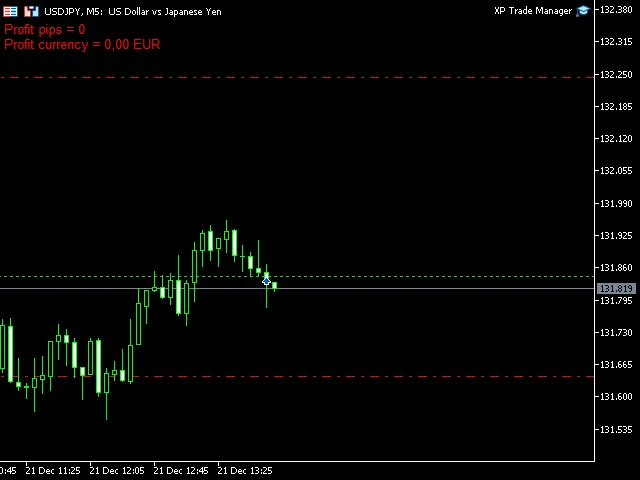
Are you looking to streamline your trading experience on MetaTrader 5? Look no further than the XP Forex Trade Manager MT5! This handy tool takes the hassle out of managing your open orders by automatically setting your Stop Loss and Take Profit levels as soon as you open a new trade. As the market moves, the Trade Manager can adjust your Stop Loss to Break Even (where your stop loss equals your open price) or employ a Trailing Stop feature to lock in those profits. This means you can focus more on strategizing rather than micromanaging your trades! The Forex Trade Manager can manage orders for the current symbols where the EA is active or all open orders across different symbols. Plus, you can keep your Stop Loss and Take Profit levels hidden from brokers, adding an extra layer of strategy to your trading. Key Features of the Forex Trade Manager MT5: Set Stop Loss and Take Profit: Customize your trades by setting SL and TP in pips. Trailing Stop Function: This feature trails your SL based on market price movements. Break Even Option: Move your SL to Break Even at a specified distance when in profit. Stealth Mode: Keep your SL/TP levels hidden from the broker. Parameter Settings: SLTP Params: Stop Loss – Set your stop loss in pips for each trade. Take Profit – Define your take profit in pips for each trade. Break Even: UseBreakEven (true/false) – Decide if you want to utilize the break-even feature for open trades. BEActivation – Set the profit in pips needed to activate the break-even function. BELevel – Determine the extra distance from BE in pips for placing SL using the break-even function. Trailing Stop: UseTrailingStop (true/false) – Choose to enable the trailing stop function for your open trades. TSStart – Define the profit in pips to activate trailing stop. TSStep – Set the minimum difference in pips between new and current SL for the trailing stop to move. TSDistance – Distance from the current price in pips for SL placement by the trailing stop. Behavior: StealthMode (true/false) – Hide SL/TP levels from the broker while the EA manages trades. OnlyCurrentPair (true/false) – Control whether to manage trades only from the current chart’s symbol or all pairs. Additional Information: All parameters for trades and functions can be adjusted in the EA settings. The Forex Trade Manager also displays real-time info on your daily profit/loss in pips and your account currency right on your chart, making it easier to track your performance.

2023.01.10
Maximize Your Trading with XP Forex Trade Manager Grid MT5
MetaTrader5
Maximize Your Trading with XP Forex Trade Manager Grid MT5

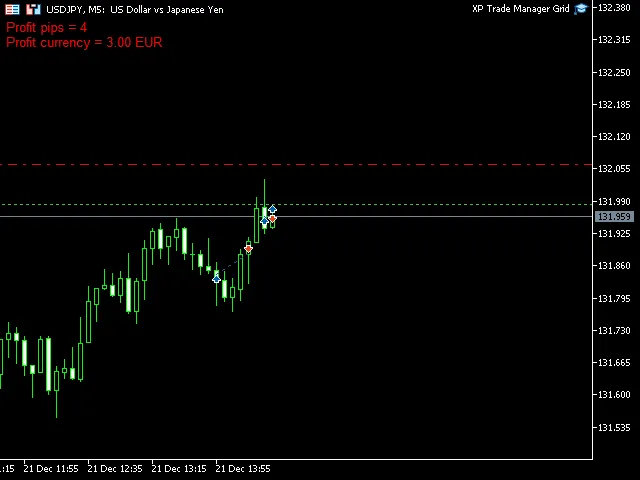
Are you looking to take your trading game to the next level? The Forex Trade Manager Grid MT5 is designed to help you manage your orders effectively and achieve your trading goals. All you need to do is place your first order with a Take Profit target, run the EA, and set the profit (in pips) you want to hit. This system takes care of managing your positions by gathering the specified number of pips. This strategy focuses on managing manual trades opened on the current pair. It adds positions to your existing trades using a grid management approach, with a customizable distance in pips between trades - accommodating up to 15 trades (or fewer, if you prefer). The first three trades are managed with individual take profits, while the fourth trade and beyond will close the entire grid at a common level, ideally at break-even. Once a trade hits its Take Profit, you can renew it, but keep in mind that the entire cycle can be closed if your losses exceed the allowed risk balance percentage. Parameters You Should Know: Additional Trade Params: AddNewTradeAfter: Sets the distance in pips from the last trade for adding new trades to the grid. Take Profit: TakeProfit1Total: Total TP in pips required from the first position. TakeProfit1Partitive: Initial TP in pips for the first position in the cycle. TakeProfit1Offset: Minimum distance in pips from the last closed first position’s TP required to renew this trade. TakeProfit 2/3: Individual TP in pips for the second and third positions in the cycle. TakeProfit 4/5/6/…15Total: Total TP in pips for all positions in the cycle (for four or more trades opened). Trade Params: MaxOrders: Maximum allowed number of trades in the grid. Risk Balance %: Maximum allowed loss as a percentage of the account balance (will close all opened positions). Lots: Lot size for trades opened by the EA. Slippage: Allowed slippage in points. Additional Information: All parameters for trades and functions are adjustable in the EA settings. The Forex Trade Manager Grid also provides valuable information directly on your chart, displaying the profit/loss from the current cycle in pips and your account’s currency.

2023.01.10
Maximize Your Trading Efficiency with XP Forex Trade Manager for MT4
MetaTrader4
Maximize Your Trading Efficiency with XP Forex Trade Manager for MT4

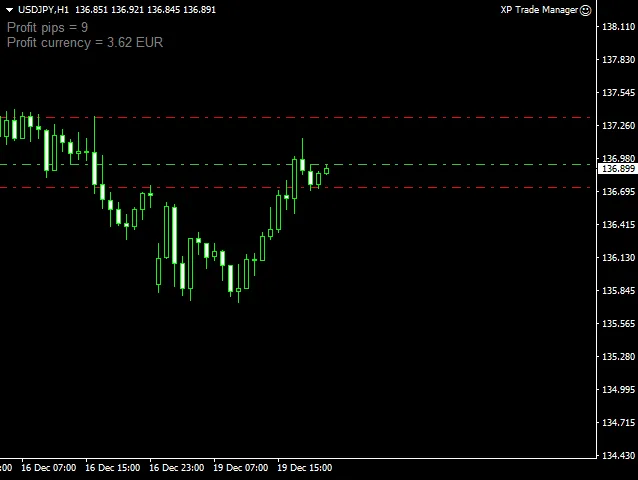
If you're trading on MetaTrader 4, the XP Forex Trade Manager is a game changer for managing your open orders. This handy tool takes the hassle out of trading by automatically setting your Stop Loss and Take Profit levels whenever you open a new order. Plus, as the market moves, it can adjust your Stop Loss to Break Even or implement a Trailing Stop to lock in those profits. The Forex Trade Manager can manage orders for the current symbol where the Expert Advisor (EA) is active or for all your open trades, regardless of the symbol. It even offers a stealth mode, keeping your Stop Loss and Take Profit levels hidden from your broker, which can be a strategic advantage. Key Features of the XP Forex Trade Manager Set Stop Loss and Take Profit: Easily configure these levels in pips for your trades. Trailing Stop: This feature trails your Stop Loss as the price moves, ensuring your profits are protected. Break Even: Move your Stop Loss to Break Even at a specified distance to safeguard your trades. Parameters You Can Customize SLTP Params Stop Loss - Set your Stop Loss in pips. Take Profit - Define your Take Profit in pips. Break Even Settings UseBreakEven (true/false) - Enable the break-even function for your open trades. BEActivation - Profit in pips required to activate the break-even feature. BELevel - Additional distance in pips for placing the Stop Loss via the break-even function. Trailing Stop Settings UseTrailingStop (true/false) - Enable the trailing stop feature for your open trades. TSStart - Profit in pips to activate the trailing stop function. TSStep - Minimum pip difference to adjust the Stop Loss using the trailing stop. TSDistance - Distance in pips for placing the Stop Loss when using the trailing stop function. Behavior Settings StealthMode (true/false) - Hide your SL/TP levels from the broker, closing trades programmatically at those levels. OnlyCurrentPair (true/false) - Manage trades only from the current chart's symbol or all pairs. Additional Information All parameters for the trades and functions can be easily adjusted in the EA settings. The Forex Trade Manager also displays valuable information directly on your chart, including your current daily profit or loss in pips and your account currency.

2023.01.10
Master Your Trades with XP Forex Trade Manager Grid MT4
MetaTrader4
Master Your Trades with XP Forex Trade Manager Grid MT4

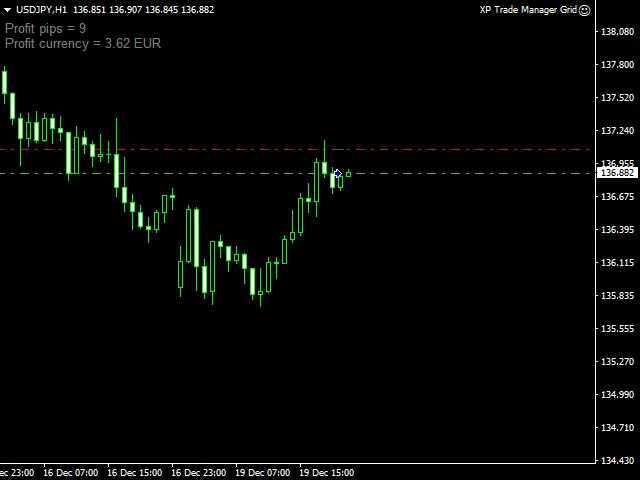
Hey fellow traders! If you're looking to streamline your trading process, the XP Forex Trade Manager Grid for MT4 might just be the tool you need. This Expert Advisor (EA) is designed to help you manage your orders effectively and hit your profit targets with less hassle. To get started, all you need to do is place your first order with a Take Profit (TP) level, run the EA, and set your desired profit in pips. From there, the EA takes over, managing your positions and working towards your specified pip target. This strategy is particularly useful for managing trades that you've opened manually on the current pair. The grid management strategy allows you to add positions to your existing trades at a specified distance in pips, managing up to 15 trades (or even fewer if you prefer). For the first three trades, you'll have individual take profits, but once you hit the fourth trade, the EA will close the entire grid at a common level—essentially breaking even. Plus, after closing a trade at TP, you can easily renew it. Just keep an eye on your risk; if your losses exceed the allowed percentage of your account balance, the cycle will close automatically. Key Parameters: Let's break down some of the important parameters: Additional Trade Params: AddNewTradeAfter: The distance in pips from the last trade after which new trades will be added to the grid. Take Profit: TakeProfit1Total: Total TP in pips required from the first position. TakeProfit1Partitive: Initial TP in pips for the first position in the cycle. TakeProfit1Offset: Minimum distance in pips from the last closed first position's TP required to renew this trade. TakeProfit 2/3: Individual TPs in pips for the second and third positions in the cycle. TakeProfit 4/5/6/…15Total: Total TP in pips for all positions in the cycle (when four or more trades are opened). Trade Params: MaxOrders: The maximum number of trades allowed in the grid. Risk Balance %: The maximum allowable loss as a percentage of your account balance, which will close all opened positions if exceeded. Lots: The lot size for trades opened by the EA. Slippage: The permitted slippage in points. Additional Info: All parameters and functions are customizable within the EA settings. Additionally, the Forex Trade Manager Grid displays important information on your chart, including profit/loss for the current cycle in both pips and your account currency.

2023.01.10
Unlocking Lazy Bot MT5: Your Daily Breakout Trading Companion
MetaTrader5
Unlocking Lazy Bot MT5: Your Daily Breakout Trading Companion

Introduction to Lazy Bot MT5 If you’re a trader looking to automate your daily breakout strategy, you’re in the right place! Lazy Bot MT5 is a powerful System Trading tool designed for MetaTrader 5, making trading both efficient and user-friendly. Let’s dive into the details of this Expert Advisor (EA) and explore how it can enhance your trading experience. 1. Input Parameters To get started, let’s outline the essential input parameters you’ll need to configure: EASettings: This is where you’ll put your EA settings. InpMagicNumber: Assign a magic number to your EA (e.g., 123456). InpBotName: Name your bot (e.g., LazyBot_V1). Inpuser_lot: Set your lot size (e.g., 0.01). Inpuser_SL: Define your stop loss in pips (e.g., 5.0). InpAddPrice_pip: Distance from the high/low to the opening price in pips. Inpuser_SLippage: Maximum allowable slippage in pips (e.g., 3). InpMax_spread: Maximum allowed spread in pips; set to 0 for floating. isTradingTime: Enable or disable trading time. InpStartHour: Set your trading start hour (e.g., 7). InpEndHour: Set your trading end hour (e.g., 22). isVolume_Percent: Allow volume percentage settings. InpRisk: Set your risk percentage of balance (e.g., 1). 2. Initialization of Local Variables Next, you’ll want to initialize your local variables for better readability and manageability: // Local parameters datetime last; int totalBars; int Pips2Points; // slippage 3 pips // Add other necessary local variables here 3. Core Functionality Now, let’s delve into the main code and how Lazy Bot operates. The bot automates the trading process by deleting old orders and identifying the highest and lowest values from the previous daily bar, subsequently sending two pending orders: BUY_STOP and SELL_STOP. 3.1 Expert Initialization Function int OnInit() { // Detecting digit precision if (_Digits % 2 == 1) { // Code for 3 or 5 digits } // Set up trading parameters return(INIT_SUCCEEDED); } 3.2 Expert Tick Function void OnTick() { // Check if trading is allowed if (!TerminalInfoInteger(TERMINAL_TRADE_ALLOWED)) { Comment("LazyBot\nTrade not allowed."); return; } // Perform trading operations } 4. Key Features Lazy Bot MT5 comes with several standout features: Trailing Stop Loss: Automatically adjusts your stop loss to lock in profits as the price moves. Order Management: Deletes old orders each day to ensure only the most relevant trades are active. Signal Calculation: Efficiently calculates trading signals for optimal entry points. 5. Conclusion Lazy Bot MT5 is an excellent choice for traders who want to incorporate a daily breakout strategy into their trading routine. By automating the trading process, this EA not only saves time but also ensures that you’re always in the market at the right moments. Happy trading! 6. Video Resources Check out these videos for more insights: MQL4 Tutorial: MQL5 Tutorial:

2022.12.14
Mastering Mean Reversion: Your Go-To EA for MetaTrader 4
MetaTrader4
Mastering Mean Reversion: Your Go-To EA for MetaTrader 4

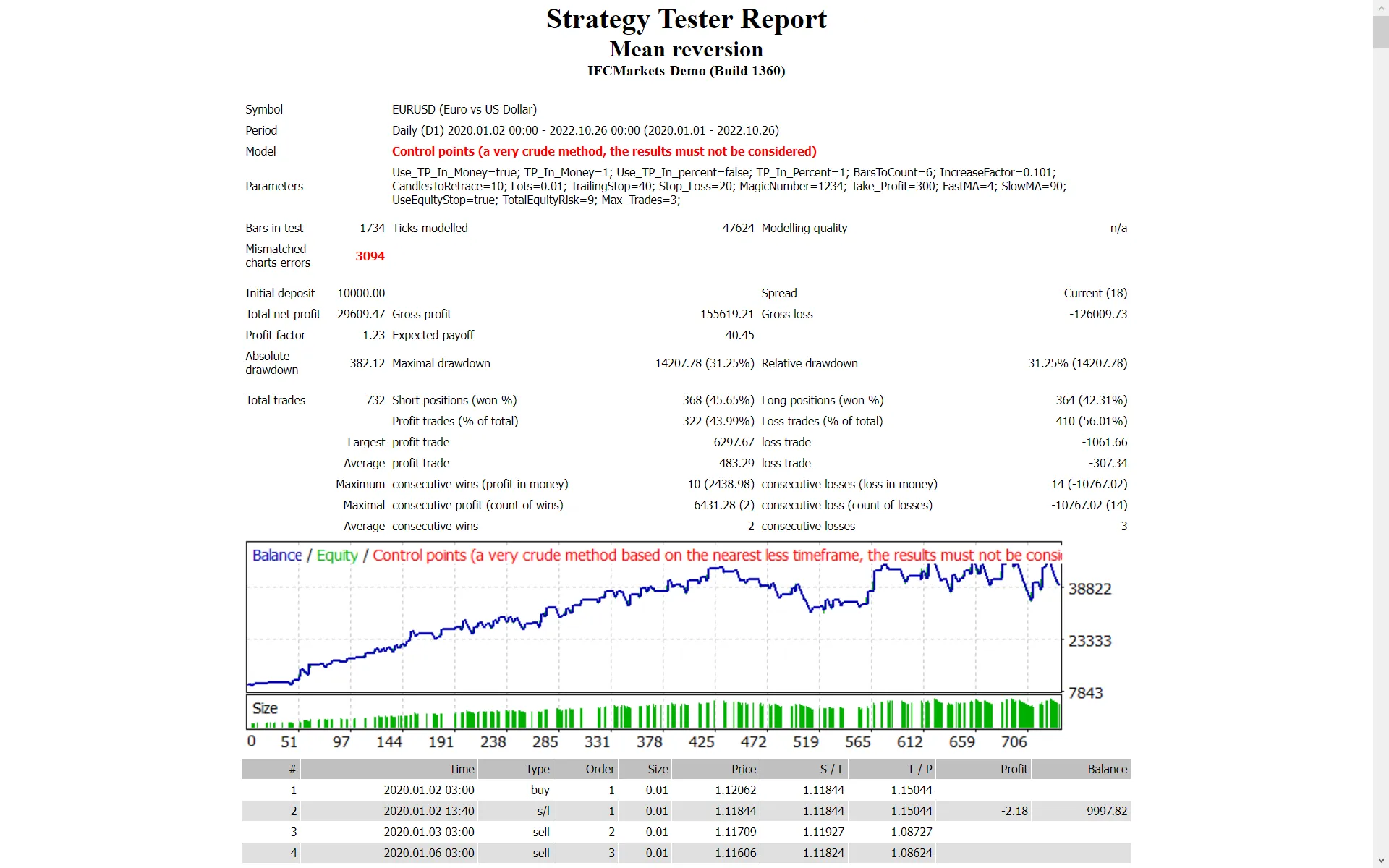
Welcome, fellow traders! Today, we're diving into the fascinating world of the Mean Reversion strategy, a powerful tool for trading major forex pairs on the daily time frame. Getting Started with Mean Reversion Test It Out First: Always give it a whirl on a demo account before jumping in with real cash. Trade with Open Candle Prices: This EA operates solely based on the price of the open candle! Manage Your Lots: If you're not keen on increasing your lot size after a losing trade, simply set IncreaseFactor=0. Now, let’s explore some key inputs you can tweak to optimize your trading experience: Use_TP_In_Money: Enable Take Profit in monetary terms (values: true/false). TP_In_Money: Set your Take Profit in money (values: 10-100). Use_TP_In_Percent: Enable Take Profit in percentage (values: true/false). TP_In_Percent: Set your Take Profit in percentage (values: 10-100). ---------------------Money Trailing Stop for Multiple Trades---------------------- Enable_Trailing: Enable trailing with money (values: true/false). Take Profit In Money: Set this in your current currency (values: 25-200). Stop Loss In Money: Set this in your current currency (values: 1-20). -------------------------------------------------------------------------------------- Exit: Close trades if the trend goes against you to control drawdown (values: true/false). BarsToCount: Specify how many bars to count (values: 1-20). Lots: Set your lot size (values: 0.01-1). Lots Size Exponent: Define the exponent for lot size (values: 1.01-2). IncreaseFactor: Determine how much to increase lots from total margin after a loss (values: 0.001-0.1). Stop_Loss: Set your stop loss (values: 30-500). Use a value of 600 for multiple trades. MagicNumber: Assign a magic number (values: 1-100000). TakeProfit: Set your take profit (values: 50-200). Again, use 600 for multiple trades. FastMA: Define your fast moving average (values: 1-20). SlowMA: Define your slow moving average (values: 50-200). Mom_Sell: Set the momentum sell trigger (values: 0.1-0.9). Mom_Buy: Set the momentum buy trigger (values: 0.1-0.9). ---------------------Control Drawdown----------------------------- UseEquityStop: Toggle equity stop (values: true/false). TotalEquityRisk: Set this value (values: 0.01-20). ------------------------------------------------------------------------------- Max_Trades: Define the maximum number of trades (values: 1-12). FractalNum: Set the number of highs and lows (values: 1-10). ----------------If You Use Only 1 Trade:----------------------- ///////////////////////////////////////////////////////////////////// USETRAILINGSTOP: Enable trailing stop (values: true/false). WHENTOTRAIL: Decide when to trail (values: 40-100). TRAILAMOUNT: Set the trail amount (values: 40-100). Distance From Candle: Specify the distance from the candle (values: 1-100). USECANDELTRAIL: Enable trailing stop based on the candle (values: true/false). X: Number of candles to consider (values: 1-100). USEMOVETOBREAKEVEN: Enable the break-even feature (values: true/false). WHENTOMOVETOBE: Set when to move to break-even (values: 1-30). PIPSTOMOVESL: Specify how many pips to move the stop loss (values: 1-30). Remember, it's wise to optimize this EA every few months using the same inputs mentioned above. You can utilize it as either a hedging grid EA or a single trade EA. If you're looking to perform a backtest, check out this helpful link: Backtest Guide. Happy trading!

2022.10.26
Unlocking Potential with the Equity Trailing EA for MetaTrader 5
MetaTrader5
Unlocking Potential with the Equity Trailing EA for MetaTrader 5

Hey there, fellow traders! If you're looking to maximize your trading efficiency, let me introduce you to the Equity Trailing EA designed specifically for MetaTrader 5. This tool started as a simple way to trail equity but has evolved into something much more powerful. Key Features of the Equity Trailing EA Initially, the EA was built to manage equity, but I soon realized that adding individual trade management capabilities was a game-changer. Here’s what you can expect: Customizable Pending Orders: You can manually set the price where you'd like the EA to send a grid of pending orders. This means you can plan your trades even when you're not at your desk. No Automated Trade Conditions: Unlike other systems, this EA doesn’t have predetermined conditions for opening trades. You need to identify an area where you think the market will move and set the price accordingly. Wake Up to Opportunities: Imagine waking up in the morning to see that the market has reached your specified area. All you need to do is set the price for the EA to initiate a grid of pending orders, and you're good to go! Trade Management: Once the market hits your set price, the EA will activate the grid and manage those trades for you. You can also set a Stop Loss and enable trailing if that's part of your strategy. As of today, September 13, 2022, I’m happy to report that the EA compiles without any errors. This makes it a reliable tool in your trading arsenal. So, whether you're a seasoned trader or just starting out, the Equity Trailing EA can significantly enhance your trading strategy. Give it a shot and see how it fits into your trading routine!

2022.09.07
Mastering the Trailing Stop with Fixed Parabolic SAR in MetaTrader 5
MetaTrader5
Mastering the Trailing Stop with Fixed Parabolic SAR in MetaTrader 5

In the world of trading, having the right tools at your disposal can make all the difference. Today, we’re diving into how to utilize the Fixed Parabolic SAR to set up a trailing stop in MetaTrader 5. This powerful technique allows you to specify the starting point of your Parabolic SAR directly, enhancing your trading strategy. Parameters Trailing Mode: None / Trailing Fixed / Trailing Fixed Parabolic SAR Let’s take a closer look at how the calculations work for the Parabolic SAR: bool CSampleExpert::LongModifiedEx(void) { bool res=false; //--- check for trailing stop if(m_trailing_max < m_last_bar.high) { double tp=m_position.TakeProfit(); double sl=m_position.StopLoss(); //--- calculate ParabolicSAR m_trailing_max = m_last_bar.high; m_trailing_step = fmin(InpPSAR_Maximum, m_trailing_step + InpPSAR_Step); double sar_stop = sl + (m_trailing_max - sl)* m_trailing_step; sar_stop=NormalizeDouble(sar_stop,m_symbol.Digits()); //--- if((sl==0.0 || sl < sar_stop) && sar_stop < m_symbol.Bid()) { //--- modify position if(m_trade.PositionModify(Symbol(),sar_stop,tp)) printf("Long position by %s to be modified",Symbol()); else { printf("Error modifying position by %s : '%s'",Symbol(),m_trade.ResultComment()); printf("Modify parameters : SL=%f,TP=%f",sar_stop,tp); } //--- modified and must exit from expert res=true; } } //--- result return(res); } Using the Fixed Parabolic SAR to manage your trailing stops can help lock in profits while minimizing losses. Keep experimenting with these parameters to find what works best for your trading style. Happy trading!

2022.07.09
First Previous 6 7 8 9 10 11 12 13 14 15 16 Next Last